

Business records become hard to manage when the document you need exists somewhere, but you cannot tell where it was saved, what it relates to, or whether the supporting file is complete.
This free record-keeping template for small business gives you one master register for important records. Use it to index invoices, receipts, bank statements, contracts, client and vendor records, inventory records, asset files, insurance documents, payroll records, and other business paperwork.
Important: this is a records register, not a second bookkeeping system. It helps you see what record exists and where the supporting file is stored. For income, expenses, unpaid invoices, client details, or stock quantities, use the dedicated tracker built for that job.
Get the free small-business record-keeping spreadsheet
The template includes a Records Register, automatic data checks, a simple dashboard, editable record types, and sample records.
Choose the Excel download or make your own Google Sheets copy.
What the Record-Keeping Template Includes
The workbook is designed around one practical job: keep a clean index of business records without duplicating the detailed systems you already use.
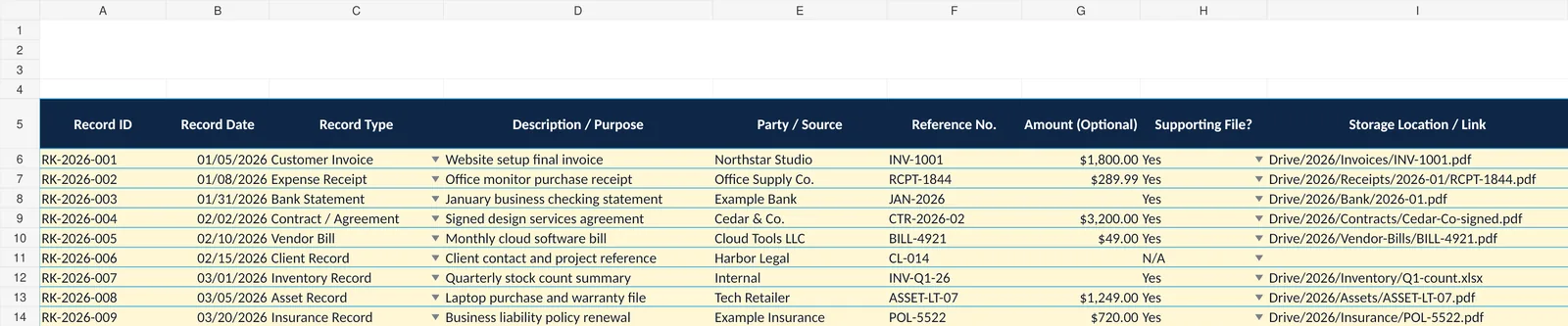
- Records Register. One row for each business record you want to index.
- Unique Record ID. A simple reference such as RK-2026-001 makes a record easier to find later.
- Record Date and Type. Classify the item as an invoice, receipt, bank statement, contract, client record, inventory record, or another type.
- Description and Party/Source. Add enough context to understand what the record is and who it relates to.
- Reference Number. Store an invoice number, contract number, statement reference, asset ID, or another useful identifier.
- Optional Amount. Record an amount when it helps identify the document. The workbook does not add those values into accounting totals.
- Supporting File Check. Mark whether the supporting document exists.
- Storage Location / Link. Record the folder path, cloud link, or filename where the evidence is stored.
- Owner and Review Date. Useful when one person needs to check or update a record later.
- Status. Use Active, Complete, or Archived to keep the register easier to review.
- Automatic Data Check. The workbook flags duplicate IDs, blank required fields, missing support, and missing storage locations.
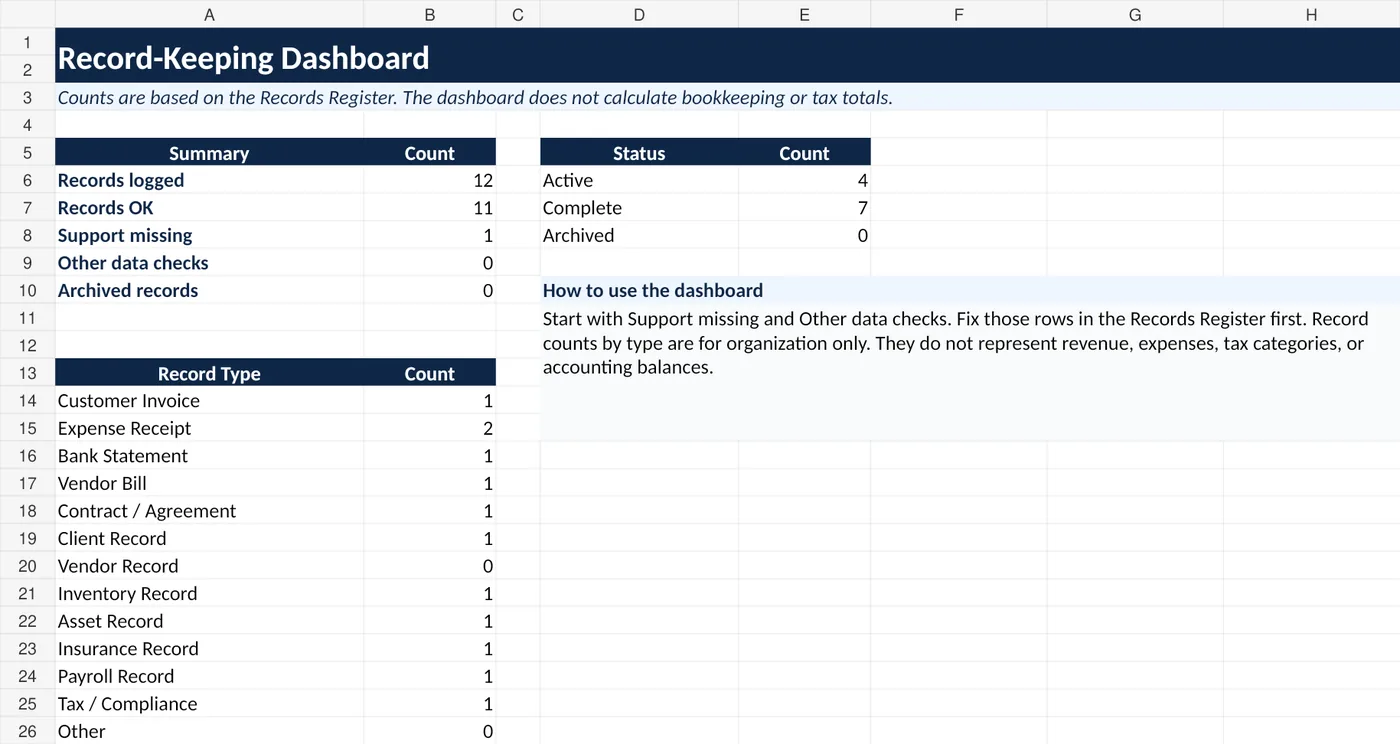
- Dashboard. Review record counts, missing support, status totals, and the mix of record types.
Why This Template Is Different From a Bookkeeping Spreadsheet
A general record-keeping page can easily become another expense or accounting tracker. That would create duplicate work.
This template keeps the boundary clear. It is the index. Your accounting, invoice, expense, client, and inventory files remain the detailed systems.
| Tool | Main job | Use it when |
|---|---|---|
| Record-keeping template | Index important business records and their supporting files | You need to know what record exists, what it relates to, and where the file is stored |
| Accounting template | Record income and expenses with monthly totals | You need a simple money-in and money-out transaction log |
| Expense tracker | Track business spending | You need expense categories, payment details, receipt checks, and spending review |
| Invoice tracker | Track invoices and payment status | You need to see what is paid, unpaid, or overdue |
| Client tracker | Keep client details and follow-up information | You need one working list of clients, contacts, status, and notes |
| Inventory template | Track stock quantities and reorder needs | You manage physical inventory and need item-level stock records |
You can link to those detailed records from the Storage Location / Link field instead of copying the same information into several spreadsheets.
How to Use the Small-Business Record-Keeping Template
1. Download the workbook and keep one clean master copy
Choose the Excel download or make a Google Sheets copy from the buttons above. Keep one untouched master copy before replacing the sample records. That gives you a clean starting point if you later change the template too heavily.
2. Replace the sample records
Open the Records Register sheet. The sample rows show how different types of records can be indexed. Replace them with your own records or clear the editable cells and start from an empty register.
The file is prepared for up to 500 record rows. You do not need to fill unused rows.
3. Give each record a unique ID
Use a short ID that will still make sense later. For example:
- RK-2026-001
- RK-2026-002
- RK-2026-003
The Data Check column flags a duplicate ID so two different records do not accidentally use the same reference.
4. Choose the record type
The Record Type dropdown includes common administrative categories such as Customer Invoice, Expense Receipt, Bank Statement, Vendor Bill, Contract / Agreement, Client Record, Inventory Record, Asset Record, Insurance Record, Payroll Record, and Tax / Compliance.
Edit the list if your business uses different labels. Keep the number of categories manageable so people choose them consistently.
5. Record where the supporting file is stored
The spreadsheet is not meant to hold every document inside the workbook. Use the Supporting File? field to confirm whether the evidence exists, then use Storage Location / Link to record where it lives.
That can be a cloud link, a folder path, or a clear filename. For example:
- Drive/2026/Invoices/INV-1001.pdf
- Drive/2026/Receipts/2026-01/RCP-1844.pdf
- Drive/2026/Contracts/Cedar-Co-signed.pdf
If the row says the supporting file exists but the storage location is blank, the Data Check column flags it.
6. Review the dashboard
The Dashboard gives you a quick control view. It shows how many records are logged, how many pass the data checks, how many are missing support, record status counts, and records by type.
It does not calculate revenue, expenses, profit, deductible amounts, tax balances, or accounting balances.
What Business Records Can You Track?
The right list depends on the business. The template is flexible enough for common administrative records without claiming that every business needs the same documents.
- Customer invoices: final invoices, invoice PDFs, or invoice references.
- Expense receipts: receipts and supporting purchase documents.
- Bank statements: monthly business account statements.
- Vendor bills: supplier bills or service invoices.
- Contracts and agreements: signed client, vendor, lease, or service agreements.
- Client and vendor records: reference files or important administrative records that do not belong in a contact tracker.
- Inventory records: stock-count files, inventory reports, or supporting inventory documents.
- Asset records: purchase documents, serial references, warranties, or disposal records.
- Insurance records: policies, renewal documents, or certificates.
- Payroll records: administrative payroll files when your business has a separate payroll process.
- Tax or compliance records: filings, confirmations, notices, or supporting documents that your business is required to keep.
The IRS says a business may use a recordkeeping system that fits the business as long as it clearly shows income and expenses, and its examples of supporting documents include invoices, receipts, paid bills, and deposit records. See the IRS guidance on what business records to keep.
This template does not decide which records your business is legally required to retain or how long to keep them. Requirements depend on the record, business, location, and purpose.
Keep the Spreadsheet as an Index, Not the Evidence Itself
A row saying “receipt saved” is useful only if the actual receipt can still be found.
Use the register together with a consistent file system. A simple structure might separate records by year and record type. Keep filenames clear enough that the spreadsheet entry and stored file can be matched without guessing.
If receipts are the main problem, use the separate guide on organizing business receipts in Google Drive. It goes deeper into the capture, naming, folder, and monthly-check workflow.
What the Automatic Data Check Looks For
The Data Check column is deliberately simple. It looks for problems that make a record harder to trust or retrieve:
- DUPLICATE ID: the Record ID already appears elsewhere in the register.
- CHECK REQUIRED FIELDS: Record ID exists but the date, type, or description is missing.
- SUPPORT MISSING: Supporting File? is set to No.
- ADD FILE LOCATION: Supporting File? is Yes but Storage Location / Link is blank.
- OK: the basic record checks pass.
These checks are administrative controls. “OK” does not mean the record is legally sufficient, tax-deductible, approved, or correct in an accounting sense.
What Not to Store in the Register
Keep the workbook focused on the information needed to identify and find a record. Avoid putting sensitive data into a general spreadsheet just because an empty cell is available.
For example, do not use the Notes field for passwords, full payment-card numbers, private identity-document numbers, or other sensitive information that belongs in a more secure system.
If several people use the file, review the sharing permissions on both the spreadsheet and the folders it links to.
When a Spreadsheet Is Enough
A records register can work well when the number of records is manageable, only a few people maintain the file, and supporting documents already have a clear storage location.
You may need a more specialized document, accounting, or records-management system when you need features such as formal access controls, automatic retention rules, audit trails, approval workflows, bank feeds, reconciliation, payroll accounting, inventory accounting, or large-volume document processing.
The point is not to turn this spreadsheet into software. Use it while it keeps the record-finding job simple and reliable.
Need a record system built around your workflow?
If your current files are spread across several spreadsheets and folders, Simple Office AI can help clean up the structure, repair formulas, or build a simpler administrative spreadsheet around the way your business works.
Frequently Asked Questions
What is a small-business record-keeping template?
It is a spreadsheet used to organize a register of business records. This template records what the item is, its date and reference, whether supporting evidence exists, where the file is stored, who owns it, its status, and basic data-check results.
Can I use this template for bookkeeping?
Use it as a record index, not as your main bookkeeping ledger. If you need to record income and expenses and review monthly totals, use the small-business accounting template instead.
Can I customize the record types?
Yes. Edit the Lists sheet to replace the default record types with categories that fit your business. Keep the list short and consistent enough that the same kind of record is not filed under several different names.
How do I track where documents are stored?
Use the Storage Location / Link column for a cloud link, folder path, or clear filename. The Data Check column flags a row when Supporting File? is Yes but the storage location is blank.
Can I use this template in Google Sheets?
Yes. Use the Google Sheets button above to make your own copy of the prepared Google Sheets version. The Excel download is also available if you prefer to work in Excel.
Does this template tell me how long to keep business records?
No. The workbook does not include retention periods because the correct period depends on the type of record and the rules that apply to your business. Use the relevant government guidance or professional advice for records with legal, tax, payroll, or regulatory requirements.
This spreadsheet is an administrative organization tool. It is not accounting, bookkeeping, tax, legal, payroll, or records-retention advice.