

If your income and expenses are stored in different files, it becomes hard to answer a basic question: what money came in, what went out, and what was the simple result for the month?
This free Google Sheets accounting template gives a freelancer or small business one transaction log for both income and expenses. It adds categories, payment or account details, automatic monthly totals, and a simple income-minus-expenses net result.
Get the free small business accounting template
Google sign-in is required to save your own Google Sheets copy.
Scope: this is a simple record-organization and bookkeeping spreadsheet. It is not tax-return preparation, Schedule C guidance, payroll accounting, depreciation accounting, a formal balance sheet, or professional accounting or bookkeeping advice. It does not replace accounting software or an accountant when your business needs those tools or services.
What the Google Sheets Accounting Template Includes
The workbook is intentionally small. The goal is to keep routine transaction records in one place without turning a spreadsheet into a full accounting system.
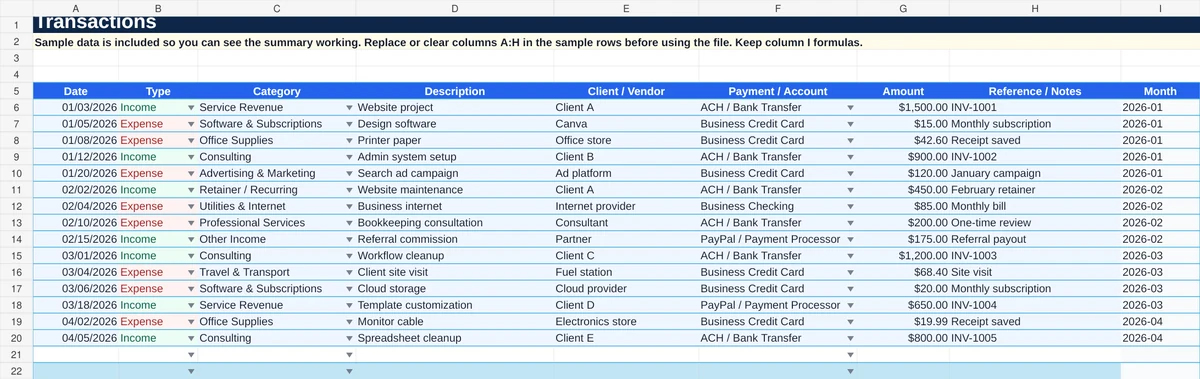
- Combined transaction log. Record income and expenses in the same table.
- Date and type fields. Choose Income or Expense for each row.
- Editable categories. Use the included income and expense categories or replace them with labels that fit your business.
- Description and client/vendor fields. Add enough context to understand the transaction later.
- Payment/account field. Record where the money moved, such as business checking, credit card, cash, bank transfer, or a payment processor.
- Positive amount entry. Enter the amount as a positive number. The Type field controls whether the row is treated as income or an expense.
- Automatic month field. The month is calculated from the transaction date.
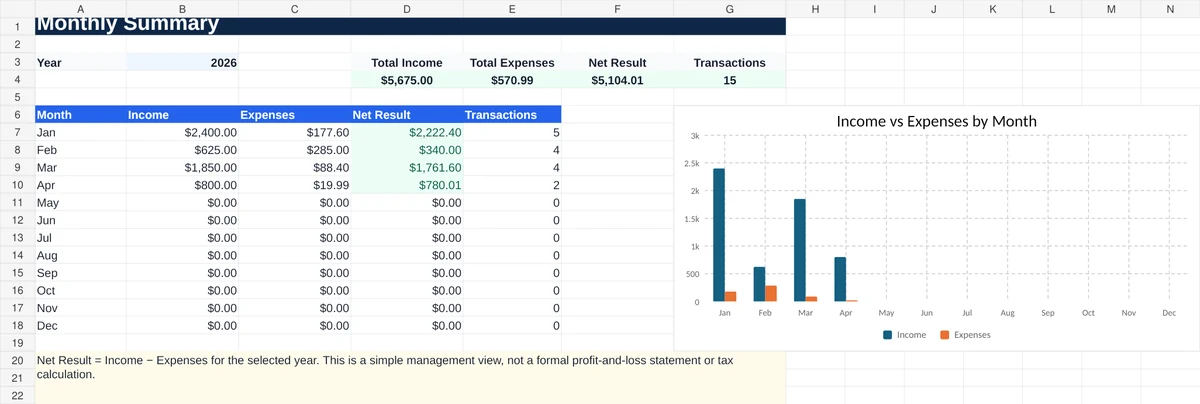
- Monthly summary. Review income, expenses, net result, and transaction count by month.
- Simple annual totals. The summary shows total income, total expenses, net result, and recorded transaction count for the selected year.
- Example transactions. The file includes sample rows so you can see how the fields work together before replacing them with your own records.
How to Use the Accounting Template
1. Make a copy or download the Excel version
Use the green button above for the Google Sheets version. If you prefer Excel, use the blue download button. Keep one clean master copy before you start changing the sample data.
Google also documents the normal File → Make a copy workflow for Google Sheets.
2. Replace the sample transactions
Open the Transactions tab. Replace or clear the sample values in columns A through H. Keep the Month formulas in column I because they feed the monthly reporting.
The template is prepared for up to 500 transaction rows. You do not need to fill unused rows.
3. Keep one transaction per row
Do not combine several purchases or several customer payments into one cell. One row should represent one recorded transaction.
For example, a $29.99 software subscription and a $105 internet bill should be separate rows even if they were paid from the same account.
4. Choose Income or Expense
The Type dropdown has two choices: Income and Expense. Use the category that matches that transaction, then enter the amount as a positive value.
This keeps the data-entry rule simple. You do not need to remember when to type a negative amount.
5. Add enough detail to identify the transaction
Use Description for the purpose of the transaction. Client / Vendor identifies the other party when that is useful. Payment / Account tells you where the money moved.
The Reference / Notes field can hold an invoice number, receipt note, payment reference, or another short detail. It is optional.
6. Review the Monthly Summary
The Monthly Summary uses the transaction date and Type field to calculate monthly income and expenses. Net Result is simply:
Recorded income − recorded expenses
The example data currently totals $5,675.00 in income and $570.99 in expenses, producing a $5,104.01 simple net result. These numbers are sample data only. Replace them with your own records.
The summary is a management view. It should not be treated as a formal profit-and-loss statement or a tax calculation.
If you need category-by-month income, expense, and profit reporting, use the Google Sheets profit and loss template. Choose one transaction log for your working records so you do not enter the same transactions twice.
7. Change the categories when needed
The Categories tab includes separate income and expense labels plus a short payment/account list. Keep the list small enough that you can choose a category consistently.
If a category does not help you review the business, remove or rename it. The purpose is clear organization, not creating the longest possible chart of accounts.
What the Monthly Summary Tells You
The summary answers four practical questions for each month:
- How much recorded income came in?
- How much recorded expense went out?
- What is the simple difference between those two totals?
- How many transactions are in the log for that month?
The included example starts with January through April activity. Months without transactions stay at zero instead of producing formula errors.
Accounting Template vs Expense Tracker vs Budget vs Invoice Tracker
These spreadsheets solve different problems. Keeping the boundaries clear reduces duplicate work.
| Tool | Main job | Use it when |
|---|---|---|
| Accounting template | Combined income and expense transaction record with monthly totals | You want one simple record of money in, money out, categories, and a monthly net result |
| Expense tracker | Expense-only tracking | You mainly need spending categories, payment details, and expense follow-up |
| Budget spreadsheet | Planning and budget vs actual | You need to plan expected income and expenses and compare them with actual results |
| Invoice tracker | Receivables and invoice status | You need to see which invoices are paid, unpaid, or overdue |
You can use more than one of these files, but avoid entering the same information in several places unless there is a clear reason.
When a Spreadsheet Is Enough
This type of spreadsheet can be practical when the recordkeeping is straightforward, the number of people editing the file is small, and you mainly need a clear internal transaction record and summary. If you also need one broader checklist for organizing financial, client, vendor, contract, and other business records, use the small-business record-keeping template.
A spreadsheet may become too limited when you need bank feeds, formal reconciliation workflows, payroll, inventory accounting, detailed permissions and audit controls, more complex reporting, or tax and compliance workflows. At that point, dedicated accounting software or professional help may be more appropriate.
The decision is not about making the system look more professional. It is about whether the spreadsheet still handles the real work reliably.
Common Mistakes to Avoid
- Using negative amounts and Type at the same time. This template expects positive amounts. Choose Income or Expense instead.
- Changing category names inconsistently. Use the dropdown list so the same type of transaction does not end up under several spellings.
- Deleting the Month formulas. Keep column I intact so monthly reporting continues to work.
- Using the net result as a formal financial statement. It is only the difference between the income and expense rows recorded in this file.
- Turning the sheet into tax preparation. The template is for transaction organization, not tax classification or return preparation.
- Trying to make one spreadsheet do everything. Use a dedicated invoice tracker, budget, or other system when the problem is different.
Need a spreadsheet built around your business workflow?
If your current Excel or Google Sheets file has become difficult to maintain, Simple Office AI can help clean up the structure, repair formulas, or build a simpler administrative spreadsheet around the way you work. This service does not provide tax, accounting, bookkeeping, or financial advice.
Frequently Asked Questions
What is a Google Sheets accounting template?
It is a spreadsheet used to organize financial transaction records. This template keeps income and expenses in one log and summarizes the recorded totals by month.
Can I use this template for a small service business?
Yes, if your needs are simple. It can record customer income, business expenses, categories, descriptions, payment or account details, and monthly totals without adding payroll, tax, or formal accounting workflows.
Does the accounting template work in Excel?
Yes. An Excel version is available from the download button above. The core transaction log, monthly formulas, categories, and summary are designed to work in both Excel and Google Sheets.
Can I change the categories and payment or account options?
Yes. Edit the Categories tab to replace the default labels with a short list that fits your business. Keep category names consistent so the transaction log remains easy to filter and review.
Is this a profit-and-loss statement or tax template?
No. The Net Result field is only recorded income minus recorded expenses for the selected period. The workbook is not a formal profit-and-loss statement, tax-return template, balance sheet, or professional accounting report.
When should I use accounting software instead of a spreadsheet?
Consider dedicated software when the spreadsheet no longer handles the work reliably, such as when you need bank feeds, formal reconciliation, payroll, more complex controls, or specialized reporting. The right point depends on the complexity of your business rather than a fixed transaction count.
This template is an administrative record-organization tool. It is not accounting, bookkeeping, tax, legal, or financial advice.