

If your business receipts are split between email, your phone, a Downloads folder, and a pile of paper, tax-time cleanup becomes a retrieval problem. The simplest fix is not another spreadsheet. It is one capture inbox, one naming rule, one Google Drive folder structure, and one regular receipt check.
Quick answer: Create a Business Receipts folder in Google Drive, add one folder for the year, create an 00_INBOX – Unfiled folder plus monthly folders, and rename every receipt with the same pattern before filing it. Use the Inbox for fast capture; use the monthly review to make the archive complete.
Used this way, Google Drive becomes a simple business receipt organizer: one place to capture, rename, file, and retrieve supporting documents without creating another spreadsheet just for receipts.
This guide is an administrative organization workflow, not tax, accounting, or legal advice. The IRS allows businesses to choose a recordkeeping system suited to the business as long as it clearly shows income and expenses, and it identifies receipts and invoices as supporting documents. Record-retention periods vary by the type of record and the event it supports.
How to Organize Receipts for a Small Business in Google Drive
Start simple. A deep folder tree looks organized on day one but creates more filing decisions every time a receipt arrives. For many freelancers and small businesses, a year-and-month structure is easier to maintain:
- Business Receipts
- 2026
- 00_INBOX – Unfiled
- 01_January
- 02_February
- 03_March
- 04_April
- 05_May
- 06_June
- 07_July
- 08_August
- 09_September
- 10_October
- 11_November
- 12_December
- 99_Year-End Export
- 2026
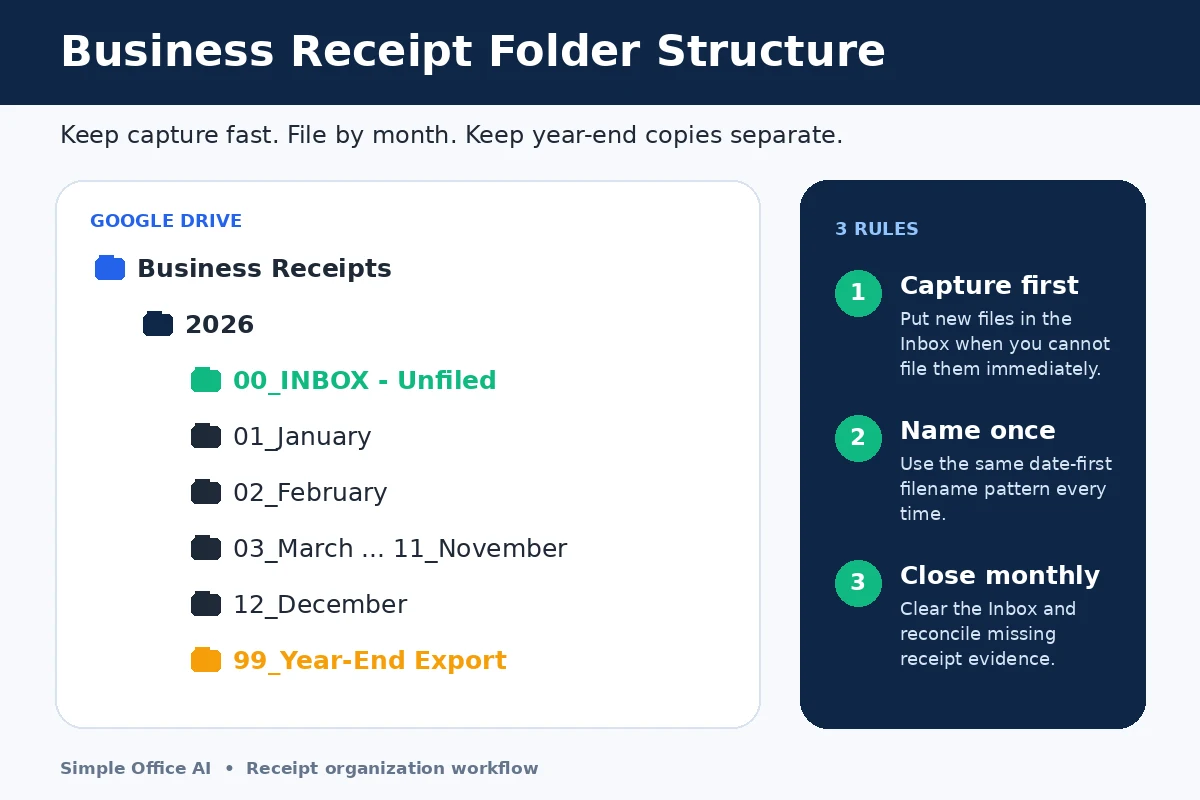
Google itself recommends clear naming conventions plus folders and subfolders to make Drive easier to navigate. The important part is consistency, not finding one universally “correct” folder system.
If your receipt volume becomes high, you can add category subfolders inside each month. Do that only when it solves a real retrieval problem, and use the same categories as the bookkeeping system you already maintain rather than inventing a second classification system.
Download the Business Receipt Filing Starter Kit
The free two-page starter kit includes the folder structure, filename pattern, monthly receipt close, and a year-end handoff reminder. It is a checklist and setup aid, not a tax-retention schedule.
Step 1: Create an Inbox Before You Create More Rules
The 00_INBOX – Unfiled folder is what makes this workflow practical. A receipt can be captured immediately without deciding its final month, category, project, or bookkeeping treatment on the spot.
- In Google Drive, create a folder called Business Receipts.
- Create the current year inside it.
- Create 00_INBOX – Unfiled.
- Add the 12 month folders and a 99_Year-End Export folder.
The Inbox is temporary. During your regular receipt review, clear it by renaming each file, checking that it is readable, and moving it into the right month.
Step 2: Use One Receipt Filename Every Time
Names such as IMG_4837.jpg and receipt-final-2.pdf force you to open files to discover what they contain. A date-first filename sorts naturally and remains understandable outside Google Drive.
Recommended pattern: YYYY-MM-DD_Vendor_Amount_Purpose.ext
Examples:
2026-09-15_Staples_42-80_USB-Hub.pdf2026-09-18_AcmeHosting_29-00_Website.pdf2026-09-22_CityParking_18-00_Client-Visit.pdf
Keep the purpose short. The filename should help you identify the document without opening it; it should not become a mini bookkeeping record. Avoid putting account numbers, confidential client information, card details, or other sensitive data in filenames.
Step 3: Scan Paper Receipts Into Google Drive From Your Phone
The Google Drive mobile app can scan documents such as receipts on Android and iPhone/iPad and save them as searchable PDFs. Google’s current help page also notes that the web version of Drive does not provide the document-scanning feature.
- Open the Google Drive app on your phone.
- Use the Scan or camera option.
- Capture the whole receipt and crop it carefully.
- Add another page if the document has more than one page.
- Rename the scan using your standard filename.
- Save it to 00_INBOX – Unfiled or directly to the correct month if you are filing it immediately.
Before you move on, zoom in and confirm that the vendor, date, total, and any information you may need later are readable. A blurry scan is not a useful backup simply because a file exists.
If you plan to destroy original paper records after scanning, do not rely on this article alone. Review the current IRS rules for electronic storage and any state, industry, insurer, lender, or other record-retention requirements that apply to your business.
Step 4: Save Digital Receipts From Email and Websites
Digital receipts should enter the same system as paper receipts. If a supplier gives you a PDF or downloadable receipt, save the original document when possible instead of relying on a screenshot of the email.
- Download the receipt or invoice.
- Rename it using the same date-vendor-amount-purpose pattern.
- Upload it to the receipt Inbox.
- During your review, move it to the correct month.
The goal is one home for supporting documents. Searching three inboxes, a phone camera roll, Downloads, and Drive at year end is not a recordkeeping system. For a broader register that covers more than receipt files, use the small-business record-keeping template.
Step 5: Connect Drive to Your Expense Tracker Without Duplicating Work
Your expense tracker and your receipt archive should have different jobs. The spreadsheet records the transaction; Google Drive stores the supporting document.
If you use the Simple Office AI Google Sheets expense tracker, use its Receipt Saved? field as a control. Mark a receipt as saved only after the document is actually in your Drive archive and readable. At month end, filter for missing receipts and resolve those gaps while the purchase is still easy to remember.
This separation avoids building another receipt spreadsheet that competes with your existing expense log. One system tells you what happened; the other lets you retrieve the evidence.
Step 6: Run a Monthly Receipt Close
A good folder structure still fails if the Inbox is never emptied. Add a short receipt close to the monthly admin routine.
- Clear 00_INBOX – Unfiled.
- Rename files that still have camera or download names.
- Confirm scans are readable.
- Move receipts into the correct month.
- Compare your receipt archive with the expense records you actually maintain.
- Resolve expenses that are marked as missing a receipt.
- Check unusual or larger transactions for the correct supporting document.
- Remove accidental duplicate scans only after comparing them.
- Use your normal business backup process for important records.
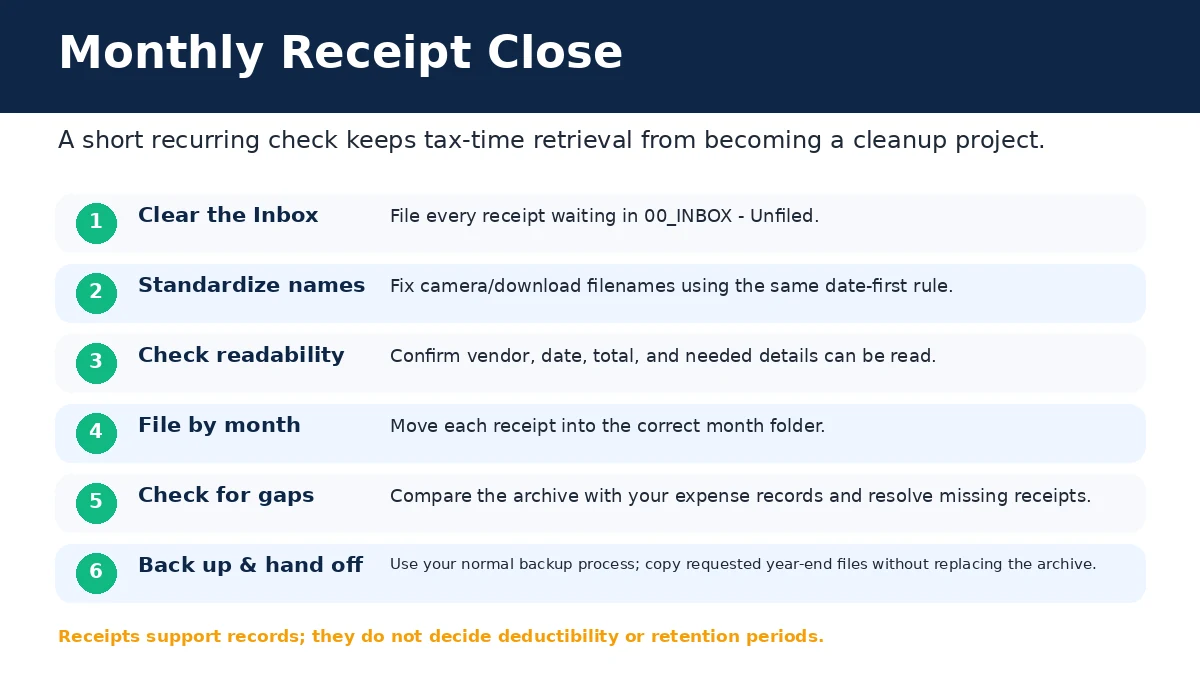
A receipt is supporting documentation; it does not by itself decide whether an expense is deductible or how it should be treated. Keep bookkeeping and tax decisions in the appropriate system and with the appropriate professional advice when needed.
Step 7: Prepare Year-End Records Without Guessing the Retention Period
The 99_Year-End Export folder is for a clean handoff, not for replacing your archive. Copy the documents your accountant or tax preparer requests into that folder and leave the organized monthly archive intact.
Avoid blanket rules such as “delete everything after seven years.” The IRS says how long you should keep a document depends on the action, expense, or event it records, and different limitation periods apply in different situations. Other business, state, employment, property, lender, insurance, or industry requirements can also matter.
When sharing records, share only what is needed. Do not give someone access to your entire Drive when a limited folder or a set of copies will do.
What This Google Drive System Does — and Does Not Do
It helps you:
- capture receipts in one place;
- use filenames that remain understandable and searchable;
- retrieve documents by year, month, vendor, date, or amount;
- spot missing receipts during a regular review;
- prepare a cleaner document handoff at year end.
It does not:
- decide whether an expense is deductible;
- replace your bookkeeping records;
- guarantee compliance with every federal, state, or industry rule;
- automatically extract, categorize, approve, or reconcile high volumes of expenses.
When Google Drive Is Enough — and When It Is Not
Google Drive is a sensible starting point when one person or a small team has a manageable number of receipts and mainly needs reliable capture and retrieval.
Dedicated receipt or expense-management software becomes more useful when you need automatic extraction, employee submissions, approvals, policy enforcement, accounting synchronization, or large-volume processing. Do not add software just because it exists; add it when the manual Drive workflow has a specific bottleneck.
Need Help Organizing a Larger Business File System?
If your receipts are only one part of a larger file problem, Simple Office AI can help simplify spreadsheets and administrative systems. The Contact page specifically supports requests involving business files or a Google Drive structure that needs to be clearer.
Need help organizing your business files?
See Simple Office AI ServicesView services
describe the workflow you want to organize
You can also browse more practical admin guides from the Blog hub
Keep the checklist:
Frequently asked questions
Should I file receipts by month or by vendor?
Use the year and monthly folders as the main structure in this workflow. Include the vendor in the filename so you can search without maintaining a second filing system.
What belongs in the receipt inbox?
New scans and downloads that have not yet been renamed and filed. Review the inbox regularly so it remains a temporary capture point.
Does the expense spreadsheet replace the receipt?
No. Keep the supporting file in Drive and reference its location from the expense record. The spreadsheet records the expense; the file preserves the evidence.
What should I check before closing a month?
Empty the receipt inbox, match files to recorded expenses, open a few saved documents to confirm readability, and list any missing support for follow-up.