

Use this free Google Sheets invoice tracker to record customer invoices, payments, outstanding balances, and due dates in one file.
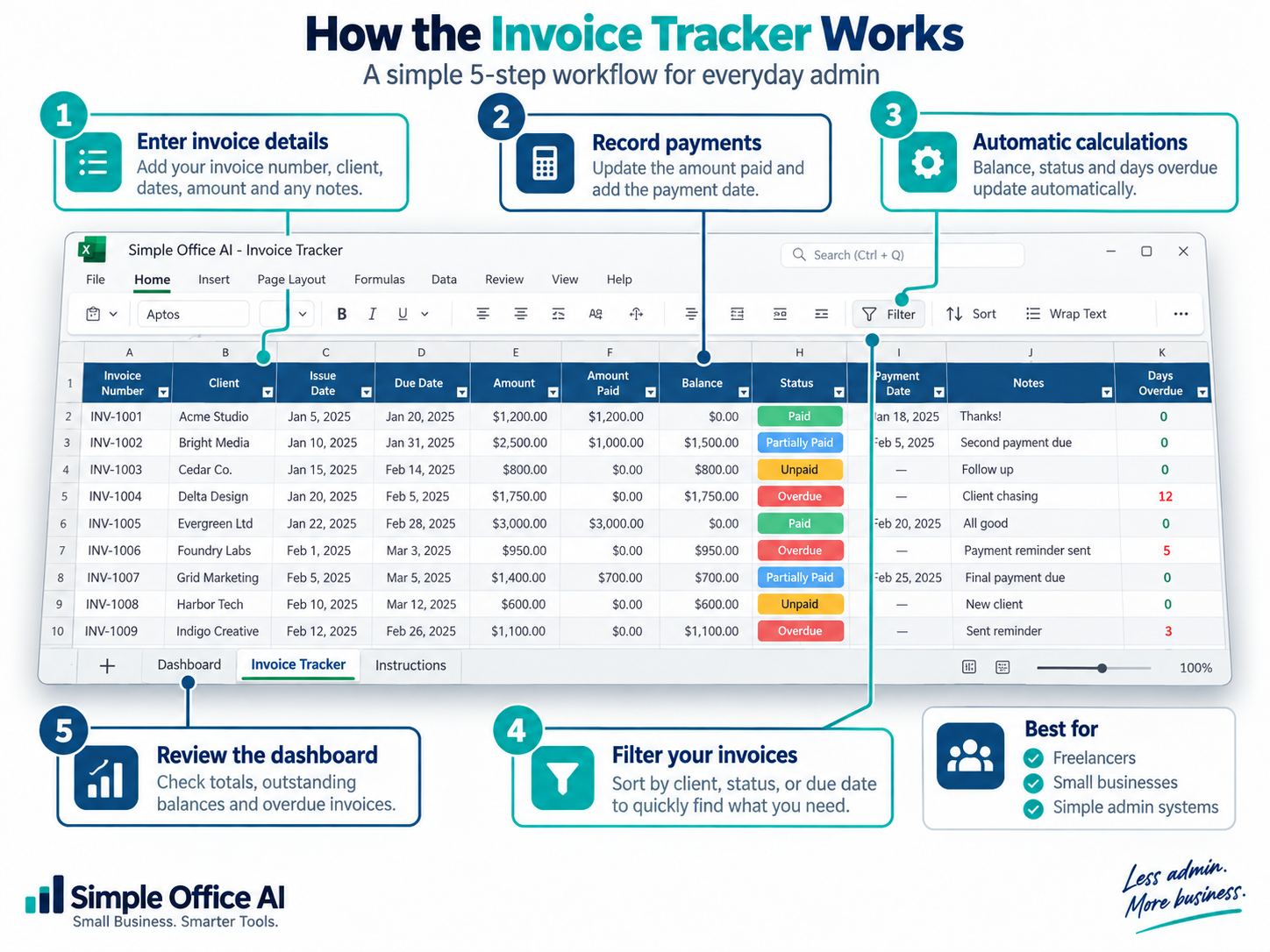
Add one invoice per row and update Amount Paid when a payment arrives. The tracker calculates Balance, Status, and Days Overdue and summarizes the records on a dashboard.
Make a Copy in Google Sheets Copy in Google Sheets
Quick start: use the template
- Save your own copy using the buttons above. Keep a clean master before replacing the sample invoices.
- Enter one invoice with its number, client, invoice date, due date, amount, and amount paid.
- Check Balance and Status, then update Amount Paid as payments arrive. Leave calculated cells intact.
This tracker records invoices and payments. It does not send invoices or collect money for you.
What to Include in an Invoice Tracking Spreadsheet
A Google Sheets invoice tracker is simply an invoice tracking spreadsheet that stays easy to update, filter, and share. The most useful version keeps the fields that help you see what was invoiced, what was paid, and what still needs follow-up.
A common mistake is adding too much information to an invoice spreadsheet.
You start with the invoice number and client name. Then come contact details, project types, tax notes, payment methods, addresses, internal comments, and several columns that rarely get used.
A month later, the spreadsheet becomes another admin problem.
For basic invoice tracking, these are the fields that usually matter most:
| Field | Why it matters |
|---|---|
| Invoice Number | Identifies each invoice clearly |
| Client | Shows who the invoice belongs to |
| Issue Date | Records when the invoice was sent |
| Due Date | Shows when payment is expected |
| Amount | Total value of the invoice |
| Amount Paid | Records how much has been received so far |
| Balance | Shows what is still outstanding |
| Status | Shows whether the invoice is Paid, Unpaid, Partially Paid, or Overdue |
| Payment Date | Records when payment was received |
| Notes | Keeps short follow-up information |
| Days Overdue | Shows how late an outstanding invoice is |
The goal is not to collect every possible detail.
It is to keep enough information to answer the questions you actually care about: Who owes me money? How much? And how late is it?
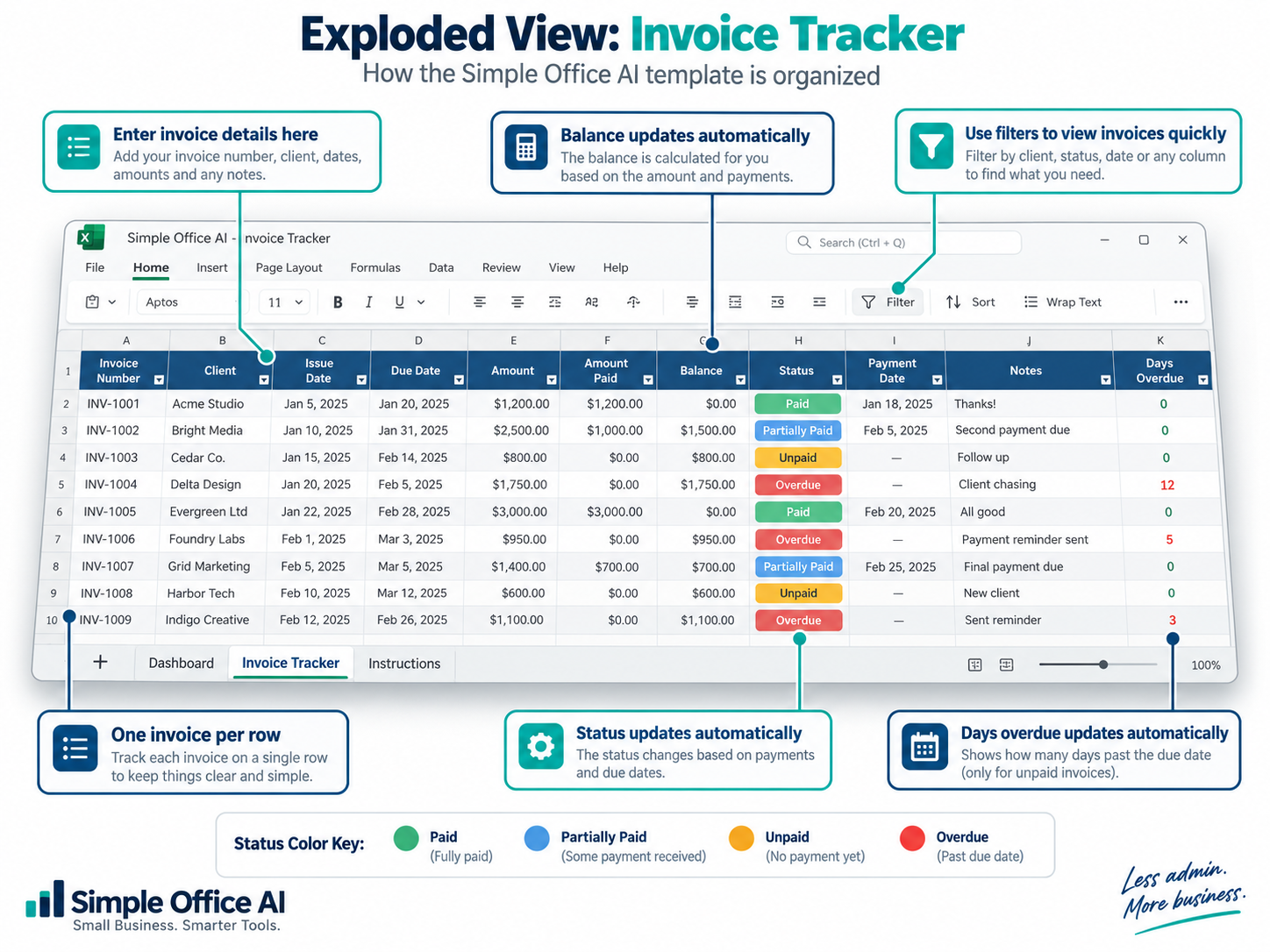
In the Simple Office AI template, Balance, Status, and Days Overdue are calculated automatically, so you do not need to update those fields manually.
Step 1: Add One Invoice Per Row
The simplest structure is usually the easiest one to maintain: one invoice per row. Each row should represent one invoice from start to finish. That means the invoice number, client, dates, amount, payments, balance, and status all stay together.
For example:
| Invoice | Client | Due Date | Amount | Paid | Balance | Status |
|---|---|---|---|---|---|---|
| INV-001 | Green Studio | Sep 10 | $500 | $500 | $0 | Paid |
| INV-002 | Oak Design | Sep 15 | $800 | $200 | $600 | Partially Paid |
| INV-003 | Northway Co. | Aug 30 | $350 | $0 | $350 | Overdue |
With a structure like this, you do not need to open old emails or check several files just to understand what is happening.
You can immediately see which invoices are finished, which still have a balance, and which need follow-up.
The spreadsheet becomes the place you check instead of relying on memory.
Step 2: Calculate the Remaining Balance Automatically
The balance should not be something you calculate by hand every time a client sends a payment.
In the Simple Office AI template, the invoice amount is stored in column E and the amount already paid is stored in column F.
The Balance column uses this formula:
=IF(A5="","",MAX(E5-F5,0))If an invoice is $800 and the client has paid $300, the balance becomes $500 automatically.
If the client pays the remaining $500 later, you only update Amount Paid. The balance changes to zero without touching the formula.
The MAX part also prevents the balance from becoming negative if the amount paid is accidentally entered slightly higher than the invoice total.
In the free template, invoice data starts on row 5. If you build your own tracker with a different starting row, adjust the row number in the formula.
Step 3: Automate Invoice Status in Google Sheets
Manually typing Paid, Unpaid, or Overdue works at first.
The problem is that the numbers can change while the status stays the same because someone forgot to update it.
The tracker avoids that by calculating the status automatically.
It uses:
=IF(A5="","",IF(G5<=0,"Paid",IF(AND(D5<>"",D5<TODAY()),"Overdue",IF(F5>0,"Partially Paid","Unpaid"))))The logic is simple:
- Paid — no balance remains
- Overdue — the due date has passed and money is still outstanding
- Partially Paid — some money has been received, but the invoice is not overdue yet
- Unpaid — no payment has been received and the due date has not passed
That order matters.
A partially paid invoice that is already past its due date should still be treated as Overdue, because there is money that should already have been paid.
This is why the formula checks the due date before assigning Partially Paid.
This guide covers the complete Google Sheets workflow.
Use it to set up, share, and maintain one live invoice list. If your main task is chasing late balances in desktop Excel, use the dedicated overdue-invoice workflow linked later in this guide.
Step 4: Monitor Due Dates Without Turning the Sheet Into a Collections System
Knowing that an invoice is overdue is useful.
Knowing whether it is 2 days overdue or 42 days overdue is much more useful.
The template uses:
=IF(OR(A5="",G5<=0,D5=""),"",MAX(TODAY()-D5,0))If there is still a balance, the sheet compares the due date with today.
An invoice that is 10 days late shows 10.
An invoice that is not due yet shows 0.
A fully paid invoice stays blank.
This gives you a quick way to decide which invoices need follow-up first.
Step 5: Create Useful Filter Views for Daily Invoice Work
Once your tracker grows, scrolling through every invoice becomes inefficient.
Use the filters in the header row instead.
You can quickly show:
- one client
- only overdue invoices
- unpaid invoices
- partially paid invoices
- invoices from a specific date range
For a small business, this is often more useful than building a complicated reporting system.
You can answer a specific question in a few clicks and then return to the full list.
If your main problem is following up on late payments in Excel, see our guide to tracking unpaid and overdue invoices in Excel. If the problem is repeated invoice creation, reminders, payment updates, or handoffs between tools, see our invoice automation guide.
Step 6: Use the Dashboard for a Weekly Billing Review
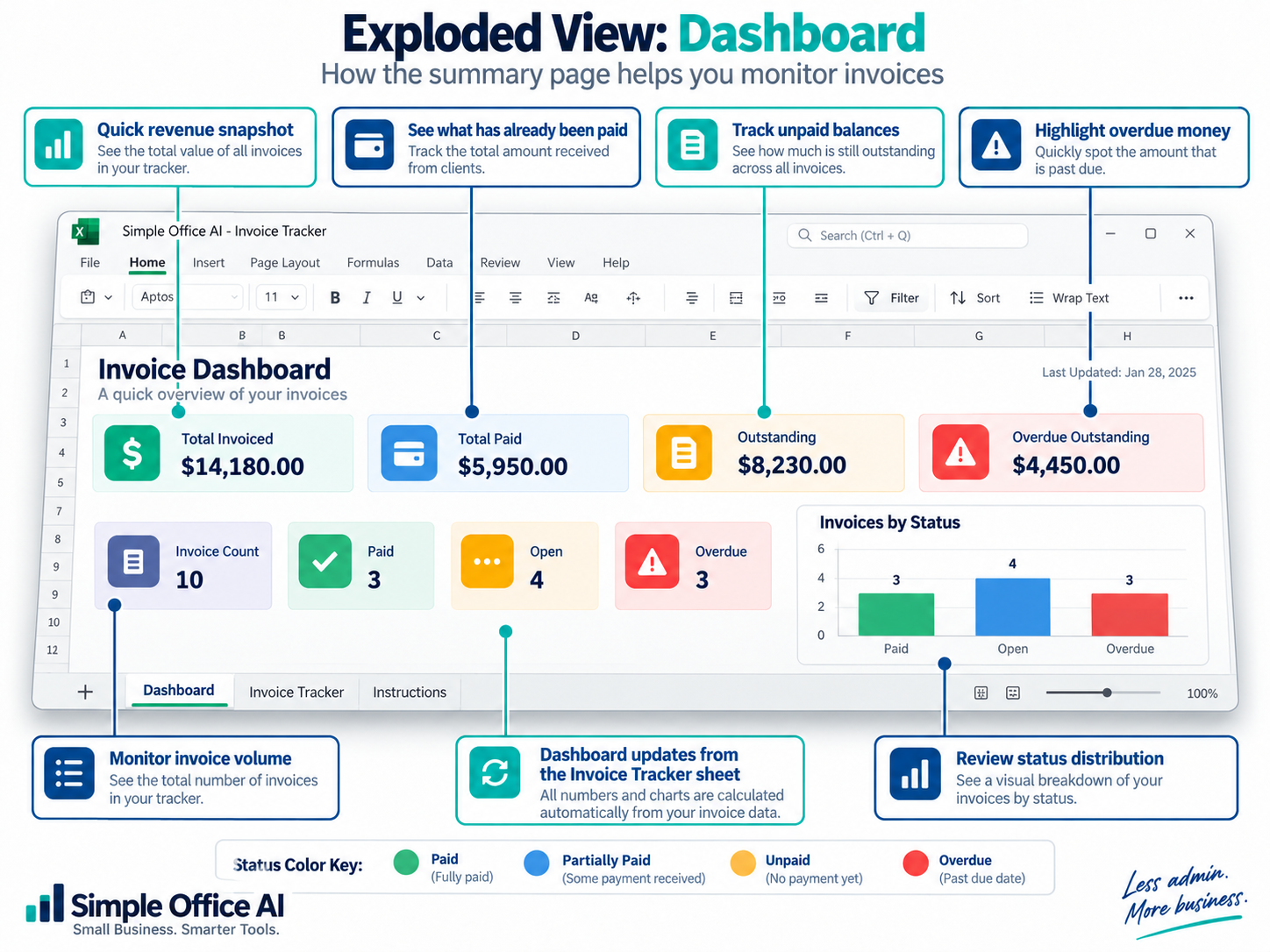
The Invoice Tracker sheet stores the details.
The Dashboard tells you what those details mean.
The free template includes a summary of:
- Total Invoiced
- Total Paid
- Outstanding
- Overdue Outstanding
- Invoice Count
- Paid invoices
- Open invoices
- Overdue invoices
The dashboard updates from the Invoice Tracker sheet automatically.
You do not enter the totals manually.
If a client pays an invoice and you update Amount Paid, the balance, status, and dashboard numbers update with it.
When Is Google Sheets Enough for Invoice Tracking?
Not every business needs another subscription.
If you only send a manageable number of invoices and your main problem is keeping track of what has been paid, Google Sheets may be enough.
A spreadsheet becomes less suitable when you need things like:
- automatic invoice creation
- recurring billing
- online payment links
- automatic reminders
- tax calculations
- accounting integrations
- several team members with different permissions
At that point, proper invoicing or accounting software can save more time than a spreadsheet.
The goal is not to use Sheets forever.
The goal is to avoid buying complexity before you actually need it.
Download the Free Google Sheets Invoice Tracker Template
I built the Simple Office AI Invoice Tracker for freelancers and small businesses that want a simple way to track invoices without starting from a blank spreadsheet.
It includes:
- automatic balance calculations
- Paid, Unpaid, Partially Paid, and Overdue statuses
- days overdue tracking
- duplicate invoice number warnings
- input checks
- filters
- a dashboard
- a short Instructions sheet
Once you have the file, add one invoice per row and update Amount Paid whenever money arrives.
The calculated fields handle the rest.
How to Customize the Tracker
The template is intentionally simple.
You can add a column if your workflow actually needs it.
For example:
- Project Name
- Purchase Order Number
- Payment Method
- Salesperson
- Department
But do not add fields just because there is space.
Every extra column becomes another thing you have to maintain.
A better tracker is not the one with the most features.
It is the one you can keep using consistently.
When This Template Is Not Enough
This is an invoice tracking tool, not full accounting software.
It does not replace bookkeeping, tax records, financial reporting, or professional accounting advice.
Its purpose is narrower:
help you see what you invoiced, what you received, and what still needs attention.
That narrow focus is what keeps it simple.
Track Invoices and Expenses Together
If you also need a simple place to organize client details and follow-ups, use the free client tracker template for Google Sheets.
If you also need a simple system for business spending, see our Google Sheets expense tracker for small businesses.
Frequently asked questions
Is this an invoice generator or an invoice tracker?
It is a tracker. Record invoices you have already issued, the amount paid, and the due date. Creating and sending the invoice happens outside this workbook.
How do I record a partial payment?
Update Amount Paid with the total received against that invoice so far. Keep the original invoice amount unchanged; Balance shows what remains.
Do I change invoice status manually?
In this template, Balance, Status, and Days Overdue are calculated. Update the input fields and leave those formulas in place.
Can I use the tracker in Google Sheets?
Use the Google Sheets copy button above to save your own copy. An XLSX download is also available. Check calculations and formatting in the version you choose before entering live records.
Need an Invoice Tracker Built Around Your Business?
A generic template works when your workflow is straightforward.
Sometimes you need something more specific.
You may have several payment stages, unusual client records, different document types, or an existing Excel file that has become difficult to manage.
Simple Office AI helps freelancers and small businesses clean up spreadsheets, build Google Sheets systems, organize invoices and expenses, and create practical admin workflows.
Visit the Services page if you need a tracker customized for your business, or use the Contact page to briefly explain what you are trying to organize.