

A task list gets hard to manage once several people are updating work at the same time. A task can have an owner and a due date but still disappear in a long spreadsheet if nobody can quickly see what is overdue, blocked, or due soon.
This free Excel task tracker gives small teams one place to record tasks, owners, priorities, status, start dates, due dates, progress, and next steps. It also adds automatic deadline flags and a dashboard so you can see what needs attention without building a full project-management system.
Google sign-in is required to save your own Google Sheets copy.
What the Excel task tracker includes
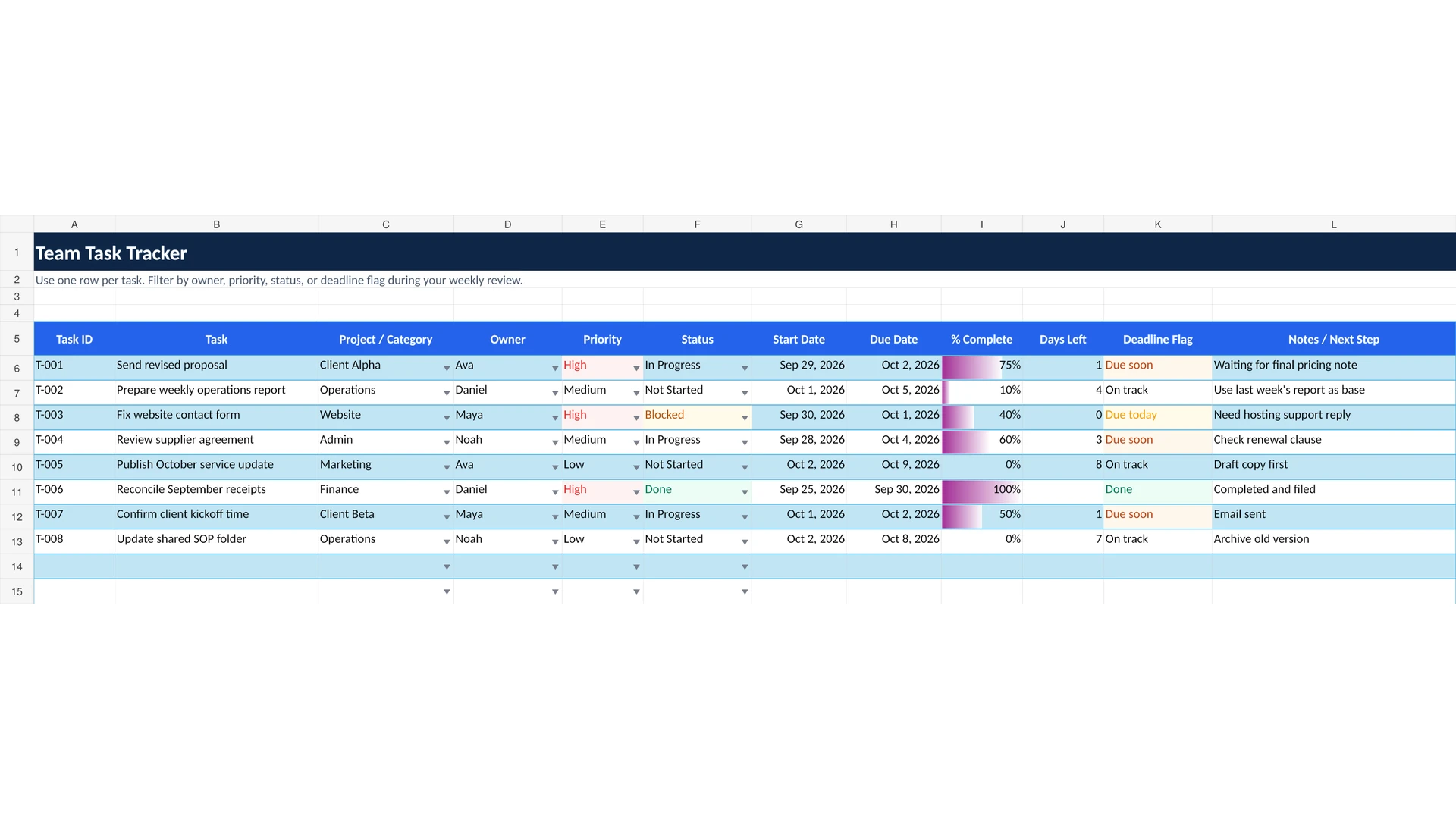
The workbook has four sheets: Start Here, Task Tracker, Dashboard, and Lists. The Task Tracker is the main working sheet. Each row is one task.
- Task ID
- Task
- Project or category
- Owner
- Priority
- Status
- Start date
- Due date
- Percent complete
- Days left
- Deadline flag
- Notes or next step
The template is designed for a small team that needs a shared operating list rather than a detailed project plan. You can filter the tracker by owner, priority, status, or deadline flag during a weekly review.
How to use the task tracker
1. Add one row for each task
Enter a short task name, then add the project or category if the task belongs to a larger piece of work. Keep each row focused on one action. That makes filtering and status updates easier.
2. Assign an owner
Use the Owner column to show who is responsible for moving the task forward. The dashboard also counts open tasks by owner, so the team can see workload without creating a separate report.
3. Set priority and status
The template uses simple priorities and task statuses. High-priority tasks are highlighted, while Blocked and Done tasks use their own visual cues. Keep the status current so the dashboard reflects the real task list.
4. Add a due date when the task has a real deadline
The workbook calculates Days Left and creates a Deadline Flag automatically. A task can show Overdue, Due today, Due soon, On track, No due date, or Done. Tasks without a due date are not given a false negative Days Left value.
5. Use Notes / Next Step for the action that matters
Do not turn the Notes column into a long project history. Use it for the next action, a blocker, a dependency, or a short update that another team member needs to see.
What the dashboard shows
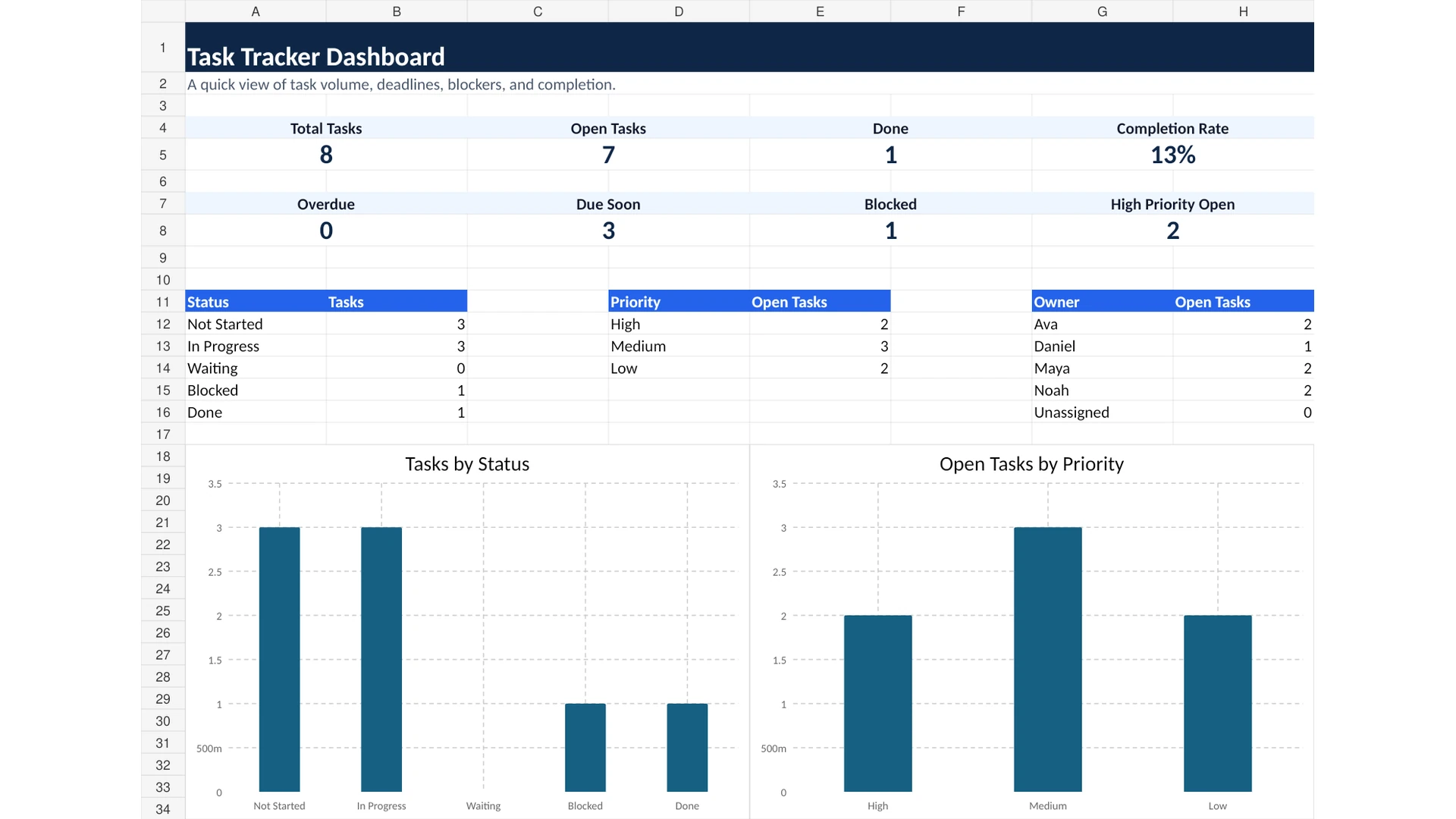
The dashboard gives a quick view of task volume, deadlines, blockers, and completion. It includes:
- Total tasks
- Open tasks
- Done tasks
- Completion rate
- Overdue tasks
- Tasks due soon
- Blocked tasks
- High-priority open tasks
- Task counts by status
- Open tasks by priority
- Open tasks by owner
The dashboard is for review, not data entry. Update the Task Tracker sheet and use the dashboard to decide what needs attention next.
Task tracker vs to-do list
A simple to-do list usually answers one question: what needs to be done? A task tracker adds the fields a small team needs when several people are involved, such as owner, priority, status, due date, progress, and deadline warnings.
That is why this article keeps task tracker and to-do list on one URL. They solve the same basic problem here. The template starts as a to-do list but adds enough structure for a small team to follow work reliably.
Task tracker vs work plan vs Kanban board
| Tool | Best for | Use it when |
|---|---|---|
| Task tracker | Daily task ownership and deadlines | You need one clear list of tasks, owners, priorities, status, and due dates |
| Work plan | Structured project planning | You need workstreams, outputs, dates, progress, and weekly planning |
| Kanban board | Visual workflow stages | You need to see tasks moving between stages and spot work that is stuck |
If you need a more structured project plan, use the Work Plan Template in Excel. If the main problem is seeing tasks by workflow stage, use the Kanban Board Template in Excel.
A simple weekly task-review routine
- Filter Deadline Flag to Overdue, Due today, and Due soon.
- Review Blocked tasks and record the next action.
- Check High-priority open tasks.
- Filter by owner and confirm that each open task has a clear owner.
- Update task status and percent complete.
- Mark finished tasks Done instead of deleting them immediately.
- Use the dashboard to check whether the open workload still looks manageable.
This keeps the spreadsheet useful without turning task management into another administrative job.
When a spreadsheet is enough
This template fits a small team that can still manage work in one shared list. It is useful when the main problem is visibility: who owns each task, what is due next, what is blocked, and what is finished.
A dedicated project-management tool may be a better fit when you need complex dependencies, advanced permissions, automated notifications, time tracking, large portfolios, or many connected workflows. Start with the smallest system that solves the actual problem. If the main problem is assigning work to specific time blocks for one working day rather than tracking deadlines across days, use the Google Sheets daily schedule template.
Download the free Excel task tracker
Use the Excel version if you prefer a local workbook. Use the Google Sheets version if your team wants to work in a shared browser-based file.
Need a task tracker adjusted for your own workflow? Contact Simple Office AI for spreadsheet cleanup or a custom admin system.
Frequently asked questions
What should an Excel task tracker include?
For a small team, start with the task, owner, priority, status, due date, progress, and next step. Add more fields only when they help the team make a decision or follow the work.
Can I use this template as a to-do list?
Yes. You can use only the basic task, owner, status, priority, and due-date fields if you want a simpler team to-do list. The dashboard and deadline flags will still help with review.
Does the template show overdue tasks automatically?
Yes. The Deadline Flag compares the due date with the current date and marks unfinished tasks as Overdue, Due today, Due soon, or On track. Completed tasks are marked Done.
What happens if a task has no due date?
The template shows No due date in the Deadline Flag and leaves Days Left blank. This avoids treating an undated task as overdue by mistake.
Can I use the template in Google Sheets?
Yes. A Google Sheets copy is available from the green button. Sign in to Google, make your own copy, and then edit that copy.
When should I move from Excel to project-management software?
Move when the spreadsheet is creating friction rather than removing it. Common signs are complex dependencies, permission problems, repeated manual notifications, time tracking needs, or too many people updating the same task system.