

A Kanban board helps you see work by stage instead of scanning a long task list. This free Kanban board Excel template gives freelancers and small teams a simple way to track what is waiting, what is active, what needs review, what is finished, and what is on hold.
The workbook uses a master Tasks Database behind the board. You update the task Status, and the task appears in the matching Kanban lane automatically. There is no fake drag-and-drop system and no need to move Excel shapes by hand.
Free Excel template
Kanban Board Template in Excel
Change a task’s Status and the board updates automatically. Track owners, priorities, deadlines, progress, blockers, and next actions.
Requires Microsoft Excel 365. Older Excel versions may not calculate the dynamic views correctly. No separately tested Google Sheets version is included.
Download the Excel Kanban Board Template (.xlsx)Download Excel
Quick start: add a task and update the board
- Open the downloaded file in Excel 365. Save a working copy before replacing the fictional sample data.
- Add one task in Tasks Database. Enter a task name, choose an owner, and set its priority and due date.
- Choose To Do in the Status dropdown. Open Kanban Board to see the task in the To Do lane.
- Change its Status to In Progress. Return to the board and check that the task appears in the In Progress lane. Update the task row rather than moving cards by hand.
You can start with the Tasks Database and Kanban Board. Use the Dashboard and Weekly Focus when you need a wider project review.
What is included in the Excel Kanban template?
The workbook contains six sheets. Each sheet has a separate job so you can manage the workflow without putting everything on one screen.
| Sheet | What it is for | Main features |
|---|---|---|
| Kanban Board | Visual workflow view | To Do, In Progress, Review, Done, and On Hold lanes with workflow KPIs |
| Tasks Database | Main task list | Owners, priorities, dates, status, progress, blockers, dependencies, outputs, and next actions |
| Dashboard | Project overview | Status, priority, owner, workstream, overdue, due-this-week, and completion views |
| Team & Owners | Responsibility and workload | Owner directory plus assigned, open, completed, and overdue task counts |
| Weekly Focus | Short-term execution | Active priorities, overdue work, blockers, and decisions |
| Lists & Settings | Workflow customization | Status, priority, owner, workstream, and progress lists |
The sample workbook uses fictional business tasks and fictional team members. Replace the sample data with your own work after you understand how the workflow is connected.
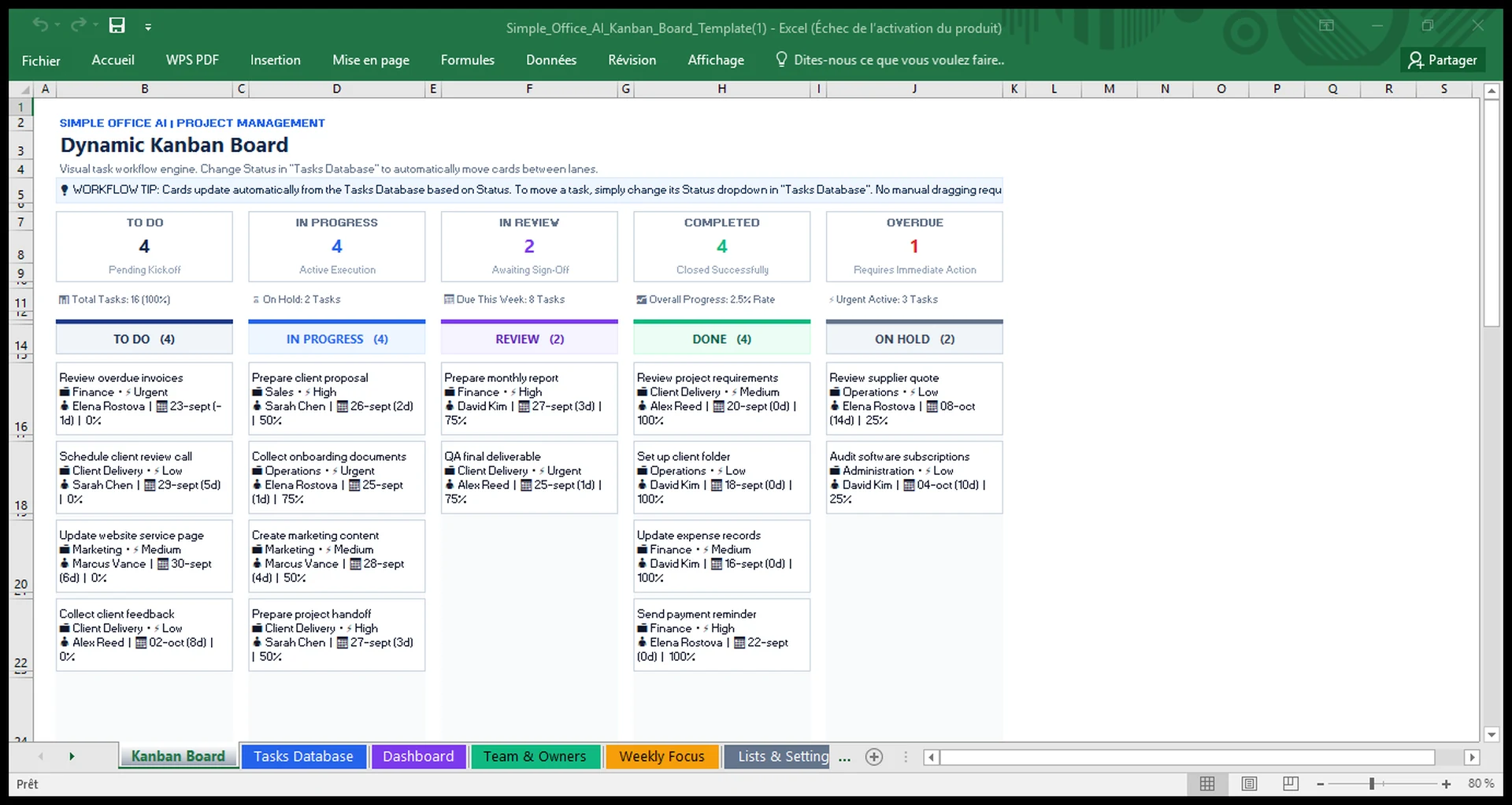
How the Kanban Board works
The board is divided into five workflow lanes:
- To Do for work that has not started.
- In Progress for active work.
- Review for work waiting for a check, approval, or sign-off.
- Done for completed work.
- On Hold for work that is paused.
You do not drag cards between columns. Open the Tasks Database, change the Status dropdown, and the board updates the task into the correct lane. This keeps the workflow tied to one source of truth instead of maintaining a visual board and a separate task list.
The sample file also shows workflow totals such as tasks by stage, overdue work, work due this week, urgent active tasks, and overall progress. Those values change with the task data.
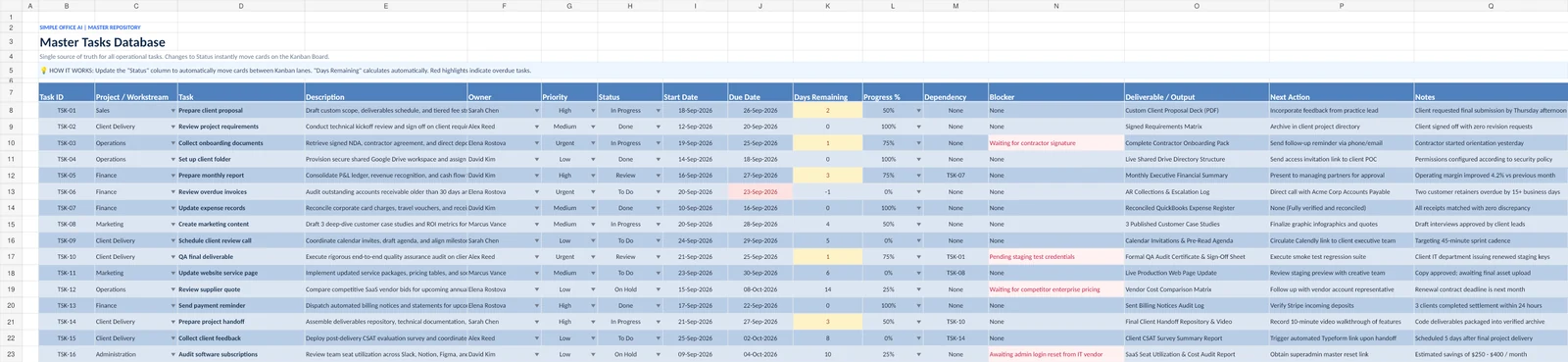
Use the Tasks Database as the source of truth
The Tasks Database is where you create and maintain the work. Each row represents one task.
The template tracks:
- Task ID
- Project / Workstream
- Task
- Description
- Owner
- Priority
- Status
- Start Date
- Due Date
- Days Remaining
- Progress %
- Dependency
- Blocker
- Deliverable / Output
- Next Action
- Notes
Status, priority, owner, and progress fields use controlled lists. The Days Remaining field is calculated so you can quickly distinguish upcoming work from overdue work without typing the same information twice.
Kanban board example for a small team
The workbook includes 16 fictional tasks across workstreams such as Client Delivery, Sales, Finance, Operations, Marketing, and Administration. Examples include preparing a client proposal, reviewing overdue invoices, collecting onboarding documents, QA on a final deliverable, preparing a project handoff, and collecting client feedback.
The sample is intentionally mixed. Some tasks are in To Do, some are active, some are waiting for review, some are complete, and some are on hold. That makes it easier to see how one task record moves through the workflow when you change its Status.
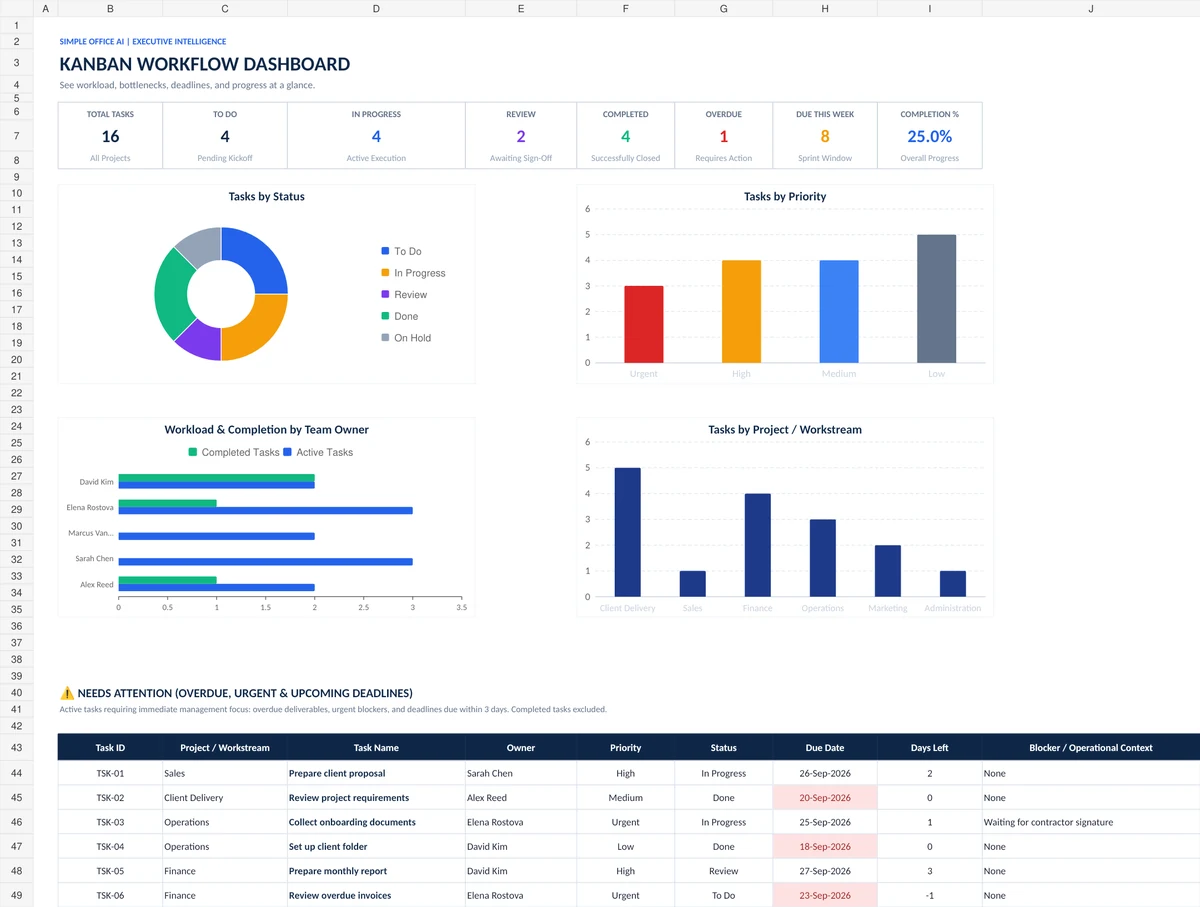
Use the dashboard to find bottlenecks
The Dashboard gives you a higher-level view than the Kanban lanes. It summarizes task status, priority, owner workload, workstreams, overdue tasks, work due this week, and overall completion.
The Needs Attention area is useful during a project review because it surfaces active work that is overdue, urgent, or approaching a deadline. Completed work is excluded from that attention list.
This helps you answer a different question from the Kanban Board. The board shows where work is. The dashboard helps you see where the project may need attention.
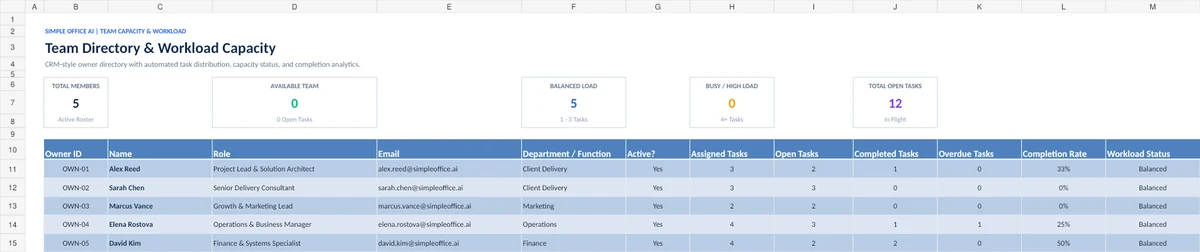
Manage responsibility with Team & Owners
The Team & Owners sheet keeps a simple directory of the people who can own tasks. It includes the owner name, role, email, department or function, and active status.
It also calculates assigned, open, completed, and overdue tasks for each owner. That gives a small team a quick workload check before assigning more work.
Use Weekly Focus for active work
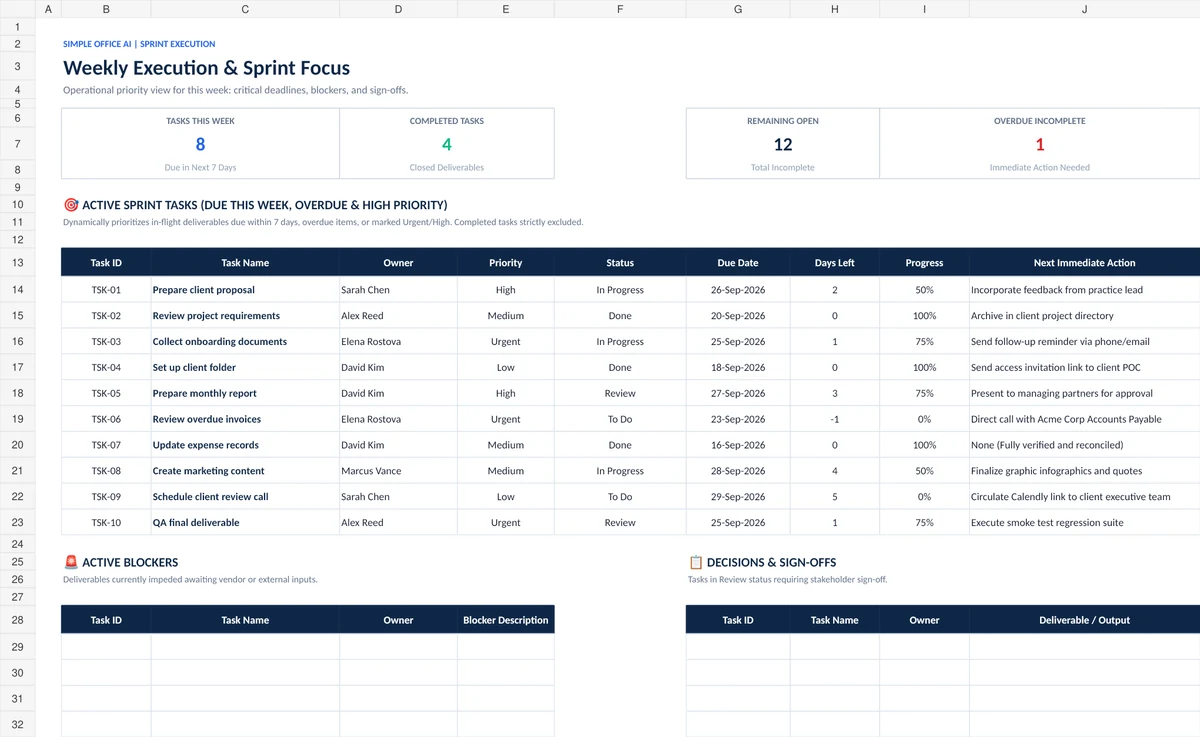
A full Kanban board is useful for the whole workflow, but weekly planning needs a narrower view. The Weekly Focus sheet surfaces active tasks that are due soon, overdue, or marked high priority.
It brings together the owner, priority, status, due date, Days Remaining, progress, and next immediate action. Separate sections are available for blockers and decisions or sign-offs.
This makes the workbook useful for a short weekly review without changing the master task records.
How to create your own Kanban workflow in Excel
- Replace the sample owners. Add the people who will actually own work in Team & Owners.
- Review the lists. Adjust workstreams or other editable settings if your business uses different labels.
- Add tasks to the Tasks Database. Keep one clear task per row.
- Assign an owner, priority, start date, and due date.
- Choose the current Status. This controls the Kanban lane.
- Add the expected deliverable and next action. These fields make project reviews more useful.
- Update progress and blockers. Keep the row current as the work changes.
- Review the Kanban Board, Dashboard, and Weekly Focus. Use each view for a different level of project review.
Excel Kanban board vs Trello or dedicated Kanban software
An Excel Kanban board can be enough when your team is small, you already work in Excel, and you want one portable file without adding another software subscription. It is also useful when your workflow needs spreadsheet-style fields, calculations, and reporting beside the visual board.
Dedicated Kanban tools can make more sense when you need real-time multi-user collaboration, notifications, integrations, mobile-first task updates, or true drag-and-drop cards across a large team. This template is designed for a simpler Excel-based workflow, not to reproduce every feature of project-management software.
Kanban board vs work plan vs project timeline
| Tool | Best used for |
|---|---|
| Kanban board | Seeing tasks by workflow stage and finding work that is stuck |
| Work plan | Managing owners, dates, outputs, progress, and next actions across a project |
| Work breakdown structure | Breaking a large project into phases, deliverables, and smaller work packages |
| Project timeline | Seeing task timing and milestones across days or weeks |
| Calendar | Viewing deadlines, meetings, and scheduled activities by date |
If you need a broader execution plan, use the Work Plan Template in Excel. If the project needs to be broken into smaller pieces first, see the Work Breakdown Structure Template in Excel. For time-based planning, use the Excel Project Timeline guide. For a month view of deadlines and events, see How to Make a Calendar in Google Sheets.
Excel version and compatibility
The workbook is designed for Microsoft Excel 365. Its dynamic board and supporting views use modern Excel formulas, so older Excel versions may not calculate every area the same way.
A separate Google Sheets version has not been created or QA-tested for this template, so this article does not claim Google Sheets compatibility.
Get the free Excel Kanban board template
Free Kanban Board Template in Excel
Includes the dynamic Kanban Board, Tasks Database, Dashboard, Team & Owners, Weekly Focus, editable settings, and fictional sample data.
If you need a custom task workflow, dashboard, reporting system, or Excel setup built around your business, see the Simple Office AI spreadsheet services.
Frequently Asked Questions About Excel Kanban Boards
Can you create a Kanban board in Excel?
Yes. A practical Excel Kanban board can use a structured task table plus a Status field to organize work into workflow stages. In this template, you change the task Status in the Tasks Database and the board updates the task into the matching lane.
How do I make a Kanban board in Excel?
Start with one task table that includes a task name, owner, priority, status, due date, and progress. Then create visual lanes for each status and use formulas to return the matching tasks into each lane. Keeping one master task table helps prevent duplicate updates.
Does Excel have a built-in Kanban board?
Excel can be used to build a Kanban workflow, but the structure depends on how you want to manage tasks and reporting. This workbook provides a ready-made board, task database, dashboard, workload view, and weekly focus so you do not have to build those pieces from scratch.
Can I use Excel instead of Trello for Kanban?
For a freelancer or small team, Excel can be enough when you want a simple file-based workflow and already use spreadsheets. Trello or other dedicated tools can be more suitable when you need real-time collaboration, notifications, integrations, or true drag-and-drop task cards.
How do tasks move between columns in this Excel Kanban template?
Tasks move by changing the Status dropdown in the Tasks Database. The Kanban Board reads that status and displays the task in To Do, In Progress, Review, Done, or On Hold. You do not manually drag cards between columns.
Can I customize the Kanban statuses?
The workbook includes editable lists in Lists & Settings, but the dynamic board is built around the supplied workflow stages. If you change the core status structure, review the board formulas and layout so the lanes still match your workflow.