

A work plan is useful when a project has more moving parts than a simple to-do list. You need to know what has to be done, who owns it, when it is due, what the output should be, and what happens next.
This free work plan template for Excel is built for that job. It includes a dashboard, a master work plan, a weekly view, an owner directory, and editable settings for status, priority, workstreams, and progress.
Free Excel template
Work Plan Template in Excel
Built for freelancers, small teams, and project coordinators who need one place for tasks, owners, dates, priorities, deliverables, progress, and next actions.
Designed for Excel 365. The Sheets copy may handle dynamic formulas differently. Google sign-in is required to save your own copy.
Download Excel (.xlsx)Download ExcelMake a Google Sheets copyCopy in Google Sheets
Quick start: build your first work plan
- Replace the sample people in Team & Owners and review the options in Lists & Settings.
- In Work Plan, enter one task with an owner, dates, priority, a clear Deliverable / Output, and the next action.
- Update the task’s status and progress, then review Dashboard and Weekly Plan to see what needs attention.
Use Excel 365 for the primary workbook. A Google Sheets copy is available, but dynamic formulas and dashboard behavior can differ between applications.
What this work plan template includes
The workbook contains five sheets:
| Sheet | What it is for | Main features |
|---|---|---|
| Dashboard | Review the project at a glance | Task KPIs, overall completion, charts, upcoming work |
| Work Plan | Manage the full task list | Owners, priorities, statuses, dates, progress, dependencies, outputs, next actions |
| Weekly Plan | Focus on the active week | Weekly task view, sprint totals, blockers, decisions |
| Team & Owners | Manage responsibility | Owner directory, roles, contact details, workload counts |
| Lists & Settings | Customize the workbook | Status, priority, workstream, owner, and progress dropdown sources |
The sample workbook contains 14 fictional tasks and five fictional team members. Replace the sample data with your own project after you understand how the workbook works.
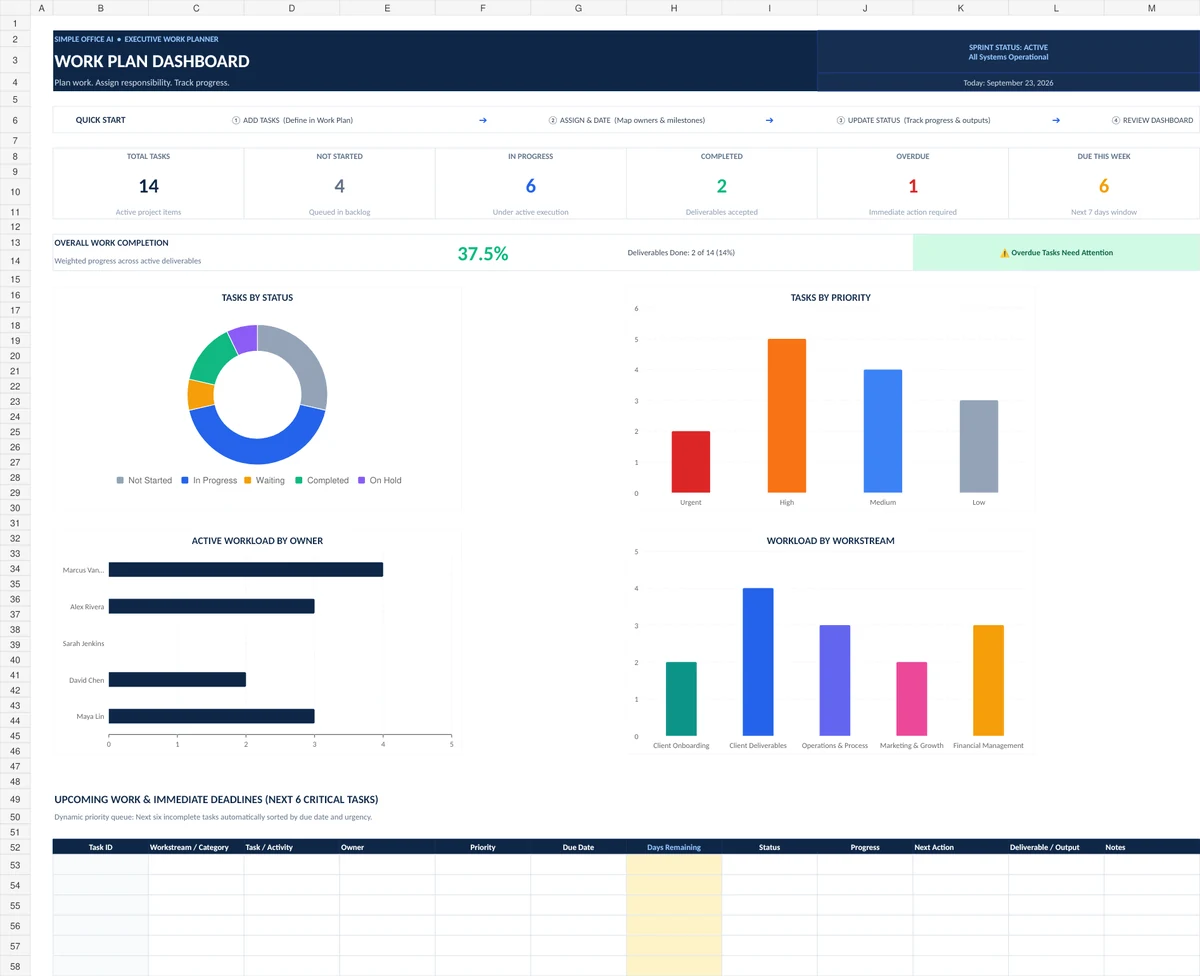
1. Use the dashboard to see what needs attention
The dashboard is the first place to look during a project review. It shows the total number of tasks, how many have not started, how many are in progress, how many are completed, which items are overdue, and what is due this week.
It also includes an overall completion indicator and visual summaries for status, priority, ownership, and upcoming deadlines. The Upcoming Work area is designed to surface active tasks that need attention instead of making you scan the full workbook every time.
This is useful when the project has enough activity that a plain action list becomes difficult to review quickly.

2. Build the plan in the Work Plan sheet
The Work Plan sheet is the main operating table. Each row represents one task or activity.
The template tracks:
- Task ID
- Workstream or category
- Task or activity
- Description
- Owner
- Priority
- Status
- Start date
- Due date
- Days remaining
- Progress %
- Dependency
- Deliverable or output
- Next action
- Notes
The owner, priority, status, and progress fields use dropdowns. The calculated Days Remaining field helps separate upcoming work from overdue work without adding another manual column.
The status options are Not Started, In Progress, Waiting, Completed, and On Hold. Priority options are Low, Medium, High, and Urgent.
Sample work plan example
A sample work plan is included so you can see how the fields work together. The fictional small service business has tasks for client onboarding, deliverables, operations, finance, and marketing.
| Task | Owner | Priority | Status | Progress | Next action |
|---|---|---|---|---|---|
| Review project requirements and scope baseline | David Chen | Urgent | In Progress | 75% | Finalize sign-off with client lead |
| Prepare client proposal and statement of work | Maya Lin | High | In Progress | 50% | Review milestone schedule |
| Review overdue invoices and aging receivables | Marcus Vance | Urgent | In Progress | 75% | Issue follow-up payment reminders |
| Conduct QA review on deliverables | Maya Lin | High | Not Started | 0% | Pull final deck from shared drive |
| Launch client feedback survey | Alex Rivera | Low | On Hold | 0% | Unpause after the next onboarding cohort |
The names and tasks are fictional. They are there to demonstrate how a sample work plan template can connect responsibility, timing, progress, outputs, and next actions in one row.
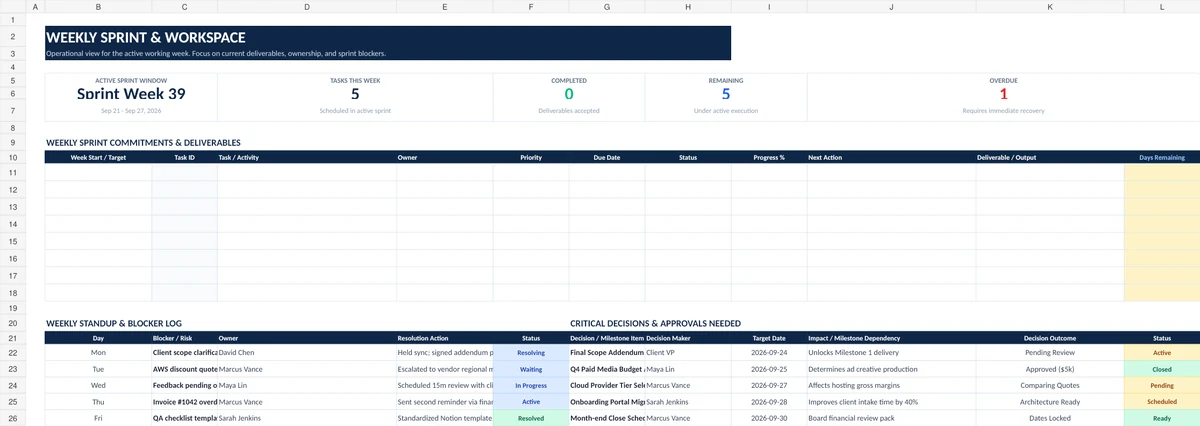
3. Turn the master plan into a weekly work view
A long work plan is useful for the full project, but it is not always the best view for a weekly check-in. The Weekly Plan sheet narrows the focus to the active work window.
It includes weekly counts for tasks, completed items, remaining items, and overdue work. The weekly table brings together the task, owner, priority, due date, status, progress, next action, deliverable, and days remaining.
There is also space for a standup and blocker log plus critical decisions or approvals. That makes the weekly view useful for a freelancer managing several deliverables or a small team running a regular project check-in.
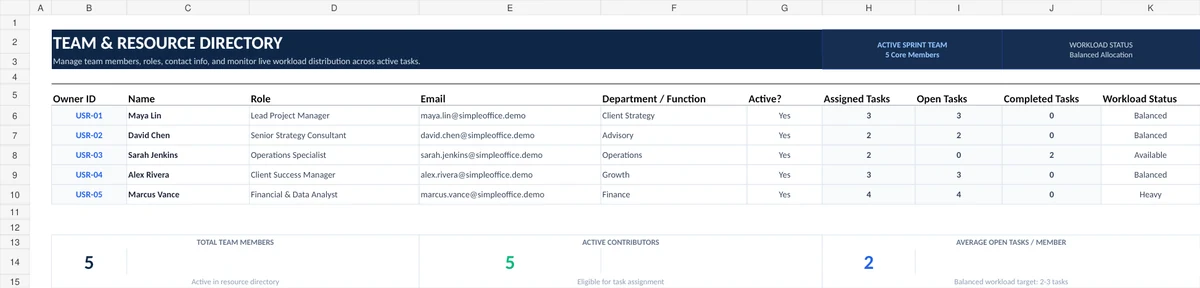
4. Track responsibility in Team & Owners
The Team & Owners sheet stores the people who can be assigned to work. Each record includes an owner ID, name, role, email, department or function, and active status.
The workload section counts assigned, open, and completed tasks for each owner. This gives you a simple way to notice when one person is carrying too much work before you add another task.
How to use the work plan template
- Replace the sample team. Open Team & Owners and add the people who will actually own tasks.
- Customize your lists. Edit statuses, priorities, workstreams, or progress options in Lists & Settings if your workflow needs different labels.
- Add your tasks. Enter one clear task or activity per row in Work Plan.
- Assign responsibility. Choose one owner, priority, start date, and due date for each task.
- Define the output. Use Deliverable / Output to state what should exist when the task is finished.
- Write the next action. This keeps the plan actionable during reviews instead of leaving a vague status.
- Update status and progress. Keep these fields current so the dashboard and weekly view remain useful.
- Review the dashboard. Check overdue work, upcoming deadlines, workload, and overall completion before your next project meeting.
What should a good work plan contain?
A useful work plan should answer six practical questions:
- What needs to be done?
- Who owns the work?
- When should it start and finish?
- How important is it?
- What output should be produced?
- What happens next if the task is not finished yet?
A basic plan of work template may stop at tasks and dates. This workbook adds progress, dependencies, deliverables, ownership, and next actions because those fields are usually what make the plan useful during execution.
Work plan vs WBS vs project timeline vs calendar
These tools solve different planning problems.
| Tool | Best used for |
|---|---|
| Work plan | Managing current tasks, owners, dates, progress, outputs, and next actions |
| Work breakdown structure | Breaking a large project into phases, deliverables, and smaller work packages |
| Project timeline | Seeing tasks, milestones, and timing across days or weeks |
| Calendar | Viewing meetings, deadlines, events, and scheduled activities by date |
If the project is still too large to turn into clear tasks, start with the Work Breakdown Structure Template in Excel. If timing and milestones are the main problem, use the Excel Project Timeline Template. For a month-based planning view, see How to Make a Calendar in Google Sheets.
If you need to show project phases and milestones at a higher level before assigning detailed tasks, see the Google Sheets project roadmap template. A roadmap gives the overview; this work plan tracks day-to-day execution.
\n\n
Excel version and compatibility
This workbook is designed for Microsoft Excel 365. The dynamic upcoming-work and weekly areas use modern Excel functions, so older versions of Excel may not behave the same way.
A Google Sheets copy is also available. The Excel 365 workbook is the fully QA-checked version. Some formulas and dashboard behavior can work differently in Google Sheets, so use the Excel file when you want the template exactly as tested.
Download the free work plan template
Free Work Plan Template in Excel
Includes the dashboard, master work plan, weekly view, team directory, settings, and fictional sample data.
If you want to compare this work plan with other spreadsheet approaches for project tracking, see our project management templates guide. If you need a work plan with custom fields, reporting, approval steps, or a workflow designed around your business, see the Simple Office AI spreadsheet services.
Frequently Asked Questions About Work Plan Templates
What should be included in a work plan template?
A practical work plan should include tasks, owners, priorities, start and due dates, status, progress, expected outputs, and next actions. Larger projects may also need dependencies, workstreams, and workload tracking.
How do I create a work plan in Excel?
Start with one row per task. Add columns for the owner, priority, dates, status, progress, deliverable, and next action. Then use dropdowns, date formulas, conditional formatting, and a summary dashboard to make the plan easier to review.
Is a work plan template the same as a plan of work template?
The terms are often used for the same basic purpose: organizing what needs to be done, by whom, and by when. The exact fields vary by team. This template focuses on execution by adding progress, dependencies, deliverables, and next actions.
Can I use this sample work plan for a small business?
Yes. The workbook is built around a fictional small service business, but the structure can be adapted to client projects, marketing work, operations, finance tasks, onboarding, or internal improvement projects.
Can I use this work plan template for weekly planning?
Yes. The workbook includes a dedicated Weekly Plan sheet so you can focus on active tasks without removing them from the master work plan.
Does the template work in Google Sheets?
A Google Sheets copy is available from this article. The Excel 365 workbook is the fully QA-checked version, and some dynamic formulas or dashboard behavior may differ in Google Sheets.