

A daily schedule is useful when the main question is not what day is this due? but when are we actually doing it today?
This free Google Sheets daily schedule template gives a freelancer or small team one shared place to plan the working day in 30-minute blocks. It includes editable team members, a scheduled-hours summary, a priority task list, and a filled example so you can see how the setup works before using it.
Get the free daily schedule template
Google sign-in is required to save your own Google Sheets copy.
This is a daily planning template. It is not an employee shift scheduler, time clock, payroll record, or attendance system.
For a weekly staff roster, use the employee schedule template in Excel instead.
What the Daily Schedule Template Includes
The template is designed for a small amount of coordination without turning the day into a complicated project-management system.
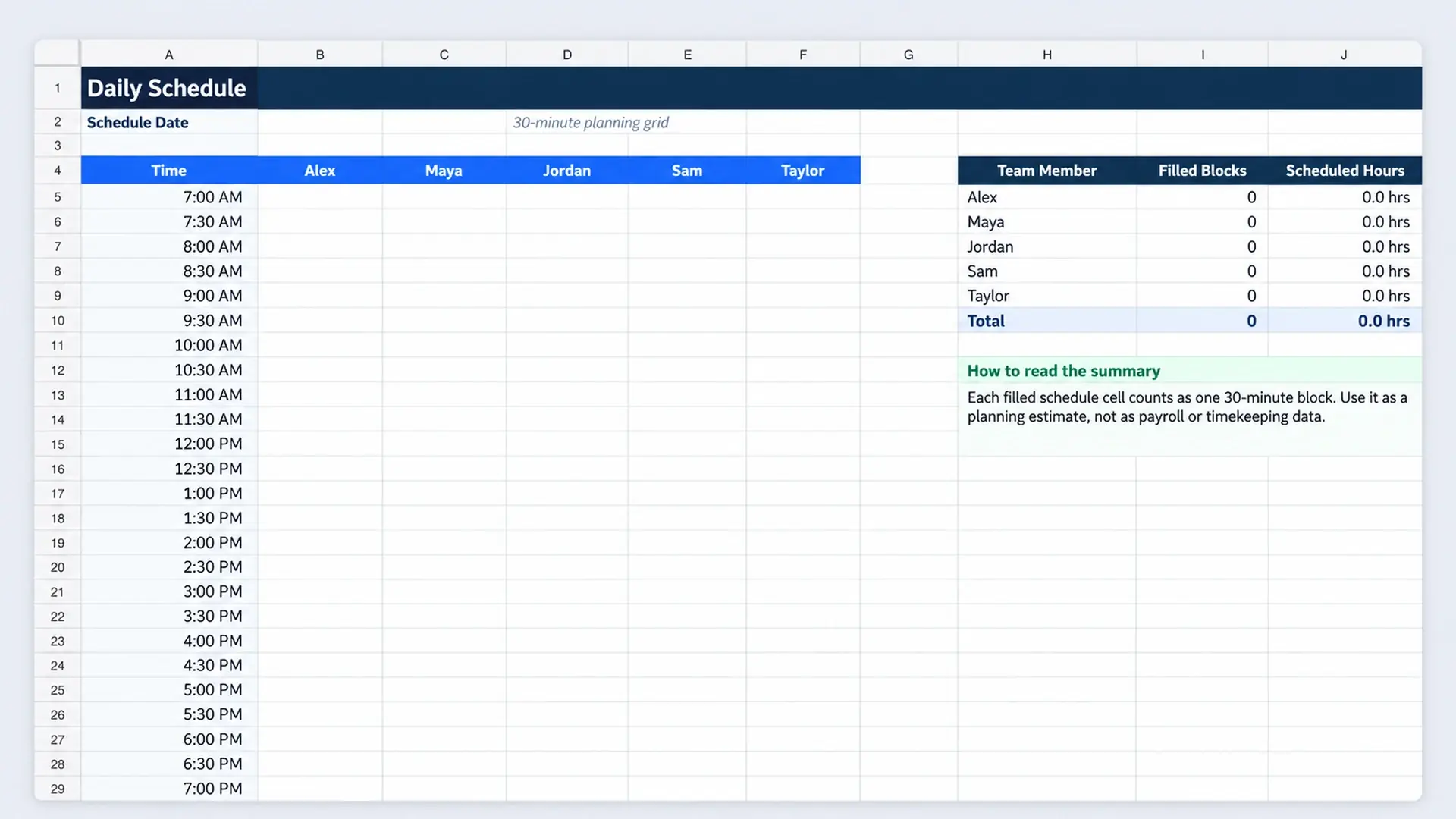
- 30-minute time blocks from 7:00 AM to 7:00 PM. Use them for focused work, appointments, meetings, calls, admin tasks, or other planned work.
- Five editable team-member columns. Replace the sample names with your own names on the Lists tab.
- Scheduled-hours summary. Each filled 30-minute block is counted so you can quickly see how much of each person’s day has been planned.
- Priority task list. Record the task, owner, project or client, priority, start and end time, status, and notes.
- Dropdowns for owner, priority, and status. These make the task list faster to maintain and more consistent.
- Example Day tab. A filled version shows one way a small service team could use the schedule.
- Instructions and Lists tabs. These keep the setup information separate from the working schedule.
How to Use the Google Sheets Daily Schedule Template
1. Make a copy or download the file
Use the Google Sheets button above if you want a shared cloud version. If you prefer Excel, download the workbook and save your own working copy.
Keep one clean master version. That makes it easier to start a fresh day without deleting yesterday’s entries one cell at a time.
2. Set the date
Enter the day you are planning at the top of the Daily Schedule tab. The template is intentionally built around one day rather than a full month.
If your real problem is seeing events across several days or weeks, use the Google Sheets calendar template instead.
3. Replace the sample team members
Open the Lists tab and replace Alex, Maya, Jordan, Sam, and Taylor with the people who actually use the schedule. The names in the daily grid and summary update from that list.
If you work alone, keep one name and ignore the unused columns. You do not need to fill the sheet just because the space exists.
4. Add the important time blocks first
Start with work that already has a fixed time. That may include client calls, appointments, team check-ins, site visits, or a deadline that requires a protected work block.
Then add important focused work around those commitments. Avoid scheduling every 30 minutes just to make the sheet look complete. Leaving space for interruptions and unplanned work is usually more practical.
5. Use the priority task list for work that needs more context
The time grid answers when. The priority task list adds the information that does not fit comfortably inside a small schedule cell. If the work needs to continue across several days with owners, due dates, priorities, and progress tracking, use the Excel task tracker instead of stretching the daily schedule into a longer-term system.
For each important task, you can record:
- task name
- owner
- project or client
- priority
- planned start and end time
- status
- notes
Use the list for the work that needs an owner or follow-up. Do not duplicate every small schedule entry if the extra record does not help you make a decision.
6. Check the scheduled-hours summary
The summary counts the filled 30-minute blocks for each person and converts them into a simple scheduled-hours estimate.
This is useful for spotting an obviously overloaded or almost empty plan. It is a planning estimate only. It should not be treated as a payroll, timekeeping, attendance, or labor-compliance record.
7. Reuse the template for the next day
You can make a fresh copy of the workbook or duplicate the Daily Schedule tab inside Google Sheets. Choose the method that keeps your files easiest to understand.
If several people are using the same file, agree on one simple rule for old days. For example, you could keep a clean master and create a dated copy for each working day.
Example Day for a Small Service Team
The Example Day tab shows how five people could use the same schedule without turning it into a shift-management system.
The example includes client work, customer calls, website updates, inventory checks, finance admin, and a short team check-in. The task list then adds priority, project or client, status, and notes for work that needs more detail.
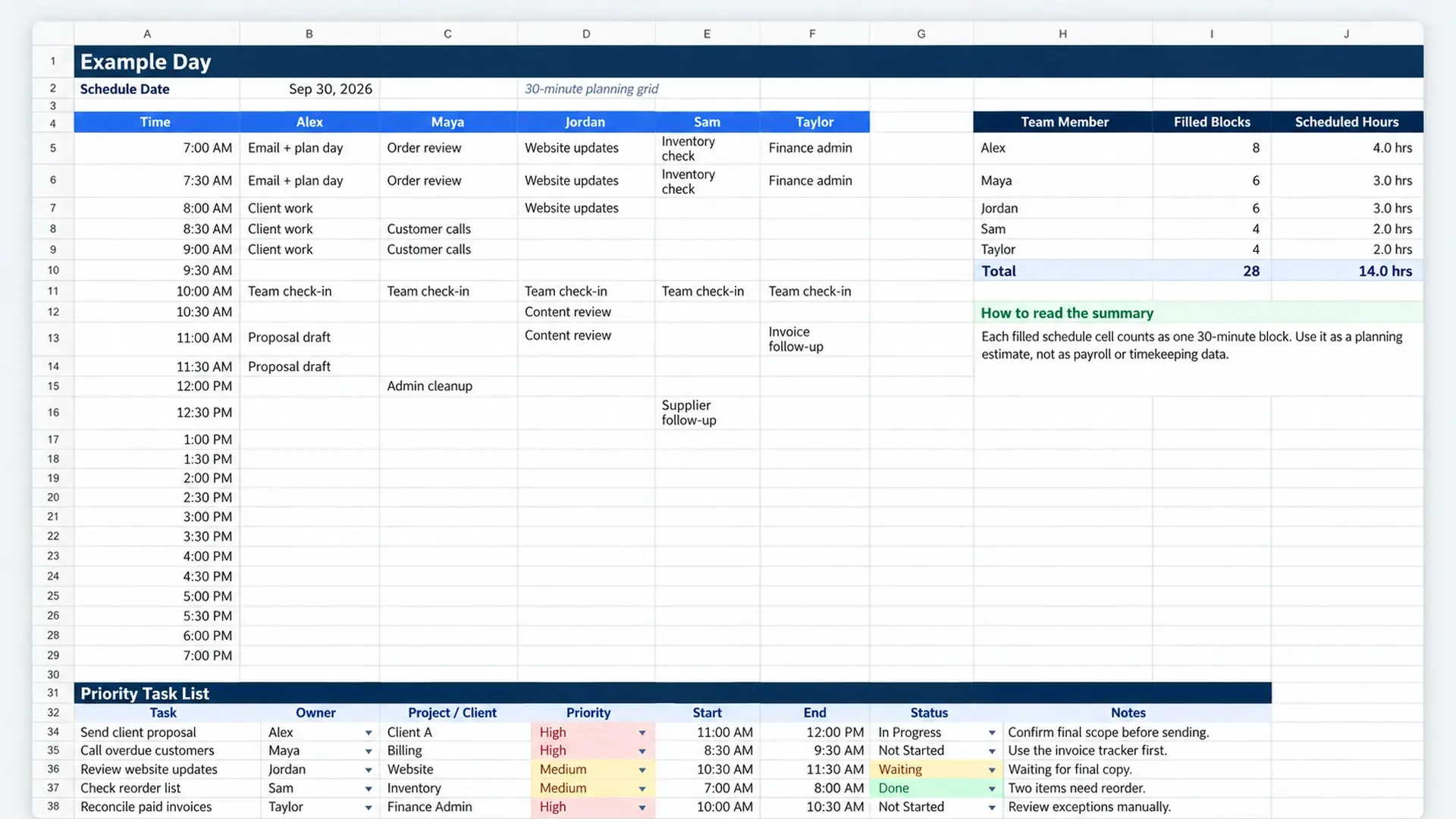
The example is not a recommended schedule for every business. Its job is to show how the fields work together so you can replace the sample entries with your own work.
Daily Schedule vs Calendar vs Work Plan
These tools solve related problems, but they should not become three copies of the same information.
| Tool | Main question | Best use | Use it when |
|---|---|---|---|
| Daily schedule | When during the day will this happen? | Time blocks, appointments, focus work, and same-day coordination | You need an intraday view for one person or a small team |
| Calendar | What is happening on each date? | Events, deadlines, meetings, launches, and monthly planning | The date matters more than the exact working block |
| Work plan | What work must be completed and who owns it? | Tasks, owners, priorities, dates, progress, dependencies, and next steps | You need execution tracking beyond today’s schedule |
If you are deciding between several project-planning formats, the project management templates guide compares the main options in one place.
When Google Sheets Is Enough
A shared spreadsheet can work well when daily coordination is simple and the group is small.
This type of template is most useful when:
- one to five people need a quick shared view of the day
- the schedule changes manually rather than through complex rules
- you mainly need time blocks, owners, priorities, and notes
- the team already works in Google Sheets
- you do not need payroll, time-clock, leave, or labor-compliance features
A spreadsheet also works well for a freelancer who simply wants a visible plan instead of keeping the day in a notebook, inbox, and calendar at the same time.
When to Use Scheduling Software Instead
A daily Google Sheet is not the right tool for every scheduling problem.
Dedicated employee-scheduling or workforce software becomes more reasonable when you need features such as:
- many employees or locations
- rotating shifts and availability rules
- shift swaps or leave requests
- time-clock records
- overtime or labor-cost controls
- automated employee shift notifications
- payroll integrations
Those are different requirements from the simple daily planning intent of this template. Do not stretch one spreadsheet into a workforce-management system if the business has already outgrown it.
Common Daily Scheduling Mistakes
- Planning every minute. A schedule with no buffer becomes outdated as soon as one task runs long.
- Using the template as a time clock. Filled schedule cells show planned time, not verified hours worked.
- Keeping too many status values. A short list such as Not Started, In Progress, Waiting, and Done is usually easier to maintain.
- Copying the same task into several systems. Use the daily sheet for today’s timing and keep longer-term project tracking where it already belongs.
- Leaving old team names in the Lists tab. Update the people first so the schedule and dropdowns stay clear.
- Keeping stale daily sheets mixed together. Use a simple naming or archiving rule if you plan to keep previous days.
Need a custom team planning or admin spreadsheet?
If your current schedule, task list, or admin spreadsheet has become difficult to maintain, Simple Office AI can help clean up the file or build a simpler system around the way your business works. This service does not provide payroll, employment-law, or workforce-compliance advice.
Frequently Asked Questions
What is a daily schedule template in Google Sheets?
It is a spreadsheet used to plan one working day by time. This template uses 30-minute blocks, editable team members, a scheduled-hours summary, and a priority task list.
Can several people use the same daily schedule?
Yes. The template is designed so a small team can place each person’s planned work in a separate column. Keep the process simple and agree on who updates the schedule when plans change.
Can I change the time range or team members?
Yes. Replace the sample names on the Lists tab. You can also adjust the time rows if your normal working day starts earlier, ends later, or needs a different interval.
Is this an employee shift schedule?
No. It is a daily work-planning template. It does not include time-clock records, payroll, overtime rules, leave management, or labor-compliance features.
Can I use the template in Excel?
Yes. An Excel version is available from the download button above. The workbook is designed around the same daily schedule, example, and lists structure.
When should I use a calendar instead of a daily schedule?
Use a calendar when you need to see events and deadlines across several dates. Use the daily schedule when the main problem is deciding when today’s work will happen.
This template is an administrative planning tool. It does not replace payroll, timekeeping, attendance, legal, HR, or labor-compliance systems or advice.