

Many small businesses lose time after a client says yes. The next steps are often unclear. A reliable client onboarding checklist template helps you collect client details, organize files, confirm billing, and start the project without confusion.
Without a simple system, you end up chasing missing files, clarifying the same scope again, searching for invoice details, and creating folders differently for every client.
This guide gives you a free Excel and Google Sheets template, a practical onboarding checklist, and a simple workflow you can use for freelance work, consulting, agencies, virtual assistance, or any small service business.
Free template
Download the Client Onboarding Checklist Template
Use the Excel file or make a Google Sheets copy to track new clients, required files, billing details, kickoff tasks, and onboarding status.
Download Excel TemplateDownload Excel Copy Google Sheets TemplateCopy in Google SheetsSign in to your Google account to make your own Google Sheets copy.
Quick start: onboard one client
- Save a working copy and replace the sample client information. Add one client row in Client Onboarding Tracker.
- Complete Client Intake Form for that client and save or duplicate the form to preserve the intake details.
- Add the required files and kickoff tasks to their checklist tabs. Update the tracker and checklists as each item is completed.
The intake form does not submit data or automatically fill the tracker. These tabs are maintained separately; the dashboard summarizes their entries.
What Is a Client Onboarding Checklist?
A client onboarding checklist is a simple list of steps you follow after a client accepts your service. It keeps the first stage of the relationship organized before the real work starts.
It helps you organize client contact details, project scope, required files, billing information, welcome email tasks, approval points, and next actions.
The goal is not to create a complex system. The goal is to make sure every new client starts with the same clear process.
Who This Template Is For
This template is useful if you work with clients and repeat the same setup steps every time.
- freelancers who manage several clients;
- consultants who need a simple intake process;
- virtual assistants who organize client admin work;
- small agencies that need a repeatable onboarding workflow;
- service businesses that collect files, invoices, and approvals before work starts.
Why Small Businesses Need a Client Onboarding Process
Small businesses often manage client work through email, spreadsheets, shared folders, and chat messages. That works at the beginning, but it becomes messy when the same information is copied across different places.
A client onboarding process helps you avoid common problems:
- client details are scattered across emails;
- files arrive late or in the wrong folder;
- scope is not confirmed clearly;
- billing details are missing;
- no one knows the next task;
- folders are created differently for every client;
- kickoff meetings happen before the admin side is ready.
A simple checklist helps reduce these problems. It gives you one place to see what is done, what is waiting, and what must happen next.
What Is Included in the Client Onboarding Checklist Template?
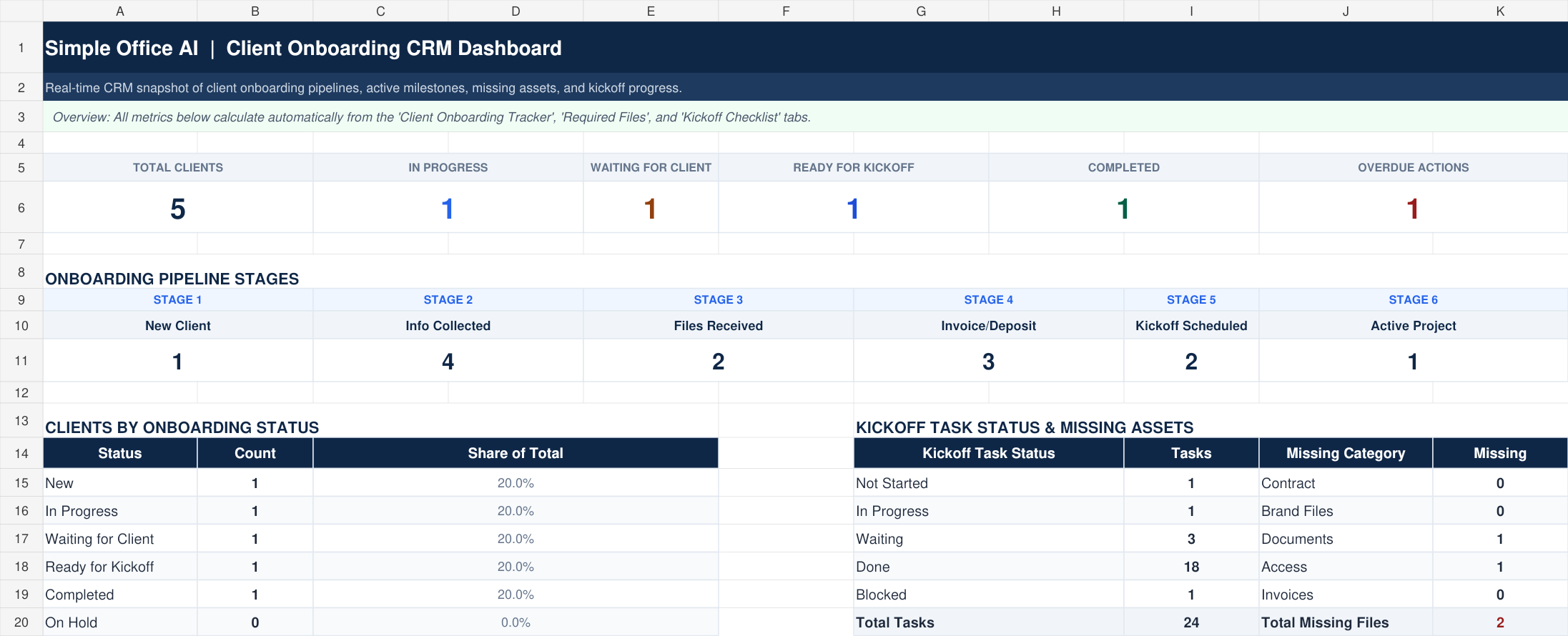
The template works like a light CRM for small service businesses. It includes a dashboard, tracker, intake form, file checklist, kickoff checklist, and a Settings tab for dropdown options.
| Section | What it tracks | Why it matters |
|---|---|---|
| Dashboard | Total clients, status cards, pipeline, task summary | Gives you a quick view of onboarding progress |
| Client Onboarding Tracker | Client name, owner, status, files, invoice, deposit, next action | Keeps every new client visible in one table |
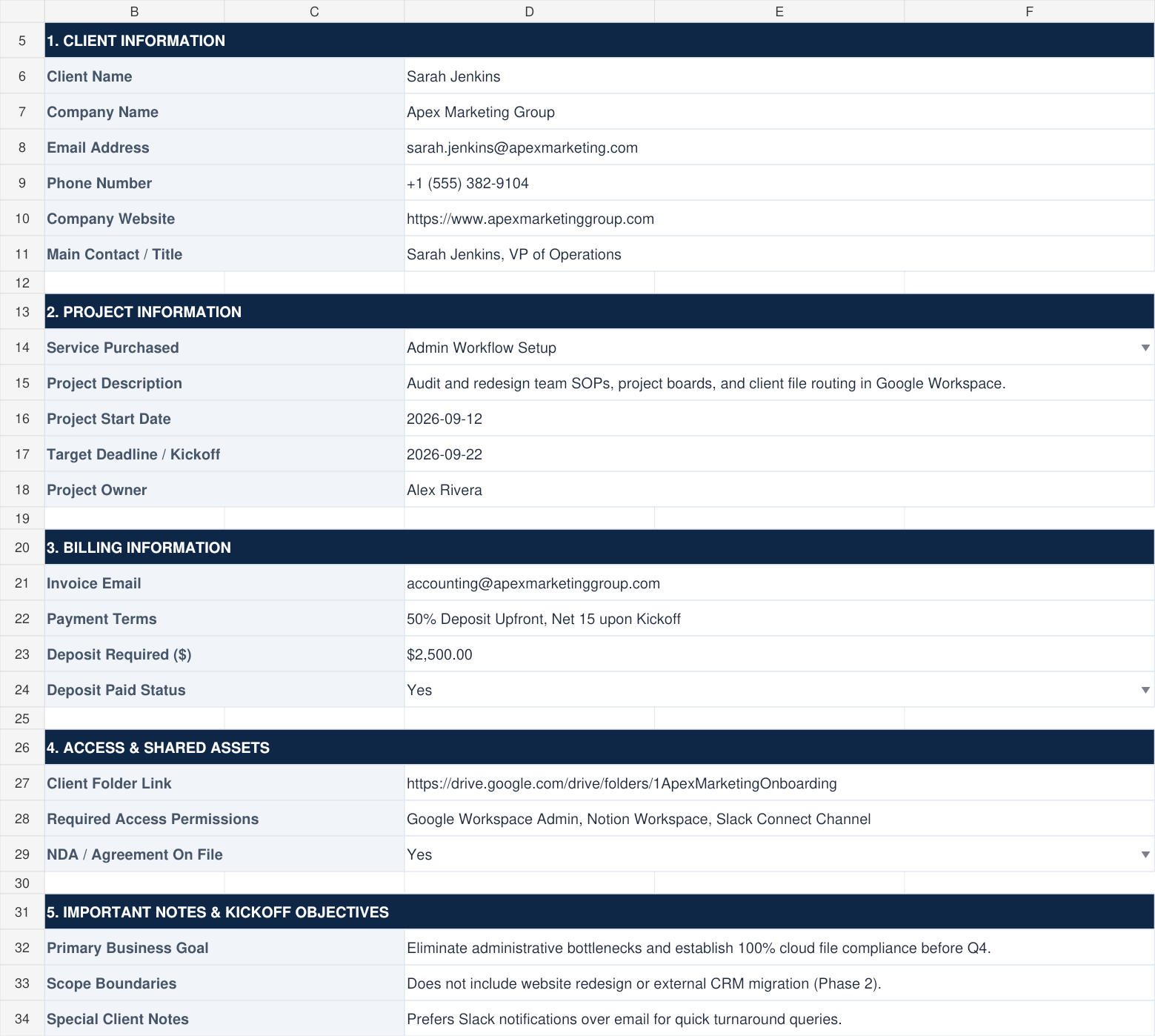
| Client Intake Form | Contact details, project details, billing info, access, notes | Collects what you need before kickoff |
| Required Files Checklist | Documents, logos, reports, access, references, received dates | Helps identify missing files before work starts |
| Kickoff Checklist | Welcome email, folder setup, invoice, deposit, kickoff call, first task | Turns an accepted client into an active project |


Client Onboarding Checklist: Step-by-Step
Quick client onboarding checklist
- Confirm client and project details
- Confirm scope, deliverables, and approvals
- Collect required files and access
- Create the client folder
- Create the first tasks and deadlines
- Confirm billing and payment details
- Send the welcome email
- Run the kickoff review
1. Confirm the Client and Project Details
Start by recording the basic client and project information. This avoids searching through emails later. You can also connect this step with a client tracker spreadsheet if you already manage customer records in Google Sheets. If that spreadsheet is becoming difficult to manage across a team, compare customer data management software for small businesses before moving the process into a larger system.
- Client name
- Company or business name
- Email and phone
- Main contact person
- Service purchased
- Project owner
- Start date
- Target kickoff date
2. Confirm the Scope of Work
Scope problems usually appear after work has already started. Confirm the scope before you create tasks or request detailed work files.
- What is included
- What is not included
- Deliverables
- Number of revisions
- Deadlines
- Client responsibilities
- Approval points
3. Collect Required Files and Access
Projects often slow down when work starts before the required files are available. Keep a separate file checklist for each client.
- Brand files
- Documents
- Invoices or records
- Reports
- Google Drive folder
- Previous files
- Examples or references
- Account access where needed
Important: do not store passwords in this workbook. Record access requirements and invitation status, and use a password manager or the service’s own access invitations.
4. Set Up the Client Folder
A simple folder structure saves time. Use the same pattern for every client so files are easy to find later. This connects well with a wider document workflow automation system.
- 01 Contract
- 02 Client Files
- 03 Invoices
- 04 Work Files
- 05 Final Delivery
5. Create the First Tasks
Once the client is confirmed, turn the onboarding information into action. You can later connect this with a project timeline template or a work breakdown structure template if the project is larger.
- Send welcome email
- Create client folder
- Review documents
- Schedule kickoff
- Prepare first deliverable
- Create invoice
- Assign owner
- Set first deadline
6. Confirm Billing and Payment Details
Do not wait until the end of the project to fix billing details. Confirm them during onboarding. For ongoing invoice tracking, use a Google Sheets invoice tracker. For late payments, use an Excel unpaid and overdue invoice tracker.
- Invoice contact
- Invoice number
- Deposit required
- Due date
- Payment status
- Payment terms
- Recurring billing if needed
7. Send the Welcome Email
A welcome email gives the client confidence and reduces repeated questions. Keep it short and specific.
Sample welcome email
Hi [Client Name],
Thank you for choosing [Your Business]. I am happy to start working on your [Service Name].
To begin, please send the required files listed below and confirm your preferred kickoff time. Once the files and deposit are confirmed, I will prepare the first task and share the project folder.
Best regards,
[Your Name]
8. Run a Kickoff Review
Before work starts, review the onboarding checklist. This final check helps you catch missing files, unclear scope, or unpaid deposits before they create problems.
- Scope confirmed
- Files received
- Folder created
- Invoice or deposit checked
- Owner assigned
- First task ready
- Next deadline clear
Client Onboarding Checklist Example
Here is a simple example of how the checklist can look in daily use.
| Step | Owner | Status | Notes |
|---|---|---|---|
| Confirm client details | Admin | Done | Email and phone saved |
| Create client folder | Admin | Done | Google Drive folder created |
| Collect documents | Client | Waiting | Logo and invoice info missing |
| Confirm scope | Owner | Done | Scope approved |
| Send invoice | Admin | Not started | Send before the deposit is due |
Client Onboarding Template for Google Sheets or Excel
A spreadsheet works well because it is easy to copy, filter, edit, and share. Google Sheets works well when your team needs live collaboration. Excel works well if you prefer desktop or offline file handling.
The template includes fields for client name, service purchased, project owner, onboarding status, priority, scope confirmation, files received, next action, due date, and notes. Record additional approval requirements in the Notes field.
How to Set Up Your Copy
- Save your own copy. Replace the sample client details, dates, notes, and links before using it for real work.
- Add one client per row in Client Onboarding Tracker. Update the status and milestone dropdowns manually as work progresses.
- Complete the Client Intake Form for one client at a time. Duplicate that tab or save a separate copy to keep each client’s intake details. It does not submit information or automatically fill the tracker.
- Add the client’s files and tasks to Required Files Checklist and Kickoff Checklist. Update these tabs and the tracker separately. The Dashboard summarizes their entries.
- Use the existing options in Settings. If you add options beyond the current lists, extend the corresponding data-validation source ranges.
The dashboard formulas and dropdowns cover rows 7–50 on the tracker and checklists. Their filters currently end at row 35. Extend the filter range before adding records below row 35, and extend formulas, dropdowns, and conditional formatting before using rows beyond 50. Keep the Dashboard formulas intact.
How to Turn This Checklist Into a Client Onboarding Workflow
A checklist becomes more useful when it follows the same workflow every time:
Client accepts proposal → onboarding checklist created → client folder created → welcome email sent → files requested → invoice prepared → kickoff scheduled → project starts.
Later, you can improve this process with workflow automation for small business. For example, a separately configured automation can create a row in Google Sheets, a folder in Google Drive, or a task in your project system after a form submission. These automations are not included in this workbook.
Common Client Onboarding Mistakes
- Starting work without clear scope
- Asking for files too late
- Not confirming payment details
- No standard folder system
- No owner for the next step
- No written kickoff summary
- Using too many tools too early
- Not tracking missing files
When to Get Help Setting Up Client Onboarding
You may not need help for a simple one-person checklist. But if your client files, invoices, folders, and tasks are scattered, a simple admin system can save time every week.
Need help building a client onboarding system?
Simple Office AI helps small businesses organize spreadsheets, folders, invoices, client records, and admin workflows into simple systems.
View ServicesView servicesFrequently Asked Questions
What should be included in a client onboarding checklist?
It should include client contact details, project scope, required files, billing information, folder setup, kickoff tasks, approvals, and next steps.
Can I use Google Sheets for client onboarding?
Yes. Google Sheets is a good choice for small businesses because it is easy to share, update, filter, and copy for each new client.
What is the first step after a client accepts a proposal?
The first step is to confirm the client details, scope, billing information, and required files. Then create the client folder and send the welcome email.
How do I organize client files?
Use a repeatable folder structure such as Contract, Client Files, Invoices, Work Files, and Final Delivery. Keep the folder names simple.
Should client onboarding be automated?
Only automate after the manual process is clear. Start with a checklist, then automate repeated steps such as folder creation, email reminders, or task creation.
What is the difference between client onboarding and project kickoff?
Client onboarding covers admin setup, files, billing, folders, and approvals. Project kickoff focuses on the actual work plan, goals, responsibilities, and timeline.
Final Takeaway
A client onboarding checklist helps small businesses start work with less confusion. It keeps client details, files, billing, approvals, and next steps visible from the beginning.
Download the Client Onboarding Checklist Template
Download the Excel file or make a Google Sheets copy, then customize it for your business.
Sign in to your Google account to make your own Google Sheets copy.