

Use this free Excel invoice tracker to find unpaid balances, check how late an invoice is, and prioritize payment follow-up.
Record each invoice separately and update Amount Paid when money arrives. Balance, Status, and Days Overdue show which invoices still need attention, including partially paid invoices.
Make a Copy in Google Sheets Copy in Google Sheets
Quick start: use the template
- Save a working copy and enter the invoice number, client, due date, amount, and amount paid.
- Filter for invoices with an outstanding balance. Review overdue dates and balances before deciding whom to contact.
- Record the follow-up in Notes and update Amount Paid only when payment is received.
The spreadsheet identifies overdue invoices. It does not send reminders or confirm bank payments automatically.
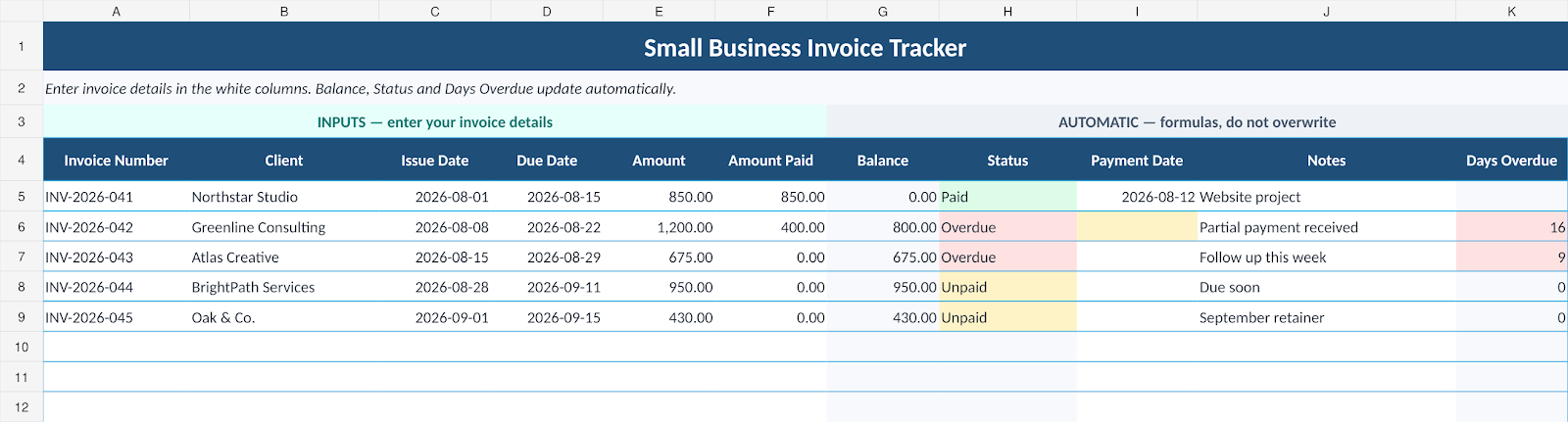
This guide is an overdue-payment review workflow.
It focuses on finding open balances, prioritizing late invoices, and recording follow-up in Excel. For the broader setup of a shared tracker for every invoice, use the Google Sheets guide linked near the end.
Start With an Accounts Receivable Review in Excel
The goal of an overdue invoice tracker is not to store every possible client detail. It is to make outstanding payments easy to find and prioritize.
For that, you need enough information to answer four practical questions:
- Who still owes money?
- How much is outstanding?
- Which invoices are already overdue?
- Which late invoices should be followed up first?
What an Excel Invoice Tracker Needs to Show
You do not need dozens of columns. The tracker only needs enough information to tell you what was billed, what has been paid, and what still needs attention.
| Field | What It Helps You See |
|---|---|
| Invoice Number | Gives every invoice a unique reference. |
| Client | Shows who owes the payment. |
| Issue Date | Shows when the invoice was sent. |
| Due Date | Determines when an unpaid invoice becomes overdue. |
| Amount | Shows the original invoice value. |
| Amount Paid | Records full or partial payments received. |
| Balance | Shows how much is still outstanding. |
| Status | Separates paid, unpaid, partially paid, and overdue invoices. |
| Payment Date | Records when a paid invoice was settled. |
| Notes | Keeps useful follow-up information next to the invoice. |
| Days Overdue | Shows how long an unpaid balance has been past its due date. |
Step 1: Keep One Invoice Per Row
Each row should represent one invoice. Do not combine several invoices from the same client into one row.
This matters because one client can have an old overdue invoice and a newer invoice that is not due yet. If both are combined, you lose the ability to see which payment actually needs attention.
Step 2: Calculate the Outstanding Invoice Balance
The balance is the part of the invoice that has not been paid yet.
If the invoice amount is in E5 and the amount paid is in F5, the Simple Office AI tracker uses:
=IF(A5="","",MAX(E5-F5,0))The MAX part prevents the balance from becoming negative if an amount paid is entered above the invoice amount.
This is especially useful for partial payments. An invoice for $1,200 with $400 received should show an $800 balance, not simply be treated as paid or unpaid.
Step 3: Use the Due Date to Identify Overdue Invoices
An invoice should not be marked overdue just because it has not been paid yet. It becomes overdue when there is still a balance after the due date has passed.
In the free tracker, the status updates automatically based on the balance, due date, and amount paid.
The logic is:
- Paid — no balance remains.
- Overdue — a balance remains and the due date has passed.
- Partially Paid — some money has been received and the invoice is not yet overdue.
- Unpaid — no payment has been received and the due date has not passed.
One important detail: if an invoice is only partially paid but its due date has already passed, the tracker marks it Overdue. That keeps late balances visible instead of hiding them under a partially paid label.
Step 4: Calculate How Many Days an Invoice Is Overdue
Knowing that an invoice is overdue is useful. Knowing whether it is 2 days late or 40 days late is more useful.
The tracker calculates days overdue with:
=IF(OR(A5="",G5<=0,D5=""),"",MAX(TODAY()-D5,0))This returns zero before the due date and starts counting only when an unpaid balance is past due.
The Days Overdue column gives you a simple way to separate a recently late invoice from one that has been outstanding for several weeks.
Step 5: Build an Outstanding-Invoice Review Queue
You do not need to scan every invoice manually.
Filter the Status column to show only Overdue. Then review the Balance, Due Date, Days Overdue, and Notes columns.
You can also filter for Unpaid or Partially Paid when you want to review every invoice that still has an open balance.
Step 6: Prioritize Overdue Invoices by Age and Balance
Once you have filtered the sheet to overdue invoices, sort Days Overdue from highest to lowest.
This puts the oldest late invoices at the top of the list so you can review the most urgent balances first.
A practical review order is:
- Filter for Overdue invoices.
- Sort by Days Overdue from highest to lowest.
- Check the remaining Balance.
- Check whether any partial payment has been received.
- Review the Notes column for the latest context.
- Follow up outside the spreadsheet when necessary.
- Update Amount Paid and Payment Date when money arrives.
The spreadsheet does not send payment reminders automatically. Its job is to make sure you can see which invoices need follow-up. If you later need automatic reminders or payment links, that is usually the point where dedicated invoicing software becomes more useful.
Step 7: Use Conditional Formatting to Flag Late Payments
If you want overdue rows to stand out visually in Excel, you can add conditional formatting.
For the column layout used in this guide, a simple formula-based rule can check whether the invoice still has a balance in column G and whether the due date in column D has already passed:
=AND($G5>0,$D5<TODAY())Apply the rule to your invoice rows and choose a highlight format that is easy to notice.
Note: this is an optional Excel setup you can add to your own file. It is not required for the free tracker to calculate overdue status.
Step 8: Handle Partially Paid Overdue Invoices Correctly
A partial payment does not automatically mean the invoice is current.
If an invoice still has a balance after its due date, it should remain visible as overdue even if the client has already paid part of the amount.
For example, if a $1,000 invoice has received $600 but the due date has passed, the remaining $400 still needs follow-up. The tracker keeps that late balance visible by marking the invoice Overdue.
Use the Dashboard as a Weekly Overdue-Invoice Check
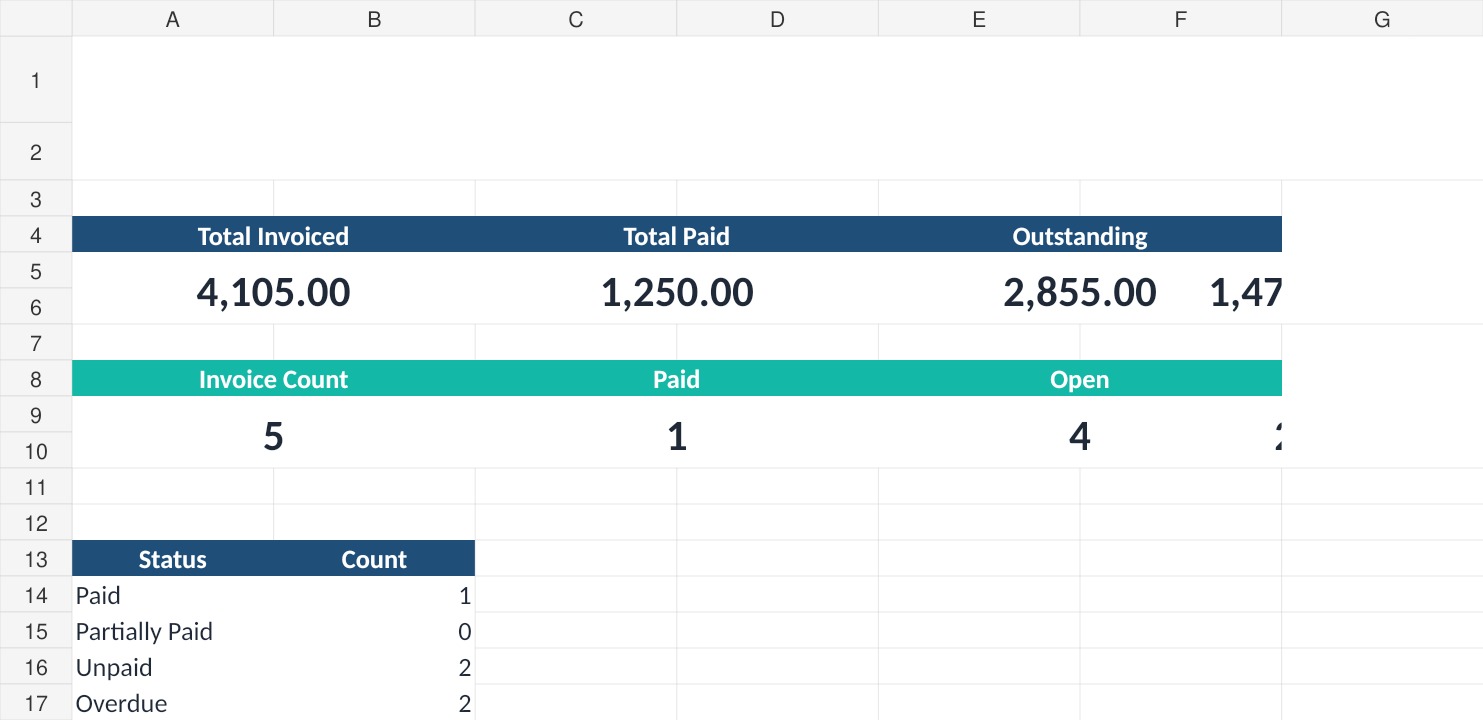
The Dashboard gives you a faster view of the entire invoice list without filtering the sheet first.
The free tracker shows:
- Total Invoiced
- Total Paid
- Outstanding
- Overdue Outstanding
- Invoice Count
- Paid invoices
- Open invoices
- Overdue invoices
- Status counts
Open means any invoice that still has a balance, including unpaid, partially paid, and overdue invoices.
A Simple Weekly Overdue-Invoice Review
The spreadsheet is most useful when it becomes a routine rather than a file you open only when there is a problem.
Once a week, spend a few minutes checking:
- new invoices that need to be added
- payments that need to be recorded
- invoices that have just become overdue
- old overdue balances that still need follow-up
- missing payment dates or notes
That small review is usually easier than trying to remember which clients paid several weeks later.
Download the Free Excel Invoice Tracker
The Simple Office AI invoice tracker is designed for freelancers and small businesses that want a simple way to see paid, unpaid, partially paid, and overdue invoices in one file.
What Is Included in the Tracker?
The workbook includes an Invoice Tracker, an automatic Dashboard, and an Instructions sheet.
The main tracker is prepared for up to 200 invoice rows. Balance, Status, and Days Overdue calculate automatically when the required invoice information is entered.
When Is Excel Enough for Invoice Tracking?
Excel can work well when you have a manageable number of invoices, one person or a small team maintaining the records, and you mainly need a clear view of balances and overdue payments.
You may outgrow a spreadsheet when you need automatic payment reminders, online payment links, recurring invoices, bank reconciliation, multi-user approval workflows, or direct accounting integrations.
The goal is not to avoid software forever. It is to use the simplest system that solves the problem you have today.
Prefer Google Sheets for Your Full Invoice Workflow?
This page focuses on Excel follow-up for unpaid and overdue invoices. If you want the broader setup process for tracking all invoices in Google Sheets, including fields, formulas, filters, and dashboard workflow, read our Google Sheets invoice tracker guide. If manual reminders and status updates are becoming repetitive, the next step is our invoice automation guide.
Frequently asked questions
How does the tracker identify an overdue invoice?
An invoice needs an outstanding balance and a due date in the past. Review both the balance and due date; a fully paid invoice does not need payment follow-up.
How do I track a partially paid overdue invoice?
Keep the original invoice amount and enter the total payment received in Amount Paid. Use the remaining Balance when planning the next follow-up.
Does the tracker send payment reminders?
No. It identifies invoices that need attention. You send the message and record the follow-up separately.
Should I combine several invoices for one client?
No. Keep one invoice per row. Different invoices can have different due dates and payment histories.
Need Help Fixing a Messy Invoice Spreadsheet?
If your current Excel or Google Sheets file has duplicated invoices, confusing columns, broken formulas, or payment information spread across several tabs, Simple Office AI can help clean it up or build a simpler tracking system around your workflow.
Need help with your spreadsheet?
This tracker is an administrative organization tool and does not replace accounting, tax, legal, or financial advice.