

A document arrives by email. Someone downloads it, another person renames it, approval is requested in a message, and a few days later nobody is completely sure which version is final or where it should be stored.
Document workflow automation moves a document through defined steps such as capture, review, approval, action, and storage. Set one trigger, give each human decision an owner, and automate the repeatable handoffs.
For a small business, the answer is not necessarily buying a large document-management platform. A better starting point is to define one repeatable document process, identify where files get delayed or lost, decide who owns each human decision, and automate only the predictable steps.
This guide shows how to do that using a simple model:
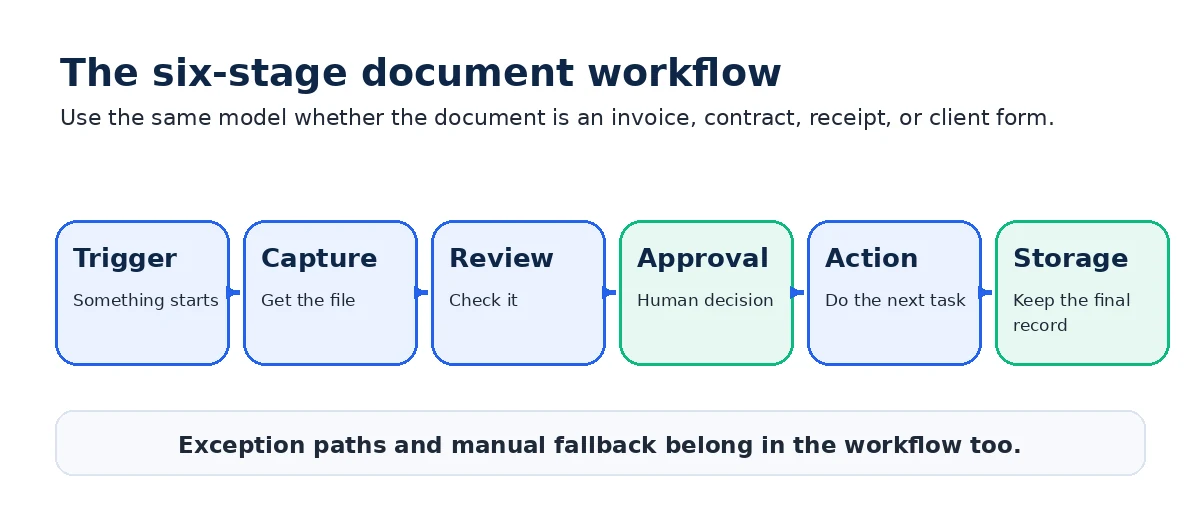
Trigger → Capture → Review → Approval → Action → Storage
You will see what each stage means, practical examples, a setup process, simple tool stacks, and the situations where automation should remain limited or manual.
What Is Document Workflow Automation?
Document workflow automation uses predefined rules to move a document through steps such as capture, review, approval, action, and storage with less manual routing and follow-up.
The document itself may still require people to check information or make decisions. Automation handles predictable handoffs: notifying a reviewer, changing a status, creating a reminder, moving an approved file, or recording that a step has been completed.
It helps to separate three related ideas:
| Concept | Meaning |
|---|---|
| File storage | Where files are kept |
| Document management | How documents are named, organized, controlled, and retrieved |
| Document workflow automation | How documents move between people and actions according to rules |
A shared folder is therefore not automatically an automated workflow. It may solve storage while leaving review, approval, reminders, responsibility, and final filing completely manual.
Likewise, a document management workflow may organize versions, permissions, metadata, and retrieval without automating every business action around the document.
How Document Workflow Automation Works
A useful small-business workflow can be described in six stages.
1. Trigger
Something starts the process.
That might be an invoice arriving in a shared inbox, a customer submitting a form, an employee uploading a document, or someone changing a status in a spreadsheet.
2. Capture
The document enters a known location instead of remaining in someone’s private inbox or Downloads folder.
Capture might mean saving an attachment, accepting a form submission, receiving an uploaded PDF, or placing a scan in an intake folder.
3. Review
Someone—or a reliable predefined rule—checks whether the document is complete and ready for a decision.
For a supplier invoice, that might mean checking the vendor name, invoice number, amount, purchase reference, and due date.
4. Approval
A named person makes the decision that should remain human.
The approver might accept, reject, request changes, or escalate the document.
5. Action
Approval should cause something specific to happen.
An approved purchase order can be sent to a supplier. An approved contract can move to signature. An approved invoice can enter the normal payment process. A completed client form can create an onboarding task.
6. Storage
The final record goes to its intended location with the right name, status, and access permissions.
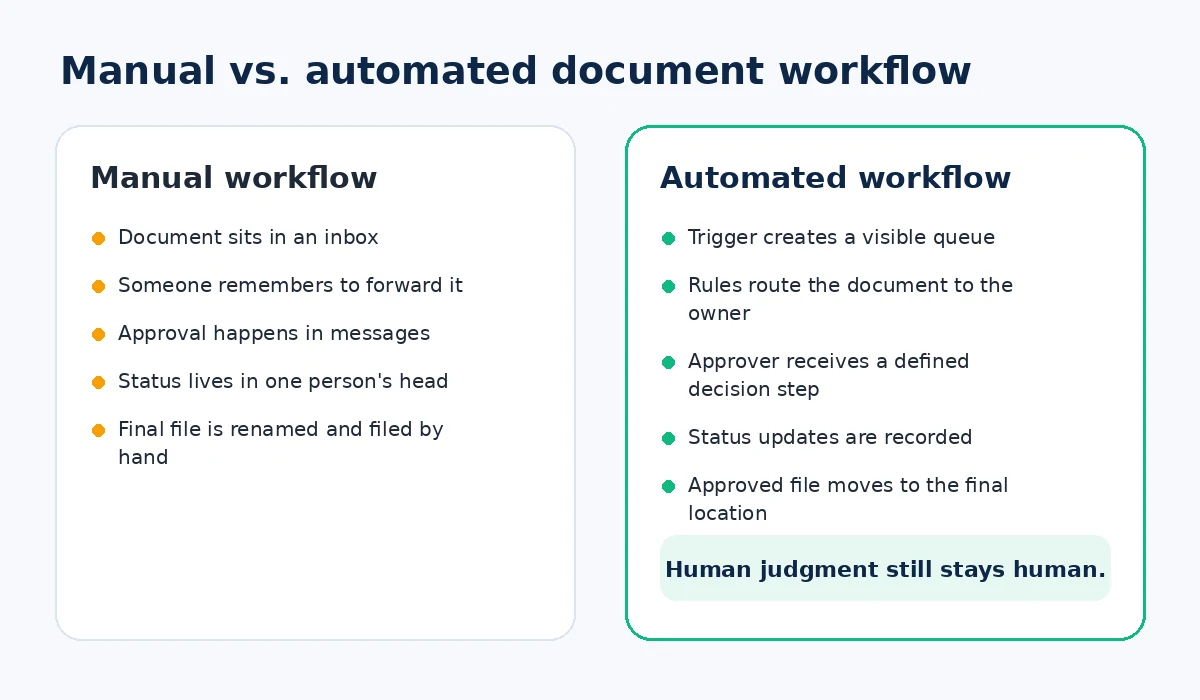
The result is a controlled path rather than a chain of disconnected emails and manual reminders.
For example, a supplier invoice might follow this path:
Invoice received → saved to intake → checked against required information → sent to owner for approval → approved amount recorded for payment → final invoice stored in the supplier-invoice folder.
The important part is not how many apps are involved. It is that everyone knows what should happen next.
Signs a Small Business May Need Document Workflow Automation
Automation becomes worth considering when a document process is repeatable but repeatedly breaks at the handoffs.
Common warning signs include:
- approvals are regularly delayed;
- people ask which file is the final version;
- documents remain in personal inboxes;
- filenames are inconsistent;
- follow-ups depend on somebody remembering;
- documents are difficult to locate later;
- the same information is manually entered into several places;
- nobody can quickly tell who approved a document;
- rejected or incomplete documents disappear from the normal process.
One occasional missing file does not mean you need workflow software. The stronger signal is a predictable process that causes the same administrative problem again and again.
Practical Document Workflow Automation Examples
The same six-stage model can be applied to very different documents.
| Example | Trigger and automated steps | Human decision | Final output | Main risk or exception |
|---|---|---|---|---|
| Supplier invoice | Invoice arrives → capture to invoice queue → notify reviewer → update status | Approve, reject, or question the invoice | Approved invoice recorded for the normal payment process and filed | Missing reference, disputed amount, duplicate invoice, or payment requiring separate authorization |
| Purchase order | Request submitted → route by owner or value → notify approver → record decision | Approve the purchase | Approved PO is issued and stored | Unbudgeted purchase, changed supplier terms, missing information |
| Business receipt | Receipt uploaded → move to intake → apply filing reminder or status | Confirm the file is readable and belongs in the archive | Consistently named receipt in the correct folder | Poor scan, duplicate receipt, sensitive information, uncertain recordkeeping requirement |
| Client intake | Client submits form/documents → create intake record → notify owner → request missing items | Decide whether intake is complete and what happens next | Complete onboarding package and next action | Missing consent, incomplete information, unusual client requirements |
| Contract | Draft enters review → notify reviewer → track status → send approved version to e-sign process | Accept terms or request legal/business review | Executed contract stored with the appropriate record | Nonstandard terms, sensitive information, jurisdiction-specific requirements |
| Employee document | Form or policy is issued → reminder sent → acknowledgment captured → status updated | HR/owner handles exceptions | Completed acknowledgment or onboarding record | Sensitive personal data, access controls, missing signature, special employment requirements |
If your purchasing process still needs a basic document before you automate approvals, see the purchase-order template guide.
For receipts, keep the filing problem separate from the broader automation problem. The business receipt organization guide shows a practical Google Drive capture and filing system.
How to Set Up a Simple Document Workflow
Do not begin with a software comparison. Begin with one document.
1. Select one document type
Choose something repetitive enough to learn from: supplier invoices, purchase requests, client intake forms, receipts, contracts, or another recurring document.
2. Write down the current manual steps
Document what really happens, not what the process is supposed to look like.
For example:
Invoice arrives → employee downloads it → employee messages owner → owner replies → employee updates spreadsheet → employee saves PDF.
3. Identify the trigger and final result
Define both ends before automating the middle.
The trigger might be “invoice received in accounts inbox.”
The desired result might be “approved invoice recorded for payment and stored in the correct supplier folder.”
4. Remove unnecessary steps
If a document is downloaded, re-uploaded, renamed twice, and copied into several tracking systems, simplify before automating.
Automation makes a repeatable process faster. It does not automatically make a poorly designed process sensible.
5. Assign an owner to every human decision
“Someone reviews it” is not a workflow rule.
Specify who reviews incomplete documents, who approves them, who handles rejection, and who owns the process when the normal approver is unavailable.
6. Set naming and folder rules
Decide where the final document lives and how it should be named.
Avoid putting confidential customer information, account numbers, card information, or other unnecessarily sensitive data in filenames.
7. Choose the minimum tools needed
Ask what your existing tools already handle before adding another platform.
You may only need a shared inbox, form, cloud folder, spreadsheet status list, and one connector or built-in automation tool.
8. Configure notifications and approval rules
Automate the predictable handoffs.
Examples include notifying the correct reviewer, sending a reminder before a deadline, recording approval status, or moving an approved file to its final folder.
Avoid notifying everyone about everything. A useful notification tells a specific person that a specific action is required.
9. Test normal and exception cases
Do not test only the happy path.
Try a complete document and then a missing field, rejection, duplicate, unavailable approver, or intentionally failed automation.
A manual fallback matters because automation eventually encounters conditions you did not anticipate.
10. Document and periodically review the workflow
Write down the trigger, owner, review rule, approver, storage destination, exception path, and fallback.
Then revisit the workflow when the business process changes.
Free Document Workflow Mapping Worksheet
Before choosing automation software, map one real process from trigger to final storage.
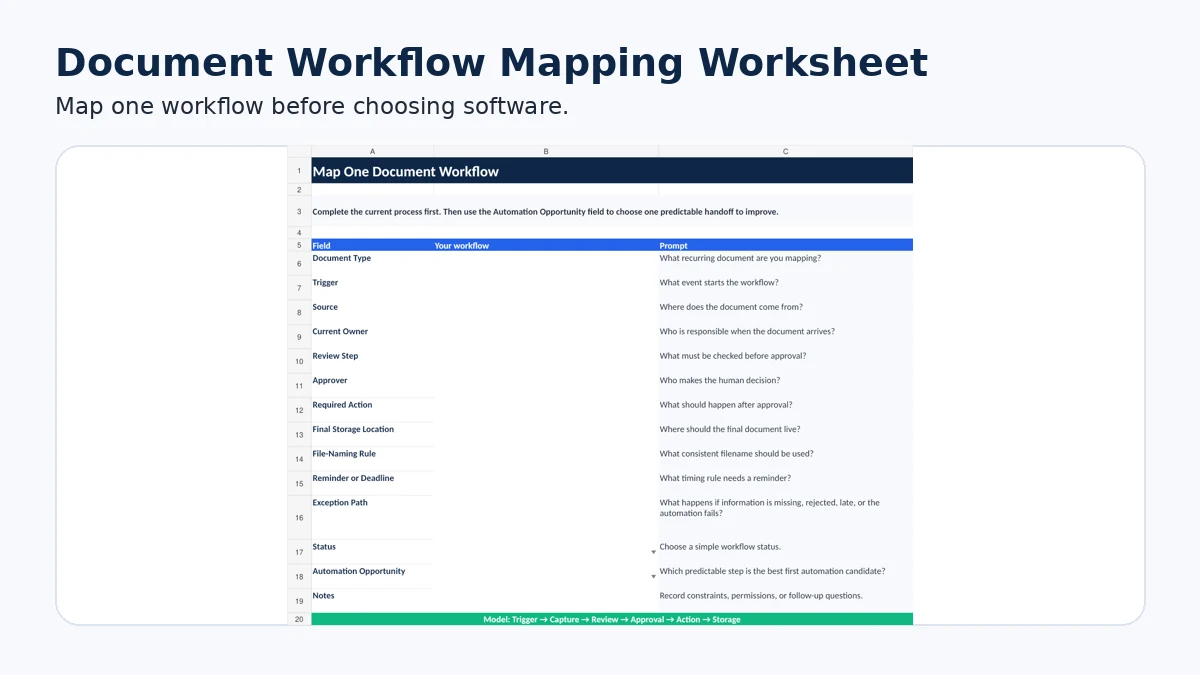
The workbook includes an Instructions sheet, a one-workflow mapping sheet, a supplier-invoice example, and an optional multi-workflow register. Use it to record the trigger, owner, review step, approver, required action, storage location, naming rule, deadline, exception path, status, and first automation opportunity.
Worked example: supplier invoice
Suppose invoices arrive in a shared accounts inbox.
The trigger is a new supplier invoice. The file is captured in an incoming-invoice location. An office manager reviews the vendor, reference, amount, and required information. Invoices that meet the business’s predefined criteria go to the named approver. The approver accepts, rejects, or asks for clarification.
An approved invoice then moves into the normal accounting or banking process and is stored in the final supplier folder. An incomplete invoice remains visible in an exception queue instead of disappearing into an email thread.
Notice what is not automated: the business decision to approve spending or authorize payment.
That is the difference between removing administrative handoffs and removing necessary judgment.
Simple Tool Stacks
You do not need one universal document workflow system. Match the stack to the process.
| Stack | Practical use |
|---|---|
| Google Forms + Google Sheets + Google Drive + an automation connector | Intake, status tracking, reminders, routing, and cloud filing for relatively simple workflows |
| Outlook or a Microsoft intake method + SharePoint/OneDrive + Power Automate | File-based triggers, approvals, notifications, status updates, and routing in a Microsoft environment |
| Cloud storage + electronic-signature software | Agreement workflows where review is simple but signatures and completed-document storage matter |
| Dedicated document-management or workflow platform | Higher document volume, more complex permissions, audit requirements, conditional routing, version control, or several connected processes |
Those capabilities do not mean one ecosystem is automatically the best choice. Existing subscriptions, document sensitivity, user access, workflow complexity, and who will maintain the automation all matter.
When Spreadsheets and Cloud Storage Are Enough
A spreadsheet and cloud folder can be perfectly reasonable when:
- document volume is manageable;
- the workflow has only a few predictable steps;
- one person or a small team owns the process;
- approval rules are simple;
- a basic status field gives enough visibility;
- advanced audit trails or complex permissions are not required.
A spreadsheet can track the process without becoming the document archive itself.
For example, an invoice tracker can store invoice number, status, due date, and file reference while the PDF remains in controlled document storage. See the Google Sheets invoice tracker guide.
Likewise, a client tracker can hold the next action while intake forms and signed documents remain in their appropriate folders. See the client tracker spreadsheet guide.
Dedicated document workflow software becomes more reasonable when the basic system cannot reliably handle the permissions, routing, version control, search, audit history, integrations, or document volume the business actually requires. If you have reached that point, compare the broader options in our business process automation software guide.
What Not to Automate
Do not automate a process merely because a connector exists.
Keep the workflow manual or redesign it first when:
- the process changes almost every time;
- sensitive documents do not yet have appropriate access controls;
- human judgment is the central task;
- the workflow has never been clearly defined;
- exceptions are more common than the standard path;
- nobody owns the final decision;
- the business cannot reliably test and monitor the automation.
Sensitive financial, employee, legal, health, identity, or client documents require appropriate permissions and security controls. Retention, employment, tax, legal, privacy, and compliance requirements can also vary, so obtain appropriate professional guidance where those requirements matter.
Common Document Workflow Automation Mistakes
A small workflow usually fails because its rules are unclear, not because it lacks enough software.
Watch for these mistakes:
- buying software before mapping the process;
- automating a broken workflow;
- using inconsistent filenames;
- giving broader file access than the process requires;
- forgetting rejected or incomplete documents;
- creating so many notifications that people ignore them;
- having no manual fallback;
- relying on one person without an absence or escalation path;
- never reviewing whether the workflow still matches the business.
A 30-Minute Starting Plan
You do not need to build the entire automation in 30 minutes. Use that time to make the process visible.
- Choose one recurring document.
- Draw its current path from arrival to final storage.
- Identify one repetitive handoff.
- Standardize its filename and destination.
- Choose one reminder, routing step, or status update that follows a clear rule.
- Test the idea with a sample document before expanding it.
If you cannot explain the current workflow on one page, adding automation is probably premature.
Frequently Asked Questions
What is document workflow automation?
Document workflow automation uses predefined rules to move documents through steps such as capture, review, approval, action, and storage while reducing manual routing and follow-up.
What is the difference between document management and workflow automation?
Document management focuses on organizing, controlling, storing, and retrieving documents. Workflow automation focuses on what happens to the document next: who receives it, who decides, what action follows, and where the final record goes.
What documents should a small business automate first?
Start with a recurring document that has a clear trigger, predictable steps, a known owner, and a specific final result. A frequent administrative bottleneck is usually a better first candidate than the most complicated document in the business.
Can Google Drive or Microsoft 365 automate document workflows?
They can support many parts of a workflow when combined with the appropriate tools and configuration. Google Forms can feed responses into Sheets, Drive provides file storage and permissions, and automation tools can handle routing or notifications. Microsoft also supports approval workflows with SharePoint and Power Automate.
Does a small business need dedicated workflow software?
Not necessarily. A small team with a straightforward process may be able to use forms, spreadsheets, cloud storage, and existing automation features. Dedicated software becomes more useful when requirements such as complex routing, permissions, version control, auditing, integrations, or document volume outgrow the simpler setup.
How should an automated document workflow be tested?
Test the normal path and the exceptions. Try a complete document, missing information, rejection, a duplicate, an unavailable approver, and a failed automation. Confirm that each case remains visible and has a manual recovery path.
Start With One Document, Not a New Platform
Document workflow automation works best when it begins with a process rather than a purchase.
Choose one recurring document. Define its trigger. Decide where it is captured, who reviews it, who approves it, what action follows, and where the final record belongs. Then automate only the handoffs that follow reliable rules.
That gives you a workflow you can understand, test, and improve before adding more complexity.
If your current system involves a messy spreadsheet, an unclear approval chain, scattered business files, or an administrative process that needs a cleaner structure, Simple Office AI spreadsheet and workflow organization services can help simplify the underlying system.