

Workflow automation for small business teams does not have to mean replacing your current tools or handing every decision to software. The useful version is much simpler: when a predictable event happens, the next routine steps happen automatically, while a person still reviews anything that needs judgment.
That makes workflow automation especially useful for the administrative work that repeats every week: copying form submissions into a client list, creating onboarding tasks, sending invoice reminders, collecting receipts, routing approvals, organizing files, and preparing status updates.
Start with one workflow: choose a repeated task with a clear trigger, define the result and the person responsible for exceptions, then test one normal case and one failure case before switching it on.
What Workflow Automation Means for a Small Business
A workflow is the path a piece of work follows from start to finish. Automation handles one or more steps in that path based on a trigger.
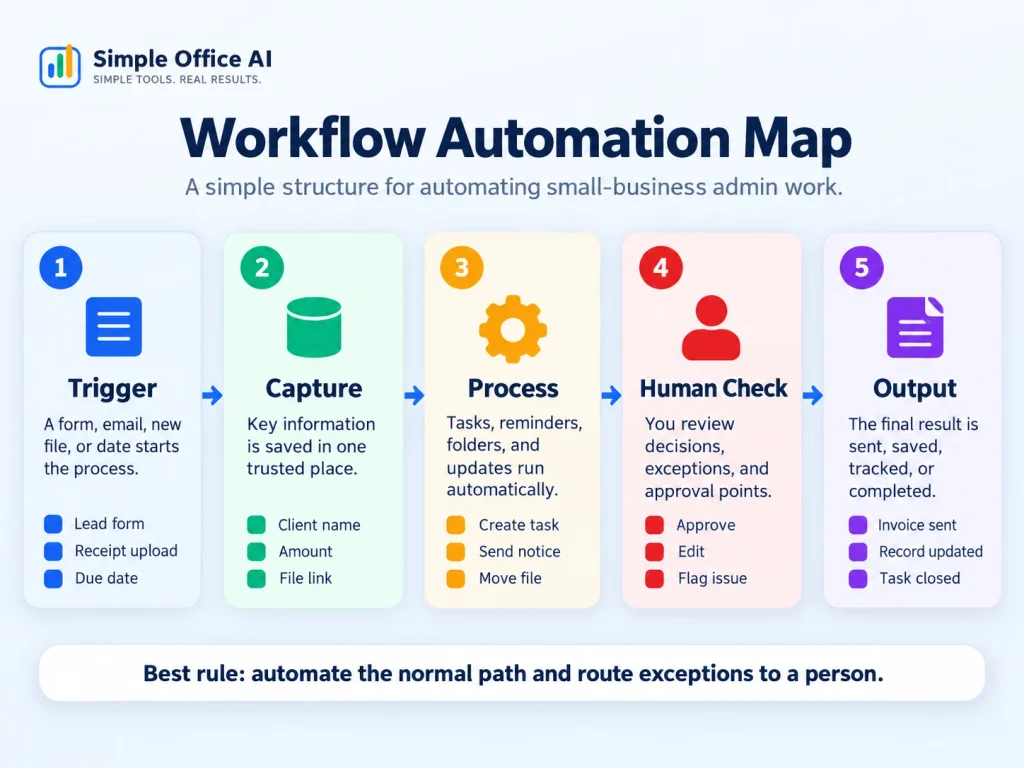
A practical small-business workflow usually has five parts:
- Trigger: something happens, such as a form submission, payment, file upload, date, or status change.
- Capture: the important details are stored in one reliable place.
- Process: software creates, updates, routes, calculates, or notifies.
- Human check: a person reviews exceptions, approvals, or decisions that should not be automatic.
- Output: the task is completed and the result is recorded where the business can find it later.
This structure matters because it keeps automation understandable. You can see what starts the workflow, what the system does, where a person stays in control, and what “done” actually means.
What Makes a Workflow Worth Automating?
The best first automation is rarely the most impressive one. It is usually a repetitive process that already has a clear pattern.
A workflow is a good candidate when most of these statements are true:
- It happens often enough that the repeated admin is noticeable.
- The same information is copied between the same places.
- The next action is usually determined by a simple rule.
- A missed handoff creates delay, confusion, or follow-up work.
- The normal path is predictable, even if some exceptions need a person.
- You can define the result clearly, such as “client record created” or “approval logged.”
If the work changes every time, depends heavily on judgment, or has serious consequences when the input is wrong, automate less and keep a stronger human checkpoint.
10 Practical Small-Business Workflow Automation Examples
The examples below use the same pattern: trigger → capture → process → human check → output. You do not need every step to be automated. Start with the part that removes the most repeated admin.
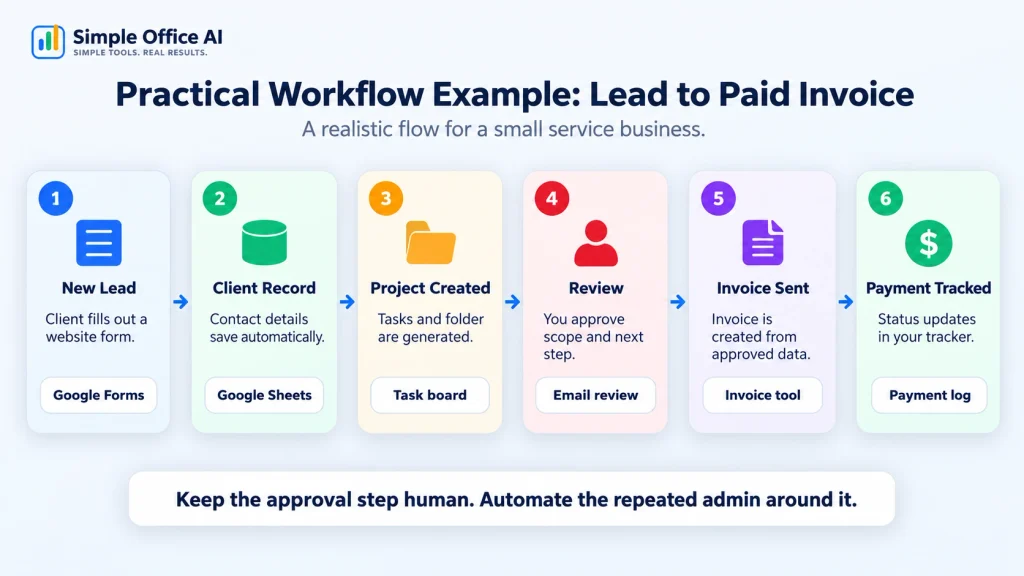
1. Lead Capture to a Client or Contact Record
Best for: freelancers, agencies, consultants, local service businesses, and small teams that receive enquiries through a website form or shared inbox.
Trigger: a prospect submits a contact form or enquiry.
Capture: store the name, email, company, requested service, source, and notes in your client list, spreadsheet, or CRM.
Process: send a simple confirmation, assign an owner, and create a follow-up task with a due date.
Human check: review whether the lead is relevant, how quickly to respond, and what the next conversation should be.
Output: every new enquiry has a record, an owner, and a visible next action.
The automation should not write a detailed sales reply on your behalf unless the situation is very predictable. Its first job is to stop leads from disappearing into email. If you want a lightweight place to keep client details and follow-up status, the Google Sheets client tracker is a practical starting point.
2. Client Onboarding
Best for: service businesses that repeat the same setup steps for every new client.
Trigger: a proposal is accepted, a contract is signed, or a deposit is confirmed.
Capture: collect the approved scope, contact details, billing information, key dates, and any files needed to start.
Process: create the client folder, onboarding checklist, kickoff task, internal record, and a standard welcome message.
Human check: confirm that the scope, dates, access requirements, and responsibilities are correct before work begins.
Output: the project starts with the same essential information every time instead of relying on memory.
This is a strong automation candidate because the setup steps are repetitive, but the actual relationship is not. Automate the checklist and handoffs. Keep the kickoff conversation, expectations, and scope decisions human.
3. Quote or Proposal to Approval to Project Start
Best for: businesses that create estimates, proposals, or quotes before delivery starts.
Trigger: a quote or proposal reaches an agreed status, such as accepted or approved.
Capture: store the approved amount, service, client, deadline, and key terms.
Process: create the project record, initial tasks, due dates, and internal notification. You can also copy the approved scope into the project brief instead of entering it again.
Human check: confirm any unusual pricing, special terms, capacity constraints, or changes made during negotiation.
Output: the project begins from the approved commercial details without manual re-keying.
The most useful rule here is simple: do not let an unapproved draft automatically become live work. Approval should be explicit, and the project should inherit only the final information.
4. Invoice Creation and Payment Reminders
Best for: freelancers and service businesses with recurring billing, milestones, or repeated follow-up on unpaid invoices.
Trigger: a milestone is completed, a billing date arrives, or a project status changes to ready for billing.
Capture: use the client, amount, due date, invoice number, project reference, and payment status from your billing record.
Process: create or prepare the invoice, send it through your normal billing system, update the tracker, and schedule reminders based on the due date.
Human check: confirm the amount, scope, taxes, credits, and any unusual client terms before the invoice is sent.
Output: the invoice is issued consistently and overdue follow-up does not depend on someone remembering to check every account manually.
If your current process is mainly about visibility rather than full billing automation, start with the Google Sheets invoice tracker. For a workflow focused specifically on late payments, use the Excel unpaid and overdue invoice tracker.
5. Expense and Receipt Collection
Best for: solo businesses and small teams that collect receipts from email, phones, cards, and paper.
Trigger: a receipt is uploaded, forwarded, scanned, or submitted through a simple expense form.
Capture: store the date, vendor, amount, category, payment method, business purpose, and receipt file reference.
Process: save the file in the correct location, create or update the expense record, flag missing information, and route exceptions for review.
Human check: verify the category, business purpose, duplicate status, and anything that may need accounting or tax judgment.
Output: the receipt and its expense record stay connected instead of being separated across inboxes and folders.
You can keep the record side simple with the Google Sheets expense tracker, then use the Google Drive receipt organization workflow for the file side.
6. Purchase Request and Purchase Order Approval
Best for: small teams that need a controlled step before money is committed to a supplier.
Trigger: someone submits a purchase request.
Capture: collect the requester, supplier, item or service, quantity, expected cost, reason, and required date.
Process: record the request, notify the approver, track the decision, and prepare the purchase order only after approval.
Human check: approve or reject the request based on budget, need, supplier choice, and any unusual terms.
Output: there is a visible decision trail and the approved request can move into ordering without re-entering the same information.
Approval automation is a good example of keeping a person inside the process. Microsoft documents approval workflows in Power Automate that can wait for a human decision before later steps continue. The tool is optional, but the pattern is useful: automate the routing, not the judgment.
If you already manage purchasing in spreadsheets, the Google Sheets purchase order template can provide the structured record after approval.
7. Document Review, Approval, and Filing
Best for: teams that repeatedly review policies, client documents, deliverables, forms, or internal records.
Trigger: a document is uploaded or marked ready for review.
Capture: store the document name, owner, version, reviewer, status, and review date.
Process: notify the reviewer, track the decision, rename or move the approved version, and archive the previous state when appropriate.
Human check: review the actual content and make the approval decision.
Output: the approved document is filed consistently and its status is visible.
This article only covers document automation as one business workflow. For the deeper process, including review, approval, and filing design, use the dedicated document workflow automation guide.
8. Form Submission to Task Assignment
Best for: internal requests, service requests, maintenance requests, content requests, client changes, and any work that currently begins with a message in a shared inbox.
Trigger: someone submits a form.
Capture: store the request type, requester, details, priority, files, and requested date.
Process: create a task, assign the correct person based on the request type, set a due date, and send a confirmation.
Human check: review unusual requests, priority conflicts, incomplete details, and anything outside the normal categories.
Output: the request enters a visible work queue instead of remaining buried in messages.
Google Forms can store responses in a linked Google Sheet. That is enough for a basic intake workflow. If the next step also needs a task created in another system or different people notified based on the request type, add an automation connector only for those handoffs.
9. File Organization, Naming, and Storage
Best for: businesses that save repeated document types into shared folders and lose time renaming, moving, or searching for files.
Trigger: a file arrives through upload, email, scan, export, or a completed workflow.
Capture: identify useful metadata such as client, document type, date, project, owner, or status.
Process: apply a naming convention, move the file to the correct folder, update an index if needed, and flag anything that does not match the expected rules.
Human check: review files with unclear ownership, missing metadata, sensitive content, or unusual naming conflicts.
Output: files are easier to find because the storage pattern is consistent.
The goal is not to create an enormous folder tree. Automate a naming and filing rule only after the business agrees on where each common file type belongs.
10. Weekly Reporting or Status Updates
Best for: freelancers and teams that rebuild the same status report every Friday from several spreadsheets, task lists, or project records.
Trigger: a scheduled day and time arrives.
Capture: collect the agreed metrics, open tasks, overdue items, completed work, hours, or project milestones from the source records.
Process: update a dashboard or prepare a draft summary, then send it to the owner for review.
Human check: confirm context, explain unusual changes, correct missing data, and decide what needs attention next.
Output: the repetitive data collection is prepared automatically while the interpretation remains human.
If your reporting starts from project tracking, the Excel work breakdown structure template and Excel project timeline guide give you structured project records that are easier to summarize.
Quick Comparison of the 10 Workflow Examples
| Workflow | Useful trigger | Main automated work | Keep human |
|---|---|---|---|
| Lead capture | New enquiry | Create record, assign owner, follow-up task | Qualification and response |
| Client onboarding | Accepted deal or deposit | Folders, checklist, kickoff tasks | Scope and expectations |
| Quote to project | Approved quote | Create project and tasks | Pricing and final terms |
| Invoicing | Milestone or billing date | Prepare invoice, update status, reminders | Amounts, taxes, exceptions |
| Expenses & receipts | Receipt submitted | File, record, categorize, flag | Business purpose and accounting judgment |
| Purchase approval | Purchase request | Route, notify, track decision | Approval or rejection |
| Document workflow | Ready for review | Route, track, file approved version | Content review |
| Form to task | Form submitted | Create and assign task | Priority and unusual requests |
| File organization | New file | Name, move, index | Ambiguous or sensitive files |
| Weekly reporting | Scheduled time | Collect data and prepare summary | Interpretation and next actions |
What You Should Not Automate First
Automation is strongest when the rule is clear. It is weakest when the system is being asked to make a judgment that the business has not defined.
Be cautious with these areas:
- Final pricing and scope decisions: software can prepare information, but unusual commercial terms should be reviewed.
- Legal, tax, accounting, or compliance judgments: automate collection and routing, not professional judgment.
- Sensitive customer complaints: use automation to log and assign the case, not to send a generic final response to a serious issue.
- Irreversible actions: deletion, refunds, large payments, account closure, and similar actions should have an explicit control step.
- Messy processes nobody understands: if the team cannot describe the current workflow, automate after the process has been simplified.
A useful rule is to automate the normal path and send the exception path to a person.
How to Choose Your First Workflow
Do not start by comparing dozens of automation platforms. Start by finding one repeated administrative process.
Use these five questions:
- How often does it happen? A process that runs several times a week gives you faster feedback than something that happens twice a year.
- How predictable is the normal path? The clearer the rules, the safer the first automation.
- Where does the information already live? Reuse your existing spreadsheet, form, CRM, project tool, or accounting system where practical.
- What is the cost of a mistake? Higher-risk workflows need stronger review steps.
- What result would prove it worked? Define one clear outcome, such as “every lead has an owner within the same workflow” or “every receipt is linked to an expense record.”
Choose one workflow that is frequent, rule-based, low enough risk to test safely, and frustrating enough that fixing it will matter.
A Simple 5-Step Implementation Process
Step 1: Write Down the Current Manual Process
List what actually happens today, including the messy parts. Note who starts the process, where information is copied, what gets checked, and where work commonly gets stuck.
Step 2: Define the Trigger and the Finished Result
Be specific. “Automate onboarding” is too broad. “When a deal is approved, create the client folder, onboarding checklist, and kickoff task” is buildable.
Step 3: Choose One Source of Truth
Decide where the authoritative record should live. That might be a spreadsheet, CRM, accounting system, project tool, or document library. Avoid creating the same “master” record in several places.
Step 4: Automate the Normal Path and Route Exceptions
Build the predictable steps first. Add a clear stop, flag, or review step whenever data is missing, a value falls outside the expected range, or a decision requires judgment.
Step 5: Test With Realistic Cases Before Expanding
Test a normal case, missing information, a duplicate, a rejected approval, a late item, and any other exception that would matter in your workflow. Fix those cases before adding more branches or automating a second process.
What Type of Automation Tool Do You Actually Need?
You do not always need a dedicated automation platform. Match the tool to the complexity of the workflow.
| Tool type | Good fit | Typical role | Watch for |
|---|---|---|---|
| Spreadsheet + form | Low-volume, simple internal workflows | Capture, tracking, formulas, checklists | Manual handoffs and limited controls as volume grows |
| No-code automation connector | The same information moves between several apps | Triggers, updates, notifications, routing | Hidden complexity when too many steps and exceptions are added |
| Dedicated business software | A core process has high volume or specialist requirements | Built-in billing, CRM, purchasing, support, projects, or accounting | Paying for features you do not need or duplicating another system |
| Custom workflow | Your process is valuable, stable, and genuinely unique | Rules tailored to your operation | Maintenance, documentation, and ownership |
For example, Google Forms can send responses into a linked Google Sheet, which may be enough for a simple request intake process. A no-code connector becomes more useful when that same submission also needs to create tasks, update another system, or notify different people based on rules.
For approvals, dedicated workflow tools can route the request and wait for a human decision before continuing. The important design choice is not the brand. It is deciding exactly which step should be automatic and which decision must remain human.
Spreadsheet vs No-Code Automation vs Dedicated Software
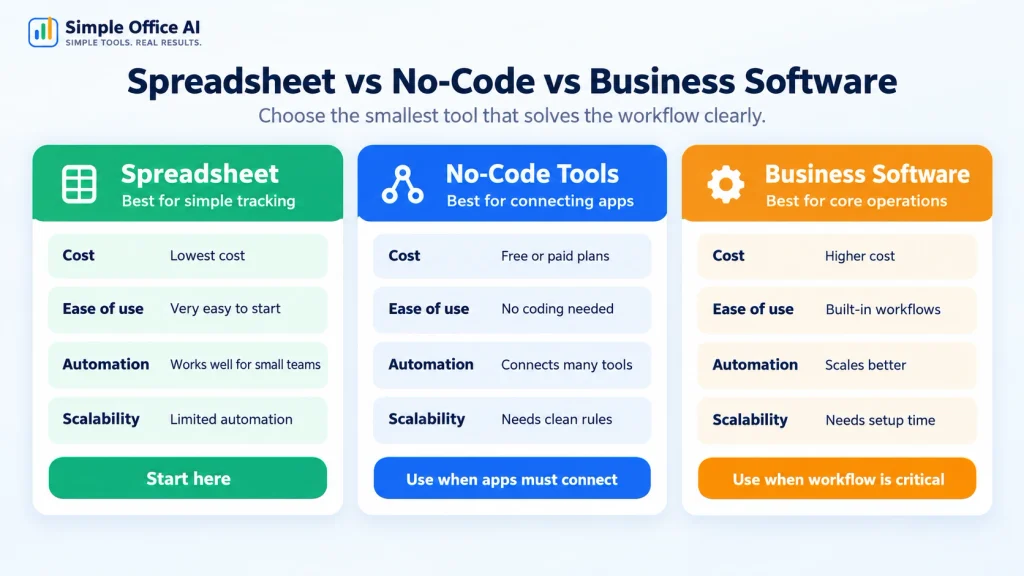
A spreadsheet is usually best when the main problem is organization. No-code automation is useful when the problem is repeated movement between tools. Dedicated software becomes more attractive when the process itself has specialist requirements that would be awkward to rebuild.
Use a spreadsheet first when:
- the workflow is small and easy to inspect;
- one person or a small team manages it;
- you mainly need a clear record and a few rules;
- manual review is still a normal part of the process.
Use a no-code connector when:
- the same data is repeatedly copied across two or more tools;
- the trigger and actions are stable;
- notifications or task creation happen the same way each time;
- you can describe the exception path clearly.
Move to dedicated software when:
- the workflow is central to the business and runs at higher volume;
- you need specialist features that would be fragile to recreate;
- permissions, audit history, payments, accounting, or operational controls are becoming important;
- the cost of maintaining a home-built process is higher than the software cost.
If you are at that stage, compare the options in our business process automation software guide instead of adding more connectors to a process that has outgrown the current setup. If the main need is coordinating recurring work, assignments, approvals, and team handoffs rather than automating a full business process, compare our workflow apps for small businesses.
When to Get Help Building the Workflow
You may not need outside help for a one-step automation. A form that saves responses into a spreadsheet is straightforward. Help becomes more useful when several tools, people, approvals, exceptions, and existing files need to work together without creating another layer of confusion.
Frequently Asked Questions
What is workflow automation for a small business?
Workflow automation uses rules and software to handle repeatable steps in a business process. A trigger starts the workflow, information is captured, routine actions happen automatically, a person reviews important decisions or exceptions, and the final result is recorded.
What should a small business automate first?
Start with one frequent, repetitive, rule-based process that creates noticeable admin work. Good first candidates include lead capture, task assignment, invoice reminders, receipt collection, approval routing, or weekly status reporting.
Do I need Zapier, Make, or Power Automate to automate a workflow?
No. Some workflows can be improved with tools you already use, such as a form linked to a spreadsheet, built-in reminders, or a project template. A no-code automation connector is most useful when several apps need to exchange information or trigger actions automatically.
Can a spreadsheet be part of an automated workflow?
Yes. A spreadsheet can act as the intake record, tracker, calculation layer, or reporting source. It works best when the workflow is still small enough to inspect and maintain. As volume and complexity grow, a dedicated system may become more appropriate.
What should stay manual in an automated workflow?
Keep human review for decisions involving judgment, unusual pricing, sensitive customer situations, approvals, legal or accounting interpretation, and other high-impact exceptions. Automation should reduce routine work without removing necessary control.
How do I know whether the automation is working?
Choose one measurable outcome before you build it. Examples include fewer unassigned requests, fewer missed follow-ups, faster handoffs, fewer duplicate entries, more complete records, or less time spent rebuilding the same weekly report.
Final Takeaway
Small-business workflow automation works best when it is narrow, visible, and practical. Pick one repeated process, define the trigger and finished result, automate the normal path, and keep a person involved where judgment matters.
You do not need to rebuild the whole business at once. A clean lead handoff, a reliable onboarding checklist, a controlled approval step, or a weekly report that prepares itself can be enough to prove the value of a better system.