

Use this free Google Sheets expense tracker to record business spending, categories, payment methods, receipt status, and business purpose in one log.
Enter one expense per row. The dashboard summarizes the records so you can review spending and find missing receipts without searching through separate files.
Make a Copy in Google Sheets Copy in Google Sheets
Quick start: use the template
- Save your own copy, read Instructions, and review the Categories list.
- Replace the sample entries in Expense Log with the date, vendor, amount, category, payment method, business purpose, and receipt status for each expense.
- Check the dashboard and review missing receipts each week. Keep receipt files separately and link or reference them in your records.
This is a spending log, not a reimbursement approval system or a full bookkeeping ledger.

Does Google Sheets have an expense tracker?
Google Sheets does not force you into one built-in small-business expense tracker, but it works well for creating one. Use this workflow to keep dates, categories, business purpose, payment method, amounts, and receipt status in one maintainable sheet.
Use it to keep dates, categories, business purpose, payment method, amounts, and receipt status in one maintainable Google Sheets workflow.
What to Include in a Google Sheets Expense Tracker
The most useful expense tracker is usually the one you will actually keep using. Start with a small number of fields that answer practical questions instead of building a complicated spreadsheet.
| Field | Why It Matters |
|---|---|
| Date | Shows when the expense happened. |
| Vendor / Payee | Shows who received the payment. |
| Category | Groups similar expenses so totals are easier to review. |
| Business Purpose | Explains what the purchase was for. |
| Amount | Records how much was spent. |
| Payment Method | Helps you identify how the expense was paid. |
| Receipt Saved? | Shows whether supporting documentation is available. |
| Reference / Notes | Stores useful details without creating extra sheets. |
Step 1: Keep One Expense Per Row
Use one row for each business expense. Do not put several purchases into one cell or create a separate sheet for every vendor.
A single expense log makes it much easier to filter by date, category, vendor, payment method, or receipt status later.
For example, if you pay for a software subscription, office supplies, and a courier service on the same day, record them as three separate rows.
Step 2: Use a Category Dropdown
Typing category names manually creates small differences such as “Software,” “Software Tools,” and “Subscriptions.” Those differences make summaries less reliable.
A dropdown keeps the category names consistent.
The free Simple Office AI tracker includes editable categories such as Advertising & Marketing, Office Supplies, Software & Subscriptions, Professional Services, Travel & Transport, Utilities & Internet, and Other.
You can change these categories to match your own business. The goal is organization, not forcing every business into the same category system.
Step 3: Record the Business Purpose
A vendor name alone is not always enough to remember why money was spent.
Instead of recording only “Amazon,” add a short description such as “USB hub for office workstation.” Instead of only “Canva,” write “Design software subscription.”
This small habit makes the spreadsheet much easier to understand when you review it weeks or months later.
Step 4: Track Missing Receipts
One useful field that many simple expense sheets miss is receipt status. If the receipts themselves are scattered across email, downloads, and folders, use the business receipt organization workflow to keep the supporting files separate from the expense log.
Add a dropdown with Yes, No, and N/A. This turns the spreadsheet into a small follow-up system. If an expense is marked No, you immediately know that the supporting document still needs attention.
In the Simple Office AI template, missing receipts are highlighted automatically so they are easier to notice.
Step 5: Add Automatic Month and Year Columns
You should not need to type the month for every expense. Google Sheets can calculate it from the date.
If the expense date is in cell A5, a simple month formula is:
=IF(A5="","",TEXT(A5,"yyyy-mm"))You can also calculate the year with:
=IF(A5="","",YEAR(A5))These helper columns make monthly summaries easier without adding more manual work.
Step 6: Build a Simple Expense Dashboard
A dashboard does not need dozens of charts. For a small business expense tracker, a few useful numbers are usually enough.
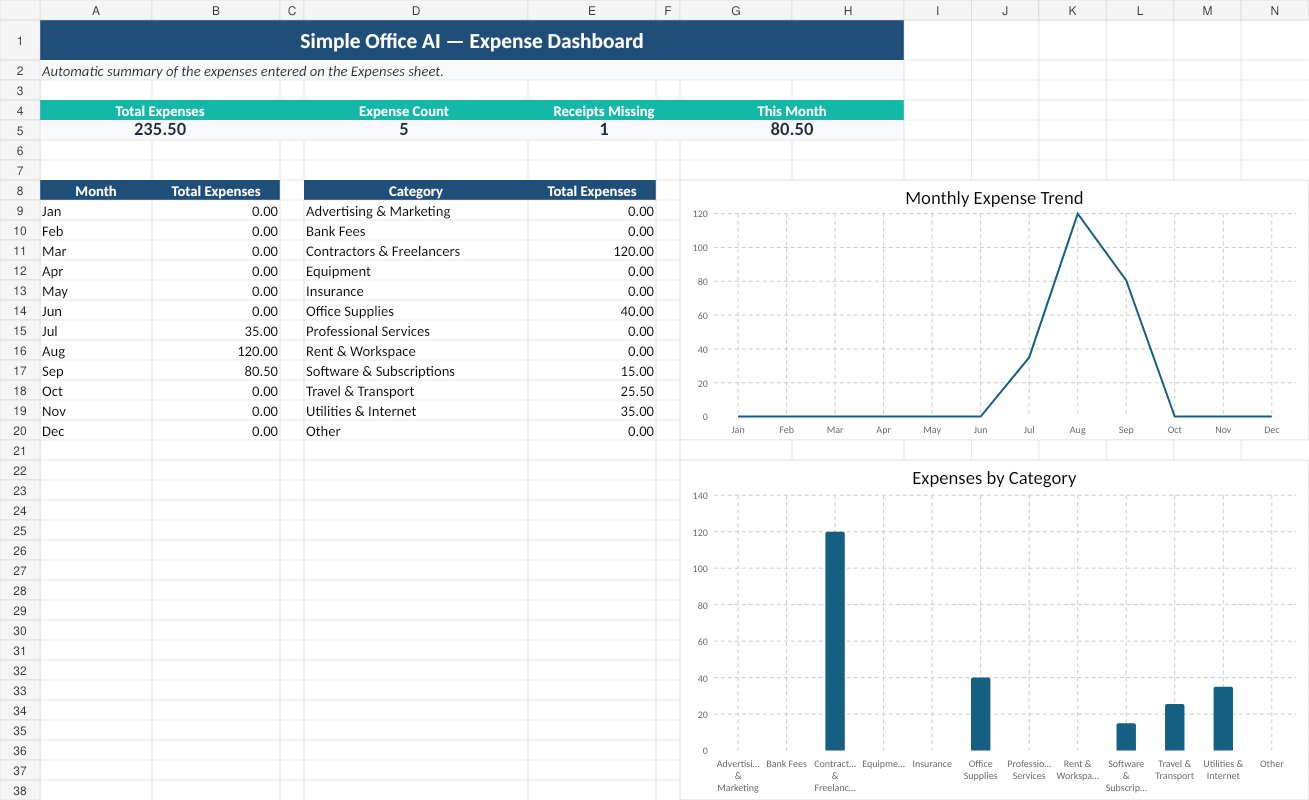
The free tracker automatically shows total expenses, the number of recorded expenses, receipts that are still missing, spending for the current month, monthly totals, and totals by category.
This gives you a quick overview without changing the original expense log.
How to Keep Track of Business Expenses in Google Sheets
The simplest routine is to record each expense once, use consistent categories, attach or note the receipt status, and review the sheet every week. That keeps the tracker useful without turning it into a complicated accounting system.
Step 7: Review Your Expense Tracker Weekly
The spreadsheet only works if expenses make it into the file.
A short weekly review is usually easier than trying to rebuild a month of spending from memory. Add new expenses, check missing receipts, correct uncategorized rows, and then look at the dashboard for anything unusual.
The important part is consistency. A simple tracker that is updated regularly is more useful than a complicated workbook that gets abandoned.
Download the Free Google Sheets Expense Tracker Template
I created a free expense tracker for freelancers and small businesses that want a straightforward spreadsheet instead of a complicated system.
What Is Included in the Template?
The workbook includes an Expense Log, editable Categories, an automatic Dashboard, and an Instructions sheet. It is prepared for up to 500 expense rows and includes dropdowns for categories, payment methods, and receipt status.
The dashboard updates automatically as you add expenses.
When Is a Spreadsheet Enough for Expense Tracking?
A spreadsheet can work well when you have a manageable number of transactions, one person or a small team maintaining the records, and you mainly need a clear internal overview.
You may eventually need dedicated accounting or expense-management software if transaction volume becomes large, several employees need approvals, bank feeds become important, or your accountant requires a more specialized workflow. If you still want to stay in Google Sheets but need a broader record of income, expenses, and monthly results, use the Google Sheets accounting template.
There is no benefit in making the system more complicated before the business actually needs that complexity.
Track Invoices and Expenses Together
Expenses are only one side of the administrative picture. If you also need to see which client invoices are paid, unpaid, or overdue, read our Google Sheets invoice tracker guide.
Keeping invoices and expenses organized in simple systems can make routine admin work much easier to review.
Frequently asked questions
Should I enter several purchases in one expense row?
Use one expense per row. That keeps dates, vendors, amounts, categories, and receipts clear when you filter or review the log.
Can I change the expense categories?
Yes. Review the editable Categories list and use consistent dropdown values so the dashboard does not split the same type of spending across different labels.
Does the tracker replace the receipt file?
No. Keep the receipt or supporting document separately. The tracker helps you record spending and check whether that evidence is available.
Is this an expense report for reimbursement?
No. It is an ongoing expense log. Use an expense report workflow when expenses need submission, approval, and reimbursement.
Need a Spreadsheet Built Around Your Business?
A template is useful when your workflow is simple. But sometimes the problem is the spreadsheet itself: too many tabs, duplicated records, confusing formulas, or information that no longer fits the way the business works.
Simple Office AI can help clean up an existing Excel or Google Sheets file or build a simple administrative tracker around your workflow.
Need help with your spreadsheet?
Note: This expense tracker is an administrative organization tool. It is not accounting, tax, legal, or financial advice.