

Income can rise while profit falls. A monthly total alone will not show whether software, contractor costs, rent, or other expenses are taking a larger share of what you earn.
This free Google Sheets profit and loss template turns an income-and-expense log into a category-by-category report for January through December. It also shows annual totals and a dashboard for a small service business, freelancer, or solo worker.
Get the small-business profit and loss template
For Google Sheets, open the template and choose File → Make a copy. Sign in to save your own editable copy. The Excel file is stored separately in Drive.
What a profit and loss statement shows
A profit and loss statement summarizes income and expenses over a period. The difference is the profit or loss for that period. In this template, Net Profit/Loss = Total Income − Total Expenses.
The result depends on the transactions you record. An incomplete log produces an incomplete report. This is a simple management P&L for reviewing your records, rather than a certified financial statement or a tax calculation.
What is included in the free template?
- Start Here: instructions, amount-entry rules, and workbook guidance.
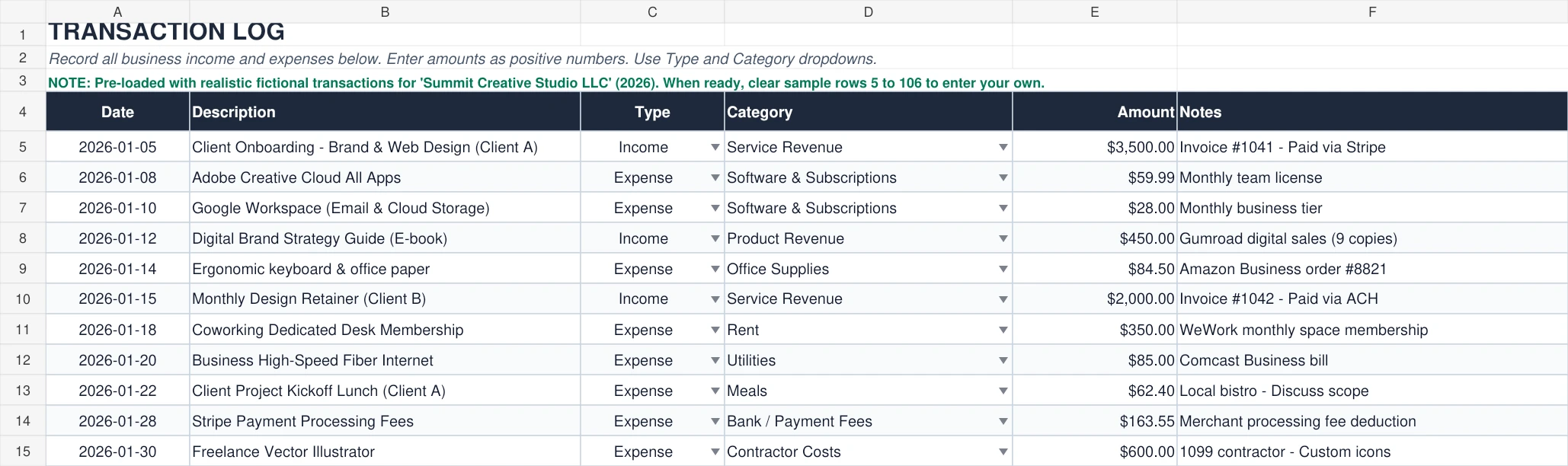
- Transactions: Date, Description, Type, Category, Amount, and Notes.
- Categories: three income categories and twelve expense categories, with descriptions.
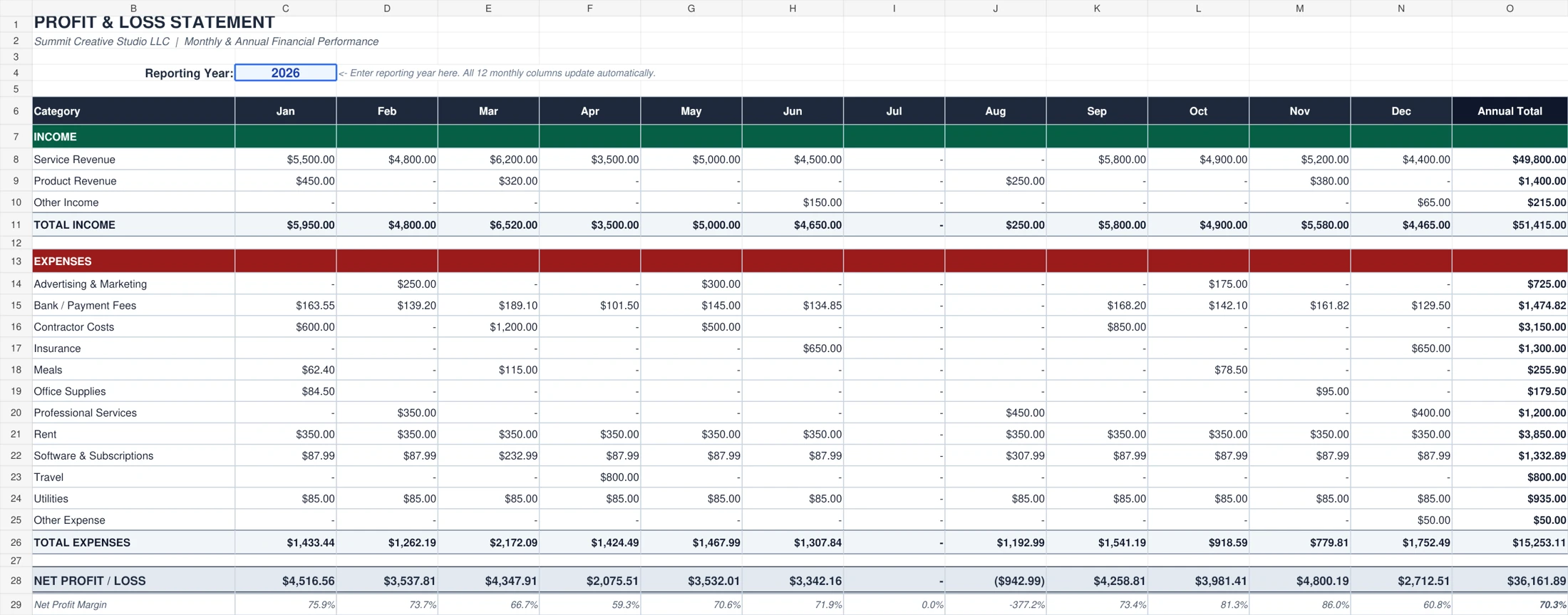
- Profit & Loss: category totals for twelve months, annual totals, total income, total expenses, net profit/loss, and net profit margin.
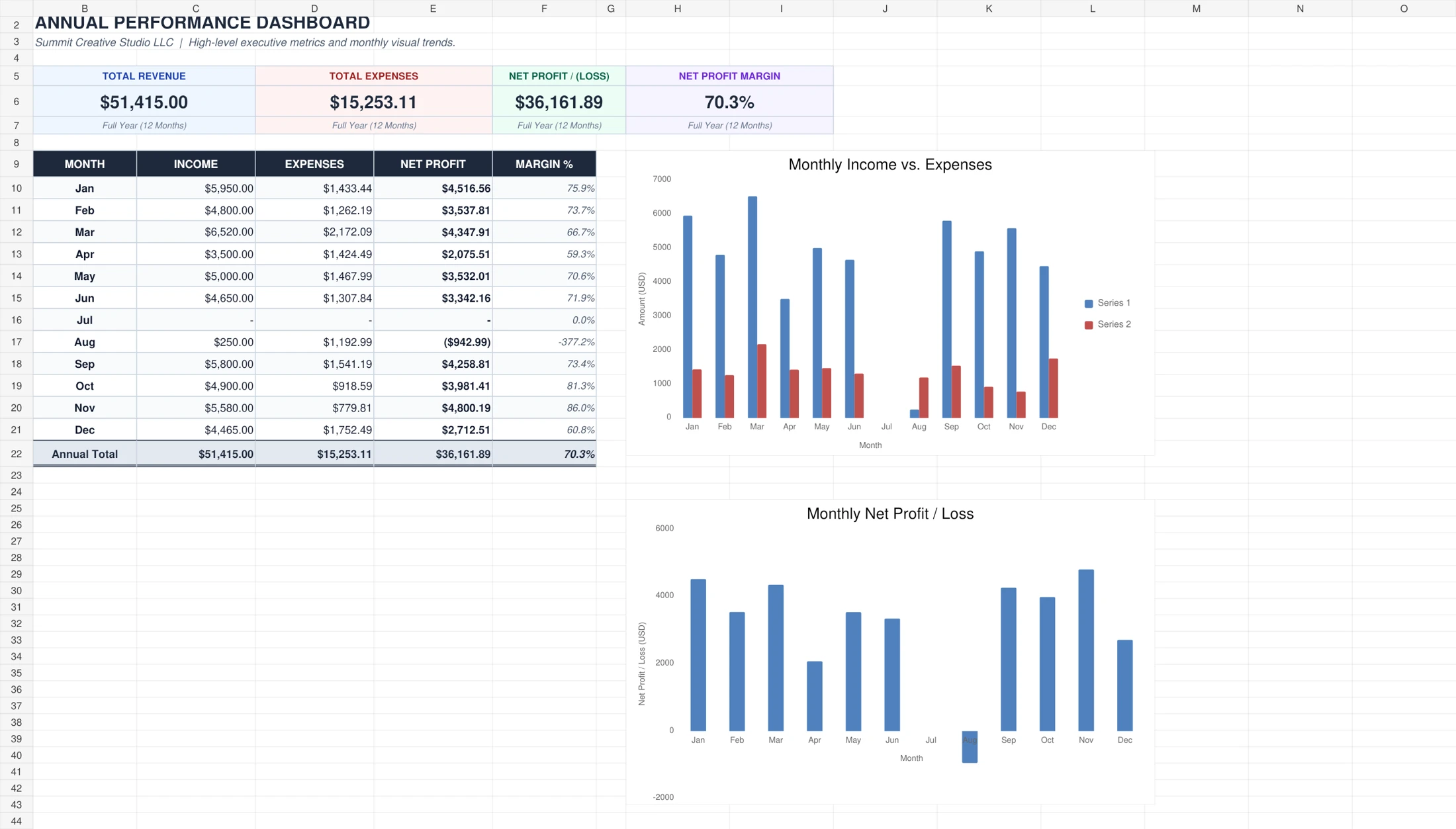
- Dashboard: four annual summary figures, a monthly results table, and two charts: income versus expenses and monthly net profit/loss.
- Example: a separate fictional dataset with explanations of the transactions.
The fictional business is Summit Creative Studio LLC. Its example year is 2026. Keep the Example tab for reference after clearing the working transaction log.
How to use the Google Sheets version
1. Save your own copy
Open the Google Sheets template above. Choose File → Make a copy, give it a business-specific name, and save it in your Drive. Work in your copy so the original remains available as a clean reference.
2. Choose the reporting year
Open Profit & Loss and enter the year in C4. The month headers and date-based calculations use this year. If your transactions are dated 2026 but the reporting year is 2027, they will not appear in the report.
3. Clear the working sample data
On Transactions, clear the values in A5:F106 before entering your own records. Clear cell contents rather than deleting whole rows. Keep the headers, dropdowns, formatting, and report formulas. Do not clear the separate Example tab unless you no longer need it.
4. Enter one transaction per row
Enter a real date, a short description, Income or Expense, the matching category, and a positive amount. Use Notes for an invoice number or a receipt reference. Both income and expenses use positive amounts. The Type field determines which side of the report receives the amount.
| Date | Description | Type | Category | Amount |
|---|---|---|---|---|
| 2026-01-05 | Fictional client design project | Income | Service Revenue | $1,200.00 |
| 2026-01-31 | Fictional software subscription | Expense | Software & Subscriptions | $75.00 |
These two rows alone would produce $1,200.00 of income, $75.00 of expenses, and $1,125.00 of net profit for January. They are illustrative entries, not additional transactions included in the template.
Use a consistent recording basis. If you record payments received and bills paid, use those payment dates. Do not mix paid amounts with unpaid invoice amounts without an agreed method. The spreadsheet does not automatically make accrual adjustments or reconcile bank records.
How categories work
Income categories are Service Revenue, Product Revenue, and Other Income. Expense categories cover advertising, payment fees, contractors, insurance, meals, supplies, professional services, rent, software, travel, utilities, and other expenses.
Choose an income category for Income rows and an expense category for Expense rows. The Category dropdown contains both sets, so it does not prevent every Type/category mismatch. An Expense row labeled Service Revenue will not appear in the expense category totals. Review this pairing when totals look wrong.
How to customize the categories
Rename income labels in Categories!B5:B7 and expense labels in Categories!D5:D16. The master dropdown list and P&L row labels link to those cells. Leave the formulas in Categories column A intact.
If you rename a category after recording transactions, update existing transaction labels to the new name too. Otherwise, those older rows will no longer match the report label. Replace existing categories when possible. Adding categories beyond the current three income and twelve expense slots requires extending the dropdown source and the P&L formulas.
How the monthly and annual totals are calculated
Each category line uses SUMIFS to total amounts matching the transaction Type, category, and dates for that month in the selected year. January through December use separate date windows.
Total Income adds the three income lines. Total Expenses adds the twelve expense lines. Net Profit/Loss subtracts expenses from income. The annual category totals add the twelve monthly amounts, and annual income, expenses, and profit roll up from those lines.
The formulas cover Transactions rows 5 through 1500. If you enter records beyond row 1500, extend the formula ranges and input validation first. Do not assume additional rows will be included automatically.
The supplied fictional data totals $51,415.00 in income and $15,253.11 in expenses, giving $36,161.89 in annual net profit. January shows $5,950.00 of income, $1,433.44 of expenses, and $4,516.56 of profit. These are demonstration results, not expected business performance.
How to read Net Profit/Loss and the dashboard
A positive result means recorded income exceeded recorded expenses. A negative result means recorded expenses exceeded income. In the example, August has $250.00 of income and $1,192.99 of expenses, producing a $942.99 loss, shown in parentheses.
The Dashboard links to the P&L report. Its annual cards show revenue, expenses, net profit/loss, and margin. The monthly table lets you compare the numbers behind the charts. Use the income-versus-expenses chart to see the gap between the two, and the net-profit chart to spot stronger months and loss months.
Net profit margin divides net profit by income. When income is zero, the template returns 0% to avoid division errors. That displayed zero is a handling rule, not evidence of a healthy margin. Months without recorded activity show zero values, displayed as dashes in the money cells.
P&L vs budget, expense tracker, and cash flow
- P&L: reviews recorded income, expenses, and profit over a period.
- Budget: plans expected income and expenses and compares plans with actual results. Use the small-business budget spreadsheet for that task.
- Expense tracker: organizes spending details. The Google Sheets expense tracker is useful when spending and receipt follow-up are your main needs.
- Cash-flow statement: explains movements in cash, including items this P&L does not cover. Profit is not the same as your bank balance.
The accounting template focuses on a combined transaction record with payment/account details and a simple monthly summary. Choose this P&L template when you need category-by-month performance reporting. Avoid keeping two competing logs of the same transactions.
For employee reimbursement and approval, use the expense report template. To organize supporting files and their locations, use the record-keeping template. Neither replaces the P&L report.
Limitations and when a spreadsheet is no longer enough
This workbook requires manual entry. It does not provide bank feeds, automatic reconciliation, payroll, inventory costing, depreciation schedules, tax calculations, a balance sheet, or a cash-flow statement. It does not separately calculate cost of goods sold and gross profit.
Loans, owner contributions, owner withdrawals, and other balance-sheet movements should not be entered as ordinary operating income or expenses just to match a bank balance. Get appropriate help when you need to decide how to record those items.
Check dates, amounts, duplicate entries, category spelling, and Type/category pairings before relying on the report. The template does not determine tax deductibility or replace a bookkeeper or accountant.
Consider a more capable system when manual entry becomes unreliable, several people need controlled access, or you need reconciliation, inventory accounting, payroll, or formal financial reporting. Complexity matters more than an arbitrary transaction count.
Frequently asked questions
Is the Google Sheets profit and loss template free?
The template is offered as a free copy. You need a Google account to save and edit your own Google Sheets version. A separate Excel file is also provided.
How do I change the year?
Change C4 on Profit & Loss. The report then includes matching transactions dated within that calendar year. Keep your dates as date values rather than text.
Should expenses be entered as negative numbers?
No. Enter positive amounts for both income and expenses, then choose the correct Type. A negative expense would reduce the expense total and distort this report.
Can I use my own income and expense categories?
Yes. Rename the existing category slots on Categories and update any transactions using the old names. Adding more slots requires extending the report and validation ranges.
Why is a transaction missing from the P&L?
Check the reporting year, date value, Type/category pairing, amount, and row number. The entry must use a matching category and be within the formula range through row 1500.
Can I use this as a cash-flow statement or tax return?
No. It is a simple income-and-expense P&L summary. It does not track all cash movements or calculate your taxes.