

Use this free employee schedule template to assign weekly staff shifts in Excel. Enter a start date, add up to 20 employees, and choose one shift code for each person each day. The workbook totals planned hours after unpaid breaks.
It includes a blank schedule and a fictional example. Use it for a small office, reception team, shop, or service business where a manager reviews staffing before sharing the week.
File: XLSX, no macros. This is a planned shift roster. It does not calculate payroll or overtime, track attendance, or check scheduling laws.
Also available: Excel file on Google Drive. In Google Sheets, choose File > Make a copy before editing.
What the weekly employee schedule includes
- Start Here: setup instructions and limits.
- Shift Codes: reusable day, evening, overnight, and custom shifts, plus OFF and PTO.
- Weekly Schedule: 20 employee rows across seven consecutive days.
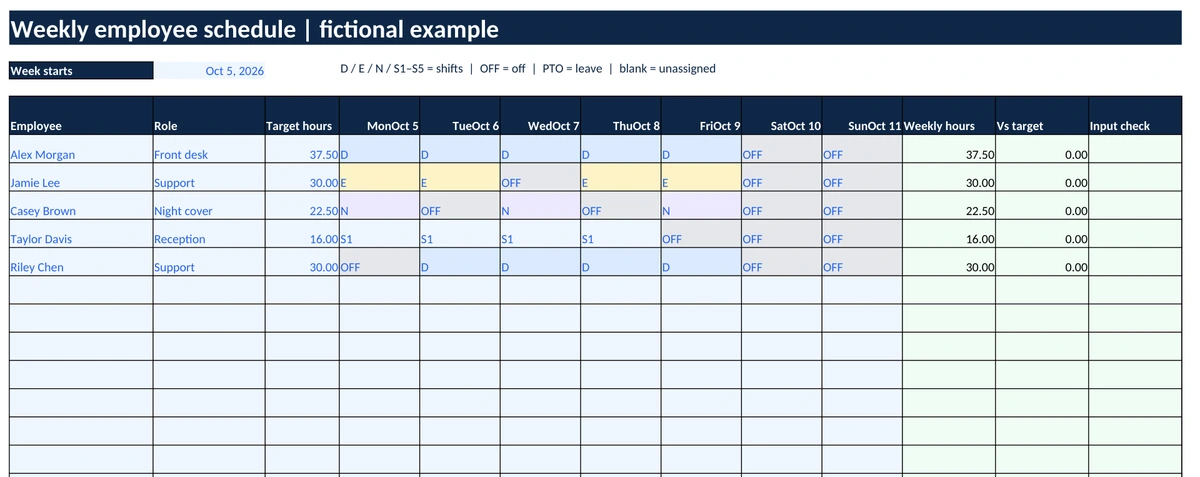
- Example: five fictional employees with a completed week.
Blue cells are editable. Green cells contain formulas. You can enter an optional weekly hours target and see the difference between that target and the planned total. A positive difference means more hours are scheduled than the target.
How to use the employee schedule template in Excel
1. Save a working copy
Download the XLSX file and keep one clean master. Save a separate copy for each week, such as staff-schedule-2026-10-05.xlsx. Open the working copy and read Start Here.
2. Set your shift times
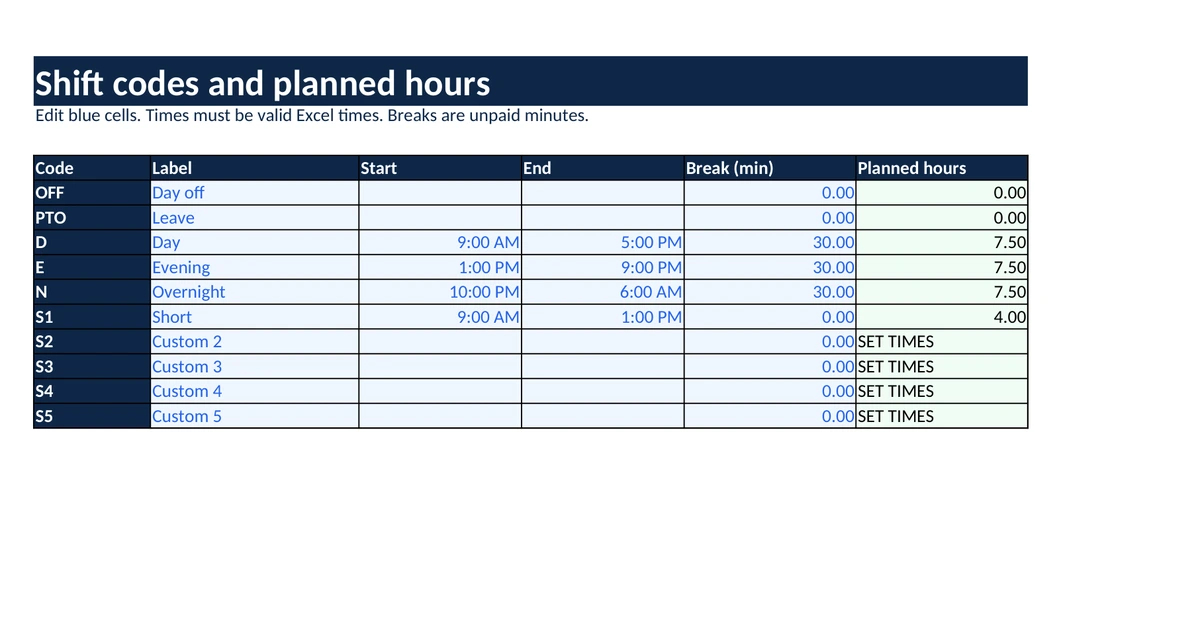
Open Shift Codes. Edit the blue start time, end time, and unpaid-break minutes for each shift you use. Enter actual time values, such as 9:00 AM, rather than a text description like “morning.”
The default D shift runs from 9:00 AM to 5:00 PM with a 30-minute unpaid break. Its planned work time is 7.5 hours. E is an evening shift. N runs from 10:00 PM to 6:00 AM with the same break. S1 is a four-hour shift. S2–S5 are available for your own times.
Keep the code names unchanged. Edit the label if you want a description that fits your business. OFF and PTO always count as zero planned work hours, regardless of any times entered beside them.
3. Set the week and add staff
In Weekly Schedule, enter the first date in B4. The seven date headers follow that date. You can start on Monday or any other day.
Add each employee’s name and role. Enter a weekly target if you want to compare scheduled hours with an agreed planning target. Leave the target blank if you do not need that comparison.
4. Assign one code per person per day
Use the dropdown in each day cell to select a shift, OFF, or PTO. A blank cell means unassigned. Use OFF when the day off is confirmed so staff can tell the difference.
The template supports one shift per employee per day. It does not handle two separate shifts on the same day. If split shifts are common, use a planner with separate shift records.
5. Review hours and warnings
Weekly hours add the selected shifts after unpaid breaks. The team total adds all named employees. Check the Input check column before sharing the roster.
| Message | What to check |
|---|---|
| CHECK INPUT | Unknown code, unconfigured shift, invalid time, or invalid break. |
| ADD NAME | A day has a code but the employee name is missing. |
| CHECK TARGET | The target must be a number from 0 to 168, or blank. |
A team total showing CHECK INPUT needs review before you rely on it. Pasting data can bypass Excel’s dropdown validation, so do not skip the warnings.
Review coverage separately: does each day have the people and skills needed for the hours you operate? The workbook does not automatically check availability, overlapping coverage, or minimum staffing by role.
6. Share the approved week
The roster is set up for landscape printing. Check Print Preview before exporting a PDF. Keep one master file, give the shared version a clear date, and tell staff when you replace it. A spreadsheet will not send shift notifications for you.
A small-team scheduling example
The Example sheet uses five fictional employees. Alex has five D shifts at 7.5 hours each, for 37.5 hours. Taylor has four S1 shifts at four hours each, for 16 hours. Casey has three overnight N shifts, for 22.5 hours.
The five-person week totals 136 planned work hours. Those figures demonstrate the workbook’s calculations. They are not a recommended staffing level for your business.
For overnight work, the shift is assigned to the date it starts. The template treats an end time earlier than the start time as the following day. It supports shifts shorter than 24 hours and does not adjust for daylight saving or different time zones.
Employee schedule, daily schedule, or task tracker?
Use this employee schedule for who works which shift. If you need time blocks for meetings and focused work, use the Google Sheets Daily Schedule Template. If you need owners, deadlines, and progress for work items, use the Excel Task Tracker.
Keep those jobs separate. A person’s assigned shift tells you when they are scheduled to work. It does not tell you which tasks are complete.
Checks before you send the schedule
- Confirm the week-start date and shift definitions.
- Resolve every input warning and review unassigned cells.
- Check availability, leave, coverage, and any rules that apply to your workplace.
- Compare planned hours with your intended targets.
- Keep real employee information private and share only what staff need.
The workbook’s formula tests covered day and overnight shifts, unpaid breaks, OFF/PTO, custom shifts, missing information, invalid codes, and weekly targets. Calculations were checked in LibreOffice Calc. Microsoft Excel desktop was not separately tested. The Google Sheets copy was checked after conversion: its sample totals 136 hours and its formulas and dropdown validation were read back. Browser-rendered layout and protection behavior have not been separately verified.
Frequently asked questions
Can I start the workweek on Sunday?
Yes. Enter Sunday’s date in B4. The roster shows that date and the next six days.
Can I add more than 20 employees?
The supplied file has 20 staff rows. Adding more requires extending the formulas, validation, team total, and print area. Use the existing capacity unless you are comfortable reviewing those changes.
Can I change the shift times without editing every day?
Yes. Change the times for a code in Shift Codes. Every roster cell using that code uses the updated planned hours. Save an archive of approved weeks before changing definitions.
Does PTO count toward weekly work hours?
No. PTO and OFF count as zero in this planner. It does not calculate paid leave or payroll hours.
Why can’t I type in a calculated cell?
The sheets are protected without a password to reduce accidental formula edits. Blue cells remain editable. Only unprotect a sheet for a deliberate structural change, then recheck the formulas.
Can I use it in Google Sheets?
Yes. Use the Google Sheets link above, then choose File > Make a copy. The converted copy’s sample formulas and dropdown validation were checked. Review the layout and sharing permissions before sending your schedule to staff. Excel remains the primary download.