

To open an XLSX file in Google Sheets, upload it to Google Drive and open it with Google Sheets. You can edit it in Excel format or create a native Sheets copy. Keep a separate backup, then check the calculations, dates and rules before using the file for real work.
There is no guarantee that every Excel workbook will keep all its formatting and behavior. A sheet can look right while a date is missing or a formula no longer updates. The steps below help you catch those differences.
Open the XLSX file without converting it
- Keep an untouched copy of the workbook on your computer. Upload a working copy.
- In Google Drive, choose New → File upload and select the
.xlsxfile. - Open the uploaded file. If Drive shows a preview, choose Open with Google Sheets.
- Check the file type before editing. An XLSX badge beside the name indicates that you are working in Office format.
Google supports editing Office files directly, with changes saved to the original Office format. Opening a workbook in the Sheets editor therefore does not necessarily convert it. Those edits can change the uploaded Excel file, which is why the separate backup matters. See Google’s Office-file editing guidance.
If an upload becomes a native Sheets file immediately, check whether Drive’s automatic conversion setting is enabled. Google documents this under uploading files to Drive.
Keep Excel format or save as Google Sheets?
| Your next task | Practical choice |
|---|---|
| Edit a basic workbook and return an XLSX file to a client | Start in Office format. Check the edited file before returning it. |
| Use Sheets-specific features such as Apps Script or protected ranges | Create a native Google Sheets copy, then check it. |
| Use a workbook with linked Excel files, macros or important protection rules | Keep the original workflow in Excel until those dependencies have been reviewed. |
| Bring an Excel dataset into an existing Sheets workbook | Use the import workflow and choose the destination carefully. |
Office format is a file-format choice, not a promise of full Excel compatibility. Google identifies unsupported features, including macros and linked Excel spreadsheets, in its Office compatibility documentation. It also warns that Excel locked and hidden cells can become viewable and editable when protected workbooks or worksheets are transferred to Sheets.
For a downloaded Excel inventory template or work plan template, use the creator’s verified Sheets version when available. If you convert the XLSX yourself, check the features you actually need. If you are building the workbook as a reusable master first, see our reusable Excel template guide.
Convert the workbook when you need a native Sheets file
With the Excel file open in Sheets, choose File → Save as Google Sheets. This creates a separate native copy. Give it a clear name, such as “Client budget — Sheets working copy,” and keep the original.
For importing into another workbook, open that Sheets workbook and choose File → Import. Select the Excel file and an appropriate destination. Google’s XLSX instructions list Create new spreadsheet, Insert new sheet(s) and Replace spreadsheet. Review the choice before importing, especially if the destination already contains work. The official Excel-to-Sheets guide covers both workflows.
What our small compatibility test checked
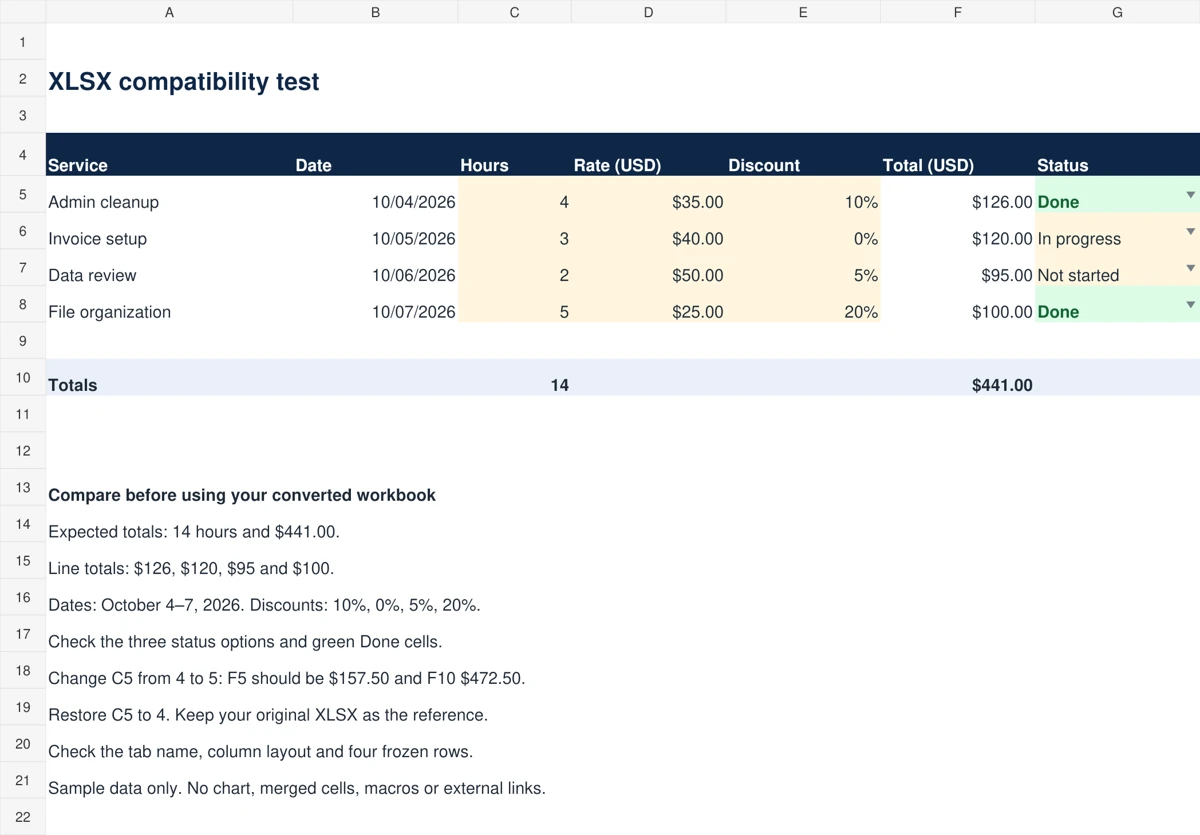
We created a one-tab XLSX with four fictional service jobs. It contains text, dates, dollar amounts, percentages, multiplication formulas, SUM totals, a status dropdown and a conditional-formatting rule. The rule makes “Done” cells green. There are no charts, merged cells, macros or external workbook links.
We imported the file as a native Google Sheet through Google’s Drive conversion flow, then read the actual destination values, formulas and rule definitions. We also changed an input and a status to check recalculation and conditional formatting. This checks one small workbook. It does not establish that every workbook will work, or that every browser-menu workflow gives identical results.
| Check | Expected | Observed in the final converted file |
|---|---|---|
| Line totals | $126, $120, $95, $100 | All four numeric results matched. |
| SUM totals | 14 hours and $441 | Both matched, with SUM formulas still present. |
| Input change | Change C5 from 4 to 5: F5 = $157.50 and F10 = $472.50 | Both recalculated correctly. Restoring C5 restored $441. |
| Dates | October 4–7, 2026 | The final source’s numeric date values and date format were present. |
| Percentages | 10%, 0%, 5%, 20% | Values and percentage formats matched. |
| Dropdown | Not started, In progress, Done | All three options were present in the imported validation rule. |
| Conditional formatting | Done cells turn green | Changing G6 to Done applied the green effective format. Restoring its status removed it. |
| Tab and frozen rows | Compatibility tab; four frozen rows | The destination metadata matched. |
| Dollar display | $441.00 in the source preview | The French-locale destination displayed $441,00. The numeric value was still 441. |
During the first import, dates stored using an ISO-date cell representation arrived blank. We rebuilt the source dates as numeric Excel date values and repeated the import. The final file passed the date-value check. This was an observed result for our generated file, not evidence that ordinary Excel dates always disappear.
We checked destination data and formatting through Google’s spreadsheet API. We did not verify the native browser appearance, dropdown click behavior, column fit or charts. A stored rule or matching total is useful evidence, but it does not replace your own visual check.
Use this sample to practice the checks below. It tests the basic features listed here and is not a business tracker or a compatibility guarantee.
Use this checklist on your own workbook
1. Compare totals and test a formula
Write down the original totals before editing. Compare revenue, expenses, inventory counts or other numbers your work depends on. Inspect a representative formula and its referenced cells.
In a disposable copy, change one input with a known effect. For our test, increasing four hours to five at $35 per hour with a 10% discount adds $31.50. The total should move from $441 to $472.50. Undo the change after checking it. A matching starting total alone cannot show that a formula still works.
2. Check dates, currency and percentages
Confirm the meaning of each date. In our sample, 10/04/2026 means October 4, not April 10. Check the underlying date as well as its display, particularly before sorting, filtering or sending reminders.
A decimal separator change does not necessarily change the amount. Our imported total displayed as $441,00 under a French locale while retaining the numeric value 441. In a native Sheet, review File → Settings → General → Locale if the defaults do not suit your team. Locale affects default date, number and currency formatting for the whole spreadsheet. Google explains the setting in its locale and calculation guide.
Check that a 10% discount is still the numeric value 0.10, rather than the number 10 with percentage formatting applied. For dates stored as text, establish the intended day and month before converting them. Our guide to cleaning data in Excel covers reviewing the source data.
3. Try the dropdowns and status colors
Open each important dropdown. Compare its options with the original, then select a valid option. Check whether an invalid entry is blocked or merely warned about. The presence of a list does not prove that the original restriction behavior survived.
Change a status that should trigger a color. Confirm that the color appears and disappears when expected. If a rule fails, inspect its applied range, condition and relative cell reference. Rebuild the specific rule in the working copy rather than painting cells manually.
4. Inspect every tab and any chart
Compare sheet names, row and column positions, wrapped text, merged headings and frozen areas. Widen a clipped column only after confirming that its contents are correct.
If your workbook has charts, check their source ranges, labels and plotted values. Then change one source value in a test copy and confirm that the chart follows it. We did not include a chart in our test, so no chart compatibility result is claimed here.
If something changed, fix the cause before using the sheet
For an incorrect total, inspect the formula and its inputs first. For a blank date, compare with the untouched original. Changing the display format cannot recover a missing value. For a broken dropdown or color rule, compare its options and range with the original definition.
Make repairs in the working copy and repeat the affected check. If the workbook depends on an Excel feature that Sheets does not support, continue using it in Excel or redesign that part deliberately. Keep the original XLSX until the file is verified and the person using it knows which copy is current.
Need help repairing a business spreadsheet or simplifying an admin workflow? See Simple Office AI services.
FAQ
Can Google Sheets open an XLSX file?
Yes. Upload the file to Drive and open it with Sheets. Check the workbook before relying on its results.
Does opening an XLSX file convert it automatically?
Not necessarily. Sheets can edit Office files in their original format. Drive’s automatic conversion setting can change the upload behavior, so check the file type.
Will Excel formulas work in Google Sheets?
The basic multiplication and SUM formulas in our test survived conversion and recalculated correctly. Check your own formulas and dependencies, especially when they reference other workbooks.
Why did my Excel formatting change?
Check the specific difference. A locale setting can change number display, while a lost rule or missing value requires a different repair. Compare the file with your backup before applying broad formatting changes.
Should I keep the original XLSX file?
Yes. Keep an untouched original until you have checked the working copy’s values, formulas, rules and layout.
Can I save the Google Sheet back to Excel?
Yes. In a native Sheet, use File → Download and choose Microsoft Excel (.xlsx). Check that downloaded copy too. Exporting it does not prove that the original Excel behavior has been restored.