

Copying last month’s spreadsheet can carry old client details, figures, and notes into the next job. A reusable Excel template gives you a clean starting point with the labels, formulas, and formatting already in place.
To make a template in Excel, build the workbook, test it with sample data, clear the entries that change each time, and save the clean master as an Excel Template (.xltx). Then create a new workbook from that template and save each completed job as a separate .xlsx file.
This guide uses a small service estimate to show the process. You can apply the same steps to your own recurring business spreadsheet.
Download the example used in this guide
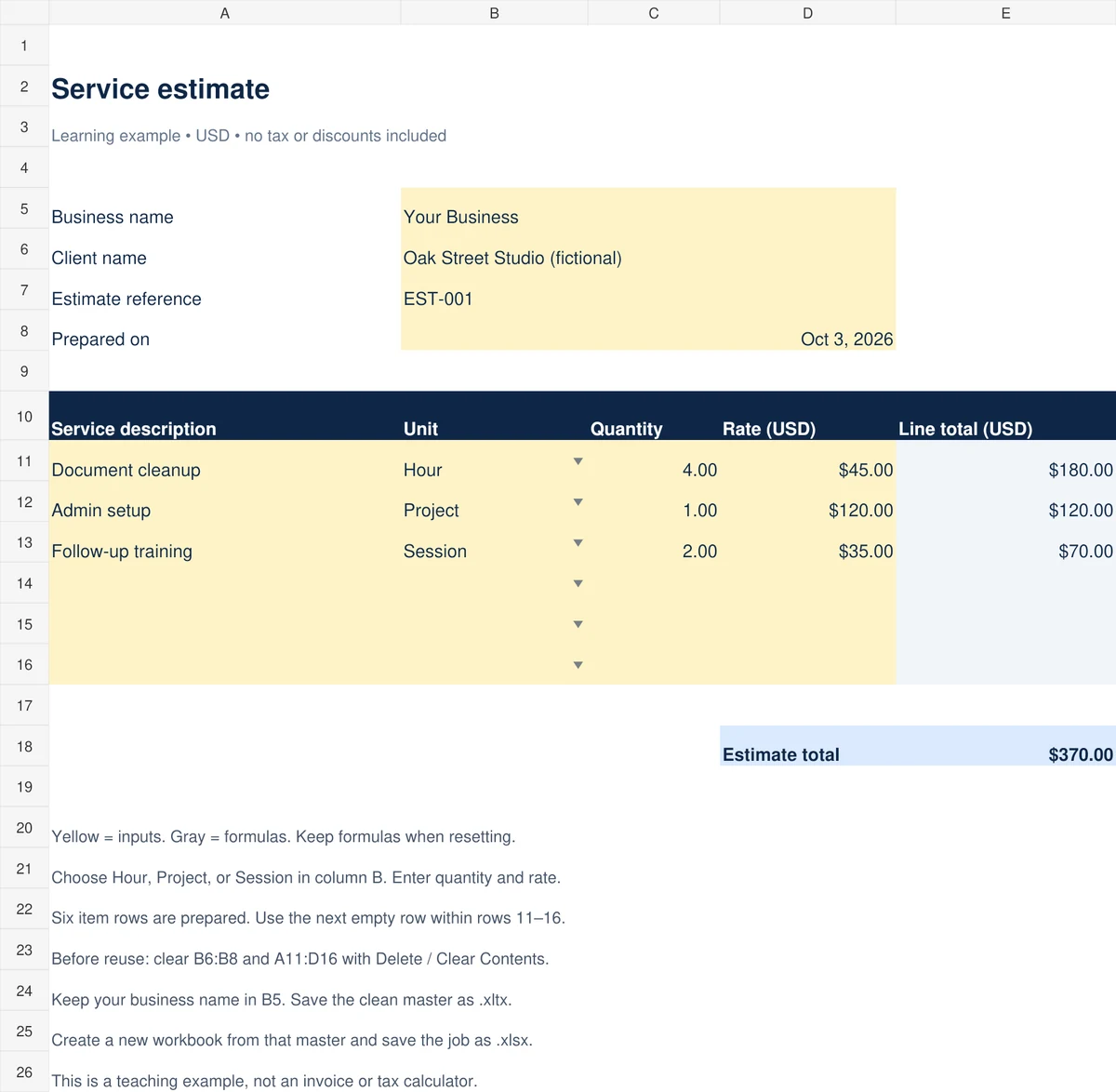
The example has one sheet called Estimate, six service rows, a Unit dropdown, line-total formulas, and a total. Yellow cells are inputs. Gray cells contain formulas. It uses USD and does not calculate tax or discounts.
Download the .xltx master from Google Drive and open it in desktop Excel. The populated .xlsx example contains fictional client and service entries for following the tests. The clean master removes those entries while keeping the layout, formulas, and validation rules.
For Google Sheets, open the example and choose File > Make a copy to work in your own file. This is a Sheets version of the example. Follow the .xltx saving steps in desktop Excel.
What is the difference between .xlsx and .xltx?
| Format | Use it for |
|---|---|
| .xlsx | A normal workbook, including the completed file for a particular client or job. |
| .xltx | A reusable master template for creating new workbooks. It does not store VBA macros. |
| .xltm | A macro-enabled template. This example does not need macros. |
You can keep a blank .xlsx and copy it manually, but you must remember to save a separate copy before entering new data. The template workflow makes the master and the working workbook separate files. Microsoft lists these formats in its Excel file-format guide.
1. Decide what stays and what changes
Start with one workbook you use repeatedly. Write down which parts should appear in every new file and which entries belong only to the current job.
| Keep in the master | Clear before reuse |
|---|---|
| Business name, field labels, column headings | Client name, job reference, job date |
| Formulas and validation rules | Service descriptions, quantities, rates |
| Number formats and input colors | Temporary notes and sample transactions |
You do not have to start from an empty workbook. You can adapt a file from the Simple Office AI Templates page. For example, keep the category structure in a small-business budget spreadsheet, but remove the sample figures before making your own master.
2. Build a clear input area
Open a blank workbook in desktop Excel and name the sheet Estimate. To reproduce this example, use the following layout:
- B5: business name. Replace “Your Business” with your own name before saving the master.
- B6:B8: client name, estimate reference, and preparation date.
- A10:E10: Service description, Unit, Quantity, Rate (USD), and Line total (USD).
- A11:D16: six rows for entering services.
- E11:E16: calculated line totals.
- E18: calculated estimate total, with its label in D18.
Use one color for editable cells and a quieter fill for calculated cells. Format rates and totals as currency. Make the description column wide enough to read the service names. Add a short note explaining which cells to change.
The colors are instructions, not protection. This teaching file leaves cells editable so you can inspect and adapt its formulas.
3. Add formulas that survive a reset
A basic line total is quantity multiplied by rate. For this layout, that calculation is =ROUND(C11*D11,2). The example adds a check so an unused row stays blank and an incomplete row is visible.
Enter this formula in E11, then fill it down through E16:
=IF(COUNTA(A11:D11)=0,"",IF(COUNTBLANK(A11:D11)>0,"Check inputs",ROUND(C11*D11,2)))It checks three things: an empty row has no displayed result, a partially completed row shows Check inputs, and a complete row calculates the amount. A quantity or rate of zero is still a number, so it produces a zero line total.
In E18, enter:
=IF(COUNTIFS(E11:E16,"Check inputs")>0,"Complete rows",SUM(E11:E16))This prevents an incomplete service row from silently disappearing from the total. When all six rows are empty, the total is $0.00. Keep these formulas when you clear the workbook.
4. Add a dropdown and number rules
A short dropdown helps users enter the same unit names consistently. In Excel, select B11:B16, open Data > Data Validation, and choose List. Enter Hour,Project,Session in Source. Leave In-cell dropdown checked and allow blanks for unused rows.
For C11:D16, use Decimal validation with a minimum of 0 and a maximum of 1000000. These are the example’s limits. Change them to fit your workbook. Use a Stop error alert to reject invalid typed entries. Microsoft explains these settings in its data-validation guide.
Test the rules by typing an invalid unit, a negative quantity, and text in a rate cell. Copying or filling cells can bypass validation alerts, so check pasted data too. See Microsoft’s validation troubleshooting notes. If your starting workbook has inconsistent imported labels, clean the data before deciding on the final dropdown values.
5. Test the workbook before saving the master
Use a few realistic entries and check the answers independently. In the populated example:
- Document cleanup: 4 hours × $45 = $180.
- Admin setup: 1 project × $120 = $120.
- Follow-up training: 2 sessions × $35 = $70.
- Estimate total: $370.
Change the first quantity to 5. The total should become $415. Restore it to 4, then add 0.5 hours at $50 in row 14. The total should become $395.
Next, clear one rate from an otherwise complete row. You should see Check inputs on that row and Complete rows in the total. Clear the entire input row and it should become unused again.
There are six prepared item rows. Use the next empty row within rows 11–16. If you need more, extend the input formatting, validation, line formulas, and total range together, then repeat the tests. This example does not automatically expand beyond six items.
6. Remove sample entries without deleting formulas
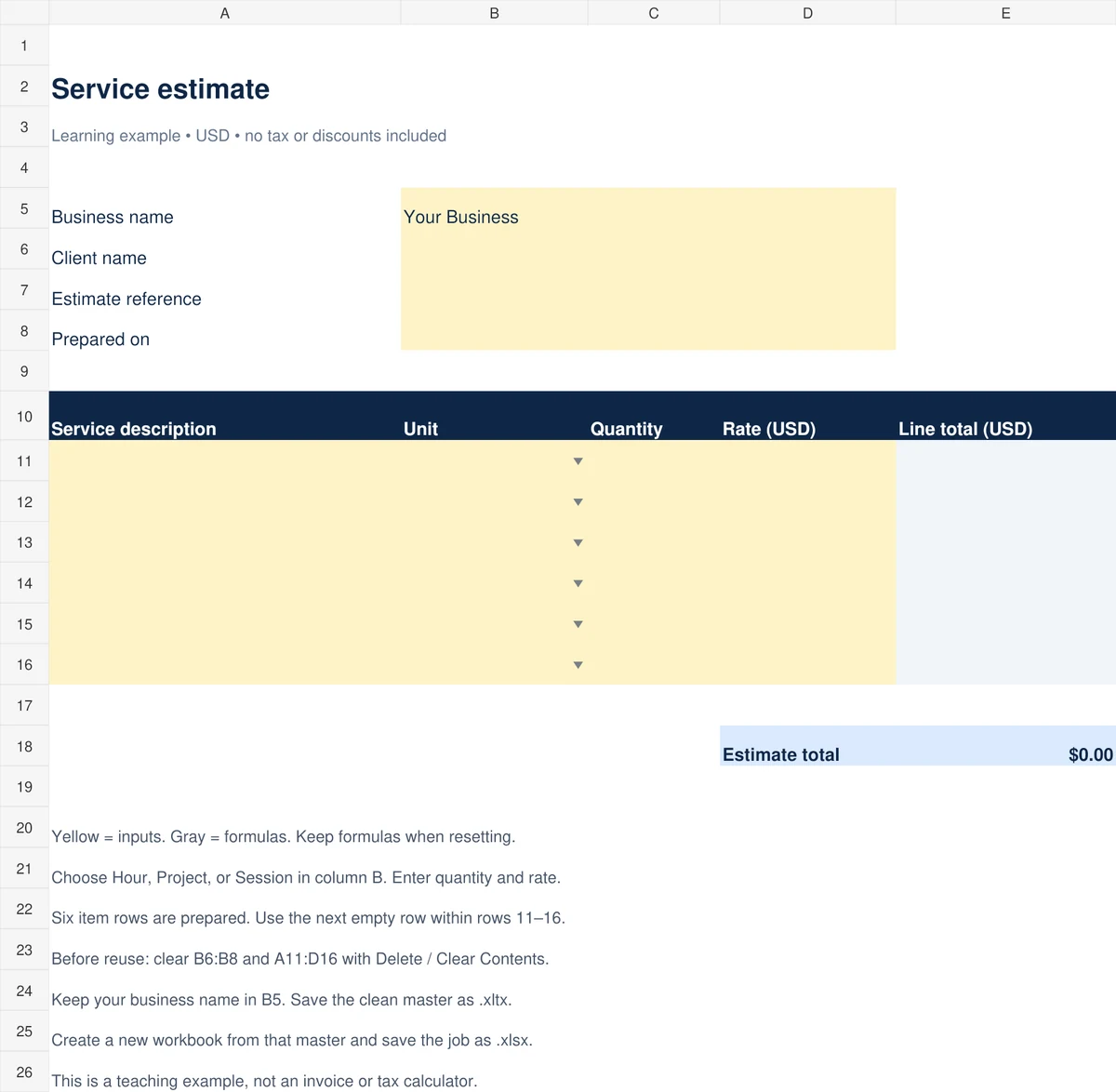
In the example workbook, clear B6:B8 and A11:D16 using Delete or Clear Contents. Keep B5 if it contains your business name. Leave E11:E16 and E18 alone.
Do not select the whole sheet and delete its contents. Do not delete the item rows. The goal is to remove job-specific values while keeping the reusable structure.
Check that no previous client details or sample notes remain. The cleaned version should have blank input rows and a $0.00 total.
7. Save the clean workbook as an Excel template
The following path is for desktop Excel on Windows. Microsoft documents it in Save a workbook as a template:
- Open File > Options > Save.
- Set Default personal templates location to a folder you can find, then select OK.
- With the clean workbook open, choose File > Export > Change File Type.
- Select Template, give it a clear name such as
Service_Estimate_Master_v1.xltx, and save it in your personal templates folder. - Close the template.
You can also use Save As and select Excel Template (*.xltx) as the file type. Changing the filename extension alone is not a format conversion.
On Mac, use File > Save as Template and select Excel Template (.xltx). Microsoft provides the Mac steps in the Excel section of its Create a template guide. Menu wording can differ between versions.
8. Create a new workbook for each job
On Windows, choose File > New > Personal and select your saved template. Excel creates a new workbook based on it. On Mac, use File > New from Template.
Enter the new client’s details and service rows. Save this working file as a normal workbook, for example Oak_Street_EST-002.xlsx. Keep the .xltx master for future jobs.
To check reuse, create a second workbook from the same master. Its client fields and item rows should still be blank. Changing the first job should not change the master or the second job.
When you want to change the master itself, open it deliberately through File > Open, edit it, and save it as a template. Check that it is clean before replacing the version your team uses.
Common reasons a template becomes difficult to reuse
- Old details appear in every new job: clear those entries in the master, then save it again.
- Totals stop working: check whether a formula cell was overwritten during data entry or reset.
- A new service is missing from the total: check the formula and validation ranges when extending the sheet.
- The template is missing from Personal: check the configured personal templates folder and where the .xltx was saved.
- Several “final” masters circulate: keep one agreed master location and archive replaced versions separately.
Frequently asked questions
Can I turn an existing Excel workbook into a template?
Yes. Keep the useful labels, formulas, and formatting, remove the entries that belong to previous jobs, test the cleaned file, and save it as .xltx.
Should I save my template as .xlsx or .xltx?
Use .xltx for the reusable master and .xlsx for each completed working workbook. Use .xltm only when the template needs macros. If a completed .xlsx workbook needs to be opened or edited in Google Sheets, follow our XLSX-to-Google-Sheets guide and check the workbook features after opening it.
Why is my template not showing under Personal?
In Windows desktop Excel, check File > Options > Save > Default personal templates location. Save the template in that folder, then look under File > New > Personal.
How do I update the master without changing completed jobs?
Open the master deliberately, make the changes, test it, and save it as .xltx. Existing standalone .xlsx jobs remain separate. Use a new version name when the change affects how your team uses the file.
Do I need macros for a reusable business template?
No. The example uses ordinary formulas and validation. Add macros only when a specific task requires them, and use the macro-enabled .xltm format for that master.
Can I create this .xltx master in Excel for the web?
This guide uses desktop Excel’s template-saving workflow. In the web app, keeping a clean workbook and making a separate copy is a practical alternative. Use desktop Excel when following the .xltx steps shown here.
Need a custom spreadsheet for your business?
If your recurring workbook needs several connected sheets, specific input rules, or a clearer handoff for your team, Simple Office AI offers custom spreadsheet and admin-system support. Start with the process you repeat and the result you need.