

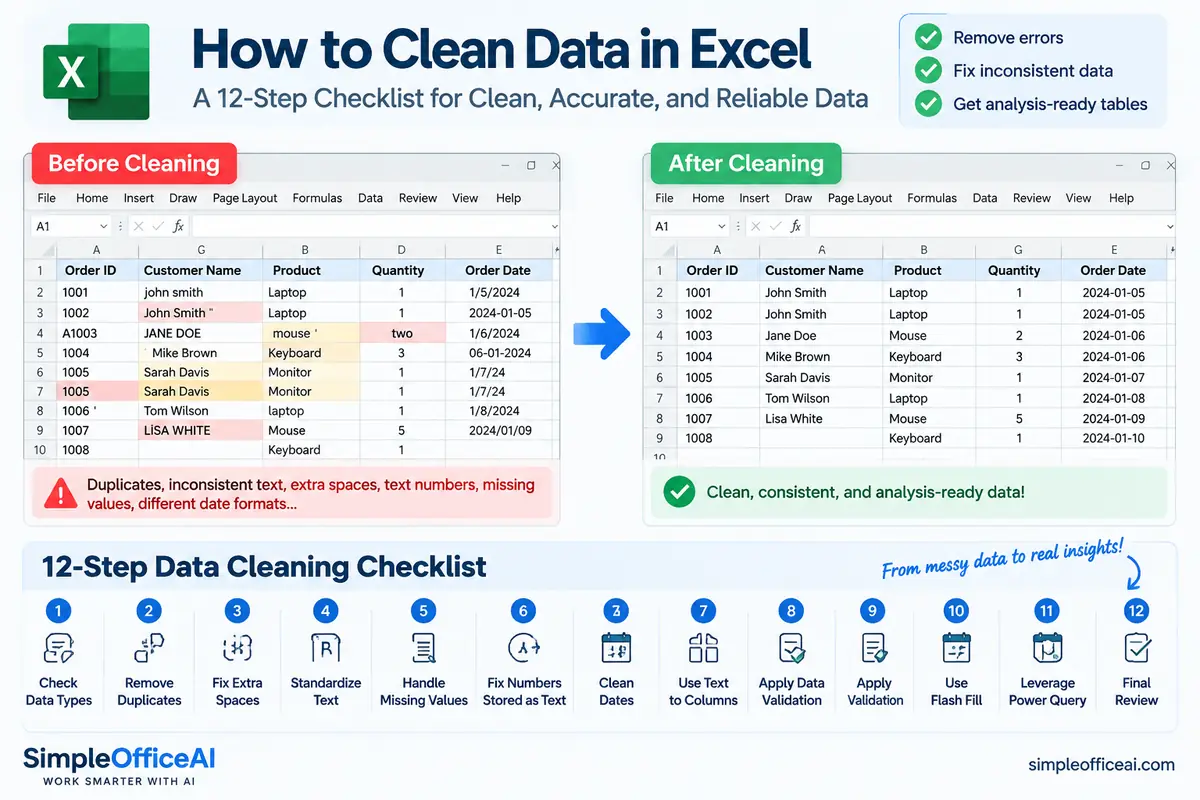
Messy Excel data usually does not fail in one dramatic way. It fails in small ways that make sorting, filtering, formulas, lookups, and reporting less reliable: extra spaces, inconsistent capitalization, dates stored as text, currency values that are not real numbers, blank key fields, duplicate rows, and columns that contain more than one kind of information.
A safer cleanup process is to fix those problems in a deliberate order instead of clicking random cleanup commands until the sheet looks better.
Quick answer: make a copy of the source, put the data into a simple table structure, remove hidden characters and spacing problems, standardize text, dates, and numbers, review blanks, inspect duplicates, add validation, and verify the final row counts and totals. For a recurring import, use Power Query so the same approved steps can run again on refresh.
This guide uses a fictional customer list, but the same workflow works for many everyday business files: exported expenses, client lists, inventory records, supplier lists, survey results, and CSV downloads.
What “clean data” actually means in Excel
Clean data is not the same as attractive formatting.
A sheet can have nice colors and still contain values that break formulas or produce misleading results. For everyday Excel work, data is usually in better shape when:
- each row represents one record;
- each column has one clear meaning;
- headers are unique and descriptive;
- spaces and hidden characters are controlled;
- text follows a consistent case and naming rule;
- dates are real Excel dates rather than inconsistent text strings;
- numbers are stored as numbers when they need to be calculated;
- missing values are visible rather than silently guessed;
- duplicates have been reviewed using a defined rule;
- new entries are constrained with validation where practical.
That gives Excel something predictable to work with.
1. Preserve the original before cleaning anything
Start by keeping an untouched source.
If the file is important, save a working copy with a clear version name, such as:
Customer_List_Original.xlsx
Customer_List_Cleanup_2026-09-21.xlsx
Do the cleanup in the working copy.
This matters because several Excel cleanup commands change data directly. Remove Duplicates, for example, deletes matching records from the selected range. Microsoft recommends reviewing or copying source data before removing duplicates. If you later discover that the wrong comparison columns were selected, the untouched source is your safest reference.
For a small one-off file, duplicating the worksheet may be enough. For an important operational workbook, keep a separate source copy.
2. Put the data into a simple table structure
Before fixing individual values, check the shape of the dataset.
A clean working table normally needs:
- one header row;
- one record per row;
- one field per column;
- no decorative blank rows inside the data;
- no merged cells inside the dataset;
- no subtotals or report titles mixed into the records.
For example, a customer list should not have a single column called Customer containing a name, email, phone number, and status all in the same cell. Those fields are easier to clean and validate when they have separate columns.
Once the range is structured correctly, you can convert it to an Excel Table with Ctrl+T if that helps your workflow. Tables make filtering and range expansion easier, but the important part is the structure—not the color style.
3. Remove extra spaces and hidden characters
Imported text often contains characters you cannot see.
Two customer names may look identical while one has a leading space. A city copied from a website may contain a nonbreaking space. A name imported from another system may include a line break.
Excel has useful text-cleaning functions:
=TRIM(B2)
TRIM removes leading and trailing ordinary spaces and reduces repeated ordinary spaces between words to single spaces.
For worked examples and the steps to replace helper formulas safely, see how to remove extra spaces in Excel using TRIM.
=CLEAN(B2)
CLEAN removes many nonprinting characters. If hidden characters are the specific problem in your file, see the Excel CLEAN function guide for the focused formula workflow and its limitations.
For imported text, you can combine them:
=TRIM(CLEAN(B2))
One limitation matters: Microsoft notes that TRIM by itself does not remove the nonbreaking space character commonly found in copied web content, and CLEAN does not remove every Unicode nonprinting character. A practical helper formula for the common nonbreaking-space problem is:
=TRIM(CLEAN(SUBSTITUTE(B2,CHAR(160)," ")))
Use a helper column first. Check the result, then copy the cleaned values back only when you are confident that the transformation is correct.
4. Standardize capitalization and text conventions
Inconsistent capitalization does not always stop Excel from working, but it makes lists harder to review and can create messy reports.
Useful functions include:
=UPPER(A2)
=LOWER(C2)
=PROPER(B2)
A simple customer-data pattern might be:
- customer IDs: uppercase;
- email addresses: lowercase;
- state abbreviations: uppercase;
- status labels: one approved set such as Active, Lead, Inactive;
- names: reviewed title case when appropriate.
Avoid applying PROPER blindly to every name or company name. Automated case conversion can produce incorrect results for names, abbreviations, brands, or intentional capitalization. Use it as a cleanup aid, not a substitute for review.
5. Split combined fields before you standardize them
Sometimes a column contains several pieces of information that should be separate.
Examples include:
- full name in one field when first and last name need to be separate;
- city and state stored together;
- codes joined with descriptions;
- imported values separated by commas, tabs, or other delimiters.
In desktop Excel, Data → Text to Columns can split a column using a delimiter such as a comma or space. Microsoft also documents Flash Fill, which can detect a pattern after you provide an example; you can start it from Data → Flash Fill or with Ctrl+E.
Two cautions make this step safer:
- Keep empty columns to the right before using Text to Columns so the result does not overwrite existing data.
- Check several rows after Flash Fill. Pattern detection is helpful, but it can produce the wrong split when the source data is inconsistent.
For recurring imports, a Power Query split step is usually easier to reproduce than a manual split.
6. Convert numbers stored as text
A value can look like a number without behaving like one.
This commonly happens after data is exported from another system. You may see prices such as $1,250.00, values with commas, or plain numbers stored as text.
Symptoms include:
- totals that ignore some rows;
- sorting that behaves strangely;
- numbers aligned like text;
- green error indicators in Excel.
When Excel identifies the problem, you can often select the affected cells and choose Convert to Number.
For a helper-column method, Microsoft documents the VALUE function:
=VALUE(G2)
If currency symbols are part of the text, you may need to remove them first. For a simple US-dollar text value:
=VALUE(SUBSTITUTE(G2,"$",""))
If the source also contains thousands separators or other locale-specific characters, test the formula on representative rows before filling it down.
Do not convert identifiers just because they contain digits. ZIP codes, product codes, account references, and other IDs may need to remain text so leading zeros are preserved.
7. Standardize dates and confirm they are real dates
Dates create some of the most frustrating Excel cleanup problems because several values can look like dates while only some are stored as real Excel date values.
A column might contain:
9/5/202609/05/20262026-09-05- a date-looking text string imported from a CSV
Formatting alone does not necessarily convert text into a date value.
A safe process is:
- check whether Excel recognizes the values as dates;
- convert text dates in a helper column when needed;
- sort the result oldest-to-newest and newest-to-oldest;
- apply one display format after the values are valid.
If you use DATEVALUE, remember that date interpretation can depend on the source format and regional settings. For mixed or high-risk files, standardize the source pattern first or use Power Query with an explicit data type and locale.
The goal is not to make every date look the same first. The goal is to make the underlying values behave consistently.
8. Review blanks instead of automatically filling them
Blank cells can mean different things:
- information was never collected;
- a value is optional;
- a record is incomplete;
- an import failed;
- the correct value is genuinely unknown.
Use filters to find blank cells in important columns such as Customer ID, Email, Invoice Number, Product ID, or Date.
Then decide what the blank means.
Do not replace unknown values with made-up data just to make a column look complete. If a missing field matters to the business process, flag it for review. If it is optional, leaving it blank may be the correct choice.
A useful distinction is required field versus optional field. Once you know that rule, you can use Data Validation to prevent the same problem from returning.
9. Review duplicates only after standardization
Duplicate cleanup should come late, not first.
Why? Because values that should match may not match until spaces, case, and hidden characters have been fixed. On the other hand, two rows that share a name may represent different people.
Before deleting anything, define the duplicate rule.
For a customer file, possible keys include:
- Customer ID;
- email address;
- a combination of fields;
- the entire row.
Highlighting repeated values with Home → Conditional Formatting → Highlight Cells Rules → Duplicate Values is a useful review step because it does not delete anything.
When you are ready to remove confirmed duplicate rows, use Data → Remove Duplicates and deliberately choose the columns Excel should compare.
This topic deserves its own careful workflow. See the Simple Office AI guide on removing duplicates in Excel without losing important data before using the command on an important business file.
10. Add Data Validation so the sheet stays clean
Cleaning a spreadsheet once is useful. Preventing the same inconsistent entries from returning is better.
Excel Data Validation can restrict what users enter into a cell. Microsoft documents rules for:
- whole numbers;
- decimals;
- lists;
- dates;
- times;
- text length;
- custom formulas.
For a Status column, a list such as:
Active, Lead, Inactive
is usually better than allowing variations such as:
active
ACTIVE
Current
Open
A
For a quantity column, you may allow only whole numbers greater than or equal to zero. For a date column, you may restrict entries to a sensible range.
Validation helps most when the accepted rule is already clear. Do not use it to force a choice when the business process itself is still undefined.
11. Verify row counts, totals, and error values
A cleaned file should not only look consistent. It should still make sense.
Before you declare the job finished, check control points such as:
- number of rows before and after deduplication;
- total sales, expenses, balances, or quantities;
- number of unique IDs;
- required fields that are still blank;
- unusual minimum or maximum values;
- formula errors such as
#REF!,#VALUE!,#DIV/0!,#NAME?, or#N/A.
If the file contains important calculations, compare totals against the original source or another trusted report.
This is where you catch accidental damage. A cleanup rule that removes 300 rows when you expected to remove 12 needs investigation before the file is used.
12. Use Power Query when the cleanup repeats
Manual cleanup is reasonable for a small one-time file. It becomes inefficient when the same export arrives every week or month.
Power Query—shown as Get & Transform Data in Excel—lets you connect to a source and record transformation steps such as:
- removing columns;
- changing data types;
- filtering rows;
- replacing values;
- removing blanks;
- splitting columns;
- removing or keeping error rows;
- handling duplicates.
Microsoft explains that the Power Query Editor records these operations as Applied Steps. When the query is refreshed, those transformations can run again against the source.
That gives you a more repeatable workflow than manually performing the same sequence every month.
A good rule is:
One-off small cleanup: worksheet tools and helper columns.
Repeated import or larger dataset: Power Query.
Keep the source unchanged, review the transformations, and test the output before replacing an established business process.
A practical cleaning order
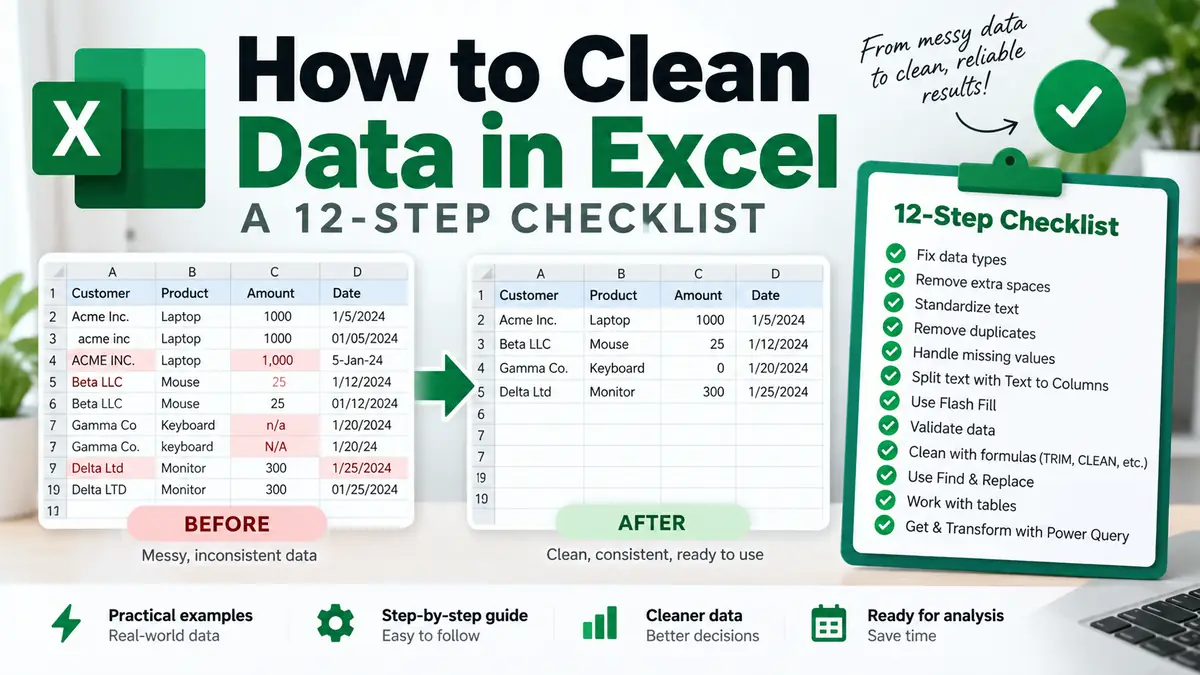
If you are not sure what to do first, use this order:
| Order | Task | Why it comes here |
|---|---|---|
| 1 | Preserve source | Protects the original |
| 2 | Fix table structure | Gives each row and column one clear role |
| 3 | Remove spaces / hidden characters | Makes later comparisons more reliable |
| 4 | Standardize text | Reduces inconsistent labels |
| 5 | Split combined fields | Creates cleaner fields for validation and analysis |
| 6 | Fix numbers | Restores calculations and numeric sorting |
| 7 | Fix dates | Restores reliable date sorting and filtering |
| 8 | Review blanks | Identifies incomplete records |
| 9 | Review duplicates | Uses already-standardized values |
| 10 | Add validation | Helps keep future entries consistent |
| 11 | Verify counts and totals | Confirms the cleanup did not damage the dataset |
| 12 | Move recurring work to Power Query | Makes approved transformations repeatable |
The order is more important than any single Excel feature. If you remove duplicates before you standardize text, or overwrite dates before checking whether Excel recognizes them, you make the cleanup harder to audit.
When Excel cleanup needs more than formulas
You can handle a surprising amount of cleanup with Excel’s built-in tools. But some files need a more controlled process.
Consider a more structured cleanup when:
- several worksheets contain overlapping records;
- formulas are broken as well as the data;
- there are many different date or number formats;
- no one knows which columns should define a duplicate;
- multiple exports need to be merged;
- the same cleanup has to run repeatedly;
- the result will feed an accounting, CRM, inventory, or reporting system.
If the spreadsheet is important and the cleanup rules are not obvious, avoid making destructive changes until the rules are defined.
Simple Office AI offers spreadsheet cleanup services for duplicated records, inconsistent formatting, date and number standardization, column organization, formula checks, and simpler working layouts. If you are not sure which cleanup level fits, use the contact form and describe the file and the problem before sending any sensitive data.
Final data-cleaning checklist
Before you save the cleaned version, confirm that:
- the original source still exists;
- one row represents one record;
- headers are clear and unique;
- text has been standardized without changing meaning;
- dates behave as dates;
- numbers behave as numbers;
- missing values were reviewed rather than guessed;
- duplicate rules were defined before records were deleted;
- important totals and counts still reconcile;
- validation is in place where future entries need control;
- the cleaned file has a clear version name.
Cleaning data in Excel is not about making every cell look identical. It is about making the dataset predictable enough that sorting, filtering, formulas, lookups, and decisions can rely on it.
Start with an untouched copy, clean in a sensible order, verify what changed, and use Power Query when the same job keeps coming back.
Frequently asked questions
Should I remove duplicates before cleaning the data?
Usually, standardize the fields used for matching first. Otherwise, spaces or inconsistent values can hide duplicates. Define the matching rule before deleting records.
Can I clean data without changing the source?
Yes. Keep an untouched source and use helper columns or a separate working copy. Check the cleaned results before replacing original values.
How do I know the cleanup did not lose important data?
Compare row counts and relevant totals, review blank key fields and formula errors, and check sample records against the original. A tidy appearance is not proof of accuracy.
When should I use Power Query for cleanup?
Use it when you repeatedly import data with the same cleanup rules. Confirm the steps on a sample first and review the result after each refresh.
Sources
- Microsoft Support — Find and remove duplicates
- Microsoft Support — TRIM function
- Microsoft Support — CLEAN function
- Microsoft Support — Using Flash Fill in Excel
- Microsoft Support — Split text with Text to Columns
- Microsoft Support — Convert numbers stored as text to numbers
- Microsoft Support — Apply data validation to cells
- Microsoft Support — About Power Query in Excel