

A project timeline stops being useful when task dates live in one place, owners in another, milestones in email, and completion updates in someone’s notes. In Excel, the simplest fix is to keep the task data and the visual schedule connected.
This guide shows you how to create a practical project timeline in Excel, from the task list through the weekly timeline and progress review. If you do not want to build the system from scratch, the free Simple Office AI template gives you the task table, timeline, milestone register, schedule warnings, and dashboard in one workbook.
Quick start: use the project timeline template
- Read Read Me and review Settings in a working copy. Replace the sample project details.
- Enter one task in Task List with a unique ID, owner, start date, and end date. Change input cells rather than calculated cells.
- Open Project Timeline and Dashboard. Check that the dates, schedule warnings, and progress reflect your task before entering the rest of the project.
The Excel workbook is prepared for Microsoft Excel 365 and Excel 2021+. The supplied ranges cover 41 task rows, 15 milestone rows, and 20 weeks; extending them requires updating the prepared logic.
What a Project Timeline Should Show
A useful project timeline is more than a row of colored bars. The visual only works if the underlying task information is consistent.
At minimum, keep these fields together:
| Field | What it tells you |
|---|---|
| Task | The work that needs to be completed |
| Owner | The person responsible for moving the task forward |
| Start date | When the task is scheduled to begin |
| End date | When the task is scheduled to finish |
| Duration | How many calendar days the task spans |
| Status | Whether the task is not started, in progress, blocked, on hold, or completed |
| Completion percentage | How much of the task is actually finished |
| Dependency | Which earlier task needs to happen first, when applicable |
| Milestone | Whether the row represents an important delivery or approval point |
A task list is the source data. It tells you what the work is, who owns it, and what dates and statuses apply.
A visual project timeline takes those same dates and lays the tasks across time so you can see overlap, sequence, gaps, milestones, and schedule pressure without reading every row individually.
For a small team, the two views should stay connected. If you change a task date, status, or milestone flag, the timeline should reflect the same information rather than becoming a separate graphic that has to be maintained by hand.
How to Create a Project Timeline in Excel
If you are creating a timeline in Excel for a real project, start with the task data before you draw the visual layer. You can build a simple project timeline without turning the workbook into a full project-management system.
1. Define the project start and target end dates
Choose the date when the project begins and the target date when the work should be complete. These dates give the timeline a clear boundary.
If the project has a regular reporting cycle, also keep a reporting date. That date can be used to decide whether a task is overdue, due soon, or still within its planned window.
2. Add each task to one structured list
Create one row per task. Give every task a unique Task ID so dependencies and lookups can refer to a specific row instead of relying on task names.
For example:
- TSK-01 — Gather requirements
- TSK-02 — Build wireframes
- TSK-03 — Review prototype
- TSK-04 — Complete development
- TSK-05 — Launch
Keep the IDs stable after other rows start referring to them.
3. Assign an owner and project phase
Add the person responsible for each task and group the task into a phase such as Discovery, Planning, Design, Build, Testing, or Launch.
The owner tells you who needs to act. The phase makes the timeline easier to scan and lets you summarize progress by stage later.
4. Enter the start and end dates
Use real Excel dates, not text that only looks like a date.
The end date should never be earlier than the start date. A good workbook should flag that inconsistency instead of calculating a negative or misleading duration.
5. Calculate task duration
For a calendar-day duration that includes both the start and end date, the basic calculation is:
End Date - Start Date + 1
If the Start Date is in D2 and the End Date is in E2, a safer formula is:
=IF(OR(D2="",E2=""),"",IF(E2<D2,"",E2-D2+1))
That leaves the result blank when a date is missing and avoids returning a duration when the end date is earlier than the start date.
6. Add dependencies where they matter
A dependency identifies work that relies on an earlier task.
For example, “Client Prototype Review” may depend on “Brand Design System & UI Kit.” Recording that relationship helps explain why one late task can affect work that follows it.
Do not invent dependencies simply to make the plan look more sophisticated. Use them when a task genuinely cannot proceed until another piece of work reaches the required point.
If part of the project includes approval documents moving between people, keep the scheduling problem separate from the document-routing problem. The document workflow automation guide shows how to map those approval handoffs.
7. Identify the milestones
A milestone is a key delivery, decision, approval, or stage gate. It is not just another task with a short duration.
Examples include:
- discovery approved;
- prototype accepted;
- integration complete;
- user acceptance signed off;
- production launch.
Mark only the checkpoints that deserve special attention. If every row is a milestone, the milestone view stops being useful.
8. Track status and completion percentage
Status tells you the operating state of the task. Completion percentage tells you how far the work has actually progressed.
Those two fields should agree. If a task is marked Completed, its completion percentage should be 100%, and an actual completion date should be recorded when the workbook expects one.
This consistency matters because dashboards and schedule warnings often use those values in their calculations.
9. Create the weekly timeline
Set the first week header to the project start date. In the next column, add seven days and copy that pattern across the timeline.
If the first week starts in H1, the next header can simply be:
=H1+7
To shade a weekly cell when a task overlaps that week, a conditional-formatting rule can use logic such as:
=AND($D2<=H$1+6,$E2>=H$1)
In plain language: color the week if the task starts before the week ends and finishes after the week begins.
You can then use different formatting for completed work, active or planned work, overdue work, blocked work, and milestone markers.
10. Review overdue, blocked, and upcoming work
A timeline is only useful when it is reviewed.
At each reporting date, look for:
- incomplete tasks with an end date in the past;
- blocked tasks that need escalation;
- work due within the next several days;
- upcoming milestones;
- phases where completion is falling behind the schedule;
- tasks whose dates or completion fields are inconsistent.
The goal is not to make the workbook look busy. It is to make the next schedule decision easier.
A Simple Project Timeline Example
The workbook includes fictional sample data for a Customer Portal Launch. It is demonstration data, not a real customer project.
A shortened version looks like this:
| Task | Owner | Start | End | Status | Milestone? |
|---|---|---|---|---|---|
| Stakeholder Requirements Gathering | Alex Morgan | Oct. 5, 2026 | Oct. 12, 2026 | Completed | No |
| Content Taxonomy & Helpdesk Schema | Elena Rostova | Oct. 21, 2026 | Nov. 4, 2026 | In Progress | No |
| Project Roadmap & Resource Allocation | Alex Morgan | Oct. 26, 2026 | Nov. 4, 2026 | Completed | Yes |
| Client Prototype Review & Approval | Alex Morgan | Nov. 20, 2026 | Nov. 20, 2026 | Not Started | Yes |
| Billing & Payment Gateway API | David Kim | Dec. 1, 2026 | Dec. 18, 2026 | Blocked | No |
| Production Deployment & Go-Live | Alex Morgan | Jan. 15, 2027 | Jan. 15, 2027 | Not Started | Yes |
This small example shows why the task list and timeline need to work together. The blocked billing task is not just a red bar on a chart; it has an owner, a dependency, a target date, a completion percentage, and an escalation note. Milestones such as prototype approval and go-live appear as checkpoints instead of being treated like ordinary multi-day tasks.
How to Use the Free Excel Project Timeline Template
The downloadable workbook is a lightweight, macro-free planning system prepared for Microsoft Excel 365 and Excel 2021+. It contains six sheets: Read Me, Settings, Task List, Project Timeline, Dashboard, and Milestones.
The prepared ranges support up to 41 task rows, 15 milestone rows, and a 20-week timeline. If your project needs more than those prepared ranges, extend the formulas, validation, conditional formatting, and timeline columns before adding the extra records.
1. Read Me
What you enter: Nothing is required here.
What it does: The Read Me sheet explains the workbook structure, color conventions, prepared capacity, schedule-status logic, project-health logic, and limitations.
What to check: Read the section about editable blue cells versus calculated white cells before replacing the sample data. It also explains that the workbook is designed as a lightweight planning tool, not enterprise project-management software with resource leveling or advanced dependency scheduling.
2. Settings
What you enter: Project name, project manager, project start date, target end date, reporting date, plus the lookup lists you want to use for phases, team members, task statuses, priorities, and milestone flags.
What updates automatically: The workbook uses those settings as the reference point for days remaining, overdue and due-soon warnings, project health, dashboard aggregations, and the weekly timeline start.
What to check: Keep the reporting date current. In the workbook, overdue and due-soon logic is based on that reference date, so an old reporting date can make the schedule review misleading.
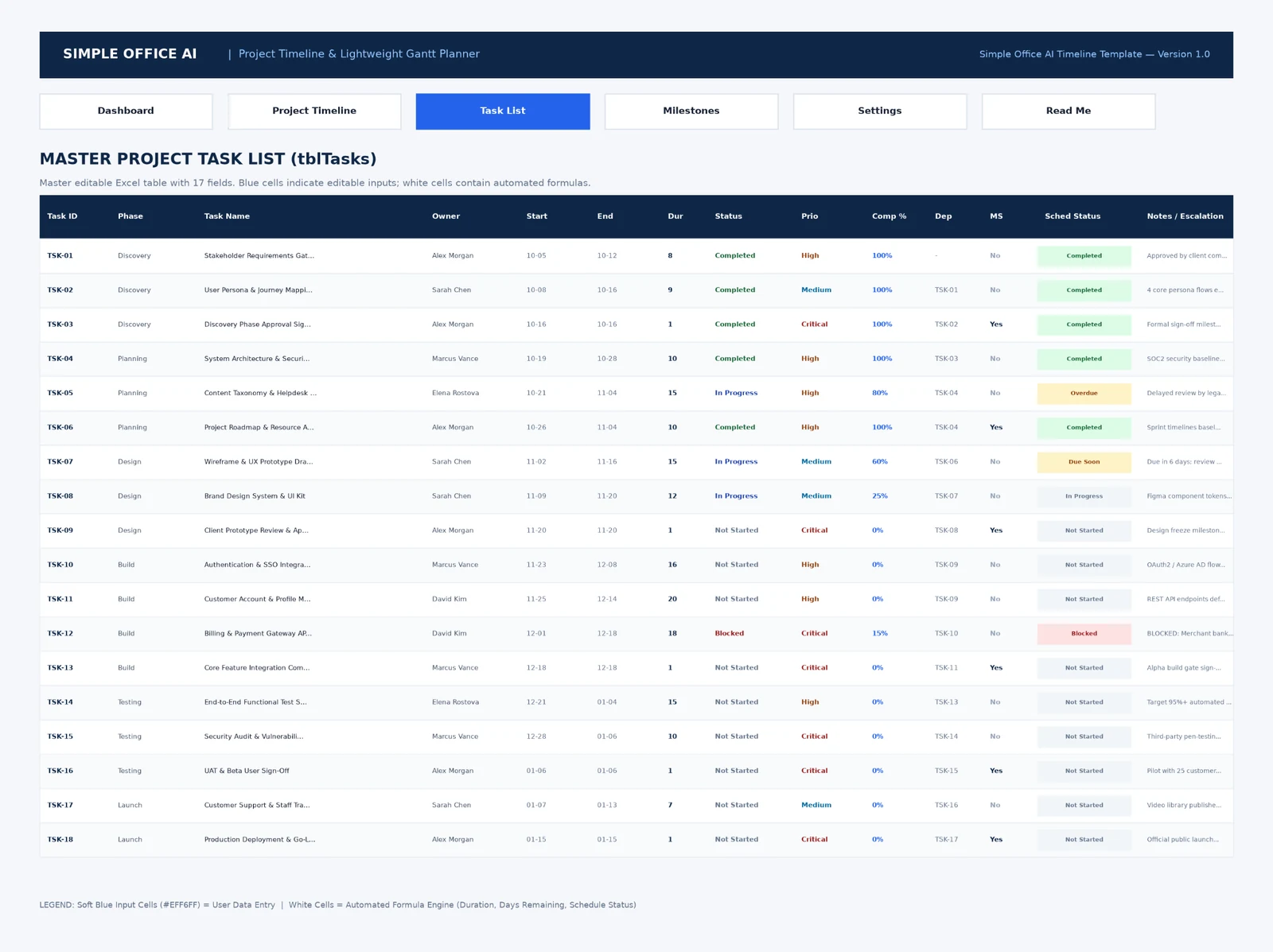
3. Task List
This is the main editable table and the place where you should maintain project data.
What you enter: Task ID, phase, task name, description, owner, start date, end date, status, priority, completion percentage, dependency Task ID, milestone flag, actual completion date, and notes.
What updates automatically: Duration, days remaining, and schedule status are calculated. The schedule-status logic can return states including Completed, Blocked, On Hold, Overdue, Due Soon, In Progress, Not Started, Check Dates, and Check Completion.
What to check: Pay attention to warnings instead of typing over them. The workbook flags an end date that is earlier than the start date, a Completed task that does not have 100% completion or an actual completion date, and duplicate Task IDs.
4. Project Timeline
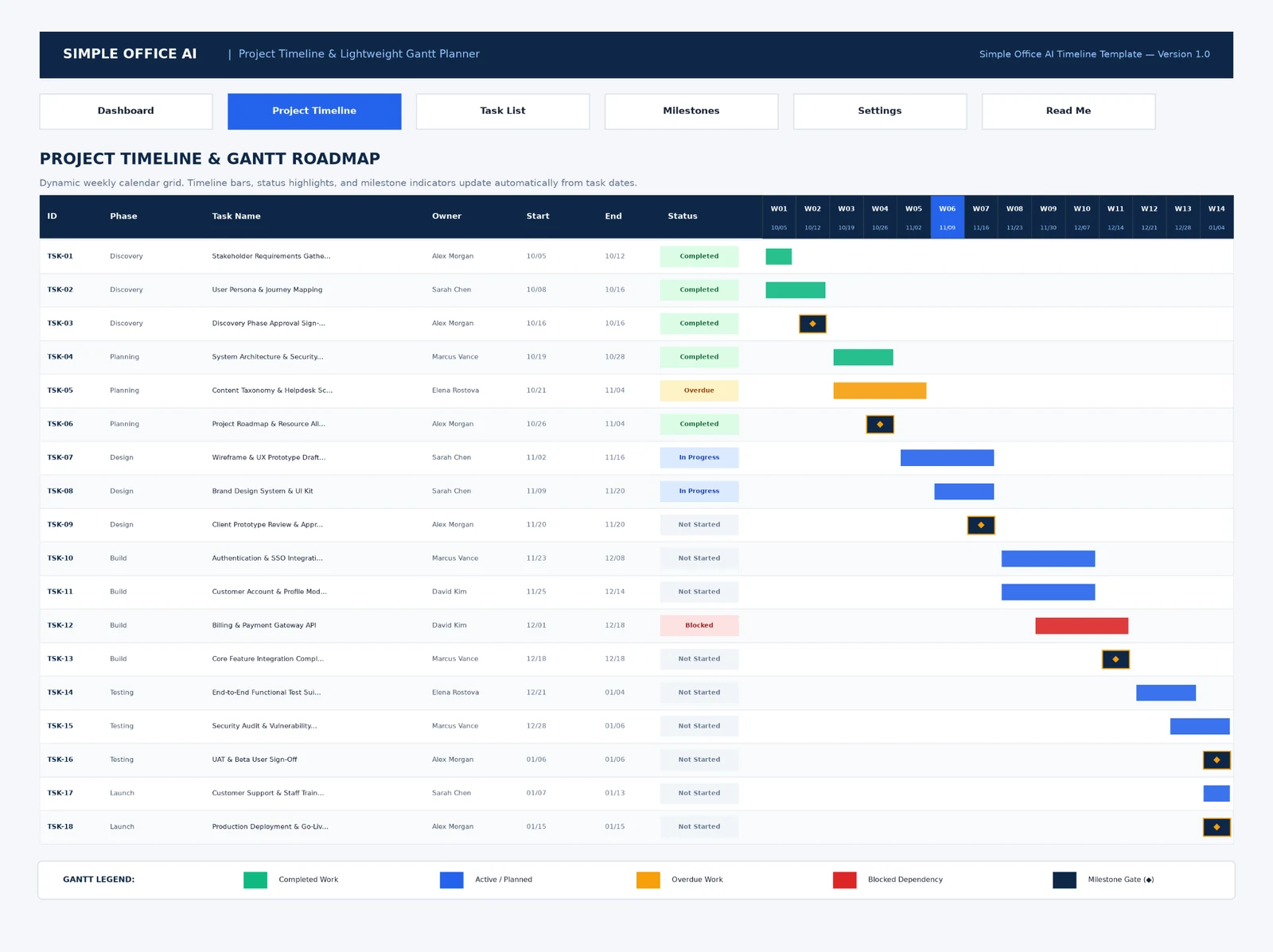
What you enter: Normally nothing directly in the timeline rows. Maintain the task data in the Task List.
What updates automatically: The Project Timeline links back to the task table and displays task details across a weekly grid. The 20 visible week columns begin from the project start date and advance in seven-day increments. Task bars and milestone markers are generated from the task dates and milestone flag.
What to check: Look for where work overlaps, where a blocked or overdue task sits in the sequence, and whether important milestones fall where you expect. The supplied screenshot below shows the early portion of the weekly grid; the workbook itself contains 20 prepared week columns.
5. Dashboard
What you enter: Nothing directly in the dashboard summary.
What updates automatically: The dashboard reads the Task List and Settings to calculate task counts, schedule issues, overall completion, days remaining, project health, action items, upcoming milestones, and phase-level summaries.
What to check: Use it as a review screen, then return to the Task List to correct the underlying task data. Do not edit a dashboard total when the underlying task row is what needs to change.
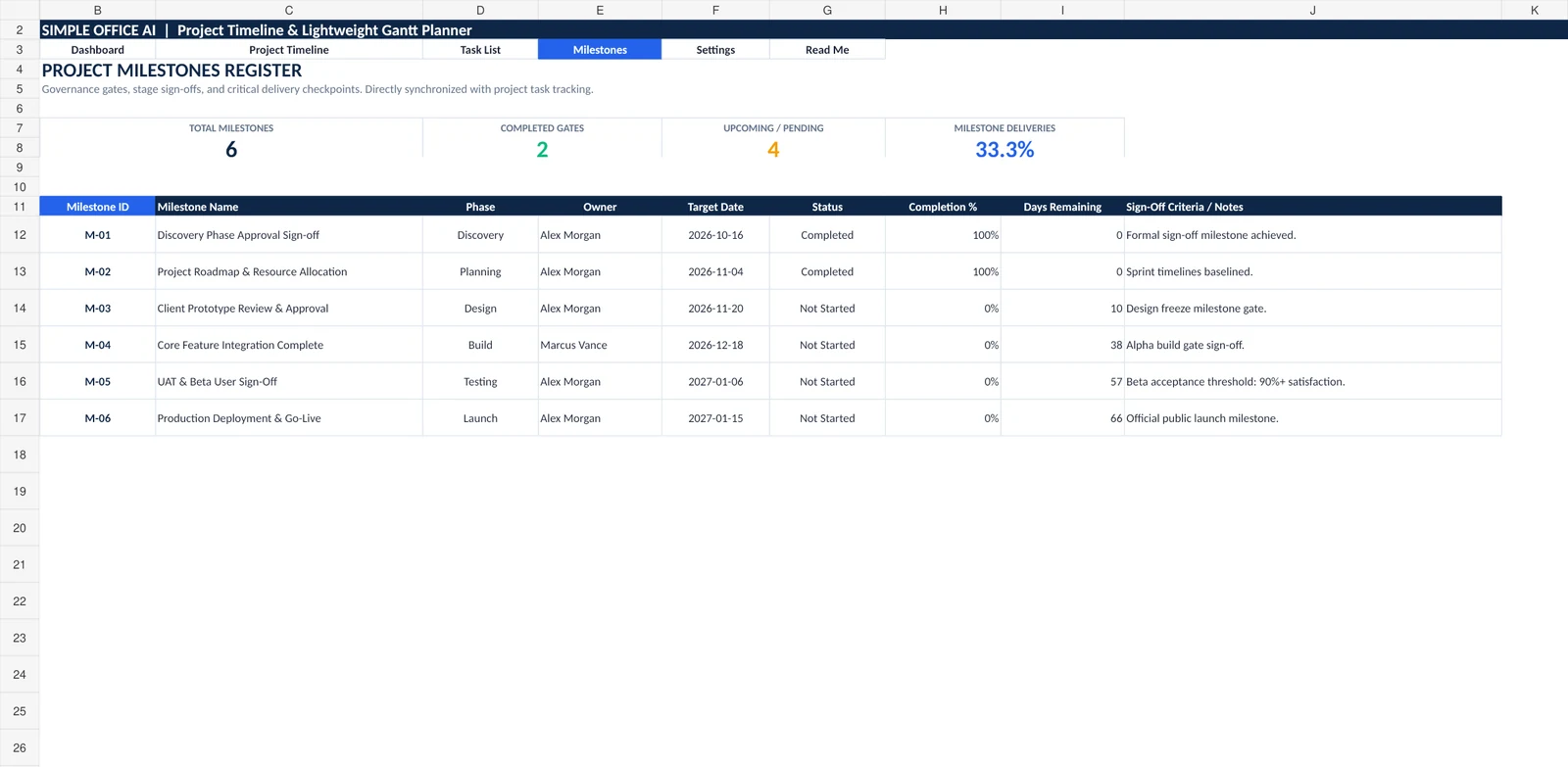
6. Milestones
What you enter: Milestones are identified from the Milestone flag in the Task List, so you do not need to maintain a second milestone database.
What updates automatically: The Milestones sheet builds a date-sorted register with milestone name, phase, owner, target date, status, completion percentage, days remaining, and the sign-off criteria or note pulled from the task.
What to check: Confirm that only meaningful checkpoints are marked as milestones and that their target dates and sign-off notes still match the current plan. The prepared register supports up to 15 milestones.
How the Dashboard Helps You Review the Project
The dashboard is designed for review rather than data entry.
It summarizes:
- Total tasks — the number of active Task IDs in the prepared task table;
- Completed tasks — rows marked Completed;
- In-progress tasks — rows currently marked In Progress;
- Not-started tasks — rows that have not begun;
- Overdue tasks — incomplete tasks whose end date is earlier than the reporting date;
- Blocked tasks — tasks explicitly marked Blocked;
- Overall completion — the average task completion percentage;
- Days remaining — calendar days from the reporting date to the target end date;
- Project health — a formula-driven status based on blocked and overdue work plus completion relative to elapsed schedule;
- Action list — the top overdue and blocked tasks that need attention;
- Upcoming milestones — the next four milestone targets;
- Phase-level progress — completion summaries by project phase.
A good review sequence is simple: check the health status, scan overdue and blocked counts, read the action list, confirm the next milestones, then look at phase-level progress for the area that is slipping.
The project-health result is a prompt for review, not a replacement for judgment. A single blocked task can be important even when the overall completion percentage looks healthy.

Common Timeline Mistakes to Avoid
Using duplicate Task IDs
Dependencies and lookups need a stable identifier. The workbook highlights duplicate Task IDs because two rows with the same key can make task references ambiguous.
If you are cleaning an existing schedule before importing it, the guide to removing duplicates in Excel without losing important data explains why duplicate values should be reviewed before anything is deleted.
Entering an end date before the start date
A negative duration is not a project insight; it is a data problem. Fix the dates first. The template returns a Check Dates warning rather than pretending the task has a valid schedule.
Marking a task Completed without 100% completion and an actual completion date
The workbook checks those fields together. If the status says Completed but completion is not 100% or the actual completion date is blank, the schedule status returns Check Completion.
Treating every task as a milestone
Milestones should identify a few meaningful gates, approvals, or delivery points. A project with 30 tasks does not automatically need 30 milestones.
Ignoring blocked tasks
A blocked task may still have a future end date, so it can look harmless in a date-only timeline. Review blocked work separately and record the reason in the notes or escalation field.
Failing to update the reporting date
The template uses the reporting date as the reference for days remaining, overdue tasks, and due-soon warnings. If you leave it on an old date, those results describe the old reporting point, not today’s plan.
Changing calculated cells instead of input cells
The workbook uses blue cells for user inputs and white cells for automated formulas. Update the source fields in Settings and Task List rather than overwriting duration, days remaining, schedule status, or dashboard results.
Adding more weeks or tasks without extending the prepared logic
The workbook is prepared for 41 task rows, 15 milestones, and 20 timeline weeks. If you expand beyond those limits, extend the relevant formulas, validation, conditional formatting, links, and timeline range as part of the change.
If you need to compare this timeline with other spreadsheet approaches before choosing a setup, see our project management templates guide. If shared updates, reminders, client access, or time tracking have become the bigger problem, compare project management software for freelancers instead.
Download the Free Excel Project Timeline Template
If you want the timeline, warning logic, dashboard, and milestone register already connected, start with the Excel workbook and replace the demonstration project with your own information.
The file includes example data so you can see the workflow before clearing the user-input fields and entering your project.
Need a planning workbook adapted to your own phases, fields, or reporting process? See Simple Office AI spreadsheet services.
Frequently Asked Questions
How do I create a project timeline in Excel?
Start with a structured task list containing task names, owners, start dates, end dates, status, and completion. Add dependencies and milestone flags where they matter. Then create weekly date columns and format the cells that overlap each task’s date range. Review the timeline against overdue, blocked, and upcoming work instead of treating it as a static chart.
Does Excel have a project timeline template?
Yes. Microsoft offers timeline and project-tracker templates, and you can also build a custom timeline from a task table. The Simple Office AI workbook on this page uses a task list, a 20-week Gantt-style timeline, a milestone register, schedule warnings, and a dashboard designed for a small-team workflow.
What should be included in a project timeline?
For a task-based project timeline, include the task, owner, start date, end date, duration, status, completion percentage, dependencies, and meaningful milestones. Keep the task table as the source of truth and let the visual timeline reflect that data.
What is the difference between a project timeline and a Gantt chart?
A project timeline is a broad chronological view of work or milestones. A Gantt chart is a task-based timeline that usually shows each task as a horizontal bar across its planned dates and may also show dependencies or progress. This workbook uses a lightweight Gantt-style weekly view.
Can I use the template in Google Sheets?
Yes. A separate Google Sheets copy is available from the download section above. We tested the converted workbook’s six tabs, sample calculations, dashboard values, timeline output, milestones, and common formula-error states. Because Excel and Google Sheets handle some advanced formatting differently, use the Excel version when you need the original workbook experience.
How often should I update the timeline?
Update it whenever a material task date, status, completion percentage, dependency, or milestone changes. For an active small-business project, it is also useful to set a regular reporting date and review overdue, blocked, due-soon, and milestone items on that schedule.