

This free client tracker spreadsheet keeps contact details, client status, priority, last contact, and next follow-up in one file.
Use the Clients sheet for the current record and the Follow-Up Log for important interactions. The tracker helps you review overdue follow-ups; it does not include a sales pipeline or automated messages.
Make a Copy in Google Sheets Copy in Google Sheets
Quick start: use the template
- Save your own copy and replace the fictional clients. Review the status and priority dropdowns.
- Add one row in Clients with a unique Client ID, contact details, and a next follow-up date.
- After contacting the client, update Last Contact and Next Follow-Up and record useful details in Follow-Up Log.
Check the follow-up flags regularly. A highlighted date does not send a reminder to the client.

This is a lightweight client follow-up system.
Use it when the main job is keeping contact details, status, priority, and next actions visible. It is not presented as a replacement for a CRM with automation, permissions, and a full sales pipeline.
Is a Client Tracker Spreadsheet Enough for Your Business?
A spreadsheet works well when you mainly need a clean client list and a reliable follow-up routine.
For example, it is a practical fit if you work with a manageable number of clients, one person or a small team updates the file, and you do not need complex sales automation.
It is especially useful when your current system looks like this:
- contact details are split between email, WhatsApp, notes, or old files
- you remember some follow-ups but miss others
- you know which clients are important, but that priority exists only in your head
- you cannot quickly see which clients are active, on hold, completed, or inactive
- you keep reopening old conversations just to remember what happened last
If that sounds familiar, you probably do not need a complicated CRM first. You need a client list that is actually maintained.
What the Free Client Tracker Template for Google Sheets Includes
The workbook uses a simple structure instead of putting everything on one crowded sheet.
| Sheet | What It Does |
|---|---|
| Clients | Keeps the current client record: contact details, service, status, priority, last contact, next follow-up, and notes. |
| Follow-Ups | Stores a simple history of important calls, emails, meetings, and next steps. |
| Dashboard | Shows total clients, active clients, overdue follow-ups, due-today follow-ups, high-priority active clients, and status counts. |
| Instructions | Explains the workflow and what each follow-up status means. |
| Lists | Lets you edit dropdown choices such as services, priority, status, and contact method. |
The sample clients are fictional. They are there so you can see the logic before replacing them with your own data.
What Client Information Should You Track?
The temptation with client spreadsheets is to collect everything. That usually makes the file harder to maintain.
I would rather have 12 useful fields that stay current than 35 columns nobody updates.
| Field | Why It Helps |
|---|---|
| Client ID | Gives each client one stable reference and helps prevent duplicate records. |
| Client Name | Makes the record easy to identify. |
| Company | Keeps the business name separate from the contact person. |
| Email / Phone | Keeps the main contact details in one place. |
| Service | Shows what type of work the client uses. |
| Client Status | Separates Active, On Hold, Completed, and Inactive clients. |
| Priority | Helps you spot high-priority clients before less urgent admin tasks. |
| Start Date | Shows when the relationship or current work began. |
| Last Contact | Shows when you last had a meaningful interaction. |
| Next Follow-Up | Turns “I need to reply later” into an actual date. |
| Follow-Up Status | Flags Overdue, Due Today, Upcoming, No Follow-Up, or Closed automatically. |
| Owner | Clarifies who is responsible when more than one person uses the file. |
| Notes | Keeps short operational context close to the client record. |
Step 1: Keep One Row Per Client
Start with the Clients sheet and create one row for each client.
Use a unique Client ID such as CL-001. The ID does not need to be clever. It just needs to stay unique and consistent.
The template highlights duplicate Client IDs. That matters because duplicate records are one of the easiest ways to end up with two different follow-up dates for the same person.
I also added a simple warning for email entries that do not contain an @ symbol. It is not full email validation, but it catches an obvious typo before the file becomes your only source of truth.
Step 2: Use Client Status and Priority for Different Jobs
Status and priority answer different questions.
Client Status tells you where the relationship stands:
- Active
- On Hold
- Completed
- Inactive
Priority tells you how much attention the client needs right now:
- High
- Medium
- Low
An Active client can still be Low priority. An On Hold client may still deserve High priority because you are waiting on an important decision. Keeping those ideas separate makes the tracker more useful during a busy week.
Step 3: Update Last Contact and Next Follow-Up
This is the habit that makes the spreadsheet useful.
After an important email, call, or meeting, update:
- Last Contact — the date of the interaction
- Next Follow-Up — the date you want to check in again
The template does not pretend to read your inbox automatically. You still enter those dates yourself. That is intentional: the system stays simple, transparent, and easy to move between Excel and Google Sheets.
Once the dates are there, the spreadsheet can do the remembering for you.
Step 4: Let the Sheet Flag Overdue Follow-Ups
The Follow-Up Status column compares the next follow-up date with today.
The formula used in the template is:
=IF(A5="","",IF(OR(G5="Completed",G5="Inactive"),"Closed",IF(K5="","No Follow-Up",IF(K5<TODAY(),"Overdue",IF(K5=TODAY(),"Due Today","Upcoming")))))That produces five useful states:
| Status | Meaning |
|---|---|
| Overdue | The next follow-up date has already passed. |
| Due Today | The follow-up is scheduled for today. |
| Upcoming | The follow-up date is still in the future. |
| No Follow-Up | No next follow-up date has been entered. |
| Closed | The client is Completed or Inactive. |
The Closed rule is important. A completed client should not show as overdue just because an old date is still sitting in the row.
Step 5: See How Long It Has Been Since You Last Made Contact
The tracker also calculates Days Since Contact:
=IF(OR(A5="",J5=""),"",MAX(TODAY()-J5,0))This number is not a replacement for Next Follow-Up. It is simply another signal.
A client can have no overdue task and still have gone quiet for a long time. That is often worth noticing, especially for ongoing service relationships.
Step 6: Keep a Simple Follow-Up History
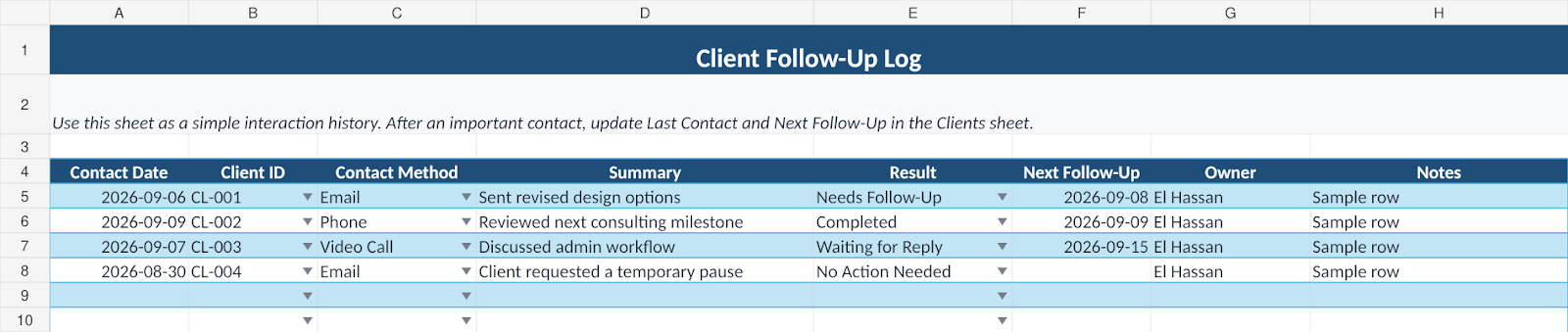
The Follow-Ups sheet is optional, but it solves a different problem from the main Clients sheet.
The Clients sheet shows the current situation. The Follow-Ups sheet gives you a short history of what happened.
For each important interaction, you can record:
- contact date
- Client ID
- contact method
- a short summary
- result
- next follow-up date
- owner
- notes
Step 7: Review the Dashboard Before Starting New Admin Work
The dashboard is not there to look impressive. Its job is to tell you what needs attention without making you filter the whole client list first.
It shows:
- Total Clients
- Active Clients
- Overdue Follow-Ups
- Due Today
- High-Priority Active Clients
- client counts by status
- follow-up status counts
- client counts by service
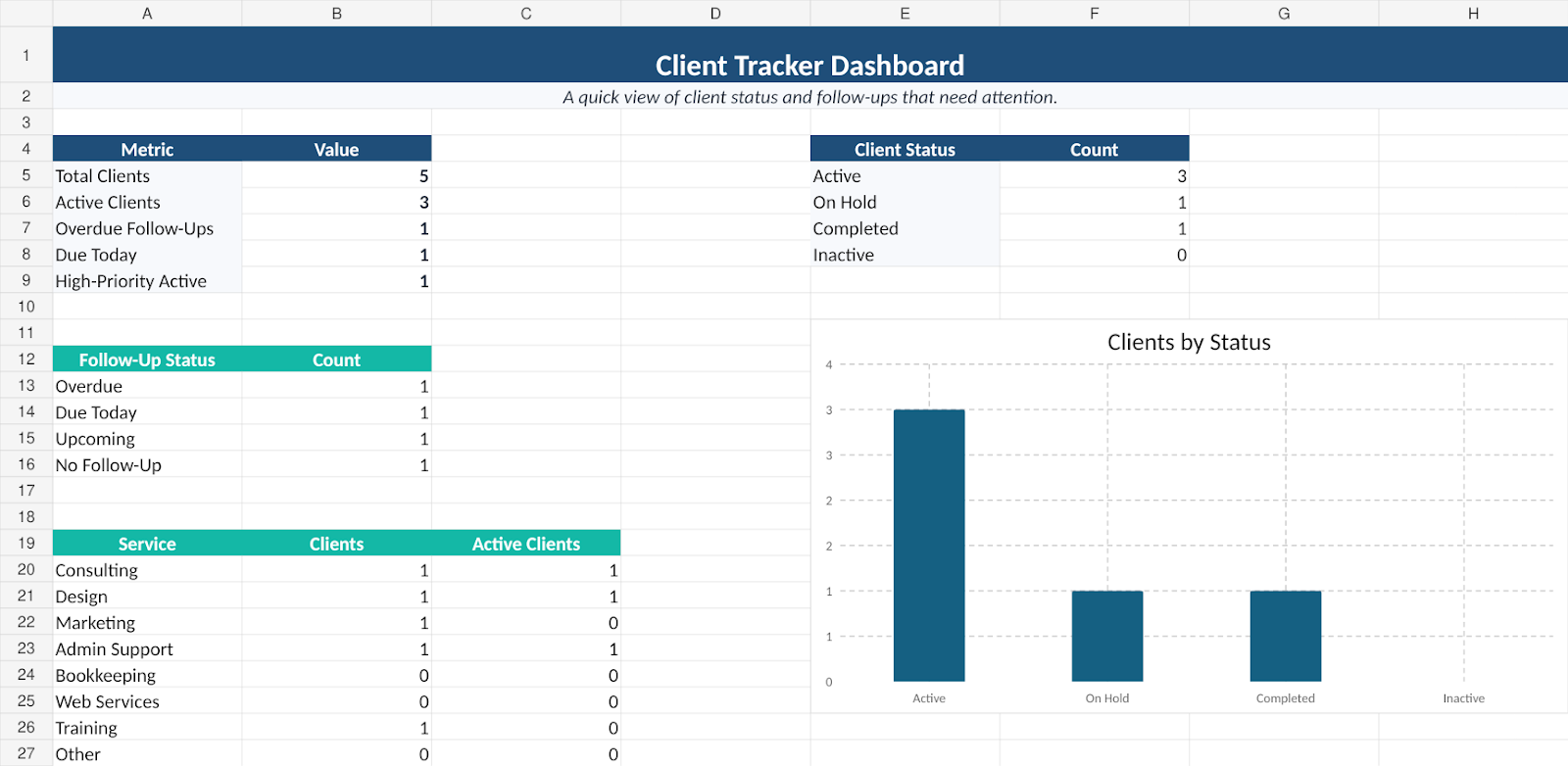
A useful routine is simple: check Overdue first, then Due Today, then High-Priority Active clients. After that, move on with the rest of your work.
A Five-Minute Weekly Client Review
- Filter Client Status for Active and confirm the list still reflects reality.
- Review every Overdue follow-up.
- Check Due Today.
- Look at High-Priority clients and confirm the next action is clear.
- Update Last Contact and Next Follow-Up after important conversations.
- Close or mark inactive any client you no longer need to follow.
The tracker works because it reduces remembering. It does not help if every next action still lives only in your head.
What I Tested Before Calling the Template Finished
I tested the workbook with more than the clean sample rows.
An Active client with a past follow-up date returned Overdue. An Inactive client with a future date returned Closed instead of showing an unnecessary upcoming task. An Active client with no follow-up date returned No Follow-Up, and a blank Last Contact left Days Since Contact blank instead of producing a misleading number.
I also tested duplicate Client IDs and an obviously malformed email. Both warning formats appeared as expected.
After removing the temporary QA rows, I checked the dashboard totals again and scanned the workbook for common spreadsheet errors such as #REF!, #DIV/0!, #VALUE!, #NAME?, and #N/A.
The free workbook is prepared for up to 200 client rows and 500 follow-up log rows. Those are prepared ranges, not hard limits—you can extend them later if needed.
What Not to Store in a Shared Client Tracker
A client tracker is useful, but it should not become a dumping ground for sensitive information.
Keep the file focused on normal administrative details you actually need for your work. Avoid storing passwords, payment-card details, identity-document numbers, or other sensitive information just because there is an empty Notes column.
If several people use the file, also check the sharing permissions. A tidy spreadsheet is not helpful if it is shared more widely than it needs to be.
When Should You Move From a Spreadsheet to a CRM?
This template is a client tracker, not a full sales CRM.
A spreadsheet can be enough while your main needs are contact organization and follow-up discipline. You will probably want dedicated CRM software when you need things such as:
- lead and deal pipelines
- automatic email logging
- sales forecasting
- automated reminders and sequences
- advanced permissions
- large-team collaboration
- integrations with several business systems
If you need a lead pipeline, deal stages, automated email logging, or sales forecasting, use a CRM instead of stretching this tracker into a system it was not designed to be. See our customer data management software comparison when you are ready to compare dedicated CRM and database options. For a contact-and-follow-up shortlist, compare our simple CRM options for small businesses.
Download the Free Client Tracker Template for Google Sheets
The Simple Office AI Client Tracker includes the Clients sheet, Follow-Up Log, automatic follow-up status, Days Since Contact, dropdowns, duplicate-ID warnings, dashboard, instructions, data-safety notes, and editable lists described above.
Before using the file with real clients, replace or delete the fictional sample rows and review the dropdown lists so they match the way you work.
Connect Client Tracking With the Rest of Your Admin System
When a new client becomes active, use the client onboarding checklist template to collect the required details, files, access, tasks, billing setup, and kickoff steps.
Before accepting a request, use the client intake form template to record the scope, budget, dates, and next action.
Client information becomes more useful when it is connected to the other admin problems you already track separately.
Use the Google Sheets invoice tracker to track what has been paid and what is still outstanding.
If the follow-up is specifically about money that is already overdue, use the Excel unpaid and overdue invoice tracker to keep payment follow-up separate from general client notes.
Use the Google Sheets expense tracker for business spending.
If you also keep physical stock, the Excel inventory template for small business keeps stock movements and reorder needs separate from client records.
Frequently asked questions
Is this client tracker a full CRM?
No. It focuses on client details and follow-up. It does not include a sales pipeline, automated communication, or the permissions of a dedicated CRM.
Should I add a new client row for every conversation?
Keep one row per client in Clients and use a unique Client ID. Record important interactions in Follow-Up Log so the current client record stays easy to review.
How do I clear an overdue follow-up?
After completing the contact, update Last Contact and set the next follow-up date as appropriate. Changing a flag without recording the actual action can hide unfinished work.
Can several people use the tracker?
A shared Google Sheets copy can support a small team. Give edit access only to people who need it and assign a clear owner to the next action.
Need a Client Spreadsheet Built Around Your Workflow?
A free template is useful when your process is close to the one shown here. If your client file already contains duplicated records, inconsistent columns, several service types, different follow-up rules, or information spread across multiple sheets, cleaning it up can take longer than building the right structure once.
Simple Office AI can help clean an existing Excel or Google Sheets file or build a practical client tracker around the way your business actually works.
See the Spreadsheet Services page or contact Simple Office AI with a short description of the problem.
Written for Simple Office AI by El Hassan Arkhis, with a focus on practical spreadsheet and administrative systems for small businesses.
This client tracker is an administrative organization tool. Do not use it as a substitute for security, compliance, legal, or professional record-management requirements that apply to your business.