

A calendar in Google Sheets is useful when you want one shared place for deadlines, client work, content dates, meetings, or small-team planning without adding another app.
You can build a basic monthly calendar with a seven-column grid. A more useful version can also pull events from a separate table, update when you change the month, and keep status information in one file.
Quick answer: create a month and year selector, add Sunday through Saturday as column headers, calculate the first date shown in the calendar, fill a six-week grid, and connect that grid to an Events sheet. If you do not want to build the formulas yourself, use the free template below.
Free Google Sheets calendar template
Use the Dynamic Monthly Calendar
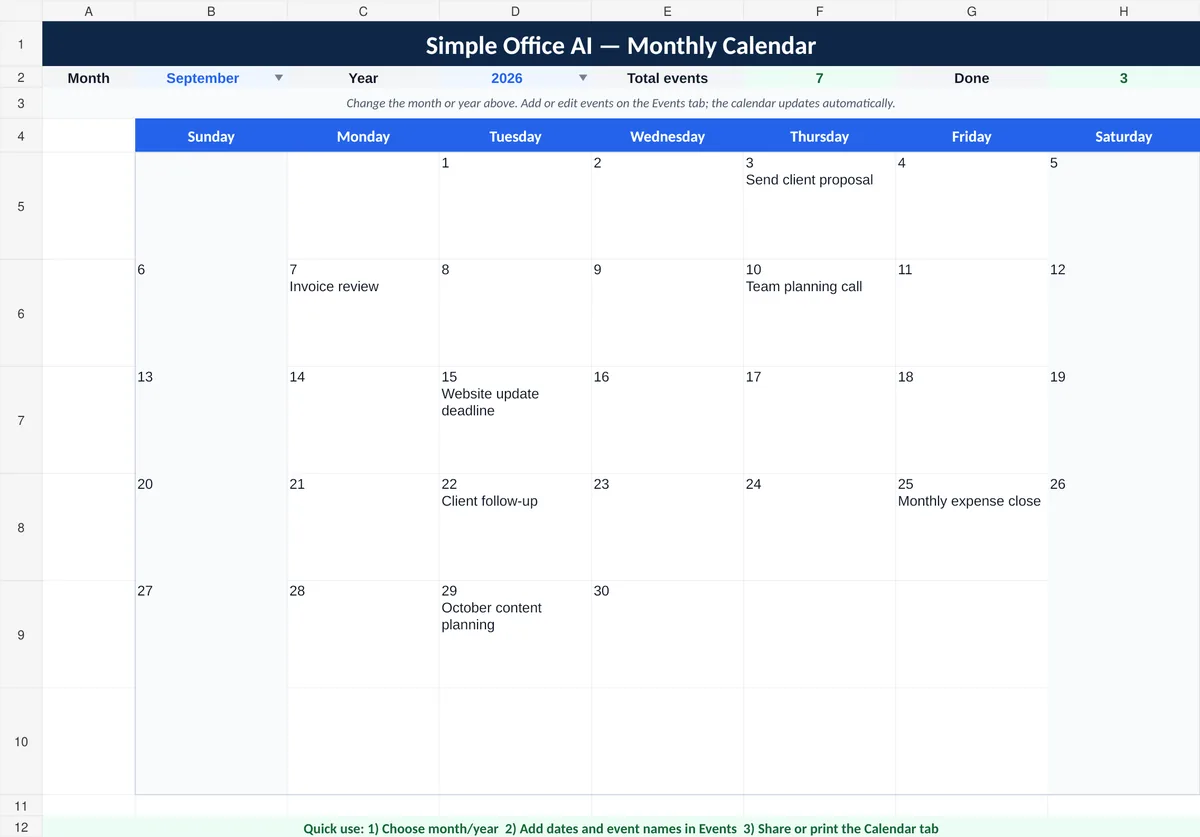
Choose a month and year, add events in a simple table, and let the calendar place them on the correct dates automatically.
Download Spreadsheet TemplateDownload Excel
Copy Google Sheets TemplateCopy in Google Sheets
Google Sheets may ask you to sign in before making a copy. Sample events are included so you can see how the template works.
What the free calendar template includes
The template is designed for a freelancer or small team that needs a simple monthly planning view without turning the spreadsheet into a full project-management system.
- Calendar — choose the month and year and view events in a six-week monthly grid.
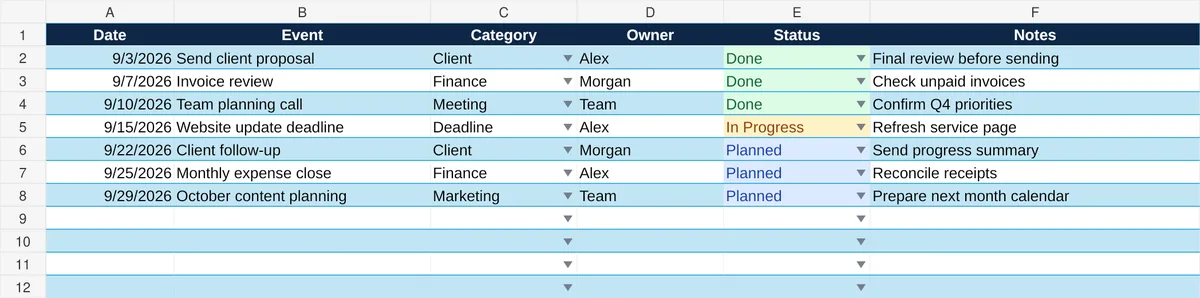
- Events — enter one row per event with date, event name, category, owner, status, and notes.
- Instructions — explains the basic workflow for a first-time user.
- Setup — stores the month, category, and status lists used by the template.
The Calendar tab also counts events for the selected month and shows how many are marked Done.
How to make a calendar in Google Sheets
This method builds a reusable monthly calendar instead of typing every date again each month.
1. Create a Calendar sheet and an Events sheet
Open a blank Google Sheet. Rename the first tab Calendar, then add a second tab called Events.
Keeping the event list separate from the visual calendar makes the file easier to maintain. The calendar becomes a view of your schedule rather than the only place where the data exists.
2. Add a month and year selector
At the top of the Calendar sheet, reserve one cell for the month and another for the year.
For example:
- B2: September
- D2: 2026
You can add a dropdown for the month so users do not type different spellings. A small Setup sheet with January through December works well as the source list.
3. Add the seven weekday headers
Use seven columns for the week. For a US-focused calendar, a common layout is:
Sunday | Monday | Tuesday | Wednesday | Thursday | Friday | Saturday
Put those headers above the calendar grid. Use six calendar rows rather than four or five. Some months need six visible weeks once the dates before and after the month are included.
4. Calculate the first date that should appear
The first visible cell should not always be the first day of the month. It should be the Sunday that starts the first calendar week.
If the selected month is stored as a month number, the core logic is:
=DATE(year,month,1)-WEEKDAY(DATE(year,month,1),1)+1
The DATE function creates a date from year, month, and day values. WEEKDAY tells the sheet where that date falls in the week.
In the free template, the month name is matched to a month number first so the user can choose a readable month name such as September instead of entering 9.
5. Fill the full six-week date grid
Once you have the first date, every next calendar position is simply the previous date plus one.
Fill seven columns across and six rows down. That gives you 42 date positions, which is enough for every monthly layout.
If you want the cells outside the selected month to stay blank, compare each date with the selected month before displaying it.
6. Build the Events table
On the Events sheet, use one row per event.
| Column | What to enter | Example |
|---|---|---|
| Date | A real Google Sheets date | 9/22/2026 |
| Event | Short event or task name | Client follow-up |
| Category | Type of work | Client |
| Owner | Person responsible | Alex |
| Status | Planned, In Progress, or Done | Planned |
| Notes | Optional detail | Send progress summary |
Use real date values in the Date column. If a date is stored as plain text, formulas that compare calendar dates may not match it correctly.
7. Pull matching events into each calendar day
For a dynamic version, each day cell can show the day number and any matching event names from the Events sheet.
The free template uses the same basic logic as this formula:
=IF(MONTH(date)=selected_month,TEXT(date,"d")&IF(COUNTIF(event_dates,date)>0,CHAR(10)&TEXTJOIN(CHAR(10),TRUE,FILTER(event_names,event_dates=date)),""),"")
The important parts are simple:
MONTHchecks whether the date belongs to the selected month.COUNTIFchecks whether that date has any events.FILTERreturns the event names that match the date.TEXTJOINplaces multiple events on separate lines in the same calendar cell.
This means two or more events can appear on the same date without adding extra calendar columns.
8. Format the calendar for normal use
Make the date cells tall enough for short event names and turn on text wrapping. Use borders so each day remains easy to scan.
For the Events sheet, dropdowns are useful for fields such as Category and Status. The free template uses a consistent list for categories and the statuses Planned, In Progress, and Done.
Do not add too much formatting. The calendar should stay readable when viewed on a laptop, shared with a client, or printed.
How to use the template each month
- Open the Calendar tab.
- Choose the month and year.
- Open Events.
- Add one row for each meeting, deadline, task, or milestone you want to show.
- Return to Calendar and confirm that the event appears on the correct date.
- Update Status in the Events sheet as work changes.
You do not need to duplicate the Calendar tab every month. The same calendar view can be reused by changing the month selector.
Good uses for a Google Sheets calendar
A spreadsheet calendar works best when the dates are connected to other small-business information.
- Client deadlines: proposals, approvals, meetings, renewals, and delivery dates.
- Content planning: blog posts, newsletters, social posts, and review dates.
- Admin work: invoice reviews, expense close, document deadlines, and recurring checks.
- Small project milestones: key due dates that need a simple monthly view.
- Team planning: shared dates with an owner and status field.
If you need dependencies, a long sequence of tasks, or a Gantt-style schedule, a calendar is not the best view. Use the project timeline template for date-based project sequencing, or the work breakdown structure template when the main job is breaking a project into smaller deliverables and tasks.
If you need reminders, recurring automation, client portals, time tracking, or a larger multi-project system, a dedicated tool may fit better. The project management software comparison for freelancers explains where a spreadsheet starts to become limiting.
Google Sheets calendar vs Google Calendar
| Need | Google Sheets calendar | Google Calendar |
|---|---|---|
| Custom columns and business data | Strong | Limited |
| Shared monthly planning view | Strong | Strong |
| Automatic reminders | Limited without extra automation | Strong |
| Recurring meetings | Manual unless automated | Strong |
| Filtering by owner, status, or category | Strong in the Events table | Different workflow |
| Connecting dates to spreadsheet calculations | Strong | Limited |
Use Sheets when the calendar is part of a spreadsheet workflow. Use Google Calendar when notifications and meeting scheduling are the main requirement.
Common problems and how to fix them
An event does not appear on the calendar
Check the Date cell first. It should be a real date value, not text that only looks like a date.
The first week starts on the wrong date
Check the WEEKDAY setting in the start-date formula. The template uses a Sunday-start layout for the US audience.
A month needs an extra row
Use a six-week grid from the start. That avoids rebuilding the layout for months that span six visible calendar weeks.
Several events happen on the same day
Keep one event per row in the Events sheet. A FILTER plus TEXTJOIN formula can display the matching event names on separate lines.
The calendar is becoming too crowded
Keep the day cells short. Put detailed notes in the Events sheet and use the calendar only for the event name or key deadline.
Share the calendar safely
Google Sheets lets you share a spreadsheet with specific people or by link and choose Viewer, Commenter, or Editor access. Give edit access only to people who need to change the schedule.
If you are sharing a business calendar with clients or contractors, check the Events and Notes columns before sharing. Do not put passwords, payment details, private IDs, or other sensitive information into a broadly shared planning file.
Final checklist
Before you start using your calendar for real work, confirm that:
- the month and year selectors work;
- all seven weekday columns are present;
- the calendar has six visible weeks;
- event dates are real dates;
- multiple events can appear on one day;
- the Events table uses consistent category and status values;
- text wraps inside the calendar cells;
- sharing permissions match who should view or edit the file.
A Google Sheets calendar is most useful when it stays simple. Keep the event data in rows, use the calendar as the monthly view, and move to a timeline or project-management tool only when the work needs more structure.
If you want help cleaning up an existing planning sheet or building a custom spreadsheet for your workflow, see the Simple Office AI services page or use the contact form.
Frequently asked questions
Does changing the month delete my events?
Keep events in the separate Events sheet. The month and year selectors control which dates the calendar displays; they are not a reason to clear the event records.
Can several events appear on the same day?
Yes. Enter one event per row in Events. The calendar can combine matching event names in the same day cell; keep longer notes in the event table.
Why is an event missing from the calendar?
Check that its Date is a real date value and that the selected month and year include it. Text that merely looks like a date can fail the matching formula.
Is this a replacement for Google Calendar notifications?
No. This is a spreadsheet planning view. Use Google Calendar when meeting invitations, reminders, or calendar notifications are the main requirement.