

To remove extra ordinary spaces in Excel, enter =TRIM(A2) in a blank cell beside your data. It removes spaces at the beginning and end of the text and leaves one ordinary space between words.
For a column of client names, product labels, or imported descriptions, use a helper column first. Check the results before replacing the original values.
=TRIM(A2)Remove extra spaces from an Excel column
- Keep a copy of the original. Save the workbook or duplicate the sheet before changing business data.
- Add a helper column. If your text starts in A2, put
Cleaned textin B1. - Enter the formula. In B2, type
=TRIM(A2)and press Enter. - Fill down the actual data range. Copy B2 down beside every populated row. Do not assume the fill handle found the last row if your source has gaps.
- Review the results. Check several changed names or codes, including the first and last rows. Look for spaces that remain and values that should not have changed.
- Keep values before removing the source. Copy the cleaned cells and use Paste Special > Values to store the results as text in a separate final column. You can then replace the original column if that is your intended change.
Do not delete column A while the results in B still use =TRIM(A2). They depend on the source. Pasting values first removes that dependency.
Use the fictional examples to compare ordinary spaces, nonbreaking spaces, and targeted fixes. In Google Sheets, choose File > Make a copy before editing. The instructions below use Excel.
What TRIM changes: before and after
The examples below use fictional text from our test workbook. The symbol · represents an ordinary space so you can see the difference. The symbols are display markers, not part of the cell values.
| Problem | Before | After TRIM |
|---|---|---|
| Leading spaces | ···Oak·Office |
Oak·Office |
| Trailing spaces | Oak·Office··· |
Oak·Office |
| Repeated spaces inside text | Oak···Office |
Oak·Office |
| Spaces in several places | ···Oak···Office·· |
Oak·Office |
| Text ID with leading zeros | ··00123·· |
00123 |
In the combined example, the text length drops from 17 to 10 characters. The letters stay the same. TRIM also returns empty text when the input contains only ordinary spaces.
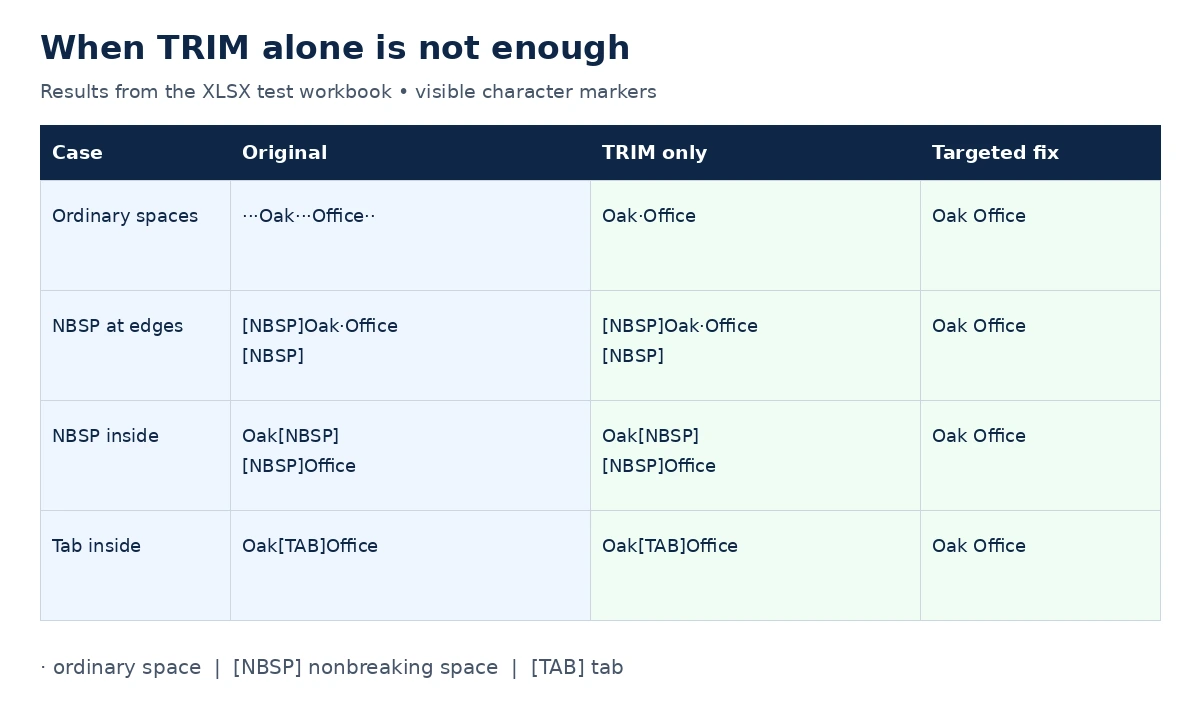
These XLSX formula examples were recalculated and checked in LibreOffice Calc. Microsoft Excel desktop was not separately tested. Excel’s documented behavior is linked in the sources below.
Why TRIM does not remove a space copied from a website
A space can look ordinary but be a different character. Microsoft documents that TRIM targets ASCII space 32. A common web character is the nonbreaking space, Unicode 160. TRIM alone leaves it in place.
Replace that specific character with an ordinary space, then trim the result:
=TRIM(SUBSTITUTE(A2,UNICHAR(160)," "))For example, our workbook’s Oak[NBSP][NBSP]Office case keeps both nonbreaking spaces with TRIM alone. The formula above returns Oak Office.
UNICHAR(160) identifies the Unicode character directly. CHAR(160) is also used in many examples, but CHAR depends on the computer’s character set. The formula above avoids that character-set assumption.
What if the problem is a tab or line break?
TRIM is not a general hidden-character remover. If a tab separates two words, replace it with an ordinary space before trimming:
=TRIM(SUBSTITUTE(A2,CHAR(9)," "))For a line-feed character, use CHAR(10) in the same formula. Only replace characters you have identified. A line break in a multi-line address may be intentional.
For control-character cleanup, see the Excel CLEAN function guide. CLEAN deletes characters rather than replacing them with word separators, so check whether removing one would join two words.
If you also have mixed dates, numbers stored as text, missing fields, or inconsistent columns, follow the broader Excel data-cleaning workflow. This page covers spacing.
Remove extra spaces or remove every space?
TRIM preserves one ordinary space between words. That is usually what you want for a name such as Oak Office.
If an identifier must contain no ordinary spaces, use this different formula:
=SUBSTITUTE(A2," ","")Our test input AB 12 becomes AB 12 with TRIM and AB12 with SUBSTITUTE. Removing every space from customer names or descriptions can damage useful text. This SUBSTITUTE formula also does not remove every type of whitespace.
After checking cleaned names or keys, you may find records that now match. Review the safe Excel duplicate-removal steps before deleting any rows. TRIM itself does not delete records.
Frequently asked questions
Does TRIM remove leading and trailing spaces?
Yes, for ordinary ASCII spaces. It also reduces repeated ordinary spaces between words to one. Nonbreaking spaces need a separate replacement.
Why do I see the formula instead of the cleaned text?
The cell may be formatted as Text, the entry may start with an apostrophe, or Show Formulas may be on. For a text-formatted formula cell, change the format to General, then re-enter the formula.
Can TRIM remove spaces from an entire column at once?
Use a helper formula beside the first row and fill it down through the actual data. Review the range, then copy and paste values when you want permanent results.
Can TRIM turn a text number into a real number?
TRIM cleans text spacing. It is not a complete number-conversion workflow. Check the data type separately, especially for IDs whose leading zeros must stay.
Will TRIM remove spaces that are only part of the cell’s layout?
No. Indentation, alignment, column width, and some custom formats can make text look offset without adding characters. Check the formula bar and text length before changing the value.