

A new inquiry says, “Can you help with our website?” Before you quote the work, you still need to know what needs changing, who approves it, when it is needed, and whether the budget fits.
This free client intake form template keeps those answers in one record. Use it during a discovery call or to organize information from an email or contact form. It is built for freelancers, consultants, and small service businesses that need to understand a request before accepting it.
Free client intake template
Includes a blank form, editable dropdown lists, instructions, and a fictional completed example.
Sign in to Google to save your own Sheets copy. Keep completed client records private.
What is a client intake form, and when should you use it?
A client intake form collects the information you need to understand a prospective or new client’s request before work begins. It helps you decide whether the request fits your services and what you need to clarify next.
Use it when an inquiry needs more than a quick reply: before preparing a proposal, during a first consultation, or when an existing client asks for a new service. You do not need a new intake record for every routine conversation.
This version is mainly an internal working form. It includes private review notes and assignment fields. Fill it in yourself during a call, or transfer the client’s answers from another channel. It does not submit responses online or import them automatically.
What this client intake form template collects
The workbook has four tabs: Start Here, Client Intake Form, Lists, and Example. The blank form starts with an intake ID, intake date, and the person taking the inquiry. Its six sections cover:
| Section | Information to record |
|---|---|
| Client details | Business name, contact person, email, phone, website, industry, and preferred contact method. |
| Service request | Requested service, short description, main goal, priority, desired start, and target completion date. |
| Budget and decision | Estimated budget, budget status, decision maker, and other stakeholders. |
| Communication | Communication method, meeting frequency, best contact time, and notes. |
| Files and access | Whether files have arrived, information still needed, a relevant folder or link, and asset notes. |
| Internal review | Intake status, assigned person, next action, follow-up date, and internal notes. |
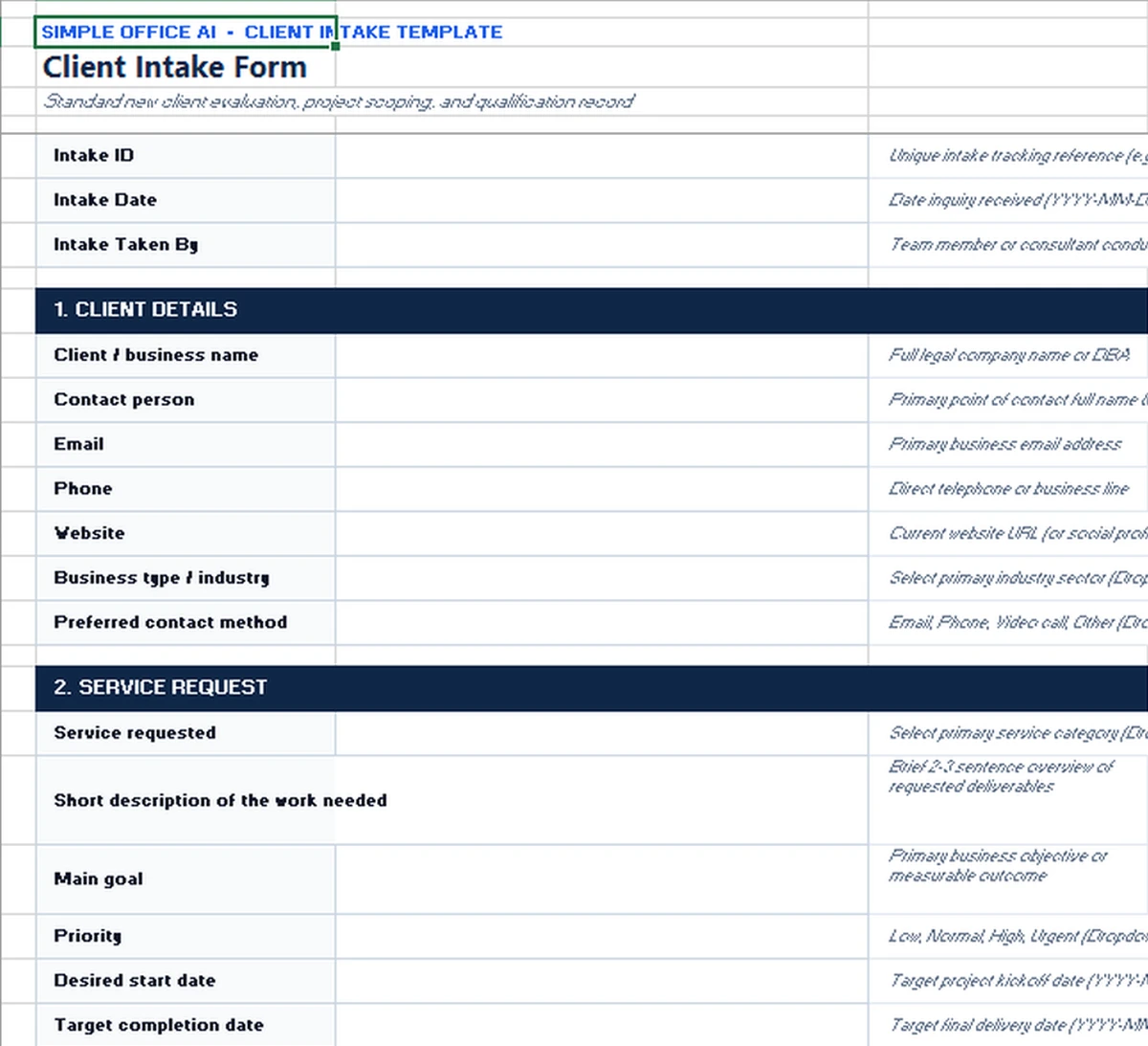
Collect only what helps you assess this request. For example, a first inquiry may not need a meeting schedule or detailed file access. Leave those fields blank until they become useful.
How to use the Excel template
1. Save a blank master and a separate working copy
Download the Excel file and read Start Here. Keep the blank Client Intake Form as your master. Save a separate workbook for each inquiry, or duplicate the form tab for internal use. In Excel, right-click the tab, choose Move or Copy, and select Create a copy.
A separate file is easier to share safely. Do not send one client a workbook containing other clients’ tabs or your internal assessments.
2. Enter the client’s answers in column C
Column B contains field labels, column C holds your answers, and column D provides guidance. Start with contact details and the requested service. Write the work description in plain language, then record the result the client wants.
The intake ID is entered manually. Use a reference you can recognize, such as INT-2026-001. The template does not generate IDs or check for duplicates.
3. Clarify budget and timing
Enter the estimated budget as a number. The supplied format displays US dollars without decimal places. Use Not discussed, Approximate, or Confirmed to distinguish an unknown budget from an agreed figure. Leave an unknown amount blank instead of entering zero.
Date fields display YYYY-MM-DD and have validation for dates from 2020 through 2035. Check that the target completion date follows the desired start date. The form does not check that sequence for you.
4. Record what is missing and choose one next action
In Files and Access, record whether files are received and what is still needed. Write “website access invitation needed,” for example, rather than storing a password or API key.
Complete Internal Review with an owner, status, next action, and follow-up date. The status choices are New, Reviewing, Waiting for client, Ready to proceed, and Declined. A useful next action is specific: “Confirm the catering requirements before sending a proposal.” The follow-up date is a record to review manually, not an automatic reminder.
A completed client intake example
The Example tab uses a fictional business, Timberline Artisan Bakery & Cafe LLC. It requests website design and development, has a $7,500 confirmed budget, and lists October 15 through November 30, 2026 as the desired work window.
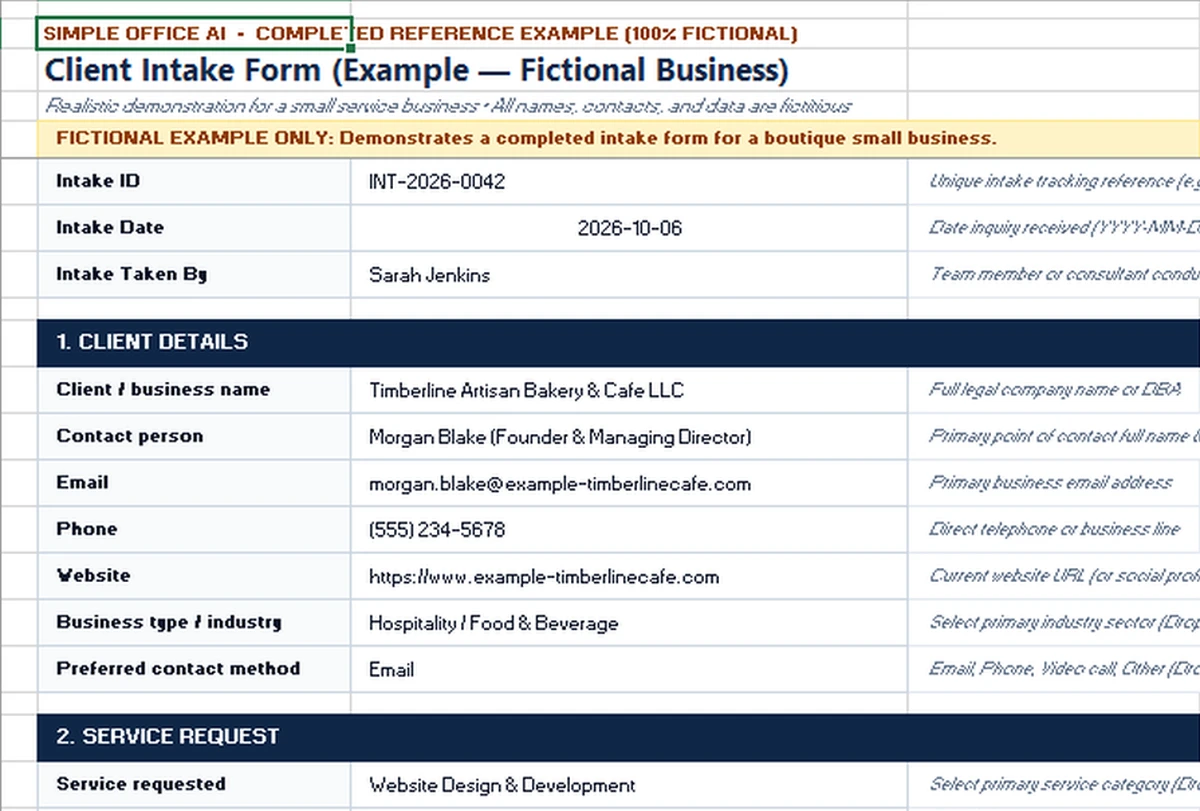
Its files status is Partial, while its intake status is Ready to proceed. These fields answer different questions. The request may be suitable for a proposal even though some assets still need to arrive. “Ready to proceed” does not mean the contract is signed or project delivery can begin.
Use the example to see the level of detail, then return to the blank form for real inquiries. The sample website, email, and folder link are fictional references, not working resources to use with clients.
How to use the Google Sheets version
Use the copy link above and save the spreadsheet to your own Google account. The native Sheets version contains the same four tabs and intake fields. Its budget displays US dollars, and its dates use the same YYYY-MM-DD format.
Use File > Make a copy for a separate inquiry file, or right-click Client Intake Form and choose Duplicate for an internal record. Enter answers in column C and select the dropdown choices. Keep the original blank form available for the next inquiry.
If you share a client-facing copy, remove the Internal Review section and any private notes from that separate copy. A hidden tab is not a substitute for removing information the recipient should not receive.
Compatibility check: the uploaded Excel file was inspected for fields, named ranges, validation rules, and example values. The native conversion retained those values and rules. Imported text-based color rules were corrected, and live cell checks confirmed the Urgent and Reviewing colors. Layout was reviewed through an exported Sheets workbook. Excel desktop testing and direct Google Sheets browser testing were not performed.
Customize dropdowns and fields for your business
Open Lists and replace the sample services, industries, and team members with your own options. The intake form has ten dropdown fields backed by nine named lists. Both contact-method fields use the same list.
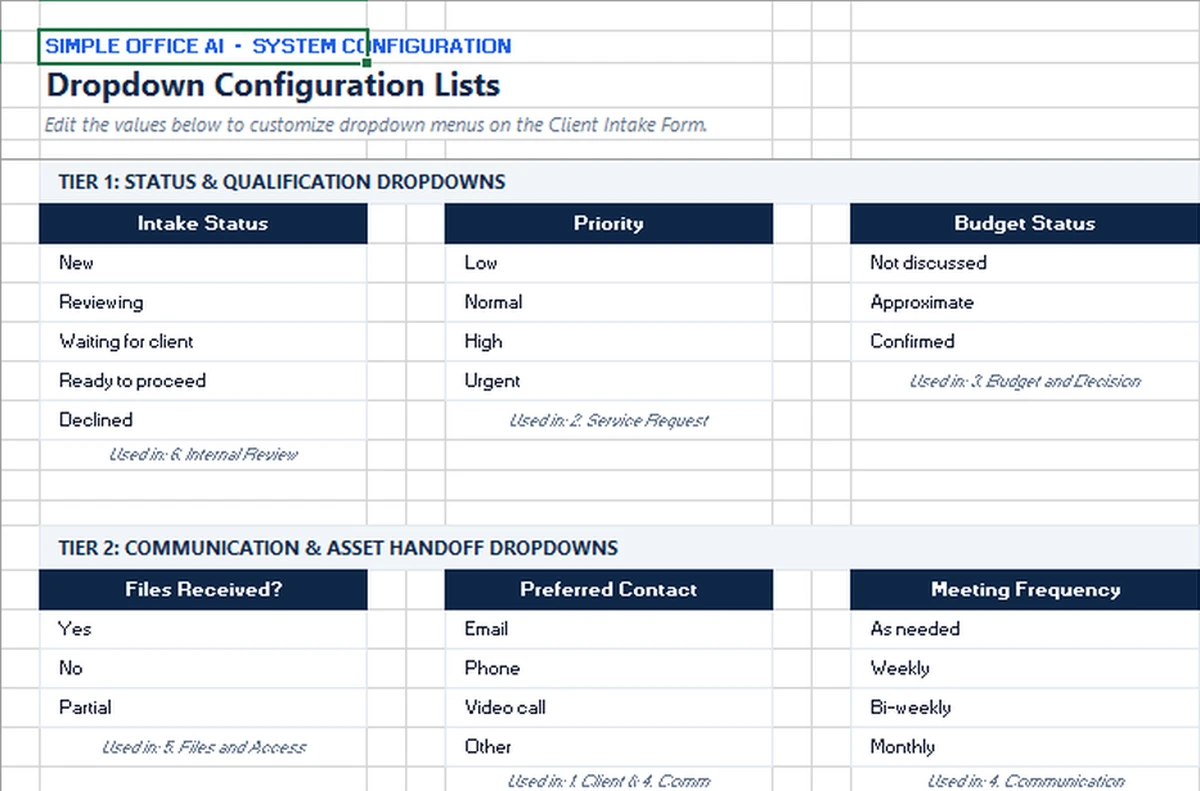
The service and industry lists each have ten option cells. The team list has five, including Unassigned. Replace existing entries first. Typing beneath a list does not automatically expand its dropdown range.
- Excel: use Formulas > Name Manager to extend the related named range if you need more options.
- Google Sheets: use Data > Named ranges to extend that list’s range.
- Changing status labels: update the matching conditional formatting rules as well, or the original color rules may no longer match.
Edit field labels and guidance together. If you change Estimated budget to another currency, change its number format and the USD note too. Test a copy after adding rows or changing dropdown ranges. For long notes, turn on text wrapping and increase only the affected row’s height if the text is clipped.
Client intake vs. client onboarding
Intake helps you understand and evaluate a request. Onboarding organizes the steps after the client is accepted: agreements, billing setup, file collection, welcome messages, and kickoff preparation.
A client onboarding questionnaire can ask some similar questions, but it often goes deeper into the assets and approvals needed for an accepted engagement. Do not ask a first-time prospect to complete the entire onboarding process just to explain what they need.
Our Client Onboarding Checklist Template includes an intake tab inside a larger setup workbook. Use that package if you already need the wider onboarding workflow. Choose this standalone form when collecting and qualifying the request is your immediate task.
For ongoing contact and follow-up history, use the Client Tracker Spreadsheet. If your team needs shared activity history, integrations, or more detailed permissions, compare Customer Data Management Software.
What not to collect, and the template’s limits
Ask for information you need to scope the work, rather than every detail you might use later. Keep passwords, API secrets, payment-card information, bank logins, Social Security numbers, and sensitive health information out of this workbook. Record an access requirement and arrange the appropriate invitation or secure handoff separately.
Only give access to people who need the record. Keep completed files separate from the blank template you distribute. The label “confidential” does not restrict access or add security controls.
This is a manual administrative form. It has no submission button, file-upload feature, automatic emails, overdue alerts, dashboard, CRM sync, or project-management workflow. Its dropdowns and validation rules help standardize entries, but they do not verify an email address, judge whether a request is suitable, or make fields mandatory. It is not a contract and does not provide legal, privacy, or compliance coverage.
Frequently asked questions
Can I send this intake form directly to a client?
Yes, but prepare a separate client-facing copy first. Remove Internal Review and private notes, keep only the questions the client needs to answer, and check that no other clients’ records are included.
Does the Excel intake form send answers to Google Sheets?
No. The two versions are separate files. Choose one working version for each inquiry. Entries do not sync automatically between them.
Can I use one workbook for several clients?
You can duplicate the form tab for internal records. Separate files are usually simpler when sharing with clients. This template does not combine duplicated tabs into a client list or dashboard.
What if the client has not decided on a budget?
Leave Estimated budget blank and select Not discussed. If they provide a rough figure, record it with Approximate. Use Confirmed only when that status accurately describes the discussion.
Why is my new service missing from the dropdown?
The dropdown reads a fixed named range on Lists. Replace an option inside that range, or extend the named range to include your new cells. Check the dropdown again after the change.
Can this spreadsheet become an online intake form?
It can guide the questions you put into a separate form builder, but it is not an online submission form itself. Responses from a website or Google Forms would need a separate connection or manual transfer.
Need the fields tailored to your services? See Simple Office AI services for help adapting a spreadsheet or organizing an intake workflow.