

Database software can help a small business organize clients, orders, projects, inventory, and other records in one place. But moving away from a spreadsheet only makes sense when the extra structure solves a real problem.
If one person manages a few hundred rows and the file is easy to maintain, Google Sheets or Excel may still be enough. A database becomes more useful when you need linked records, different user permissions, forms, automation, or several people updating the same information.
Quick answer: Airtable is a straightforward general-purpose option for many non-technical teams. Baserow is useful when cost, open-source software, or self-hosting matters. Notion works well when your records need to live beside notes and documents. Knack is useful when customers or outside users need a portal. Microsoft Access still makes sense for some Windows-based businesses that want a local desktop database.
Simple Office AI decision rule
Do not buy database software until a spreadsheet is causing a real operational problem.
Typical signs are duplicate records, broken links between files, weak permissions, difficult multi-user editing, or too much manual work moving data between tables.
Database software for small business: quick comparison
The table below focuses on tools a freelancer or small team can realistically use without running a database server. Prices were checked in September 2026 and can change.
| Tool | Good fit for | Starting price | Main advantage | Main limitation |
|---|---|---|---|---|
| Airtable | General business records and team workflows | Free; Team $20/user/month billed annually | Spreadsheet-style interface with structured data, views, and automation | Per-seat pricing can grow as the editing team expands |
| Baserow | Small teams that want lower cost or self-hosting | Free; Premium $10/user/month billed annually | Open-source option with cloud and self-hosted deployment | Some advanced controls require higher plans or more setup |
| Notion | Freelancers and teams that want documents and lightweight databases together | Free; Plus $10/member/month on annual billing | Records can live beside notes, SOPs, project pages, and documentation | Not designed as a traditional operational database platform |
| Knack | Customer portals, member directories, and browser-based business apps | Starter $59/month monthly, or $49/month billed annually | Unlimited users and roles on standard plans, plus a no-code web app front end | Higher starting cost for a very small internal-only team |
| Microsoft Access | Windows businesses that want a local desktop relational database | Included in eligible Microsoft 365 plans; Business Standard is $14/user/month paid yearly | Forms, queries, reports, and relational tables without running a server | PC-only and less suited to browser-based collaboration |
Pricing note: Airtable, Baserow, Notion, Knack, and Microsoft pricing can change. Check the vendor before buying.
What should a small-business database actually do?
The word database can mean anything from a simple no-code table to a SQL server managed by a developer. Most small businesses do not need to start with MySQL, PostgreSQL, or a cloud database service.
For everyday administrative work, the useful question is simpler: can the system keep your business records structured, connected, searchable, and safe enough for the people who need them?
A practical small-business database should usually let you:
- store one record once instead of copying it across several files;
- link related information such as clients, projects, orders, and payments;
- filter and search records quickly;
- control who can edit or view information;
- collect data through forms where useful;
- import and export data without trapping you in one tool;
- automate simple updates or notifications when the workflow justifies it.
1. Airtable: flexible database with a spreadsheet feel
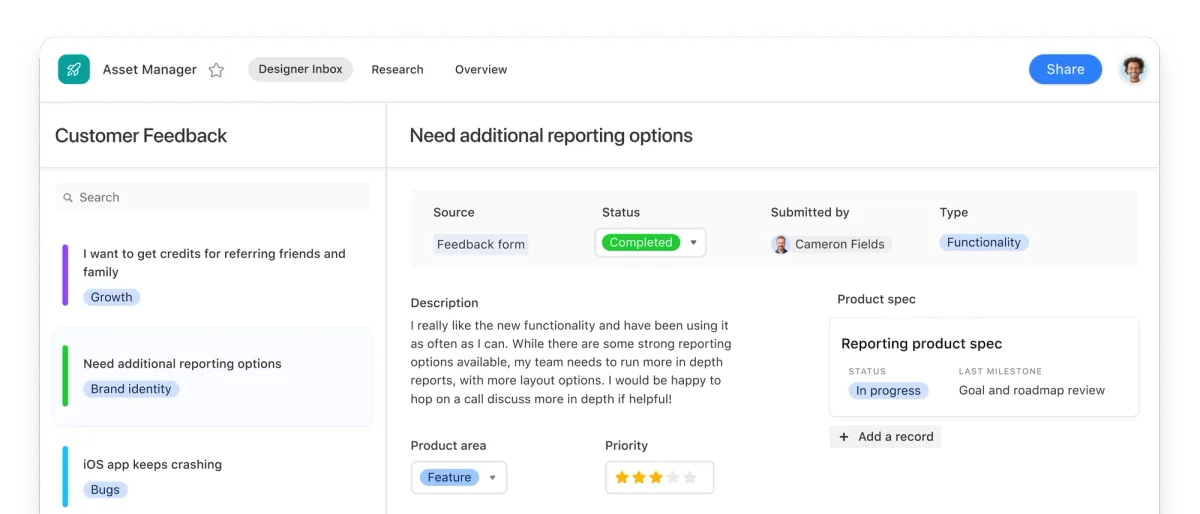
Airtable is a practical starting point for a small team that already understands spreadsheets but needs more structure. It keeps the familiar row-and-column layout while adding linked records, different views, forms, interfaces, and automation.
Airtable currently offers a free plan. Its Team plan is $20 per user per month when billed annually, while Business is $45 per user per month annually. Airtable’s current billing guide lists Owners, Creators, Editors, and Commenters as billable collaborators on Team workspaces, so it is worth estimating how many people will need those permission levels before moving an entire workflow into Airtable.
Airtable makes sense when:
- your team wants a database without learning SQL;
- you need to connect clients to projects, orders, inventory items, or other records;
- several people need different views of the same data;
- you want a large library of integrations and templates.
Watch for: cost growth as more people need editing access.
2. Baserow: lower-cost and open-source option
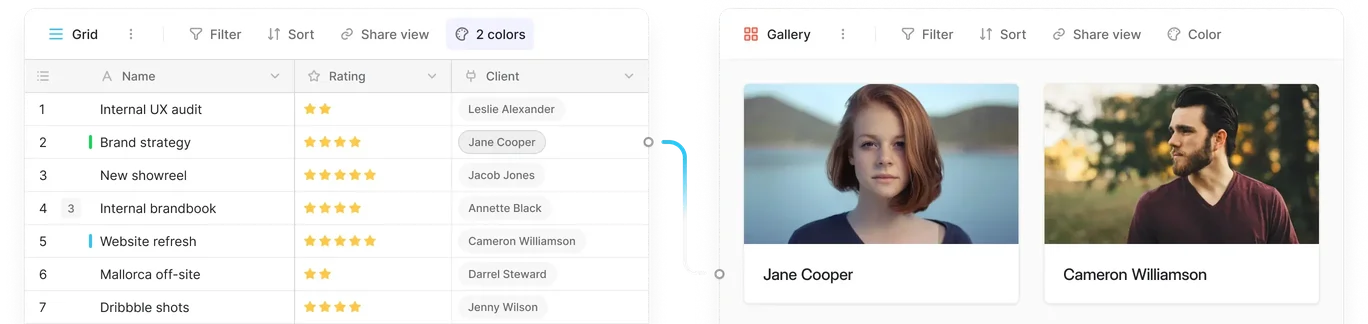
Baserow is worth considering if you like the basic idea of Airtable but want an open-source option or the ability to self-host.
The hosted Free plan currently includes 3,000 rows per workspace. Premium is $10 per user per month when billed annually and raises the cloud limit to 50,000 rows per workspace. Advanced is $18 per user per month annually and adds controls such as role-based permissions and audit logs.
Baserow makes sense when:
- you want a cloud database but prefer an open-source platform;
- self-hosting or greater control over your data matters;
- you want to keep per-user cost below some larger no-code competitors;
- your team is comfortable with a tool that may require a little more setup.
Watch for: which features are included in the plan you actually need. The free tier is useful for testing, but larger row counts and advanced governance features move you into paid plans.
3. Notion: useful when the database belongs beside documents
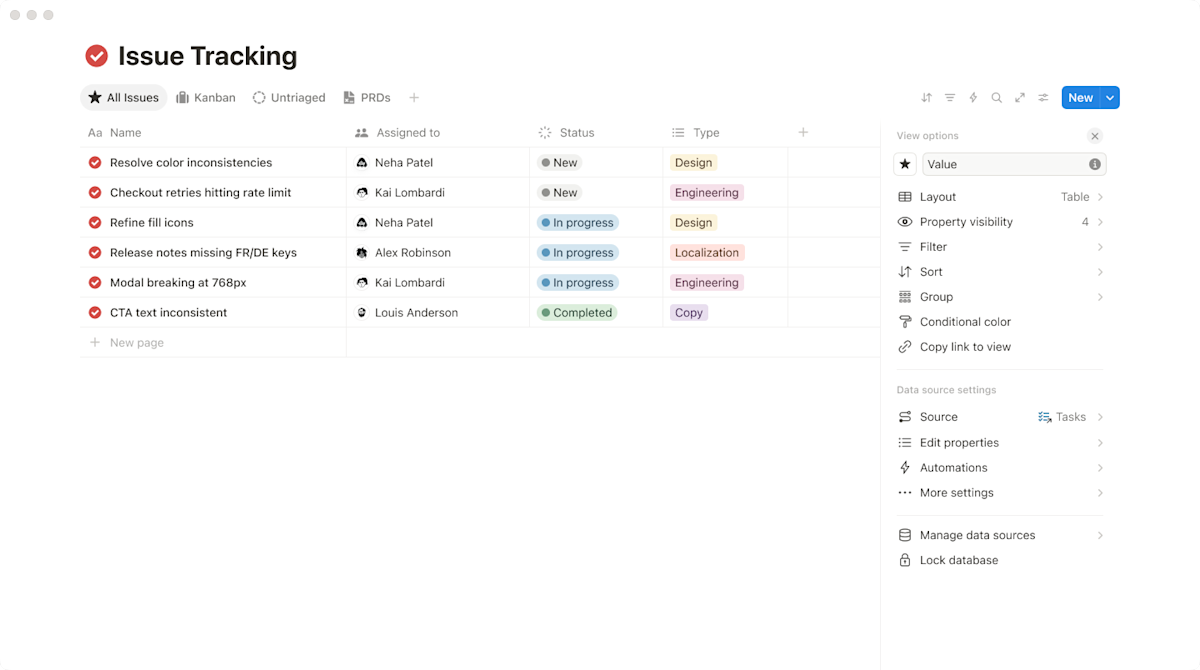
Notion is not a traditional database application. Its databases are collections of pages, and each record can contain more content than a normal spreadsheet row. It also supports properties such as status, dates, formulas, relations, and rollups.
That makes Notion useful when the record itself needs notes, files, meeting information, procedures, or other documentation.
Notion currently has a free plan. Plus is $10 per member per month on annual billing, and Business is $20 per member per month on annual billing.
Notion makes sense when:
- you already keep SOPs, notes, or project documentation in Notion;
- your database is relatively lightweight;
- you want each client, project, or item to open into its own page;
- you value documentation and collaboration as much as strict data structure.
Watch for: pushing Notion into a job that really needs a dedicated operational database. Relations and rollups are useful, but a complex app with strict permissions, heavy automation, or external customer access may fit another tool better.
4. Knack: useful when outside users need access

Knack combines an online relational database with a no-code web app builder. That is useful when the people interacting with your records are not only your employees.
For example, you might build a customer portal, vendor directory, member area, intake system, or internal application with role-based access.
The current Starter plan is $59 per month on monthly billing or $49 per month when billed annually. It includes 20,000 database records, three applications, unlimited users and roles, forms, connected tables, and a web app designer.
Knack makes sense when:
- customers, members, contractors, or suppliers need to log in;
- you want to create a front end on top of your database without coding a web app;
- per-user pricing would become expensive because many external people need access;
- you need forms and connected tables in the same system.
Watch for: the higher entry price if only one or two internal users need a simple record list.
5. Microsoft Access: still useful for some Windows businesses
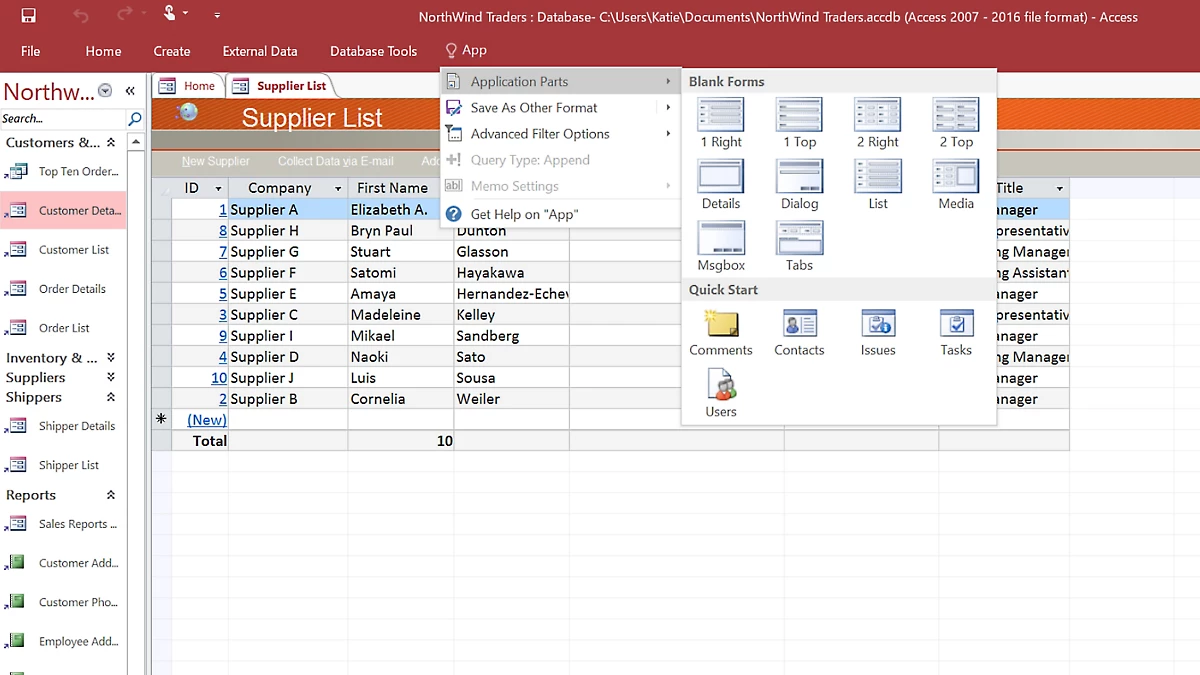
Microsoft Access is very different from the cloud tools above. It is a desktop relational database application for Windows.
Access is included with several Microsoft 365 subscriptions, including Business Standard. Microsoft currently lists Business Standard at $14 per user per month when paid yearly. That is the price of the broader Microsoft 365 subscription, not a standalone starting price for Access. Access is available on PC.
Microsoft lists a maximum Access database size of 2 GB, minus the space needed for system objects. You can build related tables, queries, forms, and reports without running a separate database server.
Access makes sense when:
- your business already uses Windows and Microsoft 365;
- you need a local database that can work without a browser;
- your process is built around forms, queries, and reports;
- you already have an Access database that works and do not need a full cloud migration.
Watch for: collaboration. New remote teams will usually find a cloud platform easier to share and maintain.
When should you stay with Excel or Google Sheets?
A database is not automatically better than a spreadsheet.
Stay with Excel or Google Sheets when:
- one or two people maintain the file;
- the information fits naturally into one main table;
- you do not need strict permissions by user or record;
- you rarely connect several different record types;
- the manual work is still manageable;
- moving to new software would create more training work than value.
If your main need is simply organizing client names, contact information, status, and next follow-up, the Google Sheets Client Tracker is a simpler starting point. If the problem is specifically choosing a system for customer records rather than a general-purpose database, compare the customer data management software options.
A good time to move is when you start creating several linked spreadsheets just to represent one workflow. For example, one file for clients, another for projects, another for orders, and a fourth for follow-up. At that point, linked records in a database can reduce duplicate entry.
How to choose the right database software
1. Start with the records, not the software
Write down the main things you need to track. For a service business, that might be Clients, Projects, Contacts, Invoices, and Tasks. For a shop, it may be Products, Suppliers, Purchase Orders, and Stock Movements.
2. Count editors and outside users separately
Pricing can look cheap until several employees need edit access. Also check whether customers, contractors, or clients need to log in. A system with unlimited outside users may be cheaper than a per-seat tool for portal use.
3. Decide how important permissions are
Ask whether everyone can see everything. If not, check role-based permissions before migrating. This becomes important when client, employee, financial, or operational data is shared across a team.
4. Check how the tool exports your data
You should know how to get your records back out. CSV and spreadsheet exports are useful for backup, migration, and analysis.
5. Add automation only after the database is clean
Do not automate a messy process. First decide which fields exist, how statuses are named, and which records connect to each other. Then automate repetitive updates.
If your current spreadsheet needs cleanup before moving into a database, use the Excel data-cleaning workflow first.
A simple migration workflow
- Choose one workflow. Do not migrate every business file at once.
- Clean the source spreadsheet. Fix duplicate rows, inconsistent statuses, bad dates, and empty required fields.
- Define the tables. Separate Clients, Projects, Orders, Products, or other record types where needed.
- Create relationships. Connect records instead of copying the same information into several tables.
- Import a test sample. Start with 20 to 50 records and check the result.
- Test permissions. Confirm what each user can see and change.
- Test exports. Make sure you can recover your data in a usable format.
- Move the full dataset. Only after the test workflow is working.
If the main problem is repetitive movement of documents or data between tools, also review the small-business workflow automation examples.
Which option fits which situation?
| If your priority is… | Start by looking at… |
|---|---|
| Easy no-code database for an internal team | Airtable |
| Open source, self-hosting, or lower per-user cost | Baserow |
| Documents and lightweight records in one workspace | Notion |
| Customer or member portal with many outside users | Knack |
| Local Windows database and existing Microsoft workflow | Microsoft Access |
| Simple contact list with minimal complexity | Google Sheets or Excel |
The important part is not choosing the tool with the longest feature list. Choose the smallest system that fixes the problem your spreadsheet no longer handles well.
Need help organizing the data before you move?
Simple Office AI can help clean an Excel or Google Sheets file, standardize columns, remove duplicates, and prepare a clearer structure for a new admin system.
View ServicesView services
Contact Simple Office AIContact us
Frequently Asked Questions About Database Software for Small Business
What is the easiest database software for a small business?
For many non-technical small teams, Airtable is one of the easiest places to start because it keeps a familiar spreadsheet-style layout while adding linked records, views, forms, and automation. Baserow is another practical option if open-source software or self-hosting matters.
Does a small business need database software?
Not always. Excel or Google Sheets may be enough when one or two people manage a simple list. Database software becomes more useful when you need linked records, stronger permissions, forms, automation, or several people updating the same data.
Is Excel or Google Sheets enough instead of a database?
Yes, for simple workflows. Spreadsheets work well for straightforward lists, trackers, and reports. A database becomes more useful when your business starts relying on several related tables, repeated data entry, controlled access, or more complex multi-user workflows.
When should I move from a spreadsheet to database software?
Consider moving when duplicate records, disconnected files, permission problems, manual copying, or multi-user editing start creating regular errors or extra work. The move should solve a clear operational problem rather than simply add another tool.
Can I use small-business database software without coding?
Yes. Airtable, Baserow, Notion, and Knack can handle many small-business database workflows without SQL or database-server administration. The amount of setup still depends on how complex your records, permissions, and automations are.
Is Microsoft Access still good for a small business?
It can be useful for Windows-based businesses that want a local relational database with tables, queries, forms, and reports. It is less convenient for teams that need browser-based collaboration or cloud-first access.