

When a project grows beyond a few tasks, a simple checklist gets messy. Phases, deliverables, tasks, owners, dates, hours, and blockers start sitting in the same list. It becomes hard to see the structure of the work or what needs attention next.
This free work breakdown structure template in Excel separates the project into a three-level WBS first, then adds the tracking fields a freelancer or small team needs to run the work. You can organize phases, work packages, and actionable tasks, assign owners, set dates and priorities, compare estimated and actual hours, update completion, and review progress on a dashboard.
Download the Free Work Breakdown Structure Template for Excel
The workbook is built for practical project planning in Excel. It includes five sheets: Dashboard, WBS, Project Setup, Lists, and Instructions.
The main WBS data is stored in a formal Excel Table named WBSTable. The workbook also includes formulas, dropdowns, conditional formatting, and dynamic dashboard calculations.
Download the Excel Template (.xlsx)Download Excel
The Excel file is the primary version described in this guide. Google sign-in is required to make a Google Sheets copy.
Quick start: organize one deliverable
- Save a working copy, read Instructions, and replace the project information in Project Setup.
- In WBS, define a phase, a deliverable or work package, and an actionable task beneath it. Use the three-level WBS numbering consistently.
- Assign an owner and dates to the task, then update its status and completion. Review the dashboard after the hierarchy is in place.
Start with the work you must deliver. The WBS defines scope; the dates and tracking fields help you follow that work.
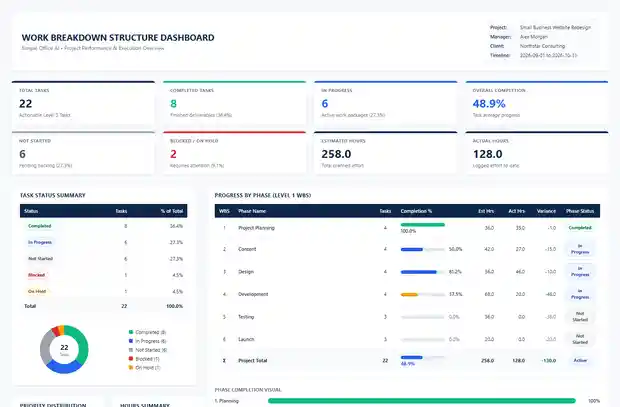
The included sample project is a Small Business Website Redesign. Its dashboard shows 22 actionable tasks, with 8 completed, 6 in progress, 6 not started, and 2 blocked or on hold. Overall completion is 48.9%. The sample also contains 258 estimated hours and 128 actual hours.
If you want more spreadsheet tools for small-business workflows, browse the Simple Office AI templates.
What Is a Work Breakdown Structure?
A work breakdown structure, or WBS, breaks a project into smaller parts so you can see how the work fits together.
This template uses three levels:
- Level 1 = Major project phase. This is a broad stage such as Project Planning, Content, Design, Development, Testing, or Launch.
- Level 2 = Deliverable or work package. This groups related work inside a phase, such as Requirements, Content Audit, or Service Pages.
- Level 3 = Actionable task. This is the specific work someone can own and complete, such as Gather stakeholder requirements or Draft service offerings copy.
The goal is not to add more project-management theory. It is to stop phases, deliverables, and tasks from becoming one flat list.
A task such as Gather stakeholder requirements belongs under Requirements, which belongs under Project Planning. WBS IDs make that relationship easy to see.
Work Breakdown Structure Example
The workbook uses a Small Business Website Redesign as its sample project. A simplified part of the hierarchy looks like this:
| WBS ID | Level | Example | Role in the project |
|---|---|---|---|
| 1 | 1 | Project Planning | Major phase |
| 1.1 | 2 | Requirements | Deliverable or work package |
| 1.1.1 | 3 | Gather stakeholder requirements | Actionable task |
| 2 | 1 | Content | Major phase |
| 2.1 | 2 | Content Audit | Deliverable or work package |
| 2.1.1 | 3 | Content inventory and gap analysis | Actionable task |
| 3 | 1 | Design | Major phase |
| 3.1 | 2 | Wireframes | Deliverable or work package |
| 3.1.1 | 3 | Create initial wireframes | Actionable task |
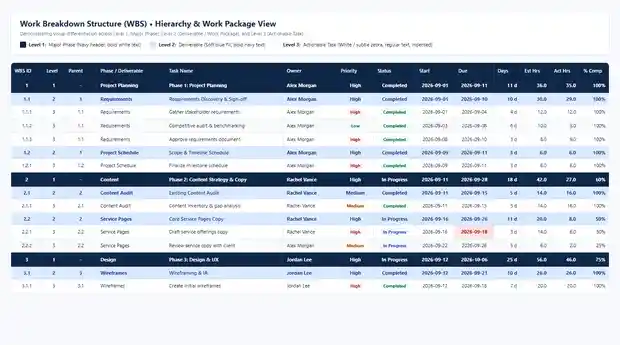
This numbering makes the hierarchy readable without needing a separate diagram. You can tell that 2.1.1 belongs to 2.1, and 2.1 belongs to phase 2.
How the Excel WBS Template Works
The WBS sheet is where the project structure and day-to-day execution data meet.
Each row carries the information needed to understand the work and review its current state.
| Field | What it is used for |
|---|---|
| WBS ID | Shows where the row belongs in the hierarchy |
| Hierarchy level | Separates major phases, deliverables or work packages, and actionable tasks |
| Task owner | Identifies who is responsible for the work |
| Priority | Helps distinguish higher-priority work from lower-priority work |
| Status | Tracks whether work is completed, in progress, blocked, on hold, or not started |
| Start and due dates | Show the planned timing for the work |
| Duration | Shows the number of days assigned to the work |
| Estimated hours | Records planned effort |
| Actual hours | Records effort used so far |
| Effort variance | Compares actual hours with estimated hours |
| % complete | Shows current progress |
| Dependencies | Records task relationships where needed |
| Deliverable or output | Clarifies what the work is expected to produce |
| Notes or blockers | Captures context that may affect completion |
The workbook already includes dropdowns, formulas, and conditional formatting. You do not need to rebuild those features before using the template.
The Dashboard turns the WBS data into a quick project view. It summarizes task status, phase progress, estimated hours, actual hours, effort variance, and overall completion.
For the included sample project, Project Planning is complete, while Content, Design, and Development are still active. Testing and Launch have not started. These values are sample data, not a forecast for your own project.
About phase completion: the Level 1 phase rows in the WBS can contain manually entered progress, while the Dashboard phase percentages are calculated from the Level 3 task completion values. For the sample project, use the Dashboard percentages when you want the task-average summary.
How to Create a Work Breakdown Structure in Excel
The easiest way to build a WBS is to define the structure before filling the sheet with task detail.
1. Enter the project setup
Start in the Project Setup sheet and add the project-level information used by the workbook.
Keep the project definition simple. The WBS should describe one project clearly rather than mixing unrelated work into the same hierarchy.
2. Create the Level 1 phases
Start by adding the major stages of the project.
For a small website project, those phases might include Project Planning, Content, Design, Development, Testing, and Launch.
Level 1 should stay broad. If a row describes work that one person can complete directly, it probably belongs lower in the structure.
3. Add Level 2 deliverables or work packages
Break each phase into meaningful groups of work.
Under Project Planning, you might have Requirements and Project Schedule. Under Content, you might have Content Audit and Service Pages.
The purpose of Level 2 is to group related tasks around a clear output or area of work.
4. Add Level 3 actionable tasks
Now add the specific tasks that people can own and complete.
- Gather stakeholder requirements
- Competitive audit and benchmarking
- Approve requirements document
- Content inventory and gap analysis
- Draft service offerings copy
- Review service copy with client
- Create initial wireframes
Keep task names specific enough that a reader can tell what done means.
5. Add owners and dates
Assign an owner to each task and enter the relevant start and due dates.
This is where the WBS becomes operational. The hierarchy shows where the task fits. Ownership and dates show who needs to act and when.
6. Estimate the effort
Enter estimated hours before or when work begins.
As the project moves forward, record actual hours. The variance field makes it easier to see where a task took more or less effort than planned.
7. Update status and completion
Use the prepared status options and completion field to keep the current state visible.
A task can be completed, in progress, blocked, on hold, or not started. Completion percentage adds more detail when active work is only partly finished.
8. Review the dashboard
Use the Dashboard to review the project at a higher level.
Look at overall completion, status counts, estimated versus actual hours, and phase progress. When something looks wrong on the dashboard, return to the underlying WBS row and update the project data there.
Track Status, Due Dates, Hours, and Progress
A WBS is most useful when it helps you manage active work, not only describe the hierarchy.
The tracking view makes several project signals easier to scan:
- Completed tasks use a green status pill.
- In Progress tasks use a blue status pill.
- Blocked tasks use a red status pill.
- On Hold tasks use an amber status pill.
- Overdue due dates are highlighted in red.
- Effort overruns are highlighted in amber.
- Estimated hours and actual hours can be compared through variance.
- Completion percentages show how far active work has moved.
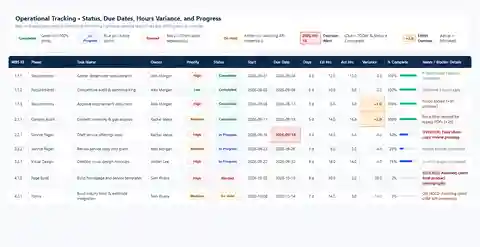
This makes the sheet useful during a weekly review. You can scan for late work, blockers, and hours that are running above the estimate without turning the workbook into complex project-management software.
Work Breakdown Structure vs Project Timeline
A WBS answers what work must be completed and how that work is broken down.
A project timeline answers when the work happens.
Start with the WBS when you need to define the project structure. Use a timeline when you need to see dates, sequence, overlap, and milestones across time.
If scheduling is your next step, see how to create a project timeline in Excel.
When an Excel WBS Is Enough
An Excel WBS can work well when the project is structured but still small enough to manage in one workbook.
| Good fit for this template | Consider a more specialized system when you need |
|---|---|
| Freelancer projects | Large multi-team programs |
| Internal small-business projects | Advanced resource allocation |
| Small project teams | Complex dependency networks |
| Simple task ownership | Permission-heavy workflows |
| Straightforward dependencies | Enterprise-scale project controls |
The template is intentionally lightweight. It gives you structure, ownership, dates, hours, status, dependencies, outputs, blockers, phase progress, and a dashboard. It does not try to replace full project-management software.
If you want to compare the WBS with other spreadsheet approaches for planning and tracking projects, see our project management templates guide. If your project or spreadsheet needs a custom workflow, see the Simple Office AI Services page.
Frequently Asked Questions
What is a WBS template in Excel?
A WBS template in Excel is a workbook that organizes a project into hierarchical levels. In this template, Level 1 is a major phase, Level 2 is a deliverable or work package, and Level 3 is an actionable task. The workbook also adds practical tracking fields for owners, dates, status, hours, progress, dependencies, outputs, and blockers.
How do I create a work breakdown structure in Excel?
Start with the major phases of the project. Break each phase into deliverables or work packages, then break those into actionable tasks. After the hierarchy is clear, add owners, dates, effort estimates, status, and completion. The downloadable template already contains the structure, dropdowns, formulas, conditional formatting, and dashboard.
What are Level 1, Level 2, and Level 3 in a WBS?
Level 1 is a major project phase. Level 2 is a deliverable or work package inside that phase. Level 3 is an actionable task that supports the Level 2 work.
- 1 Project Planning
- 1.1 Requirements
- 1.1.1 Gather stakeholder requirements
Can I use this WBS template in Google Sheets?
Yes. Use the Make a Copy in Google Sheets option on this page. The Excel file is the primary version described in this guide.
What is the difference between a WBS and a project timeline?
A WBS shows what the project contains and how the work is organized. A project timeline shows when that work is scheduled. The two views complement each other, but they solve different planning problems.
Should tasks or phases have WBS numbers?
Using WBS numbers at each level makes the hierarchy easier to scan and reference. This template numbers phases, deliverables or work packages, and tasks. A sequence such as 1, 1.1, and 1.1.1 makes the parent-child relationship visible.
Download the WBS Template
Use the Excel version if you want the workbook described in this guide.