

When several people are paying for travel, meals, software, supplies, or client work, the hard part is not simply recording what was spent. The harder part is turning selected expenses into a report that can be checked, approved, reimbursed, and filed without losing the receipts or the approval trail.
This free small business expense report template is built for that workflow in Microsoft Excel 365. It combines an expense database, receipt checks, approval and payment statuses, dashboard summaries, and a printable report view in one workbook.
Important distinction: an expense tracker continuously records business spending. An expense report groups selected expenses for submission, receipt verification, approval, and reimbursement. This workbook is an expense-report and reimbursement workflow, not a continuous accounting ledger. If you need an ongoing spending log instead, see the Google Sheets expense tracker for small business.
Choose the original .xlsx workbook for Microsoft Excel 365, or use the adapted Google Sheets version. The Excel file remains the primary version; Excel 2021 compatibility is not promised.
Quick start: create one expense report
- Open a working copy in Excel 365, or choose the adapted Google Sheets version. Read Start Here and review the business settings.
- Replace sample entries in Expense Log. Give related expenses the same Report ID and record their receipts and reimbursement details.
- Select that Report ID in Report View. Check the itemized expenses, reimbursable amount, receipt warnings, and approval fields before printing or submitting.
Approval and payment statuses are records you maintain. Mark a report paid only after the payment occurs.
What the Free Excel Expense Report Template Provides
The workbook is designed around a complete report lifecycle rather than a single reimbursement form. You can configure the business settings, log individual transactions, group them under a Report ID, review receipts and data-quality warnings, update approval and payment statuses, and then generate a clean report for one selected Report ID.
The final workbook contains five working sheets:
- Start Here — explains the workflow, visual legend, capacity, compatibility, and limitations.
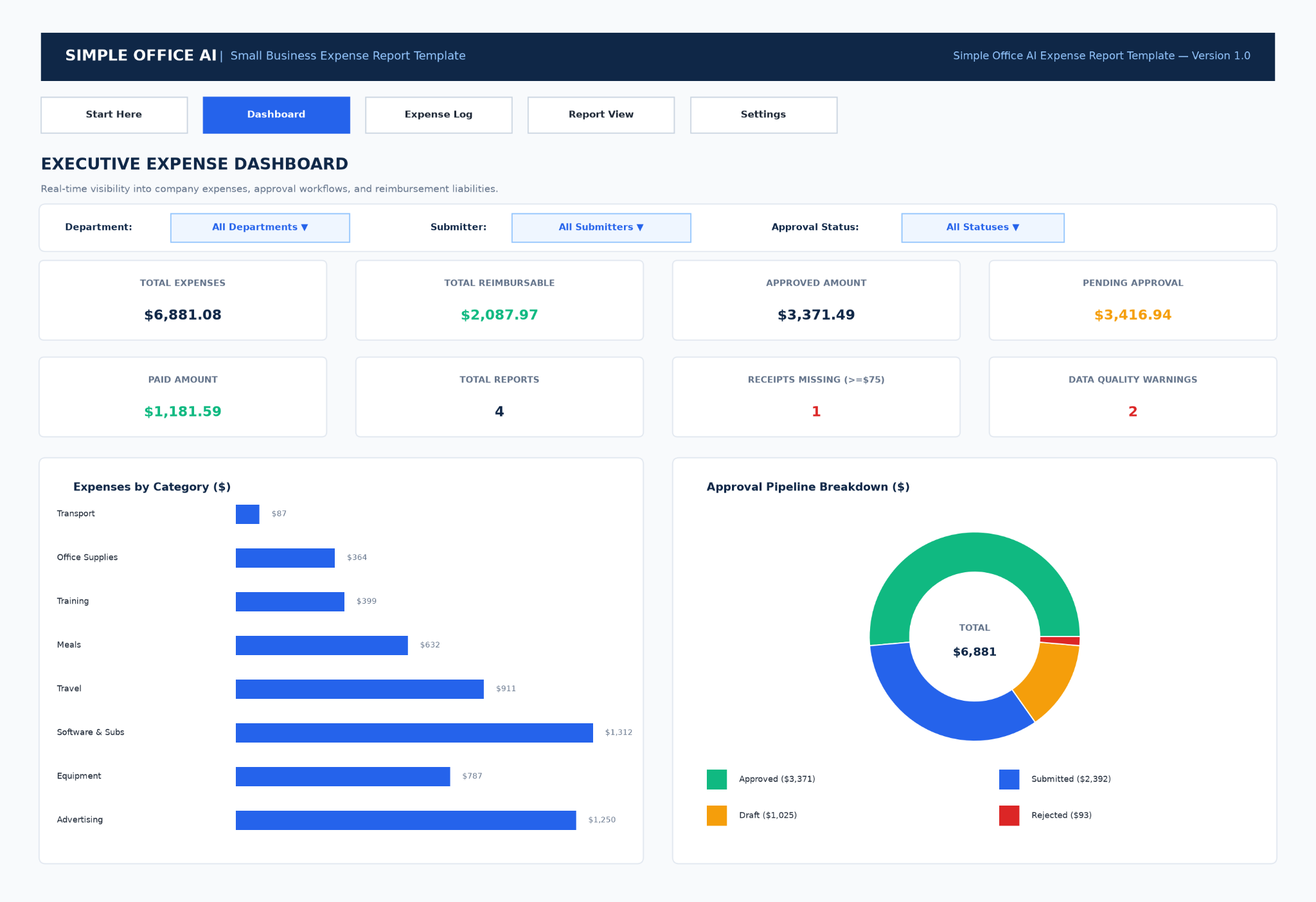
- Dashboard — summarizes total expenses, reimbursable amounts, approved and pending amounts, paid amounts, report count, missing receipts, and data-quality warnings.
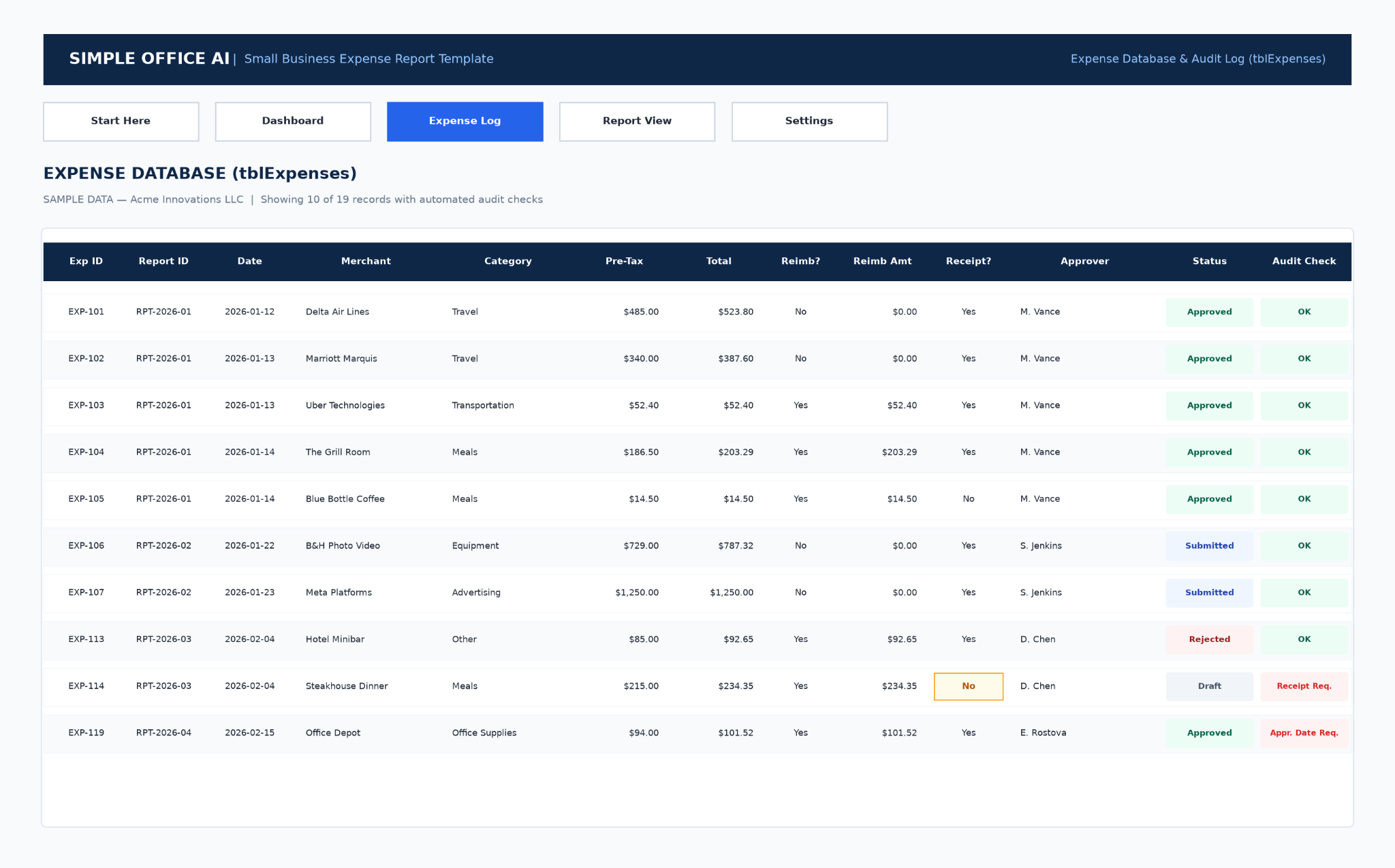
- Expense Log — stores the detailed transactions and workflow fields.
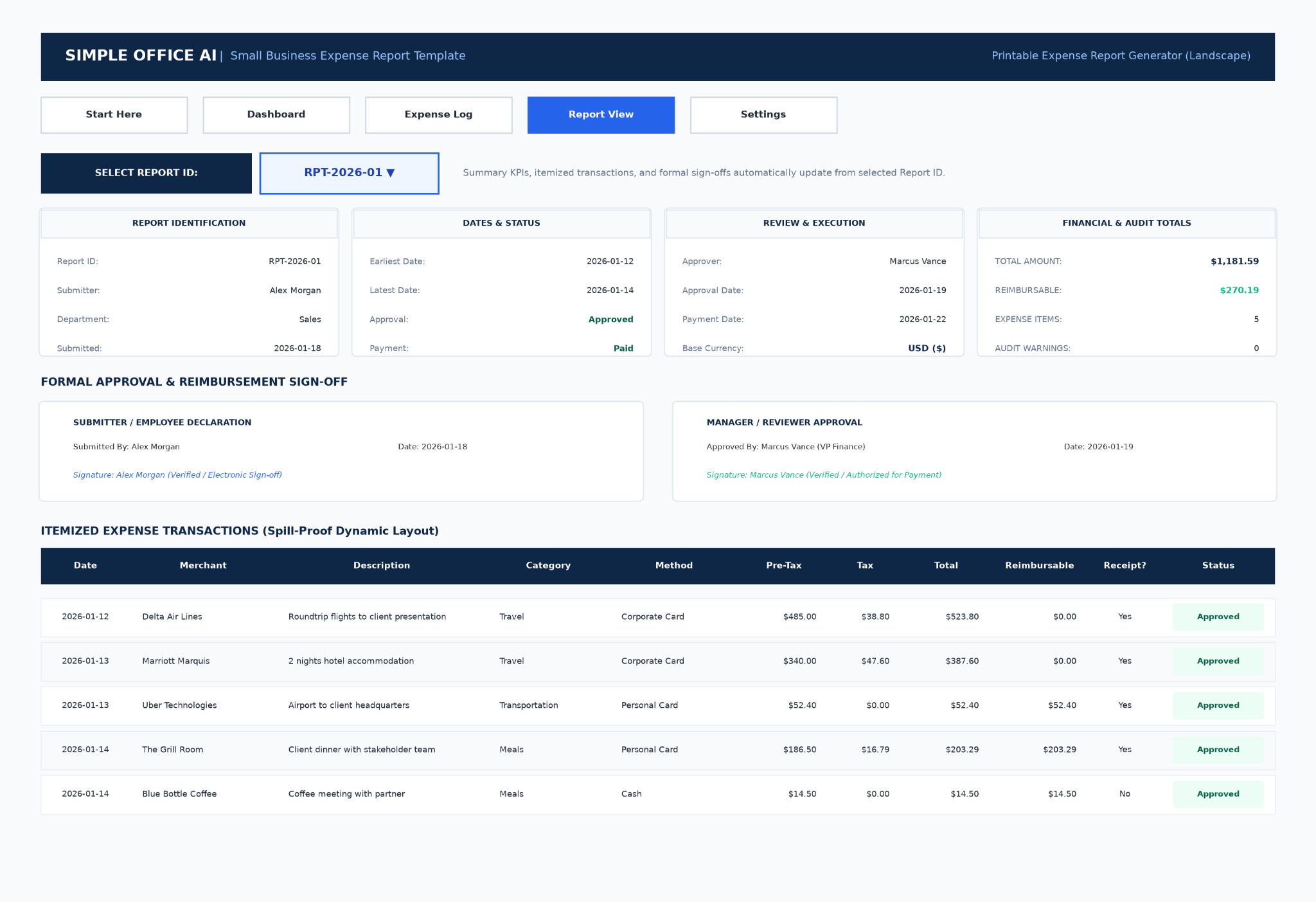
- Report View — turns one Report ID into a summarized, printable expense report with itemized transactions and sign-off sections.
- Settings — controls company information, currency, the receipt threshold, and the lookup lists used by the workbook.
The Expense Log is pre-built for up to 200 expense rows. If you need more capacity, the Start Here instructions explain how to expand the Excel table. The workbook also includes sample demonstration data so you can understand the process before replacing it with your own information.
Expense Report vs. Expense Tracker: Which One Do You Need?
The two tools can contain similar columns, but they solve different administrative problems.
Use an expense tracker for continuous spending records
An expense tracker is an ongoing log. You keep adding expenses as they happen so you can review spending by date, vendor, category, payment method, or receipt status over time.
Use an expense report for submission and reimbursement
An expense report has a defined reporting unit. In this workbook, that unit is the Report ID. Several expense rows can share the same Report ID, allowing one trip, project, employee submission, or reporting period to move through submission, approval, and payment as a group.
That distinction matters for cannibalization and for the user experience. This template is not trying to replace bookkeeping or an always-on expense ledger. It is for businesses that need a repeatable way to package expenses for review and reimbursement.
Who This Expense Report Template Is Designed For
This Excel 365 template can be useful for small organizations that have a manageable number of expense reports and want more structure than a blank form without adopting a full expense-management platform.
- Small-business owners reviewing staff or contractor expenses
- Freelancers submitting reimbursable costs to clients
- Office managers coordinating receipts and approvals
- Team leads reviewing project or travel expenses
- Employees and contractors preparing expense reports for reimbursement
It works best when one workbook can reasonably contain the reporting process. If you need receipt capture from mobile devices, role-based permissions, corporate-card feeds, accounting integrations, or many people editing at the same time, dedicated expense-management software may be a better fit.
Configure the Settings Before You Enter Real Expenses
Start with the Settings sheet. The workbook provides fields for the business name, base currency, currency symbol, and the receipt-required threshold. It also contains the lists used for departments, expense categories, payment methods, approvers, approval statuses, and payment statuses.
The sample file uses USD and a receipt threshold of $75, but that threshold is configurable. It should be treated as a workflow setting, not as a universal receipt rule.
IRS Publication 463 explains that documentary evidence generally is not required for an expense under $75 other than lodging, and it also describes other exceptions and substantiation requirements. Your company may choose a stricter policy, and different facts can require different documentation. Review your own policy and professional advice before relying on a threshold for tax or compliance decisions. See IRS Publication 463.
How to Enter Expenses Safely in the Expense Log
The Expense Log is the detailed database behind the reports. Each expense receives its own row and can include:
- Expense ID and Report ID
- Submitter and department
- Expense date, merchant, and description
- Category and payment method
- Project or client and cost center
- Amount before tax and tax
- Reimbursable status
- Receipt status and receipt reference
- Submission date and approver
- Approval status and approval date
- Payment status and payment date
- Notes and a Data Quality Check result
Use the blue input cells for editable data and avoid overwriting calculated fields. The Start Here sheet specifically identifies Total Amount, Reimbursable Amount, and Data Quality Check as formula-driven columns.
How the automatic totals work
You enter the amount before tax and the tax amount. The workbook calculates the transaction’s Total Amount automatically.
The Reimbursable Amount is separate from the total spend. In the sample data, company-paid items are marked non-reimbursable and show a reimbursable amount of $0, while eligible out-of-pocket items can carry their total into the reimbursement amount. That separation prevents the report from treating every business expense as money owed back to the submitter.
How receipt and data-quality warnings work
The Expense Log includes a receipt field and a separate Data Quality Check column. The sample workbook demonstrates both normal and exception states. For example, it shows a draft meal expense with a missing receipt warning and an approved office-supplies expense with a missing approval-date warning.
The Start Here instructions also state that the data-quality logic can flag missing required fields, missing receipts, approval-date issues, and duplicate IDs. Review the warnings before generating the final report. A green “OK” result means the row has passed the workbook’s current checks; it does not replace your own policy review.
How to Submit, Approve, and Mark Reports as Paid
The workflow uses status fields instead of hiding the process in email threads. The sample approval-status list includes Draft, Submitted, Approved, and Rejected. Payment status includes Not Applicable, Pending, and Paid.
A practical sequence is:
- Enter each transaction and assign the correct Report ID.
- Confirm the receipt status and clear any data-quality warnings that should be resolved.
- Enter the submission date and assigned approver.
- Change the report’s expense rows from Draft to Submitted when they are ready for review.
- After review, set the relevant rows to Approved or Rejected and enter the approval date when appropriate.
- When reimbursement has actually been processed, update the payment status and payment date.
The Dashboard can then summarize the workbook by department, submitter, and approval status. This is useful for seeing whether expenses are still waiting for review without opening every row individually.
Generate and Print a Single Expense Report
The Report View is the part that turns the transaction database into a formal report. Select a valid Report ID and the summary fields and itemized transaction area update for that report.
The view shows the report ID, submitter, department, submission date, date range, approval and payment status, assigned approver, approval and payment dates, base currency, total expenses, reimbursable amount, number of items, and audit-warning count.
It also includes formal submitter and manager/reviewer sign-off sections. The workbook is configured for landscape printing and fits to one page wide; a longer report may continue across multiple pages.
A Realistic Expense Report Example From the Workbook
The sample Report ID RPT-2026-01 demonstrates how one report can contain several different types of expense.
In the sample data, Alex Morgan’s report contains five approved items:
- Delta Air Lines — $523.80 total, company paid, $0 reimbursable
- Marriott Marquis — $387.60 total, company paid, $0 reimbursable
- Uber Technologies — $52.40 total, $52.40 reimbursable
- The Grill Room — $203.29 total, $203.29 reimbursable
- Blue Bottle Coffee — $14.50 total, $14.50 reimbursable
Together, those five transactions total $1,181.59. The reimbursable portion is $270.19. The Report View shows the report as approved and paid, with zero audit warnings in the sample state.
This example highlights why total business spend and reimbursement should not be treated as the same number. Some expenses can be paid directly by the company while others are out-of-pocket costs owed back to the submitter.
Common Expense Report Mistakes to Avoid
Using the same Report ID for unrelated submissions
Report ID is the grouping key. If unrelated expenses share the same ID, they can appear together in Report View. Use a consistent naming system and keep each submission distinct.
Overwriting calculated columns
Do not replace formulas in Total Amount, Reimbursable Amount, or Data Quality Check with typed values. Enter data in the intended input fields and let the workbook calculate the outputs.
Treating the $75 setting as a universal rule
The threshold is configurable and the IRS guidance includes exceptions, including lodging. Your internal policy can also be stricter. Treat the workbook setting as an administrative control, not legal or tax advice.
Approving a report without the supporting date fields
The sample data intentionally demonstrates an approved row with a missing approval date and flags it as a warning. If a status changes, update the related date fields so the report history stays understandable.
Marking a report paid before payment actually occurs
Approval and payment are different stages. Approved means the expense has passed review; Paid should represent the actual reimbursement or payment state.
Using an expense report as a bookkeeping ledger
This workbook can organize report submissions, but it does not replace your accounting records, tax records, bank reconciliation, or professional advice. If you need continuous expense capture instead, use a dedicated tracker or accounting process.
When an Excel Expense Report Is Enough — and When Software Is Better
A spreadsheet can be a practical choice when the workflow is small enough to remain visible. Excel 365 may be sufficient when you have a limited number of submitters, a manageable volume of reports, one main file owner, and a straightforward approval process.
Dedicated expense-management software becomes more attractive when you need features such as:
- Mobile receipt capture and OCR
- Automated corporate-card feeds
- Multi-level approval routing
- User permissions and audit logs
- Real-time multi-user submission at larger scale
- Accounting or ERP integrations
- Automated policy enforcement across many employees
The goal is not to make the spreadsheet imitate enterprise software. Use the workbook while the process is simple enough to control, and move to a dedicated platform when manual coordination becomes the larger cost.
If you are organizing purchasing before money is spent rather than documenting expenses after the fact, the purchase order template guide covers a different part of the workflow.
Download the Free Small Business Expense Report Template
If your business needs a clearer way to collect expenses, verify receipts, record approvals, and prepare reimbursements, download the Excel 365 workbook and start with the sample data before entering your own reports.
Before using the workbook: open the Settings sheet, replace the sample business information, review the receipt threshold and lookup lists, then clear only the intended user-input sample cells. Keep the formula-driven columns intact.
Need an expense or administrative workbook adapted to your own approval rules? See Simple Office AI spreadsheet services. If you already know what is not working in your current file, you can also contact Simple Office AI with a short description of the problem.
Frequently Asked Questions
What should a small business expense report include?
A useful report normally identifies the submitter, reporting group or period, individual expenses, business purpose, amounts, receipt status, approval information, and the amount eligible for reimbursement. This workbook adds payment status and data-quality checks so the report can move through a clear workflow.
Can I use this as a monthly expense report template?
Yes, if monthly reporting matches your process. Assign the month’s selected expenses to one Report ID and generate that report in Report View. The workbook does not force a calendar-month structure, so you can also use Report IDs for trips, projects, client work, or another reporting cycle.
Does the template work in Google Sheets?
Yes. Use the Google Sheets copy button in this article. The Sheets edition uses adapted formulas for the expense log, dashboard summaries, filters, report view, and audit checks. The original Excel 365 workbook remains available as a separate download.
How does the reimbursable amount differ from total expenses?
Total Amount represents the full expense. Reimbursable Amount represents the portion that should be paid back to the submitter. In the sample report, company-paid travel costs remain part of the total expenses but have a $0 reimbursable amount.
Do I need a receipt for every expense?
Use your own company policy and the rules that apply to your situation. The workbook’s $75 threshold is configurable. IRS Publication 463 explains exceptions to documentary-evidence requirements and specifically treats lodging differently, so $75 should not be treated as a universal receipt rule.
Can several employees use the same workbook?
The workbook includes submitter fields, dynamic submitter lists, and dashboard filtering, but it is still one Excel file. For larger teams that need simultaneous submissions, permissions, automated routing, or mobile receipt capture, dedicated expense-management software may be more appropriate.