

Clicking Remove Duplicates in Excel is easy. Deciding which rows Excel should treat as duplicates is the part that can damage a customer list, expense export, inventory file, or other working business record.
Quick answer: Select the dataset → Data → Remove Duplicates → choose the columns Excel should compare → OK.
Before you use that shortcut on a working file, make a copy and decide exactly what “duplicate” means for your data. The safe workflow is to preserve the source, review suspected duplicates, choose the correct comparison columns, remove only what you intend to remove, and then verify the result.
Before You Remove Anything, Decide What “Duplicate” Means
A duplicate cell value is not necessarily a duplicate business record.
| Customer ID | Customer Name | Last Updated | Status | What matters | |
|---|---|---|---|---|---|
| C-1002 | Jordan Lee | jordan.lee@example.com | 2026-07-19 | Active | First copy |
| C-1002 | Jordan Lee | jordan.lee@example.com | 2026-07-19 | Active | Fully identical duplicate |
| C-1003 | Alex Rivera | alex.rivera@example.com | 2026-06-11 | Active | One customer |
| C-1004 | Alex Rivera | alex.rivera2@example.com | 2026-08-21 | Active | Different customer with the same name |
| C-1005 | Sam Patel | sam.patel@example.com | 2026-05-02 | Lead | Older version |
| C-1005 | Samantha Patel | sam.patel@example.com | 2026-08-30 | Active | Newer version |
The two Jordan Lee rows are identical across every field. Removing one is straightforward.
The two Alex Rivera rows share a name, but they have different customer IDs and email addresses. Treating the name alone as the duplicate rule would incorrectly remove a legitimate customer.
The Sam Patel and Samantha Patel rows share a customer ID and email address but contain different dates, names, and statuses. They may represent two versions of the same customer. In that situation, the important question is not simply “Are these duplicates?” It is “Which record should I keep?”
The columns you select in the Remove Duplicates dialog define the comparison rule. If a row is considered a duplicate using those columns, Excel removes the matching row from the selected dataset.
Keep these three cases separate:
- Duplicate cells: repeated values such as the same email address.
- Duplicate rows: records Excel treats as the same according to the selected comparison columns.
- UNIQUE result: a separate formula result containing distinct values or rows; it does not delete the original source data.
How to Remove Duplicates in Excel Safely
1. Make a working copy
Before changing anything, preserve the original worksheet or workbook. For example:
Customer_List_Original.xlsxCustomer_List_Cleanup_2026-09-14.xlsx
Do the cleanup in the working copy. Undo is useful, but it should not replace an untouched source copy.
2. Select the full dataset
Make sure the data has a header row and that every column belonging to each record is included in the selected range. For the sample data, that means selecting the complete customer list from Customer ID through Status, not just the email cells.
Be careful with one-column duplicate rules: using Email as the comparison key does not mean only the email cell disappears. A duplicate match removes the corresponding row from the selected data.
3. Highlight or review duplicates first
If you are unsure what should be removed, inspect the data before deleting anything. Select the field you want to review—for example, Email—then use Home → Conditional Formatting → Highlight Cells Rules → Duplicate Values.
Highlighting duplicates is a review step. It does not remove the records.
For a customer list, look at more than the highlighted email. Compare the customer ID, name, last-updated date, and status as well. A repeated value can be a clue; it is not automatically proof that the entire row is unwanted.
4. Use Data > Remove Duplicates
When you are ready:
- Select the full customer dataset.
- Go to Data → Remove Duplicates.
- Confirm Excel is treating the first row as headers.
- Select the columns that should define a duplicate.
- Select OK.
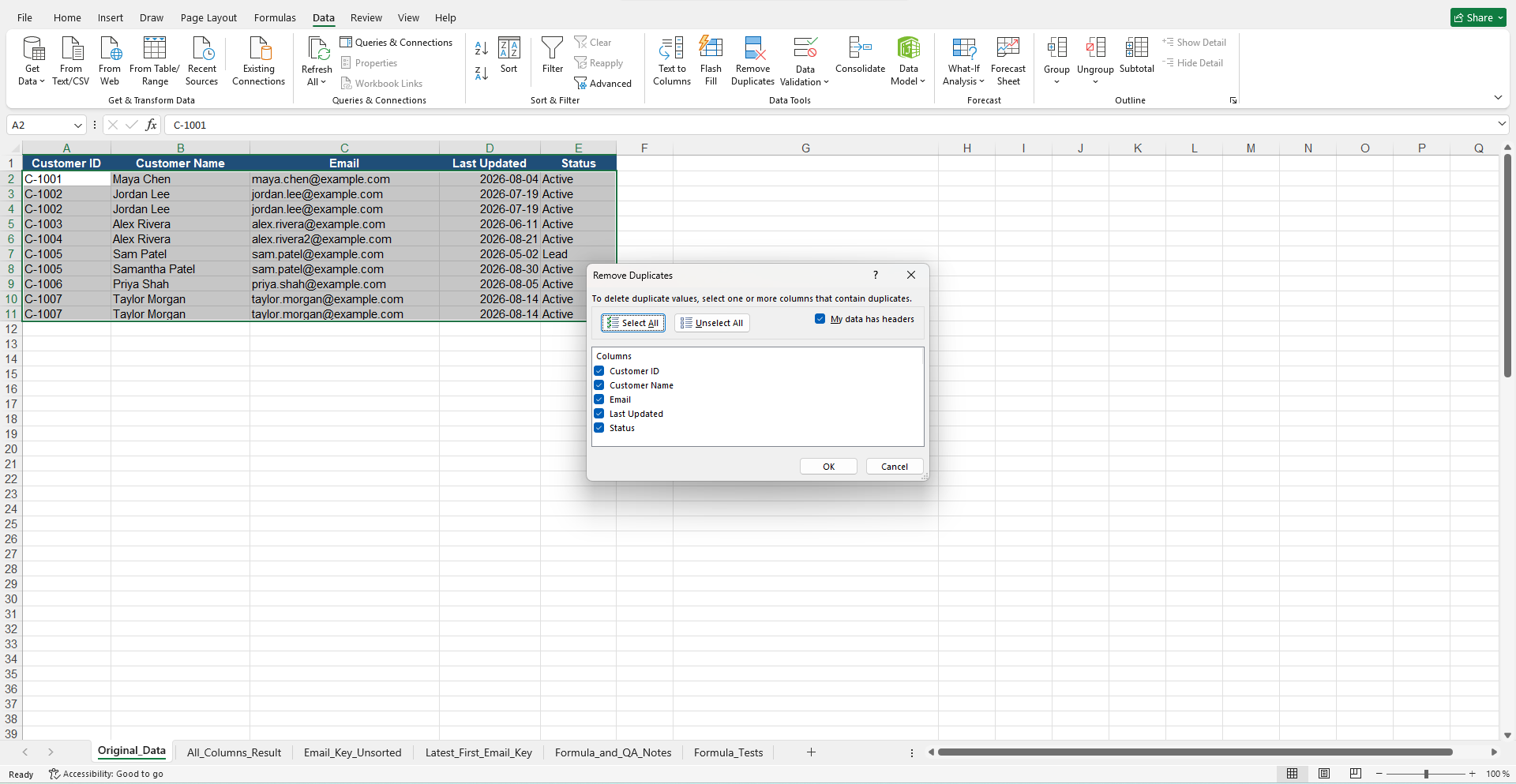
If all five sample columns are selected, the second identical Jordan Lee record qualifies as a duplicate. The Sam/Samantha records do not, because several fields differ. The two Alex Rivera customers also remain separate.
Microsoft documents that Remove Duplicates keeps the first occurrence and removes later matching occurrences. That behavior matters when several rows share the same email or customer ID but contain different information.
5. Verify the result
Record the number of data rows before removal, then check the number afterward. In this sample there are 10 source records. If all five columns define the duplicate rule, only the fully identical Jordan Lee copy should be removed, leaving 9 records.
Then review Excel’s confirmation, spot-check affected customer IDs or other control fields, check totals if the file contains amounts or quantities, compare the cleaned data with the untouched source copy, and save the cleaned workbook under a new filename.
If you test a different duplicate rule later in the worksheet—for example, using Email as the only comparison field—treat that as a separate cleanup pass and verify its before/after counts independently.
If you are cleaning a customer list that will later be maintained in a tracker, this is also a good point to move the cleaned records into a consistent client-management workflow.
How to Remove Duplicate Entries in Excel Based on One Column
Sometimes one field should define the duplicate rule. A common example is an email address: you may decide there should be only one active customer record for each email address.
Select the full dataset, open Data → Remove Duplicates, clear the other comparison columns, and leave Email selected.
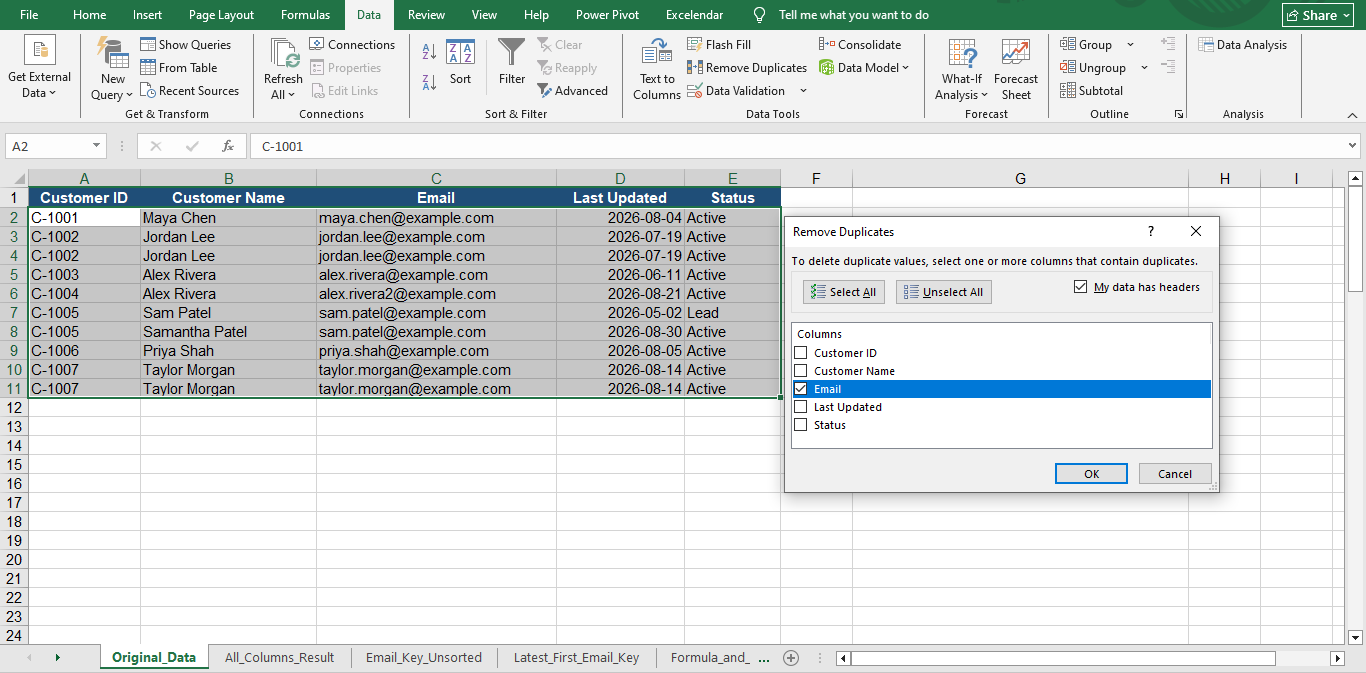
Excel then uses Email as the duplicate key. The other columns remain part of the row, but they do not determine whether the row is considered a duplicate.
In the sample, sam.patel@example.com occurs twice:
- Sam Patel — 2026-05-02 — Lead
- Samantha Patel — 2026-08-30 — Active
If the older Sam Patel record appears first, an Email-only deduplication keeps that first occurrence and removes the later one. That may be the opposite of what you want.
The same warning applies to names. A repeated name such as Alex Rivera is not a safe customer key because two different people can have the same name.
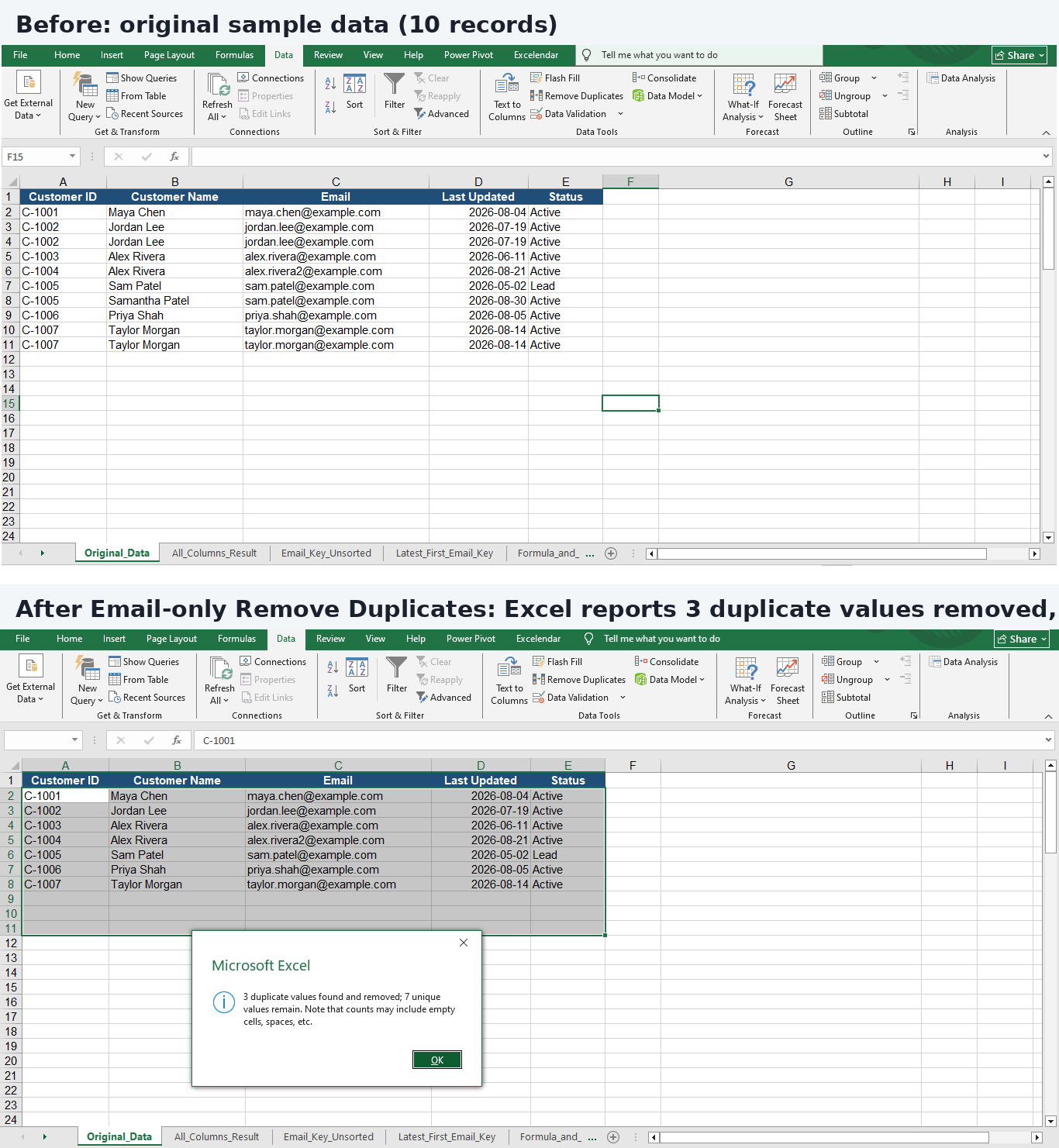
The screenshots below document the tested Email-only workflow on the fictional sample workbook used for this article. The source sheet contains 10 records. After running Remove Duplicates with Email as the duplicate key on the full selected dataset, Excel reports: “3 duplicate values found and removed; 7 unique values remain.” This tested result applies to the Email-only rule in this example, not to the all-five-columns comparison used earlier.
Keep the Latest Record Instead of the First
If your goal is to keep the newest version of each customer, the order of the rows matters.
For a controlled working copy:
- Confirm that Last Updated contains real Excel dates.
- Sort Last Updated from Newest to Oldest.
- Inspect the repeated customer keys.
- Open Data → Remove Duplicates.
- Select the field that identifies the customer, such as Email.
- Remove duplicates.
- Verify the retained rows against the original.
In the sample records, sorting Last Updated newest-to-oldest would place Samantha Patel’s 2026-08-30 record ahead of the older 2026-05-02 version. Microsoft documents that Remove Duplicates keeps the first occurrence it encounters, so this ordering is the basis of the keep-latest workflow. Because the package does not contain a recorded end-to-end execution test of this exact sample, verify the retained row in the working copy before relying on the result.
There are two important limits. First, the date column must contain real Excel dates; dates stored as text may not sort correctly. Second, if two candidate records have the same date, the sort does not tell Excel which one is more accurate or complete. The two Taylor Morgan rows in the sample demonstrate that tie.
For important or high-risk data, flag the candidate duplicates, review the competing rows, and remove unwanted records manually. For large or recurring cleanup jobs, a controlled Power Query workflow may be more appropriate.
Get a Unique List Without Deleting the Original
If you want a clean result without deleting anything from the source data, use the UNIQUE function in a supported Excel version.
For the complete sample range in A2:E11, the supported syntax is:
=UNIQUE(A2:E11)
Microsoft documents that UNIQUE returns a separate array of distinct rows or values rather than deleting the source data. Applied to this sample range, identical complete rows are expected to collapse to one result, while rows that differ in one or more selected fields remain distinct. The package does not contain a recorded Excel execution test of this formula, so treat this behavior as documentation-supported rather than first-hand tested.
If you only need a separate list of email addresses, use:
=UNIQUE(C2:C11)
This returns distinct email values. It does not create a complete cleaned customer-record table because the other fields are not included.
Why Excel May Miss Duplicates That Look the Same
Two cells can look almost identical on screen without containing the same clean data. If spacing, hidden characters, dates, or inconsistent text are preventing reliable matching, use the broader Excel data-cleaning workflow before deciding which records are true duplicates.
The sample deliberately contains one customer name with a leading and trailing space and another without those spaces. Extra spaces can be difficult to notice when scanning a worksheet. Excel’s TRIM function can remove ordinary leading and trailing spaces and reduce repeated internal spaces.
Other cleanup issues to check include numbers stored as text, hidden or nonprinting characters, different displayed formats, and inconsistent data entry.
For an expense export, the same principle applies: standardize the data you intend to compare before deciding which transaction rows are genuinely repeated.
For inventory records, duplicated products or SKUs deserve the same caution because two similar-looking product rows are not necessarily interchangeable.
Which Method Should You Use?
| Situation | Recommended method |
|---|---|
| Completely identical extra rows | Make a backup, review, then use Remove Duplicates |
| Need to see duplicates before deciding | Conditional Formatting or a helper formula |
| Need a separate clean list | UNIQUE |
| Need to keep the newest or most complete record | Sort and test carefully, or use a controlled review/Power Query workflow |
| Repeated imports or large recurring files | Power Query or a professional cleanup workflow |
Working with a large or inconsistent spreadsheet? I can help clean duplicate records, standardize columns, and return a usable Excel file. See the spreadsheet cleanup services.
Final Safety Check
- The untouched original still exists.
- You can explain what fields define a duplicate.
- The correct comparison columns were selected.
- You recorded the row count before and after cleanup.
- Important IDs, quantities, or totals still match your control checks.
- Uncertain records were reviewed instead of automatically discarded.
- The cleaned workbook was saved under a new, versioned filename.
Removing duplicates safely is less about clicking the button and more about defining the rule correctly. If you preserve the source, inspect the repeated records, choose a deliberate duplicate key, and verify the result afterward, Excel’s built-in tools can handle many everyday cleanup jobs without sacrificing the information you meant to keep.
If the spreadsheet is too inconsistent to clean confidently, contact Simple Office AI before removing records you may need later.
Frequently asked questions
Does Remove Duplicates delete the entire record?
When you select a table or full dataset, Excel removes duplicate records within that selected range. The checked columns define the matching key, so select the full dataset before choosing the comparison columns.
Which duplicate does Excel keep?
Excel keeps the first occurrence in the current order. If you need the latest record, sort a working copy by a real update date and verify which row remains.
Can I review duplicates without deleting them?
Yes. Use Conditional Formatting to highlight them or create a separate unique list with UNIQUE in a supported Excel version. Keep the source intact while you review.
Why are two similar rows not treated as duplicates?
Check the selected comparison columns and the actual values. Extra spaces, hidden characters, or different date and number representations can prevent the match you expect.