

This free Google Sheets purchase order template helps you prepare an order, reuse supplier details, and keep a list of open purchase orders.
It includes a Purchase Order form, Suppliers list, and PO Tracker. Enter line items, tax rates, and shipping, then review the total before sending the order. The PO Tracker is updated manually.
Make a Copy in Google Sheets Copy in Google Sheets
Quick start: use the template
- Save your own copy and replace the fictional supplier details in Suppliers.
- Create one Purchase Order with a unique PO number, supplier, items, quantities, prices, tax inputs, and shipping.
- Review the total, then add the order to PO Tracker and update its status as the order progresses.
Creating the order form does not automatically add a row to PO Tracker. Check formulas and dropdowns after converting an XLSX copy to Google Sheets.
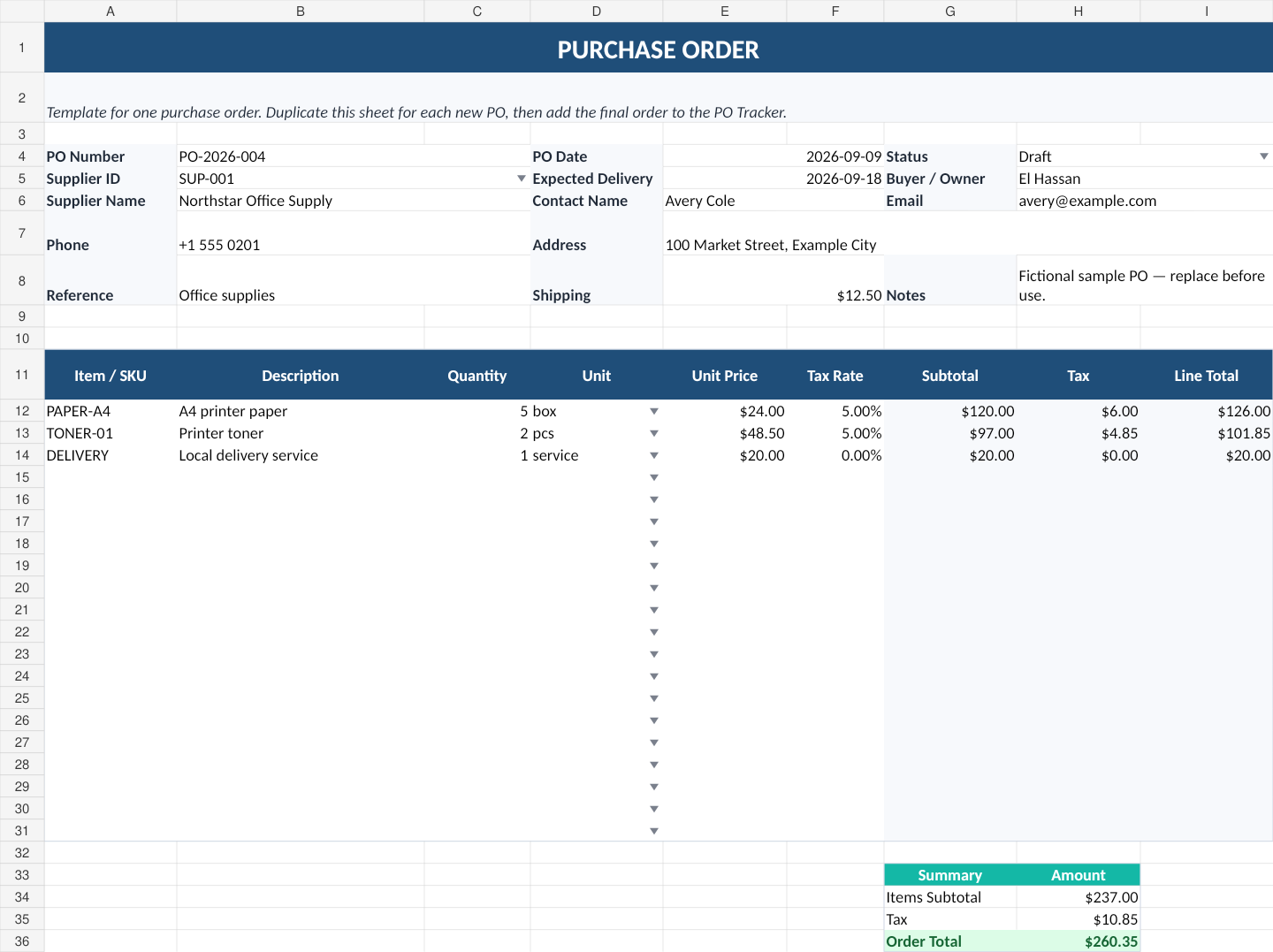
This workbook creates and tracks purchase orders.
Use it to record what your business intends to buy, from which supplier, at what expected cost, and whether the order is still open. It does not create supplier invoices or replace bookkeeping.
Who Is This Purchase Order Template For?
The template is a practical fit when you place a manageable number of orders and need a simple record before moving to dedicated purchasing software.
It can work well for:
- freelancers buying equipment or outside services
- small offices ordering supplies
- small shops replenishing selected items
- service businesses working with several suppliers
- small teams that need one shared list of open and received orders
If your purchasing process already needs approval chains, multiple locations, automated receiving, accounting integrations, or detailed permissions, a spreadsheet may be too limited. I cover that boundary later in the article.
What the Free Google Sheets Purchase Order Template Includes
| Sheet | Purpose |
|---|---|
| Purchase Order | Create one PO with supplier details, line items, tax rates, shipping, and automatic totals. |
| PO Tracker | Keep a list of PO numbers, suppliers, expected delivery dates, status, and order value. |
| Suppliers | Store reusable supplier IDs and contact details. |
| Instructions | Explains the workflow, limitations, tax input, currency, and data-safety notes. |
| Lists | Provides the dropdown values used for PO status and units. |
The supplier names, addresses, emails, PO numbers, and line items in the sample workbook are fictional. Replace them before using the template for real orders.
What Information Should a Simple Purchase Order Track?
A useful small-business PO needs enough information to make the order understandable later without turning the sheet into a form with dozens of unnecessary fields.
| Field | Why It Is Useful |
|---|---|
| PO Number | Gives each order a unique reference. |
| PO Date | Shows when the order was created. |
| Supplier ID | Connects the PO to one supplier record. |
| Expected Delivery | Helps you identify orders that need follow-up. |
| Status | Separates Draft, Sent, Confirmed, Partially Received, Received, and Cancelled orders. |
| Buyer / Owner | Shows who is responsible for the order. |
| Item / SKU | Identifies the product or service being purchased. |
| Quantity and Unit | Records how much is being ordered. |
| Unit Price | Provides the price used to calculate the line subtotal. |
| Tax Rate | Lets you enter the rate that applies to that line when needed. |
| Shipping | Keeps shipping separate from line-item values. |
| Notes / Reference | Stores short operational context that may help later. |
Step 1: Build the Supplier List Once
Start in the Suppliers sheet. Keep one row per supplier and assign a unique Supplier ID such as SUP-001.
The sample supplier table includes:
- Supplier ID
- Supplier Name
- Contact Name
- Phone
- Address
- Notes
The workbook highlights duplicate Supplier IDs. It also flags email entries that do not contain an @ symbol. That is a basic warning rather than full email validation, but it catches an obvious entry problem before the supplier list becomes difficult to trust.

Step 2: Choose the Supplier Instead of Retyping Contact Details
On the Purchase Order sheet, choose a Supplier ID from the dropdown. The workbook then fills the supplier name, contact name, email, phone, and address from the Suppliers sheet.
For example, the supplier-name lookup uses:
=IFERROR(VLOOKUP($B$5,Suppliers!$A$5:$G$104,2,FALSE),"")The same idea is used for the other supplier fields with a different column number.
This is useful for a simple reason: the address and contact details live in one supplier record. If you need to update a supplier, you are not fixing the same typo across a collection of old blank templates.
Step 3: Give Every Purchase Order a Unique Number
Enter a PO number before you start adding line items. A simple sequence such as PO-2026-001, PO-2026-002, and so on is easier to follow than names such as “Office Order September.”
The workbook includes a duplicate warning: if the PO number already appears in the PO Tracker, the PO-number field is highlighted.
This is a warning, not an automatic numbering system. You remain in control of the numbering pattern, which keeps the workbook usable without scripts or macros.
Step 4: Add the Items or Services You Are Ordering
The line-item area is prepared for up to 20 entries in the supplied template.
For each line, enter:
- Item / SKU
- Description
- Quantity
- Unit
- Unit Price
- Tax Rate, if needed
The spreadsheet calculates the rest.
The line subtotal formula is:
=IF(OR(C12="",E12=""),"",C12*E12)The tax amount is:
=IF(G12="","",G12*F12)And the line total is:
=IF(G12="","",G12+H12)Formula-driven cells are visually separated from the fields you normally type into, which makes it easier to avoid overwriting a calculation accidentally.
Step 5: Treat Tax as an Input, Not a Guess
The workbook does not decide which tax rate applies to your purchase. You enter the rate yourself for each line when a tax amount is relevant.
That limitation is intentional. Tax treatment can depend on location, supplier, product, and business circumstances. A general spreadsheet template should not pretend it can determine that for you.
The sample workbook uses USD formatting because the primary Simple Office AI audience is in the United States. If you use another currency, change the number format in the workbook before using it for real orders.
Step 6: Add Shipping Once and Review the Order Total
Shipping is entered separately in the PO header. The final order total combines all line totals with the shipping value:
=SUM(I12:I31)+E8This keeps the math visible. You can see the items subtotal, the tax total, and the final order total instead of relying on one hidden number.
Step 7: Track the PO After You Create It
A purchase order is only useful if you can find it again when the delivery is late.
The PO Tracker includes:
- PO Number
- PO Date
- Supplier ID
- Supplier Name
- Expected Delivery
- Status
- Order Total
- Notes
It also shows a small summary with Total POs, Open POs, Past Due Deliveries, Received orders, and Tracked Order Value.

Expected-delivery dates that have passed are highlighted when the order is not Received or Cancelled. That gives you a useful follow-up signal without building a separate reminder system.
Why the PO Tracker Is Manual
I could make the workbook more complicated by trying to pull values automatically from every duplicated purchase-order sheet. I did not.
For this template, the simpler workflow is more reliable:
- Duplicate the Purchase Order sheet.
- Create the order.
- Save or share the PO as needed.
- Add one summary row to the PO Tracker.
- Update the status when the supplier confirms or the order arrives.
That extra tracker row takes a few seconds, but it avoids scripts, macros, and fragile references between sheets that users may rename.
What I Tested Before Calling the Template Finished
I tested more than the sample values.
First, I switched the Supplier ID on the Purchase Order sheet from one fictional supplier to another. The supplier name, contact name, email, phone, and address changed to the selected supplier as expected.
Then I added a temporary line item with quantity 3, unit price 10, and a 10% tax rate. The workbook returned a subtotal of 30, tax of 3, and line total of 33.
I also checked that the sample PO summary matches the line-item math: Items Subtotal 237.00, Tax 10.85, Shipping 12.50, and Order Total 260.35.
One mismatch was found during QA: the first sample row in the PO Tracker had an order total that did not match the sample purchase order. I corrected the tracker value before producing the final workbook.
Finally, I scanned the workbook for common spreadsheet errors including #REF!, #DIV/0!, #VALUE!, #NAME?, and #N/A. The final scan returned no matches.
Common Purchase Order Spreadsheet Mistakes
A clean template can still become unreliable if the workflow around it is inconsistent.
- Reusing the same PO number: use one unique reference per order.
- Retyping supplier details every time: maintain one supplier list and use the Supplier ID dropdown.
- Forgetting expected delivery: without a date, you lose one of the most useful follow-up signals.
- Mixing purchase orders and expenses: the PO records what you intend to buy; keep actual business spending in your expense system.
- Typing over formula columns: edit the white input fields and leave calculated fields alone.
- Leaving old POs as Draft: update the tracker so open-order counts still mean something.
When Is a Spreadsheet No Longer Enough?
This template works best when purchasing is still simple.
You will probably need dedicated purchasing or procurement software when you need:
- multi-step approvals
- purchase requests from many employees
- automatic three-way matching
- supplier portals
- inventory receiving across several locations
- advanced permissions
- automatic accounting-system integration
- large purchase-order volumes
At that point, trying to turn one spreadsheet into an entire procurement platform usually creates more work than it saves.
Download the Free Google Sheets Purchase Order Template
The Simple Office AI Purchase Order Template includes the purchase order form, automatic supplier lookup, 20 prepared line-item rows, automatic subtotal/tax/total formulas, supplier list, PO tracker, status dropdowns, duplicate warnings, instructions, and data-safety notes described in this guide.
Before using the workbook, replace the fictional suppliers and sample purchase data. After converting the XLSX file to Google Sheets, check the formulas, dropdowns, date formatting, and warning rules in your copy.
Connect Purchase Orders With Your Other Admin Systems
If the purchase is for physical stock, use the Excel inventory template for small business to track stock quantities and reorder levels separately from the purchase order itself.
When the spending actually occurs, use the Google Sheets expense tracker to keep business expenses separate from orders that may still be Draft, Sent, or Confirmed.
Frequently asked questions
Does filling out the Purchase Order add it to PO Tracker?
No. Add or update the tracker row yourself. The order form and the tracker serve different jobs.
How many line items are prepared in the form?
The form includes 20 prepared line-item rows. Extend the formulas and formatting carefully if you need a larger order.
Does the template choose the correct tax rate?
No. Tax rates are inputs. Enter the rates that apply to your order and review the total before sending it.
Can I use the purchase order template in Google Sheets?
Use the Google Sheets copy option or open and convert an XLSX working copy. Check supplier lookups, totals, dropdowns, dates, and warning rules in your chosen version.
Need a Purchase Order Spreadsheet Built Around Your Business?
The free template is intentionally simple. If you need custom supplier fields, different approval statuses, several currencies, more line items, a branded PO layout, or a tracker that matches an existing Excel or Google Sheets system, Simple Office AI can build a cleaner version around your workflow.
See the Spreadsheet Services page or contact Simple Office AI with a short description of what you need.
Written for Simple Office AI by El Hassan Arkhis, with a focus on practical spreadsheet and administrative systems for small businesses.
This template is an administrative organization tool. It does not determine tax treatment or replace accounting, procurement, legal, tax, or compliance advice or systems that may apply to your business.