

This free Excel inventory template for small business keeps products, current quantities, minimum stock levels, suppliers, and stock movements in one workbook.
Quantity is updated manually. Stock Movements is an audit log; recording a sale or delivery there does not change the Quantity in Inventory List automatically.
Choose your version:
Download Excel TemplateDownload Excel Make a Copy in Google SheetsCopy in Google Sheets
Quick start: use the template
- Download a working copy and replace the sample products and suppliers.
- In Inventory List, enter each product’s current Quantity and minimum stock level.
- When stock changes, record the movement in Stock Movements and update Quantity in Inventory List. Review the dashboard for low-stock items.
If you use Google Sheets, check formulas, charts, and formatting in your own copy before relying on it.
This is an ongoing inventory tracker, not just a stock-count sheet.
Use it to maintain quantities, minimum levels, suppliers, movements, and inventory value between physical counts.
What Is Included in the Inventory Template?
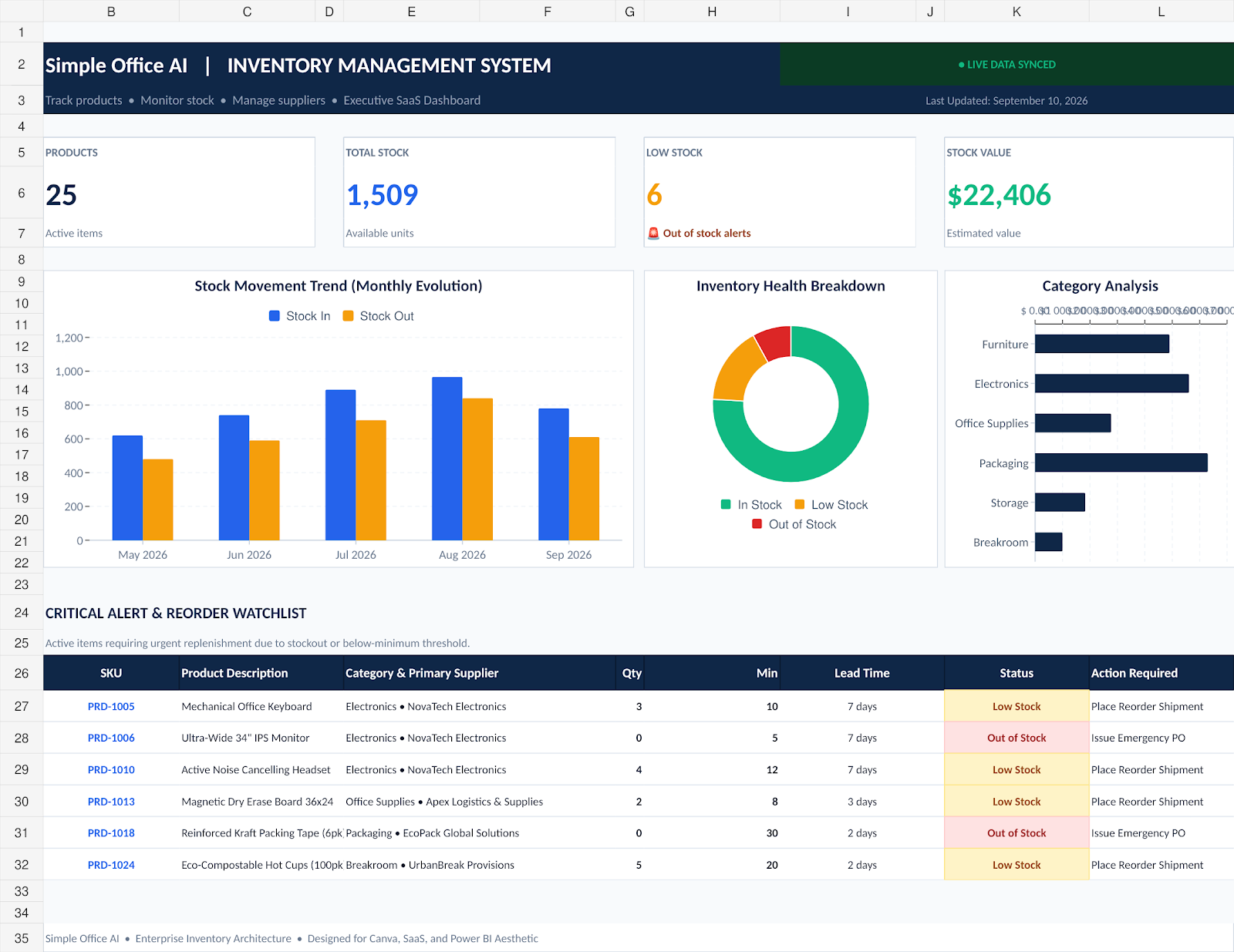
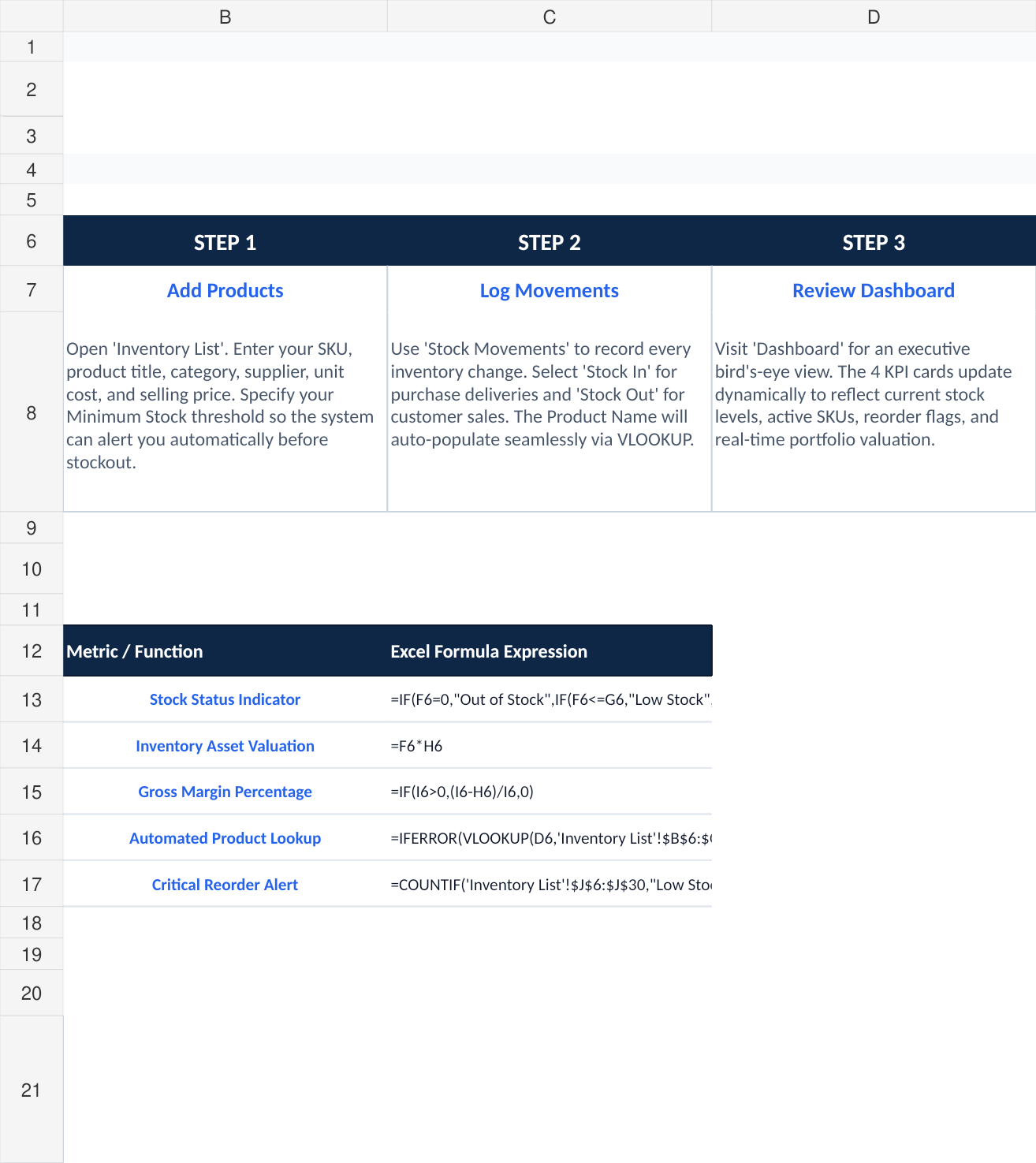
This is not a one-sheet inventory list. The workbook contains five connected sections, each with a specific job.
| Sheet | What it is for |
|---|---|
| Dashboard | Gives a quick view of products, total stock, low-stock items, inventory value, and visual summaries |
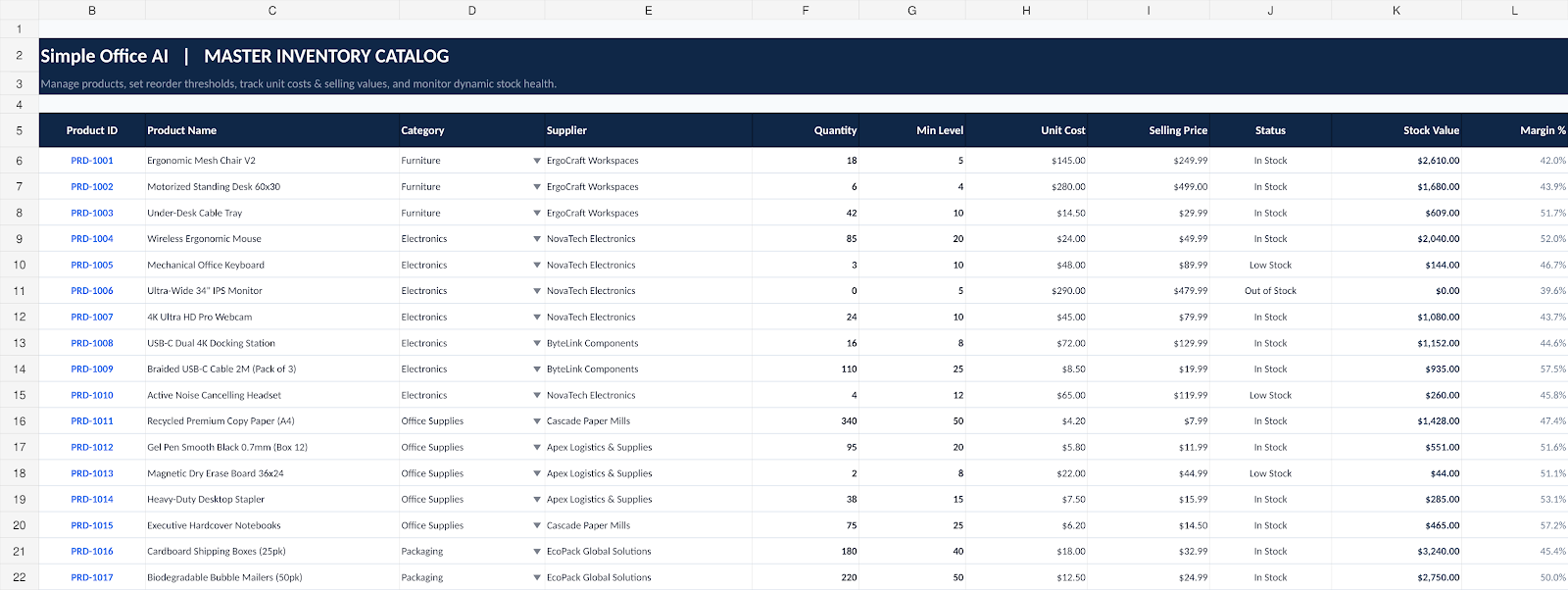
| Inventory List | Stores product details, quantities, reorder levels, costs, selling prices, stock status, and stock value |
| Stock Movements | Records stock-in and stock-out transactions and keeps a movement history |
| Suppliers | Keeps supplier contacts, categories, lead times, payment terms, and notes in one place |
| Instructions | Explains the workflow, formulas, and basic maintenance routine |
The workbook already contains sample data so you can see how the system works before replacing it with your own information. The sample product and supplier details are examples only; they are not meant to represent real vendors.
1. Start With the Inventory List
The Inventory List is the main control sheet.
For each product, you can enter:
- Product ID or SKU
- Product name
- Category
- Supplier
- Current quantity
- Minimum stock level
- Unit cost
- Selling price
The template then calculates three useful fields automatically.
Stock status. If quantity is zero, the product is marked Out of Stock. If quantity is at or below the minimum level, it is marked Low Stock. Otherwise, it is marked In Stock.
Stock value. The workbook multiplies current quantity by unit cost, giving you an estimate of how much money is currently tied up in each product.
Margin percentage. The template compares selling price with unit cost so you can quickly see the gross margin built into your current price.
This is useful because you do not have to scan every row manually. A product with a problem becomes visible through its status instead of being hidden inside a long list.
A simple example
Imagine you sell office equipment and have a keyboard with:
- Quantity: 3
- Minimum level: 10
- Unit cost: $48
- Selling price: $89.99
Because the quantity is below the minimum level, the status changes to Low Stock. The stock value is calculated from the three units currently on hand, while the margin percentage helps you review whether the selling price still makes sense.
The point is not the sample product itself. The useful part is the rule: every product is checked against the reorder threshold you choose.
2. Set a Minimum Stock Level for Every Important Product
A stock tracker becomes much more useful when it tells you what needs attention before you run out.
The Min Level column is where you set that threshold.
There is no single perfect reorder level for every business. A product that sells every day may need a larger buffer than an item you sell twice a month. Supplier lead time also matters. If a supplier normally takes ten days to deliver, waiting until only one unit remains may be too late.
A simple starting point is:
Minimum stock = expected demand during supplier lead time + a small safety buffer
For example, if you normally sell about two units per day and your supplier takes five days to deliver, you would expect around ten units of demand during that lead time. You can then add a buffer based on how predictable your sales are.
The template does not try to forecast demand automatically. You remain in control of the minimum level, which is usually easier for a small business that already understands its fast-moving products.
3. Record Stock In and Stock Out
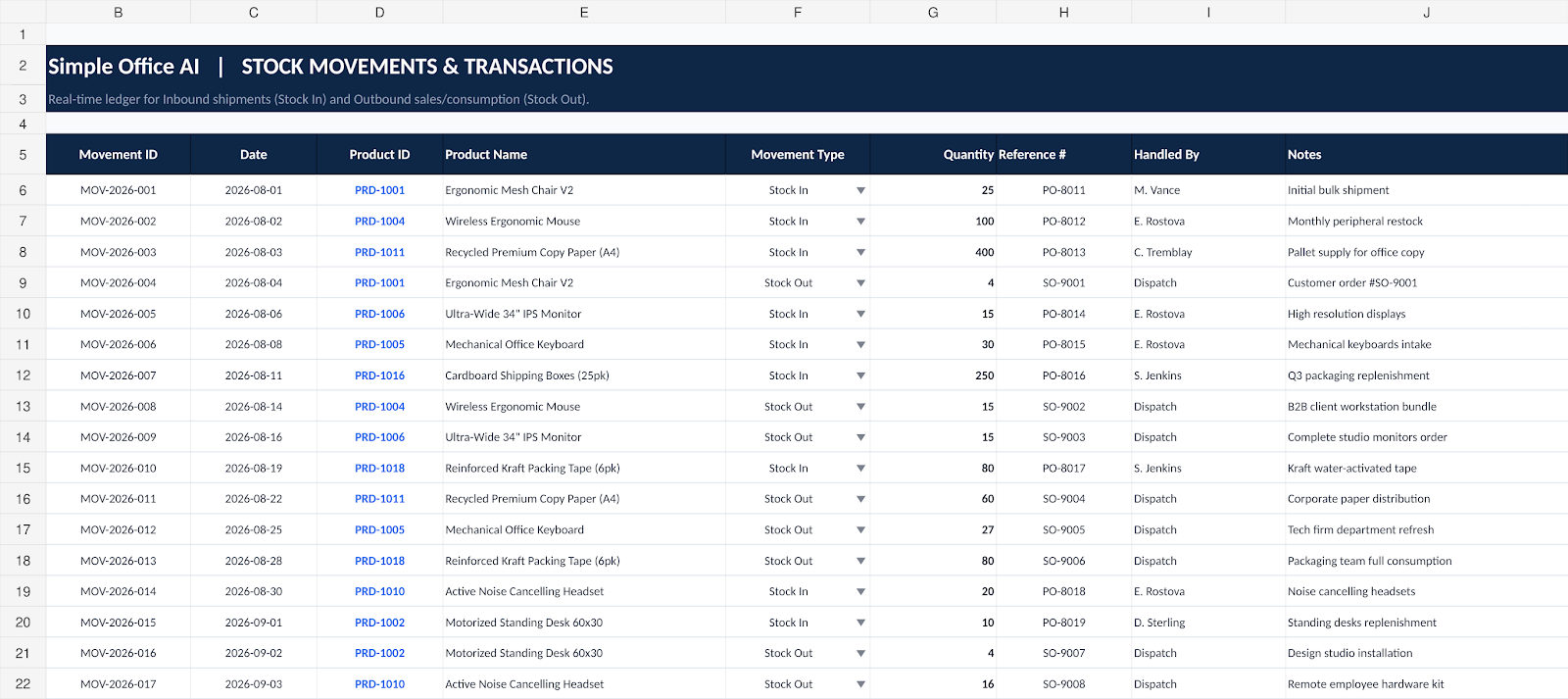
The Stock Movements sheet gives you a separate transaction log for inventory changes.
Each movement can include:
- Movement ID
- Date
- Product ID
- Product name
- Movement type
- Quantity
- Reference number
- Person handling the movement
- Notes
When you enter a valid Product ID, the Product Name field uses a lookup formula to pull the matching name from the Inventory List. That reduces repeated typing and makes the movement log easier to read.
Use Stock In for events such as:
- New supplier delivery
- Returned item put back into stock
- Opening stock adjustment
Use Stock Out for events such as:
- Customer sale
- Damaged item
- Internal consumption
- Inventory adjustment
Important: how quantity works in this version
The movement sheet is an audit log. In the current version of the template, it does not calculate the Inventory List quantity from the movement history automatically.
When stock changes, use this routine:
- Record the transaction in Stock Movements.
- Update the current Quantity in Inventory List.
- Let the status, stock value, and dashboard update from the new quantity.
This extra step keeps the workbook simple and easy to understand. If you need opening-balance calculations, barcode scanning, multi-location stock, or fully automatic quantity reconciliation, you are moving into a more advanced inventory system.
4. Keep Supplier Information Next to Your Inventory
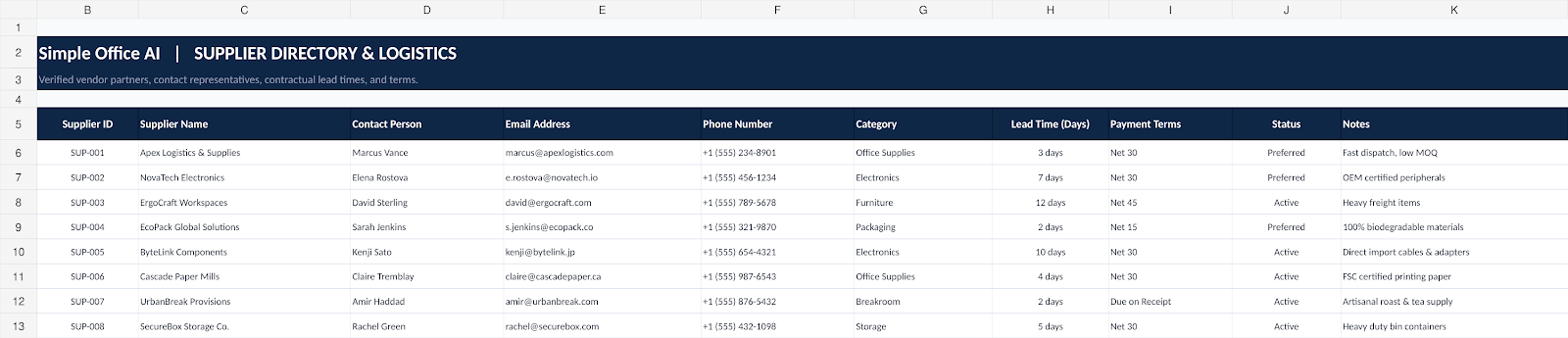
A low-stock warning is only useful if you can quickly act on it.
The Suppliers sheet keeps the information you normally need when it is time to reorder:
- Supplier ID
- Supplier name
- Contact person
- Phone
- Product category
- Lead time
- Payment terms
- Supplier status
- Notes
Instead of searching old emails for a supplier contact, you can keep the basic purchasing information in the same workbook as your inventory.
The included supplier records are sample data. Replace them with your real suppliers before using the workbook for day-to-day business.
5. Use the Dashboard for a Quick Weekly Review
The Dashboard is designed for the question most owners actually ask:
What needs my attention right now?
At the top, the workbook summarizes four main figures:
- Number of products
- Total units in stock
- Number of low-stock or out-of-stock items
- Estimated stock value
It also includes visual summaries for stock health, product categories, and stock movement information.
A useful routine is to open the dashboard once a week and look at the low-stock number first. If that number is greater than zero, go to the Inventory List, identify the affected products, check your supplier details, and decide what needs to be reordered.
The dashboard is not meant to replace the detailed sheets. It is the starting point that tells you where to look.
6. A Five-Minute Weekly Inventory Routine
A template only helps if it becomes part of a routine. You do not need to rebuild the spreadsheet every week.
Try this simple process:
- Open the workbook on the same day every week.
- Update current quantities for the products that changed.
- Add missing stock-in or stock-out records.
- Review anything marked Low Stock or Out of Stock.
- Check supplier lead times before reordering.
- Review total stock value for any unusual change.
- Save a backup copy before making large structural changes.
For a very small business, this may take only a few minutes. The important part is consistency.
If several employees are changing inventory throughout the day, a single Excel file can become harder to control. In that situation, Google Sheets or dedicated inventory software may be a better next step because multiple people may need access at the same time.
Excel Version or Google Sheets Version?
The primary download for this template is the Excel workbook.
If you prefer Google Sheets, you can also create a browser-based copy:
- Upload the Excel file to Google Drive.
- Open it with Google Sheets.
- Save it as a native Google Sheets file.
- Check the formulas, charts, and formatting after conversion.
- Keep the master file view-only.
- Share a
/copylink so each visitor creates their own editable copy.
Because Excel and Google Sheets do not always render charts and formatting identically, the Google Sheets version should be tested after conversion before you share it publicly.
What This Template Does Well
This workbook is a good fit when you want:
- One file for your main inventory records
- A clear list of products and quantities
- Low-stock and out-of-stock status
- Basic stock valuation
- Margin visibility
- Supplier records
- A stock movement history
- A management dashboard
- A system you can customize without learning new software
It can work particularly well for a small shop, home-based business, freelancer selling physical products, small office, or a small team with a manageable product catalog.
When Excel Is No Longer Enough
A spreadsheet is not always the right long-term solution.
You should consider dedicated inventory software when you need features such as:
- Automatic stock deduction from sales
- Barcode scanning at high volume
- Multiple warehouses or locations
- Purchase order automation
- Real-time integrations with ecommerce platforms
- Accounting synchronization
- Serial or batch tracking
- User permissions and detailed audit controls
- Many employees editing inventory at the same time
That is not a failure of the spreadsheet. It simply means the business has reached a level where the cost of manual work is higher than the cost of more specialized software.
For a smaller operation, however, a well-designed Excel inventory tracker can be a practical place to start.
Common Inventory Spreadsheet Mistakes to Avoid
Using product names without unique IDs
Two products can have very similar names. A simple SKU or Product ID makes lookups and movement records much safer.
Setting the same minimum level for everything
Fast-moving and slow-moving products should not automatically use the same reorder threshold.
Recording movements but not correcting stock
If you log a stock-out movement but forget to update the Inventory List quantity in this version of the workbook, the dashboard will still reflect the old quantity.
Deleting formulas
The Status, Stock Value, Margin, and summary cells contain formulas. Replace the input data, but avoid overwriting calculated columns unless you know exactly what you are changing.
Never reviewing supplier lead time
A low-stock warning is more useful when you know how long replenishment takes. A supplier with a two-day lead time creates a different risk from one that needs two weeks.
Frequently Asked Questions
Does Excel have an inventory template?
Yes. You can manage inventory in Excel with a ready-made workbook like this one instead of building the structure from scratch. The important part is choosing a template that matches your workflow and understanding which fields are manual versus calculated.
Is this Excel inventory template free?
Yes. The Simple Office AI Excel version is provided as a free template that you can customize for your own small business.
Can I use it in Google Sheets?
Yes, you can upload the Excel workbook to Google Drive and convert it to Google Sheets. Test the converted version before using it because some visual formatting may change.
Does the template automatically update stock from transactions?
Not in the current version. Stock Movements keeps the transaction history, while the current Quantity is maintained in the Inventory List. The calculated status, stock value, margins, and dashboard then update from that quantity.
Can I add more products?
Yes, but if you expand beyond the prepared product area, make sure the formulas, summaries, charts, and ranges are extended as well. For a larger catalog, it may be better to create a customized version.
Download the Free Excel Inventory Template With Formulas
This free Excel inventory template with formulas is designed to help a small business track quantities, low-stock status, stock value, margins, suppliers, and inventory activity in one workbook.
If you want a cleaner way to manage a small product catalog, start with the workbook and adapt it to your own business.
Replace the sample products, suppliers, and movements with your own information, set realistic minimum stock levels, and make the weekly dashboard review part of your normal admin routine.
Need a Custom Inventory System?
A generic template is not always enough.
Simple Office AI can help small businesses clean up existing Excel files, build custom inventory trackers, organize supplier and purchasing records, and create simple admin systems around the way the business actually works.
If your current inventory file is messy, duplicated, or difficult to maintain, a customized workbook may save more time than trying to force your process into a generic template.
See Simple Office AI services →View services
Final Thoughts
Inventory management does not have to start with expensive software.
For a small business, the first useful step is simply knowing what you have, what is running low, what it is worth, and who supplies it. This Excel inventory template brings those basic tasks into one organized workbook.
Start with the Inventory List, set your reorder levels, keep movements recorded, and review the dashboard regularly. If the business grows beyond what a spreadsheet can comfortably handle, you will then have cleaner data and a better process to take into the next system.